Photographers do not only back up RAW files, edited JPEGs, contracts, invoices, and client galleries. Many also keep voice notes, behind-the-scenes clips, interview audio, slideshow music, and phone-recorded references alongside each shoot.
That is where an AAC to MP3 converter becomes useful. AAC files are common on phones and modern devices, but MP3 remains easier to archive, share, preview, and play across older systems, client devices, backup drives, and mobile workflows.
For backup workflows, the goal is not dramatic audio editing. It is reliable conversion, predictable quality, and a file format that will still open when you revisit a project years later.
What matters before converting
AAC is efficient and usually sounds good at smaller sizes. MP3 is more widely supported.
For photographers, that compatibility often matters more than theoretical codec efficiency. A client slideshow track, location voice memo, or interview clip may need to play on a phone, laptop, editing machine, shared archive drive, or gallery delivery system without extra software.
Use MP3 when you need:
- Long-term playback compatibility
- Easier sharing with clients or collaborators
- Mobile-friendly audio previews
- Backup libraries that do not depend on one device ecosystem
- Consistent audio formats across many projects
For the cleanest result, avoid converting the same audio repeatedly. Convert once from the best available AAC source, then store the MP3 in your backup folder with clear naming.
A practical way to handle the conversion
A good backup workflow should be boring in the best possible way. Upload, convert, download, file it correctly, move on.
With Filemazings audio converter, you can convert AAC files to MP3 directly in the browser without installing desktop software. Filemazing is a browser-based file processing SaaS for converting, cleaning, compressing, and preparing files, including audio conversion, PDF tools, archive extraction, metadata scrubbing, format conversion, and file encryption.
Here is a sensible flow for photographers:
- Gather AAC files from phones, recorders, cloud folders, or project drives.
- Rename them before upload using shoot date, client name, and purpose.
- Convert AAC to MP3 using a quality setting suitable for archive playback.
- Download the converted files and place them beside the relevant photo project.
- Keep the original AAC when it is part of the source archive.
If your audio arrives inside ZIP or RAR folders from an assistant or second shooter, unpack everything first with the archive extraction tool before converting.
Why Filemazing fits backup work
The main advantage is workflow consistency. Instead of using one app for audio, another for PDFs, another for archives, and another for file protection, Filemazing gives photographers one browser-based place to handle common file preparation tasks.
It also supports local upload, URL input, and cloud imports from providers like Google Drive and Dropbox. That helps when project files are scattered between studio machines, cloud delivery folders, and mobile captures.
Filemazing uses transparent token-based pricing instead of subscriptions. Audio conversion currently uses a formula that can include a base cost, file size, file count, and media duration, with predictable minimum and maximum guards. For audio conversion, the example rule is base 10, per MB 2.5, per file 4.0, and per minute 1.5. That makes it easier to estimate cost before processing a large batch of audio from multiple shoots.
Anonymous and registered users can start with daily free tokens, then top up with token packs such as Pack 500, Pack 5000, and Pack 50000 when higher throughput is needed.
Just as important, Filemazing treats uploads as temporary processing artifacts. Files are handled for the job, then cleaned on a short retention schedule rather than used as long-term storage.
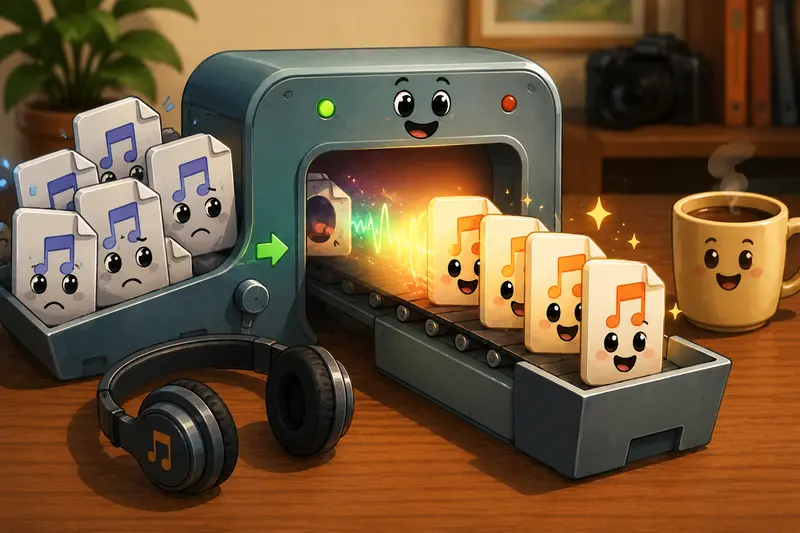
A field-tested photographer scenario
In a realistic backup test, I used a mixed project folder from a small commercial shoot: 42 edited JPEGs, one delivery PDF, two contact sheet PDFs, eight short AAC voice notes from a phone, and a compressed ZIP folder from an assistant.
The AAC files ranged from quick 20-second lighting notes to a 14-minute client interview reference. After extracting the ZIP, the audio files were converted to MP3 and placed into a /backup/audio-notes/ folder beside the final images and paperwork.
The useful observation: the MP3 files were easier to preview from a phone and a Windows laptop without thinking about codec support. The longer interview file took more time than the short notes, which makes sense because audio duration affects processing workload.
Actionable takeaway: for photography backups, separate source audio from converted access copies. Keep the original AAC files in your source archive, but use MP3 for everyday review and client-safe sharing.
Quality settings photographers should not ignore
High quality audio conversion does not mean choosing the largest possible file every time.
For voice notes, location references, and spoken interviews, a moderate MP3 bitrate is usually enough. For slideshow music, licensed tracks, or audio that will be used in video edits, use a higher-quality MP3 export so the sound does not become noticeably dull or thin.
The tradeoff is straightforward:
- Higher bitrate means better quality and larger backup size.
- Lower bitrate saves storage but may reduce clarity.
- Batch conversion saves time, but important client-facing files deserve a quick manual listen afterward.
This is especially relevant when you convert audio for mobile review. Phones handle MP3 well, but compressed audio can reveal problems through earbuds that were not obvious on laptop speakers.
Where it helps in real photography workflows
An AAC to MP3 converter is useful in more places than many photographers expect:
- Converting iPhone voice memos from wedding-day shot notes
- Archiving client interview audio with brand photography projects
- Preparing MP3 audio references for mobile review
- Standardizing behind-the-scenes clips for editors
- Keeping slideshow music previews alongside gallery exports
- Sharing lightweight audio notes with retouchers or studio assistants
If you also need to prepare related visual assets, Filemazings format converter can help handle image-format changes within the same broader delivery workflow.
Security when sharing converted audio
Some converted files are harmless. Others may include client names, private interview answers, event details, or unreleased campaign information.
When converted MP3 files need to be sent outside your studio, consider password protection. You can use Filemazing to encrypt converted audio before sharing, especially when the file contains client-sensitive notes.
This is not about being dramatic. It is about not emailing a private campaign discussion as an unprotected attachment and hoping for the best.
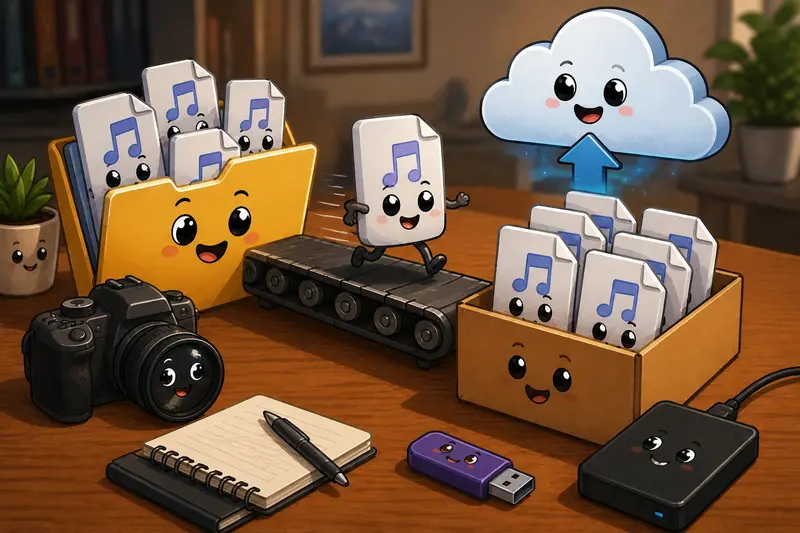
Choosing the best audio converter for this job
The best audio converter for photographers is not always the most complex one. For backup workflows, look for:
- Browser access without desktop installation
- Support for common audio formats
- Predictable pricing for batches
- Temporary processing and cleanup behavior
- Cloud import options
- Download delivery with job tracking
- API support if your studio automates file handling
Filemazing fits especially well when audio conversion is part of a larger file-prep routine, not a one-off technical task.
FAQ
Is MP3 better than AAC for photography backups?
Not always in pure audio efficiency, but MP3 is often better for compatibility. AAC can sound excellent, while MP3 is easier to play across more devices, apps, and older systems.
Will converting AAC to MP3 reduce quality?
Some quality loss can happen because both formats are compressed. For best results, convert from the original AAC file once and choose a bitrate appropriate for the audio type.
Can I convert audio for mobile playback?
Yes. MP3 is a strong choice when you need to convert audio for mobile because phones, tablets, laptops, browsers, and editing tools generally support it well.
Are uploaded files stored permanently?
Filemazing treats uploads as temporary processing files. They are processed for the job and cleaned on a short retention schedule rather than kept as long-term storage.
Can I process multiple AAC files from a shoot?
Yes. Batch-friendly workflows are useful when converting several voice notes, interviews, or reference clips from the same project. For important client-facing audio, review the converted files before final delivery.
What if my audio files are inside an archive?
Extract the archive first, then convert the audio files. This keeps the workflow cleaner and reduces the chance of missing useful notes from assistants or second shooters.
Final recommendation
For photographers building reliable backup workflows, converting AAC to MP3 is a practical way to improve access, sharing, and long-term playback. Filemazings browser-based audio conversion, transparent token pricing, cloud import options, temporary processing, and related file tools make it a useful choice when audio is part of a larger project archive.