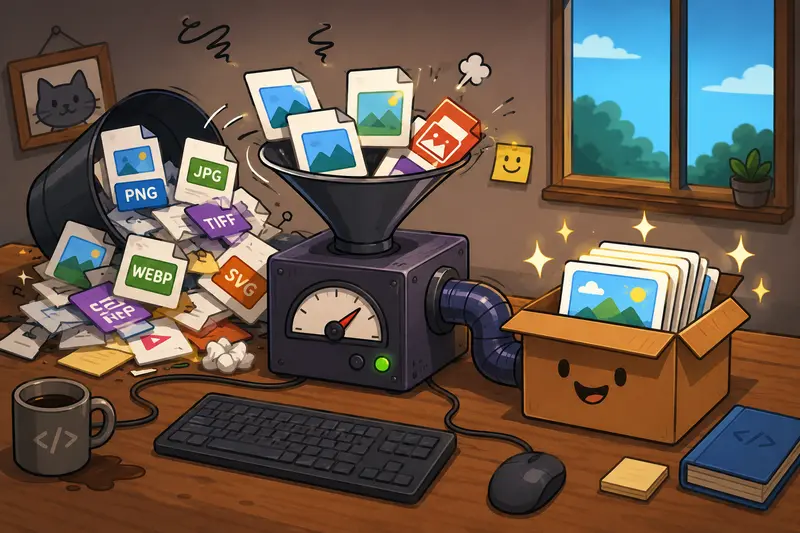
Large client deliveries rarely fail because of code. More often, they fail because a 45MB PNG wont upload, a CMS rejects WEBP files, or exported assets suddenly look blurry after conversion.
Thats why many development teams now build image handling directly into their delivery workflow. When you need to convert image formats efficiently, the goal is not just compatibility its preserving quality while keeping the process predictable.
For developers managing client assets, marketing exports, documentation screenshots, or product media, format conversion becomes part of the release pipeline itself.
The Short Version
If you regularly deliver image assets to clients, browser-based tools can dramatically reduce manual cleanup time. Modern converters support WEBP, PNG, JPG, TIFF, SVG, and batch processing without requiring local software installs.
A platform like Filemazing Format Converter https://filemazing.com/format-converter is especially practical when you need fast browser-based processing, predictable costs, and API-ready automation for repeated workloads.
Why Developers Still Run Into Image Format Problems
In real projects, image conversion issues usually appear late.
A client uploads PNG screenshots into a CMS that only accepts JPG. A design team exports WEBP assets, but an older email platform strips support entirely. Someone sends a ZIP containing 200 product images with mixed formats and inconsistent compression.
Some file formats cooperate nicely. Others behave like they were designed during an office argument.
The challenge becomes bigger when teams must:
- deliver assets across multiple platforms
- maintain visual consistency
- reduce upload size
- avoid quality degradation
- automate repetitive processing
Thats where batch conversion workflows become valuable instead of optional.
How the Process Usually Works
Most developers already understand image formats technically. The bottleneck is workflow efficiency.
A streamlined conversion process often looks like this:
- Gather all source files into a single upload batch
- Choose target formats based on delivery requirements
- Apply compression or quality settings carefully
- Export converted files for validation and client delivery
- Optionally secure or sanitize files before sharing
For example, teams exporting PDFs into image assets can first use PDF to Image conversion workflows https://filemazing.com/pdf-to-image to generate JPG, PNG, or WEBP outputs before running additional optimization steps.
A Practical Browser-Based Option
Filemazing https://filemazing.com/format-converter approaches file processing differently from traditional desktop utilities.
Instead of requiring software installation, everything runs through a browser-based workflow with queued processing and downloadable outputs. For development teams, that removes a surprising amount of friction during client delivery cycles.
The platforms strongest advantage is bulk workflow handling.
Rather than converting files individually, developers can process large sets while keeping token usage predictable through transparent pricing formulas tied to file size, file count, and workload complexity.
A few characteristics that stand out:
- browser-based processing from any machine
- support for batch image format conversion
- API endpoints for automation
- temporary processing rather than long-term file storage
- cloud import support through Google Drive and Dropbox
- predictable token-based cost estimation
For recurring delivery workflows, the API capability matters more than many teams initially expect. Once conversion becomes part of CI/CD asset preparation or automated publishing, manual export tools start feeling slow very quickly.
Real Workflow Testing: What Happened
To evaluate how practical browser conversion actually is for client delivery, a test batch included:
- 120 product images
- mixed PNG and WEBP sources
- total upload size around 780MB
- target output: compressed JPG for ecommerce upload
- secondary export: WEBP archive for modern web delivery
The results were surprisingly stable.
PNG-to-JPG conversion completed significantly faster than expected, while WEBP exports retained acceptable detail even after moderate compression. Most importantly, the batch workflow avoided the tedious download-convert-repeat cycle common with smaller online utilities.
One useful takeaway: converting everything into JPG immediately is not always the best move. Product photos handled JPG compression well, but UI screenshots and diagrams retained sharper edges in PNG.
That tradeoff matters in client-facing documentation.
The Quality Tradeoff Most Teams Ignore
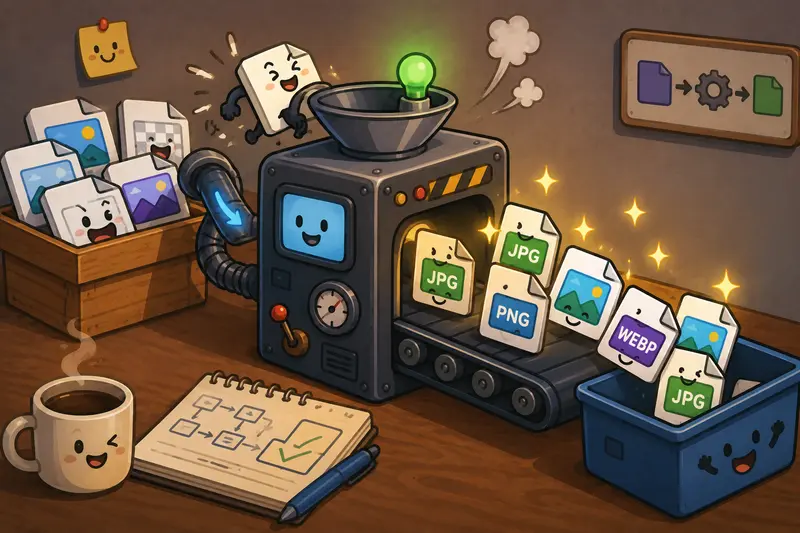
When developers try to convert images without losing quality, they often focus entirely on compression percentages.
The bigger issue is choosing the wrong target format.
Heres the practical reality:
| Format | Best Use Case | Weakness |
|---|---|---|
| JPG | Photos and ecommerce images | Text and UI edges can blur |
| PNG | Screenshots, diagrams, transparency | Larger file sizes |
| WEBP | Balanced web delivery | Some legacy compatibility issues |
| TIFF | Print workflows | Very large files |
| SVG | Vector graphics | Not suitable for photos |
In real workflows, mixed-format delivery is often smarter than forcing every asset into one standardized type.
A common mistake is converting detailed screenshots into aggressive JPG compression simply to reduce upload size. The result usually looks acceptable at first glance but becomes unreadable when clients zoom in during documentation reviews.
The goal is smaller files not turning diagrams into blurry fossils.
Useful Cases for Development Teams
Developers typically use image conversion workflows in more places than expected.
Some common examples include:
- preparing ecommerce product galleries for client upload
- converting WEBP assets into JPG for email marketing systems
- generating lightweight documentation screenshots
- exporting CMS-ready media libraries
- preparing presentation graphics for older software
- converting scanned PDFs into image-based archives
- standardizing assets before CDN deployment
Teams handling sensitive documentation may also sanitize files using metadata scrubbing workflows https://filemazing.com/metadata-scrubber before client delivery. Removing embedded metadata can prevent accidental exposure of editing history, device details, or internal author information.
Why Bulk Conversion Saves More Time Than Expected
Single-file converters seem fine until project volume increases.
Once teams process hundreds of files weekly, several inefficiencies appear:
- inconsistent naming
- repeated manual exports
- accidental format mismatches
- upload bottlenecks
- duplicate processing
Batch processing reduces operational overhead dramatically because the workflow becomes repeatable.
For agencies and SaaS teams delivering assets regularly, predictable workflows matter more than fancy editing features.
Filemazing also keeps large jobs from blocking the interface by using queued processing and downloadable completion handling, which feels noticeably smoother during heavy workloads.
Security and Temporary File Handling
Privacy concerns are valid whenever client assets are uploaded to cloud services.
A practical advantage of browser-based conversion platforms is temporary processing architecture. Instead of acting as permanent storage systems, uploaded files are treated as short-lived processing artifacts with cleanup schedules.
That matters when handling:
- client branding assets
- confidential screenshots
- unreleased marketing material
- internal UI previews
For additional protection before sharing converted files externally, teams can use file encryption tools https://filemazing.com/encrypt-file to secure deliverables.
What You Gain From This Workflow
The biggest improvements are operational rather than technical.
Developers benefit from:
- faster delivery preparation
- reduced manual conversion work
- cleaner client handoffs
- easier multi-format compatibility
- automation opportunities through APIs
- predictable processing costs
And importantly, the workflow scales without requiring heavy desktop software installations across every team members machine.

Frequently Asked Questions
Can I convert WEBP online without installing software?
Yes. Browser-based tools like Filemazing allow you to convert WEBP online directly through a web interface without desktop applications.
Does image conversion always reduce quality?
Not necessarily. Quality loss depends on the source format, target format, and compression settings. PNG-to-PNG or WEBP-to-WEBP conversions may preserve visual quality almost entirely.
Is batch image format conversion practical for large uploads?
Yes, especially for recurring workflows. Batch processing is significantly more efficient when handling large product libraries, documentation exports, or media archives.
Are uploaded files stored permanently?
Filemazing processes uploaded files temporarily rather than acting as long-term cloud storage. Files are cleaned on a short retention schedule after processing.
Which format is best for client delivery?
It depends on the use case:
- JPG for photos
- PNG for screenshots and transparency
- WEBP for modern web optimization
- SVG for vector graphics
Using multiple formats strategically often produces better results than forcing everything into one standard.
Can developers automate image conversion?
Yes. Filemazing includes API endpoints that allow conversion workflows to integrate into automated pipelines and SaaS operations.
Final Thoughts
Image conversion sounds simple until delivery deadlines arrive and incompatible assets start slowing everything down.
For developers, the best workflow is usually the one that minimizes manual intervention while preserving quality and keeping processing predictable. Browser-based tools now handle bulk conversions reliably enough that many teams no longer need dedicated desktop utilities for routine delivery preparation.
If your workflow regularly involves client assets, exported documentation, ecommerce media, or multi-platform compatibility, Filemazings format conversion tools https://filemazing.com/format-converter provide a practical way to standardize and automate the process without adding unnecessary operational overhead.