Teachers deal with PDFs constantly. Lesson plans, worksheets, scanned assignments, permission slips, reading packets the list grows quickly, especially during busy grading weeks.
The challenge is rarely creating PDFs. Its organizing them.
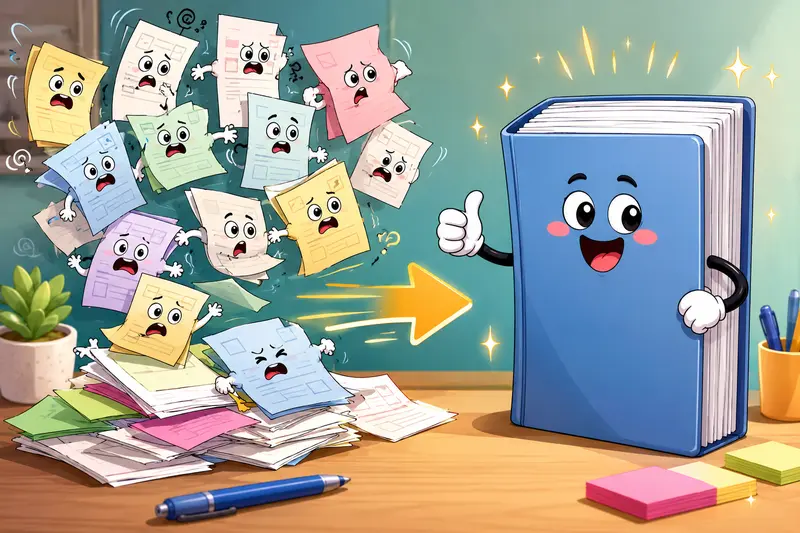
When multiple files need to become one clean document, many tools either add watermarks, limit file counts, require account creation, or slow down once larger batches are uploaded. Thats why many educators look for a way to join PDFs into one file without installing software or navigating complicated workflows.
Filemazing approaches this differently. It runs entirely in the browser, supports batch processing, and avoids long-term storage of uploaded files. For teachers working across school laptops, home desktops, and shared devices, that flexibility matters more than flashy features.
The Fast Answer
If your goal is to:
- combine worksheets into one handout
- merge scanned assignments for submission
- organize multiple classroom resources into a single packet
- create parent-ready PDF bundles
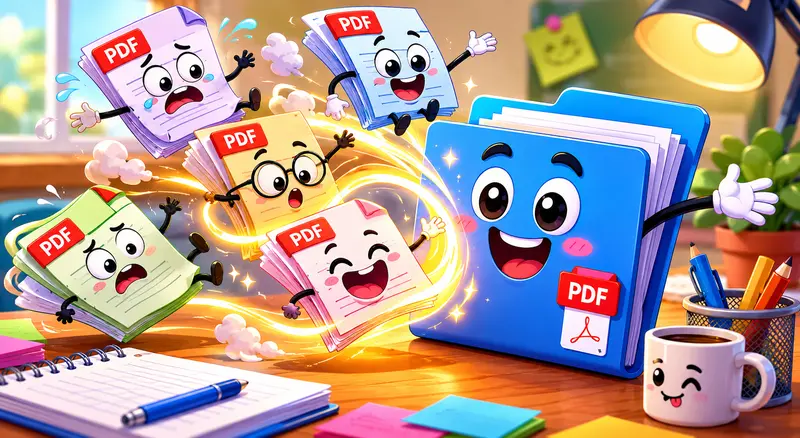
then a browser-based merger like Filemazing works well because it handles uploads directly online without requiring desktop installation.
You can use the tool here:
https://filemazing.com/merge-pdf
It also supports larger workloads through batch processing, which becomes useful when several class folders suddenly need organizing the night before a deadline. Large files have a habit of showing up at the least relaxing moment possible.
Why Teachers Often Need a PDF Merger
In real classroom workflows, files rarely arrive in a neat format.
A teacher might receive:
- scanned homework from different devices
- exported slides as separate PDFs
- reading materials from multiple sources
- forms split into individual pages
Merging everything manually inside desktop software takes time, especially when working across school-managed computers with restricted installations.
A browser-based workflow removes most of that friction.
Instead of installing software:
- upload files
- arrange the order
- merge
- download the final document
That simplicity becomes especially valuable for substitute lesson packets, exam review bundles, or semester archives.
How the Process Works
Heres a practical desktop workflow for combining PDFs efficiently.
1. Prepare files before upload
If possible:
- rename files clearly
- remove duplicates
- organize pages in the intended order
This prevents rework later, especially with large classroom batches.
For example:
Week1-Reading.pdfWeek1-Exercises.pdfWeek1-AnswerKey.pdf
Clear naming reduces mistakes once several uploads appear together.
2. Upload PDFs to the merger tool
Open the merge tool:https://filemazing.com/merge-pdf
You can upload:
- local files
- cloud files from Google Drive or Dropbox
- multiple PDFs simultaneously
This helps when lesson materials are spread across platforms.
3. Arrange file order
Ordering matters more than many users expect.
A common issue in merged teaching packets is placing answer sheets before exercises or mixing reading sequences unintentionally.
Take a moment to review page flow before processing.
4. Start the merge process
The platform queues jobs instead of freezing the browser during larger tasks.
That makes a difference with:
- scanned PDFs
- image-heavy worksheets
- semester review packets
- multi-class resource archives
5. Download the completed file
Once processing finishes, download the merged PDF and verify:
- page order
- readability
- image clarity
- orientation consistency
A Realistic Classroom Test Scenario
To see how practical the workflow feels, we tested a realistic desktop scenario involving classroom materials.
Test setup
Files included:
- 12 scanned worksheet PDFs
- 4 exported slide decks
- 3 reading handouts
- mixed file sizes from 400 KB to 18 MB
Total:
- 19 PDFs
- 143 pages combined
Observed results
The merge process completed smoothly without browser freezing.
The most noticeable advantage was batch handling. Instead of combining files several times, everything could be uploaded together and reordered once.
Scanned pages retained acceptable readability, although extremely compressed source scans still showed minor blur. Thats a source-file issue more than a merger issue.
One practical observation:If scanned documents are already low quality, merging wont improve them. Teachers digitizing paper packets should scan at moderate resolution first rather than aggressively compressing upfront.
Theres always a balance between smaller file sizes and readable classroom materials.
What Actually Helps With Large PDF Batches
When people search for the best PDF merger, they often focus only on speed. In practice, organization matters just as much.
A few workflow recommendations make large merges far easier:
Keep scanned files under control
Very high-resolution scans dramatically increase upload size without improving readability for most classroom use.
For standard worksheets:
- 200300 DPI is usually enough
- grayscale often works better than full color
- oversized image scans create unnecessary delays
Merge by topic, not by semester
Instead of creating one giant yearly PDF, split materials into:
- units
- grading periods
- subjects
- exam sections
Large single PDFs become harder to search and share later.
Remove hidden metadata before sharing
School documents sometimes contain embedded metadata from scanners, editing software, or exported office files.
Before distributing merged packets externally, you can use the metadata cleanup tool:https://filemazing.com/metadata-scrubber
Thats especially useful for documents shared with parents or external reviewers.
Why Browser-Based Merging Is Often Easier
Traditional desktop PDF software still works well, but browser tools have become more practical for everyday document handling.
Heres why many educators prefer them now:
| Workflow Factor | Browser-Based Tool | Installed Desktop Software |
|---|---|---|
| Works across devices | Yes | Usually device-specific |
| Requires installation | No | Yes |
| Shared computer friendly | Yes | Sometimes restricted |
| Batch merging | Supported | Usually supported |
| Account required | Often no | Often yes |
| Maintenance updates | Automatic | Manual |
For teachers switching between school and home systems, avoiding installations alone can save time.
Filemazing also supports token-based usage instead of recurring subscriptions. Casual users can start with free daily tokens and only scale up when larger workloads appear.
That pricing model tends to fit seasonal school workflows better than monthly commitments.
Privacy Matters More Than Most People Think
Educational files often contain:
- student names
- grades
- attendance information
- internal notes
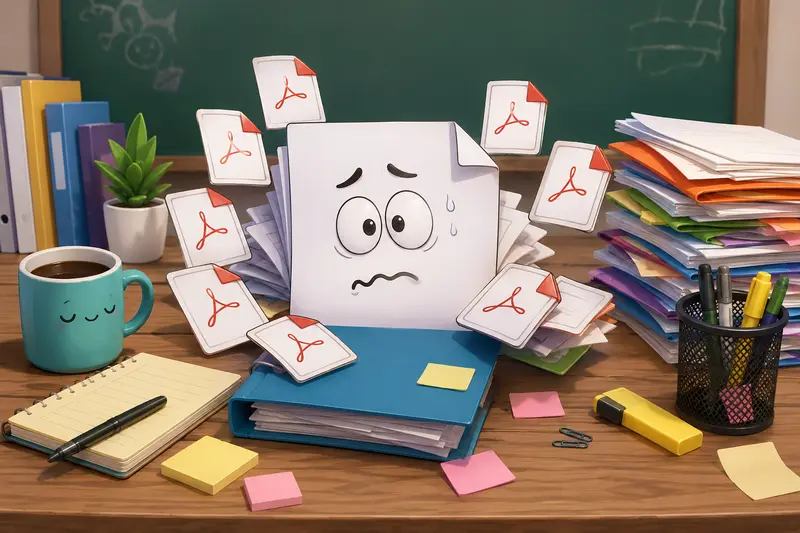
That makes temporary processing and cleanup policies important.
Filemazing treats uploads as short-term processing artifacts rather than permanent cloud storage. Files are cleaned on a short retention schedule instead of remaining indefinitely stored.
For additional protection after merging, teachers handling sensitive records can also use:https://filemazing.com/encrypt-file
Password-protecting merged PDFs is especially useful when emailing reports or administrative paperwork.
When ZIP Files Become Part of the Problem
Sometimes classroom resources arrive compressed inside ZIP or RAR archives before they can even be merged.
In those cases, extracting documents first saves time.
You can unpack supporting materials using:https://filemazing.com/archive-extractor
This becomes surprisingly common with shared faculty resource folders or downloaded curriculum packs.
Some file formats cooperate nicely. Others behave like they were designed during a very long office meeting.
Combining PDFs Without Signup: Is It Safe?
Many teachers specifically look for ways to combine PDFs without signup because they:
- use temporary school devices
- avoid unnecessary accounts
- need occasional merging only
- work under district software restrictions
Using a browser-based tool without mandatory registration reduces friction considerably.
That said, users should still:
- avoid uploading unnecessary sensitive data
- review privacy policies
- download processed files promptly
- remove outdated local copies afterward
Practical habits matter just as much as platform features.
Questions Teachers Commonly Ask
Does merging PDFs reduce quality?
Normally, merging itself does not significantly reduce quality. However, low-resolution scans or previously compressed files will still appear blurry after merging.
Can I handle large classroom batches?
Yes. Batch uploads are supported, which helps when combining multiple lessons, scans, or student packets into one document.
Is there a file limit?
Limits can vary depending on workload size and browser stability. Very large image-heavy PDFs naturally take longer to process.
Can I combine PDFs without signup?
Yes. Filemazing allows users to start processing files without mandatory registration, which is helpful for quick school workflows.
Are uploaded files stored permanently?
No. Uploaded files are treated as temporary processing artifacts and cleaned automatically after processing rather than stored long term.
Whats the advantage of token pricing?
Teachers who only process documents occasionally may prefer paying based on actual workload instead of maintaining another monthly subscription.
Final Thoughts
For teachers, document organization is often less about advanced editing and more about keeping materials manageable under time pressure.
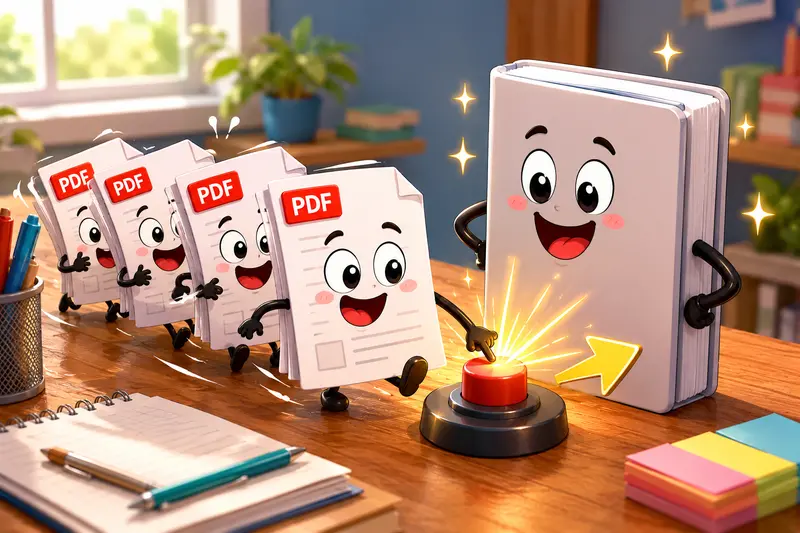
A reliable way to join PDFs into one file helps simplify:
- lesson preparation
- assignment organization
- administrative paperwork
- parent communication
- archive management
Filemazing works well for those situations because it stays lightweight, browser-based, and practical without forcing complex setup steps.
If you regularly handle classroom PDFs, especially larger batches, the combination of batch merging, temporary processing, cloud imports, and transparent pricing makes the workflow noticeably smoother.