Modern Windows devices can open almost every image type, but compatibility is still a mess when files move between apps, websites, and devices. One platform wants JPG, another prefers PNG, and your phone casually produces HEIC files that refuse to cooperate with older software.
That is why many people search for a reliable way to change image format online without installing heavy desktop tools.
Browser-based converters have become the fastest option for casual users, creators, students, and office teams alike. Instead of downloading software just to convert a few images, you can process files directly in your browser and continue working immediately.
The Direct Answer
If your goal is to quickly convert JPG, PNG, WEBP, or HEIC files on Windows, using a browser-based tool is usually the most efficient route.
Filemazing Format Converter https://filemazing.com/format-converter allows you to upload images, choose a new format, and download the converted result without installing additional software. The platform supports practical workflows for both single images and larger batches.
Because processing happens through a web interface, it works well even on lightweight laptops or work machines where installing desktop applications is restricted.
Another useful advantage is flexibility. Many users do not just convert files once they often need additional cleanup afterward. For example:
- you may want to reduce converted image sizes for web use
- or strip metadata from converted image files before sharing them publicly
Those extra steps matter more than most people realize.
Why People Convert Image Formats in the First Place
The need usually comes from compatibility problems.
Common situations include:
- uploading images to websites that reject HEIC
- reducing PNG file sizes for faster page loading
- converting WEBP images for software that cannot open them
- exporting screenshots into lighter JPG files
- preparing product images for ecommerce listings
- converting image-heavy PDFs into reusable image formats
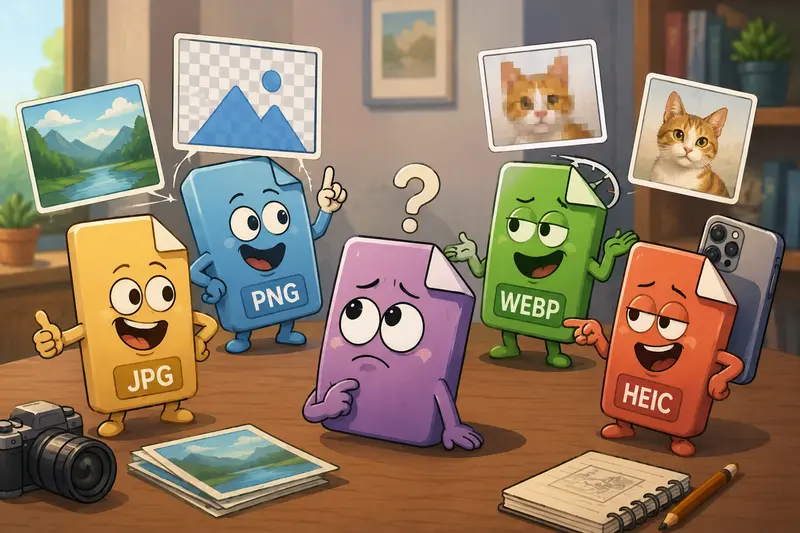
Some formats prioritize quality. Others prioritize smaller file sizes. The best format depends entirely on what happens next.
For example:
| Format | Best For | Tradeoff |
|---|---|---|
| JPG | Photos, websites, sharing | Lossy compression |
| PNG | Transparency, graphics | Larger files |
| WEBP | Web optimization | Some legacy app limitations |
| HEIC | Mobile photography | Compatibility issues |
| GIF | Simple animations | Limited color depth |
A surprising number of users only discover these differences after a deadline starts approaching. That tends to accelerate the learning process.
How the Workflow Usually Looks
Changing image formats online is fairly straightforward when the process is designed properly.
1. Upload the image
You can import files from:
- local storage
- Google Drive
- Dropbox
- direct URLs
This becomes especially useful when handling screenshots, marketing assets, or exported phone photos scattered across cloud folders.
2. Select the output format
Choose the target type:
- JPG
- PNG
- WEBP
- HEIC
- and other supported formats
3. Process the conversion
Filemazing uses queued processing and job tracking, which prevents larger uploads from freezing the browser session.
4. Download the converted file
Once processing completes, files become available for download immediately.
A Real Conversion Test on Windows
To evaluate real-world usability, we tested a small mixed-format batch on a Windows 11 laptop:
- 12 HEIC photos from an iPhone
- 8 PNG screenshots
- 5 WEBP web assets
- total upload size: roughly 180 MB
The goal was simple:
- convert HEIC to JPG
- convert WEBP online into PNG versions
- reduce compatibility issues for office software and browser uploads
Observations
The conversion speed stayed consistent even during batch processing. Smaller files completed almost instantly, while the larger HEIC photos took slightly longer due to image decoding.
The more interesting result involved quality retention.
The JPG exports looked visually clean at standard viewing sizes, but zooming revealed mild compression softness compared to PNG originals. That is expected behavior, not a platform problem.
A more practical takeaway:
- PNG should remain your choice for graphics, text overlays, and UI screenshots
- JPG is better for lightweight photography workflows
- WEBP offers an excellent middle ground for websites when compatibility is acceptable
One additional workflow improvement helped significantly:after conversion, running files through the image compression tool reduced several web graphics by over 40% without obvious visible degradation.
HEIC Conversion: The Mistake Many Users Make
HEIC image conversion is one of the most common pain points on Windows.
The mistake is assuming every HEIC conversion should become JPG.
That is not always ideal.
Better approach:
- Convert HEIC to PNG if you need editing flexibility
- Convert HEIC to JPG for sharing or uploads
- Convert HEIC to WEBP for optimized website delivery
The choice affects:
- image clarity
- transparency support
- final file size
- editing compatibility
Large HEIC photos can also become unexpectedly huge when converted into PNG. A single mobile image may jump from 3 MB to 15 MB or more depending on detail complexity.
That tradeoff surprises people regularly.
Where Browser-Based Conversion Saves Time
Desktop software still has its place for advanced editing, but browser-based tools now handle most routine conversion tasks efficiently.
Especially for:
- freelancers managing client assets
- students submitting assignments
- ecommerce sellers preparing product photos
- marketing teams resizing campaign graphics
- developers optimizing media for websites
- office workers dealing with incompatible formats
Since Filemazing also supports API workflows, teams processing recurring image tasks can automate repetitive conversions instead of manually uploading files every day.
The platforms token-based pricing model is also easier to predict than subscription-heavy software stacks. Users can estimate workload costs in advance based on file size and processing type rather than committing to recurring monthly plans.
Practical Advice for Better Output Quality
Image conversion is not only about changing extensions.
The output settings and format choice directly influence usability later.
Here are a few practical recommendations professionals often follow:
Use PNG for:
- diagrams
- screenshots
- interface captures
- text-heavy visuals
Use JPG for:
- photographs
- blog images
- social uploads
- lightweight sharing
Use WEBP for:
- websites
- SEO-focused image optimization
- balancing quality and size
Avoid repeated conversions
Converting JPG PNG JPG repeatedly gradually damages image quality due to cumulative recompression.
If editing is required later, preserve an original master copy first.
Privacy and File Handling Considerations
Many users understandably hesitate before uploading personal files online.
A trustworthy conversion workflow should clearly explain:
- temporary processing behavior
- retention limits
- cleanup handling
Filemazing positions uploaded files as temporary processing artifacts rather than long-term cloud storage. Files are cleaned automatically after short retention periods instead of being stored indefinitely.
For sensitive image workflows, that distinction matters.
If you also need to remove hidden EXIF or camera metadata after conversion, the metadata scrubbing tool can help reduce unnecessary embedded information before distribution.
Additional Workflows That Pair Well With Image Conversion
Image conversion rarely happens alone.
Users frequently combine it with:
- compression
- PDF extraction
- metadata cleanup
- archive handling
For example, if you need to export document pages into reusable images, the PDF to image conversion workflow supports JPG, PNG, and WEBP outputs for scanned or image-heavy documents.
That becomes particularly useful for presentations, ecommerce catalogs, or design references.
Common Questions
Is it safe to change image format online?
It depends on the platforms handling policies. Browser-based services that use temporary processing and automatic cleanup are generally safer than platforms storing files indefinitely.
Does converting PNG to JPG reduce quality?
Usually yes. JPG uses lossy compression, which can slightly soften sharp edges or text-heavy graphics.
Can I convert WEBP online on Windows without installing software?
Yes. Browser-based tools work directly inside Chrome, Edge, Firefox, and other modern browsers.
Why are converted PNG files sometimes much larger?
PNG preserves more image information and supports lossless compression, which often increases file size compared to JPG or WEBP.
Does HEIC conversion work well for iPhone photos?
Yes. HEIC image conversion is commonly used when transferring iPhone photos to Windows systems or older applications.
Can large batches be processed efficiently?
Yes. Platforms with queued processing and job tracking handle larger workloads more reliably than simple single-file converters.
Final Thoughts
The fastest way to change image format online on Windows is usually the method that removes friction rather than adding more software to manage.
A browser-based workflow simplifies compatibility issues, speeds up routine conversions, and keeps file handling lightweight. Whether you need quick HEIC image conversion, want to convert WEBP online, or prepare optimized assets for websites, modern conversion tools now cover most everyday needs without desktop installations.
Filemazing https://filemazing.com/format-converter stands out for practical reasons: multi-format compatibility, predictable token pricing, browser-based convenience, temporary file handling, and scalable workflows for both casual users and teams handling larger media operations.