Large image files are one of those small problems that quietly slow down creative work.
A portfolio page takes too long to load.
A client upload fails because the attachment is too big.
A beautifully exported JPG suddenly becomes blurry after aggressive compression.
Designers deal with this constantly.
The good news is that modern browser-based tools make it possible to compress images online while keeping visual quality surprisingly intact especially when you understand how compression behaves across different formats.
This guide walks through practical ways to reduce image size efficiently on macOS, what quality tradeoffs actually matter, and how tools like Filemazing https://filemazing.com/compress-image fit into real design workflows.
Why Designers Still Need Image Compression
Mac users already have Preview and export settings built into many design apps. But those tools arent always ideal when youre handling:
- batches of JPG exports
- client-ready deliverables
- web optimization
- compressed archives
- fast iteration cycles
- mixed image formats
Online compression tools remove several bottlenecks:
- no desktop installation
- accessible from any browser
- easier batch handling
- quick sharing workflows
- format conversion in the same workflow
For distributed teams, browser-based processing also avoids the classic Which version of the app are you using? problem.
What Actually Happens During Compression?
When you reduce JPG size online, the compressor removes or reorganizes image data to shrink the file.
The challenge is preserving enough visual detail that the difference stays invisible in normal use.
There are two broad approaches:
| Compression Type | Result |
|---|---|
| Lossless | Preserves all image data but produces smaller reductions |
| Lossy | Removes some data for much smaller files |
Most high-efficiency JPG compression uses lossy optimization.
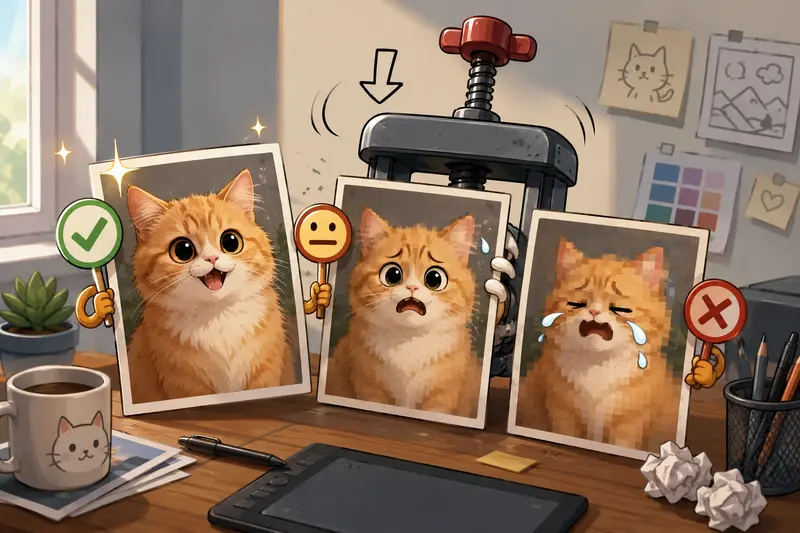
The trick is finding the threshold where file size drops significantly without introducing obvious artifacts like:
- muddy gradients
- edge halos
- texture smearing
- color banding
Designers notice these immediately. Especially on typography-heavy graphics.
A Practical Compression Test on macOS
To evaluate real-world usability, we tested several exported design assets through Filemazing image compression https://filemazing.com/compress-image using Safari on a MacBook Air.
Test files included:
- 18MB product mockup JPG
- 9MB social media banner
- 24MB portfolio hero image
- exported PNG illustrations
- mixed retina-resolution assets
What happened:
The JPG files consistently dropped between 5578% in size while remaining visually usable for web publishing and client previews.
The most noticeable improvements came from:
- large photographic compositions
- layered gradients
- oversized exports from Figma and Photoshop
Flat graphics with transparency benefited less when compressed as JPGs, which is expected.
One useful observation: extremely oversized exports often compress more efficiently than already optimized files. If a file has never been web-optimized before, compression gains can be substantial.
And thankfully, the images did not end up looking like blurry archaeological artifacts.
Where Online Compression Fits Into a Modern Design Workflow
Compression works best when treated as part of the delivery pipeline rather than a last-minute emergency fix.
A common workflow looks like this:
- Export master assets from Figma, Sketch, or Photoshop
- Compress delivery versions for web usage
- Convert formats if needed
- Share optimized files with clients or teams
If you need broader format flexibility, tools like Filemazing format converter https://filemazing.com/format-converter help convert between JPG, PNG, WEBP, HEIC, and AVIF depending on platform requirements.
That becomes particularly useful when:
- Safari compatibility matters
- mobile delivery sizes need to shrink further
- modern formats outperform legacy JPG exports
The Biggest Mistake Designers Make With Compression
Many designers compress images repeatedly.
This quietly destroys quality.
Heres why:
Every time a lossy JPG gets recompressed, additional image information disappears. After several passes, textures soften and edges become unstable even if each individual export looked fine.
Better approach:
- keep an original master asset
- compress only final delivery copies
- avoid editing previously compressed JPGs
- use PNG or TIFF masters for archival work
This single habit preserves quality more effectively than obsessing over tiny compression settings.
Speed Matters More Than People Admit
Creative workflows often involve dozens or hundreds of exports.
Waiting for desktop software to launch just to shrink assets becomes surprisingly inefficient over time.
Browser-based tools work well here because they reduce friction:
- drag files in
- process quickly
- download optimized versions
- continue working
Filemazing also uses queued processing for larger tasks, which helps avoid browser freezing during heavier workloads.
For teams processing recurring assets, the platform additionally supports API-driven automation useful for agencies or production pipelines handling continuous image preparation.

Compression Quality vs File Size: The Real Tradeoff
Theres no universal best compression level.
The right balance depends on where the image will live.
Good candidates for aggressive compression:
- blog images
- email graphics
- internal previews
- social thumbnails
Better with lighter compression:
- portfolio work
- typography-focused layouts
- print previews
- product photography
One overlooked factor is screen density.
Images that look acceptable on standard monitors may reveal artifacts on Retina displays. Designers working primarily on Mac hardware tend to notice compression flaws earlier because Apple displays are unforgiving in the best possible way.
Privacy Considerations When Compressing Images Online
Designers regularly handle:
- client assets
- unreleased campaigns
- private mockups
- licensed photography
That makes privacy policies important.
Filemazing processes uploads as temporary working files rather than permanent cloud storage. Files are cleaned automatically after short retention periods instead of remaining stored indefinitely.
That approach reduces long-term exposure risk while keeping workflows lightweight.
If youre sharing sensitive deliverables externally afterward, you can also encrypt files before sending them https://filemazing.com/encrypt-file for additional protection.
When JPG Isnt the Right Choice
Sometimes the best optimization strategy is changing formats entirely.
JPG works well for:
- photographs
- gradients
- complex imagery
PNG performs better for:
- transparency
- UI elements
- sharp line graphics
- text-heavy exports
WEBP and AVIF often produce dramatically smaller web files while preserving quality, though compatibility requirements still matter depending on the audience.
If youre preparing presentation assets from documents, converting pages visually with PDF to image conversion tools https://filemazing.com/pdf-to-image can also simplify downstream optimization workflows.
A Few Optimization Tips That Save Time
Before compressing images online, these small adjustments help noticeably:
- Resize oversized exports first
- Avoid exporting 2x or 4x assets unnecessarily
- Flatten hidden layers before export
- Use JPG for photos, PNG for interface graphics
- Keep master originals separate from delivery files
Another useful trick: compressing batches together creates more consistent output quality across projects.
That consistency matters more than people think when maintaining visual standards across multiple client deliverables.
Common Questions
Does compressing images online reduce quality permanently?
If lossy compression is used, yes. Some image data is removed permanently. Thats why keeping original source files is important.
Whats the best format for high quality image compression?
For photographic content, JPG and WEBP usually offer the best balance between quality and size. PNG is better for graphics requiring transparency or crisp edges.
Can I reduce JPG size online on Mac without installing software?
Yes. Browser-based tools like Filemazing Compress Image https://filemazing.com/compress-image work directly in Safari, Chrome, or Firefox without requiring desktop installation.
Are compressed images safe to upload online?
That depends on the providers retention policies. Filemazing treats uploaded files as temporary processing artifacts and removes them automatically after processing.
Why do some compressed images still look large?
Resolution matters as much as compression. A 6000px-wide image may remain heavy even after optimization. Resizing dimensions often produces larger savings than compression alone.
Can compressed JPG files be converted afterward?
Yes. After optimization, you can use tools like format conversion workflows https://filemazing.com/format-converter to switch between JPG, PNG, WEBP, HEIC, and AVIF formats.
Final Thoughts
For designers, image compression is less about shrinking files and more about preserving presentation quality while making assets easier to move, publish, and deliver.
The ideal workflow keeps things fast, predictable, and visually clean.
Browser-based tools like Filemazing work particularly well because they combine:
- high quality image compression
- multi-format flexibility
- temporary processing
- transparent usage pricing
- lightweight accessibility from any Mac browser
Most importantly, they reduce friction during real creative work which is usually where the biggest productivity gains actually happen.