Uploading PDFs directly to websites sounds straightforward until formatting breaks, previews fail, or page rendering becomes inconsistent across devices. In many developer workflows, the safer option is to save PDF pages as images instead, especially when dealing with documentation previews, CMS uploads, generated reports, or automated media pipelines.
For teams handling screenshots, invoices, portfolios, or generated assets, converting PDFs into image files often simplifies frontend rendering and improves compatibility.
What Matters Most Before You Convert
If your goal is to preserve visual consistency, image-based uploads are usually easier to manage than embedded PDFs.
The important part is choosing the right balance between:
- image quality
- output size
- processing speed
- mobile compatibility
For example, PNG exports keep sharp text and transparency better, while JPG files reduce upload weight significantly. In real production environments, both formats have their place.
A browser-based workflow also helps when you need fast processing without installing desktop utilities on multiple machines.
Why Developers Often Convert PDFs Into Images
In developer-facing systems, PDFs can introduce friction:
- browser rendering inconsistencies
- lazy-loading complications
- thumbnail generation issues
- limited mobile previews
- blocked inline display in certain CMS environments
Converting pages into image assets avoids many of those problems.
This becomes especially useful for:
- static site generators
- portfolio uploads
- marketplace listings
- support documentation
- automated report pipelines
- image galleries sourced from PDFs
If the exported images still feel too large afterward, you can further reduce payload size using Filemazings image compression workflow before deploying assets publicly.
How the Workflow Usually Looks
Theres no single universal setup because different projects prioritize different outcomes. Still, most teams follow a similar sequence.
1. Upload the PDF
Start with the source document.
This can be:
- scanned paperwork
- generated invoices
- exported design decks
- technical manuals
- image-heavy presentations
Filemazing supports local uploads along with cloud imports from providers like Google Drive and Dropbox, which helps when assets already live inside collaborative storage systems.
2. Choose the Output Format
PNG is typically better for:
- diagrams
- UI mockups
- screenshots
- technical illustrations
JPG is often preferred for:
- photographs
- lightweight uploads
- gallery previews
- storage-sensitive environments
This tradeoff matters more than many articles admit.
A high quality PDF to image conversion can easily generate oversized PNG files if every page contains embedded photography. Sometimes slightly compressed JPG output performs better overall, especially on bandwidth-sensitive applications.
3. Process the Pages
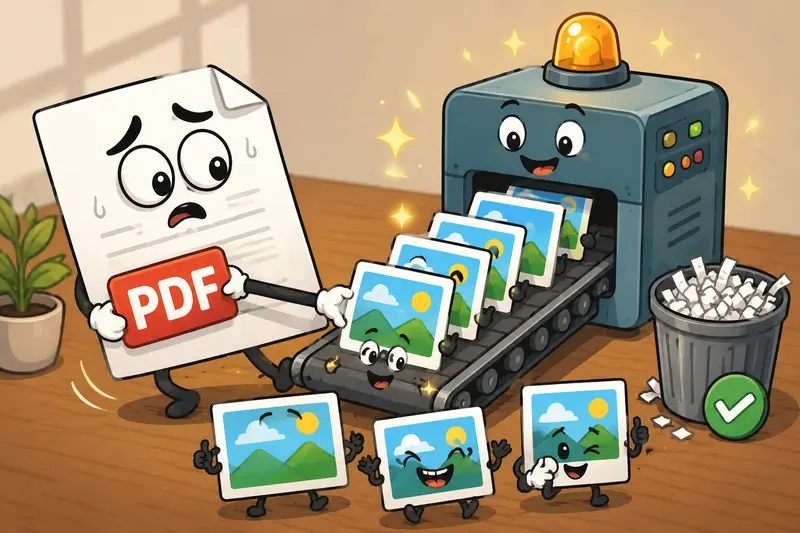
The conversion runs in the browser-based workflow while jobs are queued and processed separately, so large files do not freeze the interface.
That becomes noticeable when handling:
- multi-page exports
- bulk uploads
- image-heavy PDFs
- scanned archives
Nobody enjoys watching a browser tab become unresponsive during a 300-page conversion.
4. Download and Organize Assets
Once complete, pages can be integrated into:
- frontend projects
- CDN pipelines
- CMS uploads
- automation workflows
- API-driven processing chains
If you need to unify several PDFs before exporting pages, combining them first through a PDF merge process usually saves time later.
A Practical Test With Mixed PDF Types
To evaluate conversion quality under realistic conditions, we tested several file types:
- a 42-page scanned contract
- a UI design review deck
- an exported analytics report
- a photography-heavy presentation
The total upload size was roughly 280 MB.
What happened
- Text-heavy pages converted quickly and remained sharp in PNG.
- Scanned documents produced larger outputs than expected because image-based PDFs essentially contain photos already.
- JPG exports reduced total output size dramatically for presentation slides.
- Browser responsiveness remained stable even during larger queued jobs.
One unexpected observation: scanned PDFs sometimes benefit from light image compression after conversion rather than aggressive compression during conversion itself. That preserved readability more consistently.
This is the sort of detail generic convert PDF pages online tutorials usually skip.
Where Teams Run Into Quality Problems
A common mistake is exporting every page at maximum quality automatically.
That sounds safer. It usually isnt.
Oversized outputs create downstream issues
Large image sets can:
- slow page loads
- increase CDN costs
- delay API uploads
- trigger upload limits in CMS systems
PNG isnt always the best option
Developers often default to PNG for everything, but JPG frequently performs better for:
- reports
- slide decks
- photo-heavy PDFs
- documentation previews
Mobile uploads need extra consideration
If you want to save PDF as image on mobile devices, upload stability matters more than perfect export settings.
Large exports over unstable mobile networks can fail halfway through processing. Moderate compression often improves reliability considerably.
File Privacy and Temporary Handling
When processing documents online, retention policies matter.
Filemazing treats uploads as temporary processing artifacts rather than permanent cloud storage. Files are cleaned on a short retention schedule instead of remaining stored indefinitely.
That distinction matters for:
- client deliverables
- internal documentation
- invoices
- generated reports
- sensitive operational files
A browser-based workflow also reduces the need for installing additional desktop conversion software across multiple machines.
One Detail Developers Usually Appreciate
Predictable pricing.
Instead of subscription-based gating, Filemazing uses token-based processing with transparent workload calculations tied to factors like:
- file size
- page count
- file quantity
- processing complexity
For example, PDF-to-image operations currently use a formula including:
- base processing cost
- per-MB calculation
- per-page calculation
- per-file calculation
That makes estimating large conversion workloads far easier when integrating automated pipelines or API-based batch jobs.
Useful Scenarios Beyond Basic Uploads
Different teams use PDF image exports for completely different reasons.
Documentation portals
Convert technical PDFs into previewable image galleries for faster browser compatibility.
SaaS reporting systems
Generate image snapshots of exported analytics reports for embedding inside dashboards.
Static frontend deployments
Use image pages instead of embedded PDF viewers to simplify rendering logic.
Mobile upload workflows
Save PDF as image on mobile for platforms that reject PDF attachments but accept JPG or PNG uploads.
OCR preprocessing
Convert scanned PDFs into image sequences before running OCR or image cleanup tools.
Marketplace assets
Turn catalogs or printable sheets into optimized product-preview images.
Some file formats cooperate nicely. Others behave like they were invented during an argument.

Working With Multiple Image Formats Later
Once pages are exported, teams often need additional format adjustments.
For example:
- converting PNG into WEBP
- preparing AVIF assets
- handling HEIC uploads from mobile systems
- standardizing image formats for frontend delivery
In those cases, using a dedicated image format conversion workflow helps streamline the pipeline after the original PDF conversion step.
What You Gain From This Approach
The biggest advantage is consistency.
Saving PDF pages as images gives you:
- predictable rendering
- easier uploads
- simpler frontend integration
- improved mobile compatibility
- flexible optimization options
- batch-friendly processing
For developer teams, it also reduces dependency on browser-native PDF behavior, which can vary more than expected across environments.
Frequently Asked Questions
Is PNG or JPG better for PDF page exports?
PNG is usually better for diagrams, interfaces, and sharp text. JPG works better for photographs and smaller upload sizes. The right choice depends on whether clarity or file weight matters more in your workflow.
Can I convert PDF pages online without installing software?
Yes. Browser-based tools like Filemazing allow you to convert PDF pages online directly without desktop installation.
Is it safe to upload PDFs for conversion?
Temporary-processing systems are generally safer than long-term storage workflows. Filemazing processes files as temporary artifacts and removes them on a short cleanup schedule.
Does converting PDFs into images reduce quality?
Sometimes. High compression settings can soften text or introduce artifacts, especially on scanned documents. Using moderate compression usually preserves readability better.
Can I save PDF as image on mobile devices?
Yes. Mobile browsers can handle PDF-to-image workflows, although large uploads may perform better over stable Wi-Fi connections.
What if my converted images are too large?
You can compress exported images afterward using an image optimization workflow like the Filemazing image compression tool.
Final Thoughts
For website uploads, frontend rendering, and automation pipelines, converting PDFs into image assets often removes more problems than it creates.
The key is balancing output quality with practical file size, especially when handling large batches or mobile uploads. A lightweight browser-based workflow with predictable processing costs makes that easier to manage at scale.
If your workflow already depends on frequent document handling, saving PDF pages as images can simplify everything from previews to deployment pipelines without introducing unnecessary complexity.