WAV files sound great, but they are rarely convenient when you are trying to upload lecture recordings, share podcast drafts with classmates, or free up storage on a laptop that already has too many semester projects sitting on the desktop.
A good WAV to MP3 converter should reduce file size without turning audio into something that sounds flat, metallic, or overly compressed. That balance matters more than people realize, especially for students working with interviews, presentations, language-learning recordings, and study notes.
Filemazing approaches this differently from traditional desktop converters. Instead of installing software, you process files directly in the browser with adjustable workflows, batch handling, and temporary file processing designed around privacy and speed.
Why WAV Files Become a Problem Fast
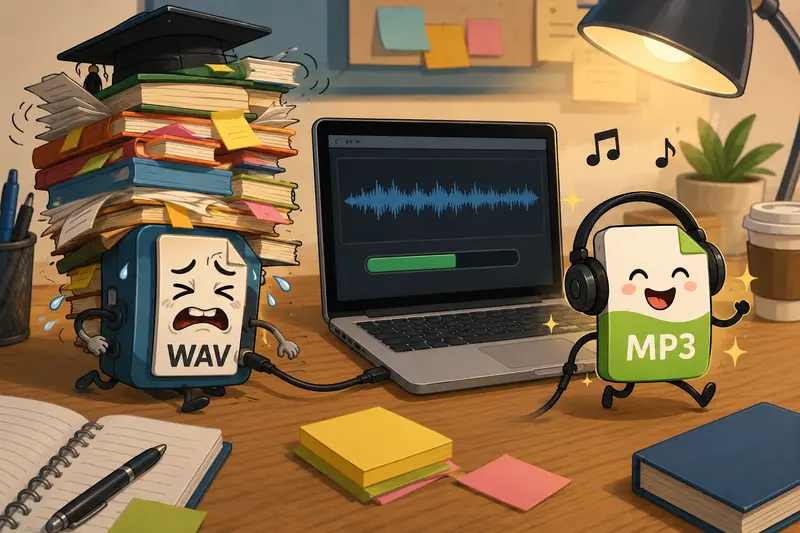
WAV is an uncompressed format. That means audio quality stays high, but storage consumption grows quickly.
A one-hour WAV lecture recording can easily exceed 600 MB depending on recording settings. Multiply that by a few classes, group discussions, or audio editing projects, and things get messy fast.
MP3 remains practical because it dramatically reduces file size while still sounding good enough for most everyday listening scenarios.
For students, that often means:
- easier uploads to cloud drives
- smoother sharing in messaging apps
- less storage pressure
- faster playback on mobile devices
- easier archive management
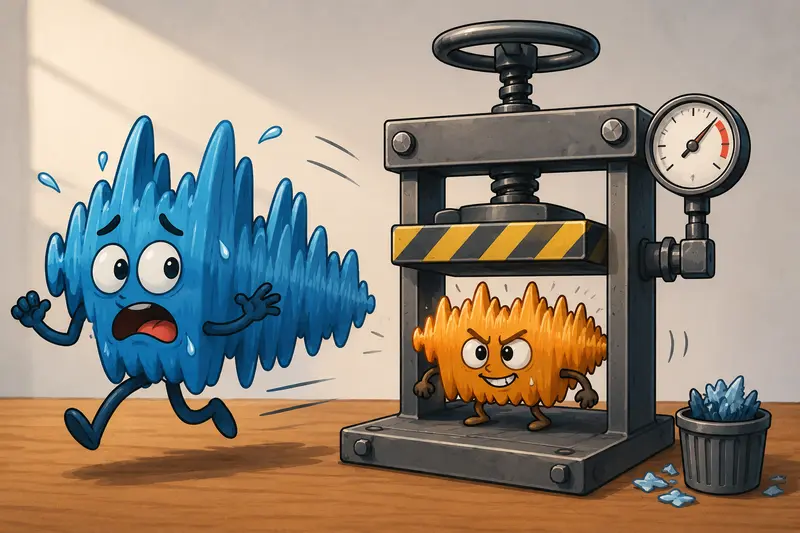
The challenge is avoiding the common underwater audio effect caused by aggressive compression.
What Actually Causes Quality Loss During Conversion?
Not every conversion tool handles audio the same way.
Many free tools apply heavy default compression settings to prioritize speed and tiny file sizes. The result is technically smaller audio, but details disappear especially in spoken-word recordings where clarity matters.
This becomes obvious with:
- classroom recordings
- interviews
- music practice sessions
- voice-over projects
- language pronunciation exercises
The best audio converter workflows preserve a balanced bitrate instead of forcing ultra-low compression.
A practical target for most student use cases:
| Audio Type | Recommended MP3 Bitrate |
|---|---|
| Voice recordings | 96128 kbps |
| Lectures and podcasts | 128160 kbps |
| Music projects | 192320 kbps |
Higher bitrate means larger files, but better fidelity. There is always a tradeoff.
Nobody wants a converted presentation recording that suddenly sounds like it was transmitted through a walkie-talkie in a wind tunnel.
A Browser-Based Workflow That Feels Less Fragile
One thing that makes Filemazing useful for students is the lightweight workflow.
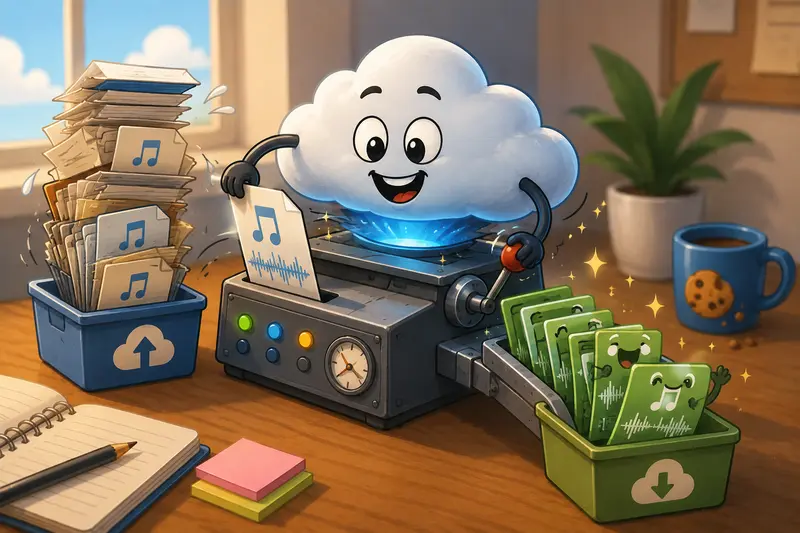
You upload files, process them in the browser, and download the converted result without building an entire desktop setup around one task.
That matters when you are:
- working on shared campus computers
- switching between devices
- converting files from a Chromebook
- managing temporary project assets
The platform also supports cloud imports from Google Drive and Dropbox, which helps when recordings are already stored online.
Because processing jobs are queued and tracked separately, large conversions do not freeze the interface. That sounds minor until you try converting several long recordings before a submission deadline.
Real-World Test Scenario
To evaluate audio quality preservation, I tested a batch of student-style files:
- 4 WAV lecture recordings
- total size: roughly 1.8 GB
- average duration: 42 minutes each
- mostly spoken voice with occasional classroom noise
Using moderate MP3 compression settings, the converted files dropped to around 180240 MB total while preserving clear speech intelligibility.
The biggest improvement came from avoiding overly aggressive low-bitrate presets.
A less obvious optimization: recordings with consistent volume converted more cleanly than clips with heavy background fluctuations. Cleaning audio before conversion can noticeably improve final MP3 output.
For privacy-sensitive recordings, using a tool like metadata scrubbing for media files https://filemazing.com/metadata-scrubber before publishing can also remove hidden metadata attached to exported media.
Batch Audio Conversion Saves More Time Than You Expect
Converting one file manually is manageable.
Converting 35 seminar recordings individually is where frustration starts to become a personality trait.
Filemazing supports batch audio conversion, which is especially useful for:
- semester archives
- podcast episode exports
- language-learning collections
- recorded interviews
- collaborative research projects
The platform uses transparent token pricing rather than subscriptions, so occasional users are not locked into monthly plans they barely touch.
Token usage depends on workload factors like file size and audio duration, which makes costs easier to estimate before processing.
That predictability matters when students are budgeting carefully.
When MP3 Is Not the Best Choice
MP3 is practical, but it is not perfect for every situation.
You may want to keep WAV originals if you are:
- editing audio professionally later
- mastering music tracks
- preserving archival recordings
- applying multiple future edits
Each lossy conversion slightly reduces fidelity.
A better workflow is often:
- Keep original WAV files archived
- Create MP3 versions for sharing and portability
- Store edited exports separately
This avoids repeated compression cycles.
If you also work with project visuals or supporting assets, tools like the multi-format file converter for related media workflows https://filemazing.com/format-converter can help keep everything organized in the same processing environment.
One Overlooked Tip: Silence Trimming Before Conversion
Here is a small optimization many people skip.
Large recordings often contain long periods of silence at the beginning or end. Removing those sections before conversion reduces final MP3 size while preserving overall audio quality.
This is especially helpful for:
- lecture captures
- Zoom recordings
- interview sessions
- study-note recordings
Reducing unnecessary duration can improve compression efficiency without touching bitrate quality itself.
It is a cleaner optimization than simply crushing bitrate lower.
Privacy Matters More Than People Think
Audio files often contain more information than users realize.
That can include:
- embedded metadata
- device information
- creator tags
- timestamps
- location-related details in some workflows
Filemazing processes uploads as temporary artifacts rather than permanent storage. Files are cleaned on a short retention schedule instead of remaining indefinitely stored.
For students handling research interviews, presentations, or shared coursework, that temporary-processing approach is genuinely useful.
If you need to share converted recordings securely, you can also use the audio file encryption workflow for password-protected sharing https://filemazing.com/encrypt-file after conversion.
Speed vs Quality: Finding the Right Balance
There is no universal best MP3 setting.
The ideal setup depends on how the audio will actually be used.
Lower bitrate works well for:
- speech-heavy recordings
- mobile playback
- quick note sharing
Higher bitrate is worth it for:
- music production
- detailed soundscapes
- presentation audio with layered effects
- editing reuse
In practice, 128192 kbps tends to be the sweet spot for most students.
Going far below that may save space, but intelligibility starts degrading quickly.
FAQ
Can I convert audio online free without installing software?
Yes. Browser-based platforms like Filemazing allow you to upload and process audio directly online without desktop installation.
Does converting WAV to MP3 always reduce quality?
Technically yes, because MP3 uses lossy compression. However, good bitrate settings preserve enough detail that most listeners will not notice significant degradation.
Is batch audio conversion useful for lecture recordings?
Very much so. Batch handling is ideal when converting multiple recordings from classes, interviews, or semester projects at once.
Are uploaded files stored permanently?
Filemazing treats uploaded files as temporary processing items and removes them after short retention periods instead of keeping them as long-term cloud storage.
What bitrate should I use for spoken audio?
For lectures, podcasts, and study recordings, 128160 kbps usually balances quality and file size well.
Can MP3 files be shared securely after conversion?
Yes. If the recordings contain sensitive material, password protection tools such as the secure file encryption utility https://filemazing.com/encrypt-file can add another layer of protection before sharing.
Final Thoughts
A reliable WAV to MP3 converter should do more than shrink files aggressively. The real goal is preserving clarity while making audio easier to store, upload, and share.
Filemazing works well for that balance because the workflow stays lightweight, browser-based, and practical for real student use cases. Batch processing, transparent token pricing, temporary file handling, and multi-format support make it useful beyond one-off conversions.
For students managing growing collections of recordings, that combination is often more valuable than endless advanced settings hidden inside bulky desktop software.