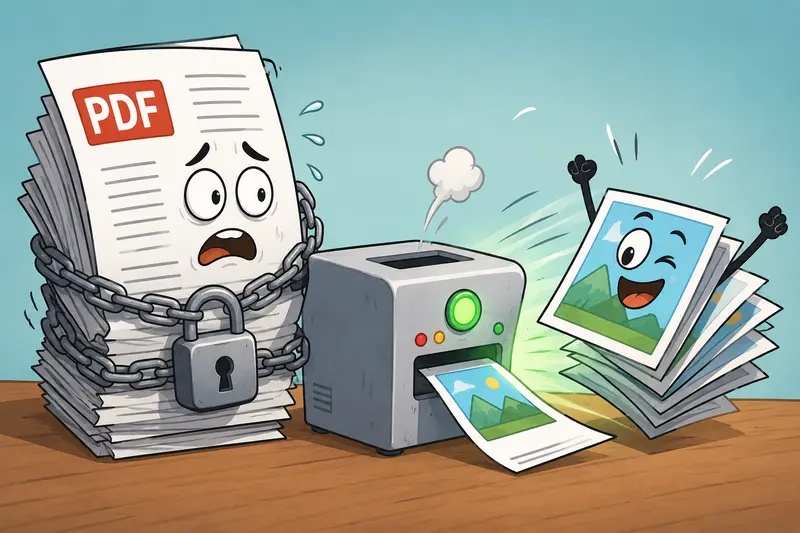
Email attachments can become a problem when PDFs are large, contain dozens of pages, or need to be viewed quickly on different devices. In many cases, converting a PDF into JPG images makes sharing easier, especially when recipients only need to review specific pages rather than download an entire document.
For developers managing documentation, reports, design reviews, or client deliverables, a reliable PDF to JPG converter can streamline communication while preserving visual fidelity.
What You Need to Know First
A good PDF to JPG converter allows you to extract PDF pages as image files that are easy to attach to emails, embed in tickets, share in chat platforms, or process in automated workflows.
The key is finding a solution that delivers high quality PDF to image conversion without introducing blurry text, distorted graphics, or unnecessary complexity.
Why Convert PDFs to JPG Before Sending by Email?
PDFs are excellent for preserving layouts, but they are not always ideal for quick sharing.
Common situations include:
- Sending visual reports to stakeholders
- Sharing individual document pages
- Embedding content into emails
- Attaching images to project management tools
- Creating previews for document approval workflows
- Making documents easier to view on mobile devices
Large files have a habit of appearing exactly when email attachment limits matter most.
When recipients only need visual access to content, JPG files can reduce friction and improve accessibility.
A Practical Workflow for Converting PDF Pages into Email-Friendly Images
The process is straightforward:
1. Upload the PDF
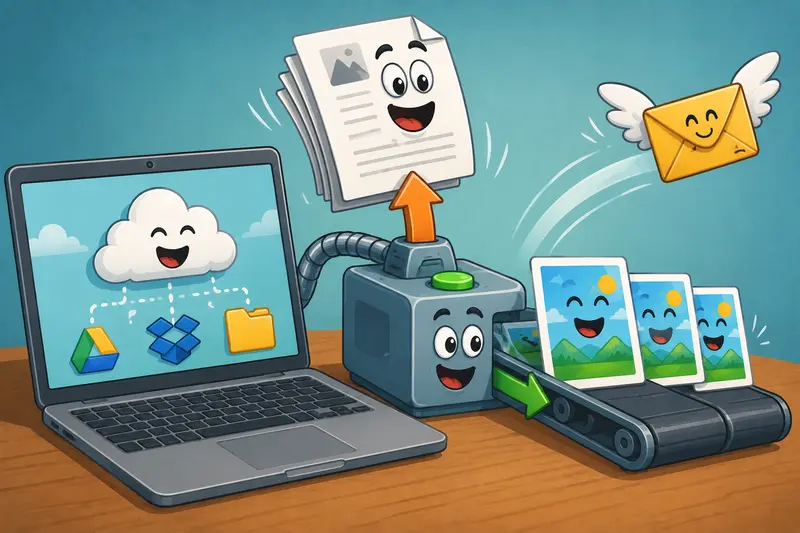
Select your document from local storage, a URL, or cloud providers such as Google Drive or Dropbox.
2. Choose Image Output
Convert individual pages into JPG images suitable for email attachments and previews.
3. Review Quality Requirements
If the document contains small text, diagrams, or code snippets, prioritize higher image quality settings.
4. Download the Generated Images
Each page becomes a separate image file that can be attached, shared, or integrated into downstream processes.
5. Optimize for Delivery
If attachment size becomes a concern, you can further reduce image size using Filemazings image compression tool before sending.
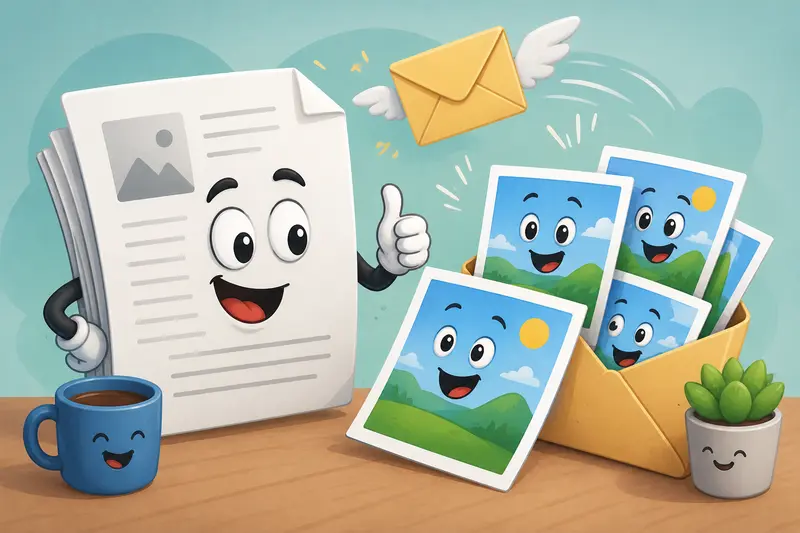
A Browser-Based PDF to JPG Converter Built for Practical Workflows
Filemazings PDF-to-image tool is available at:
https://filemazing.com/pdf-to-image
The platform emphasizes output quality while remaining lightweight and accessible through the browser.
Several characteristics make it useful for developers and technical teams:
- High-quality page rendering
- Browser-based operation without desktop installation
- Batch processing support
- Cloud file imports
- API-ready automation options
- Transparent token-based pricing
- Temporary file handling with automatic cleanup
Unlike traditional desktop utilities, Filemazing can fit into both manual workflows and automated pipelines. Teams can convert documents through the web interface or integrate processing into backend systems using API endpoints.
For organizations handling recurring document tasks, this flexibility reduces the need for multiple specialized tools.
Real-World Testing Results
To evaluate conversion quality, we tested a technical PDF containing:
- 42 pages
- 18 MB file size
- Source content including diagrams, tables, and code samples
- Mixed vector graphics and embedded images
Testing Method
The PDF was uploaded through the browser interface and converted into JPG images using default settings.
Observed Outcome
The generated images retained:
- Sharp code formatting
- Readable small text
- Accurate diagram rendering
- Consistent page layouts
Even pages containing dense technical documentation remained legible when viewed on desktop and mobile devices.
Practical Takeaway
If your goal is PDF to JPG without losing quality, start with the highest practical image output settings and only apply compression after reviewing the converted files. Reducing image size too early can make detailed content harder to read.
Quality Versus File Size: A Tradeoff Worth Understanding
One of the most overlooked aspects of PDF conversion is balancing clarity against attachment size.
Higher-quality JPG output offers:
- Better readability
- Cleaner diagrams
- Improved presentation quality
However, larger image files consume more storage and may trigger email attachment limits.
Lower compression levels preserve detail, while aggressive compression can introduce artifacts around:
- Text
- Charts
- Technical drawings
- Screenshots
For documentation-heavy workflows, preserving readability is usually more important than achieving the smallest possible file size.
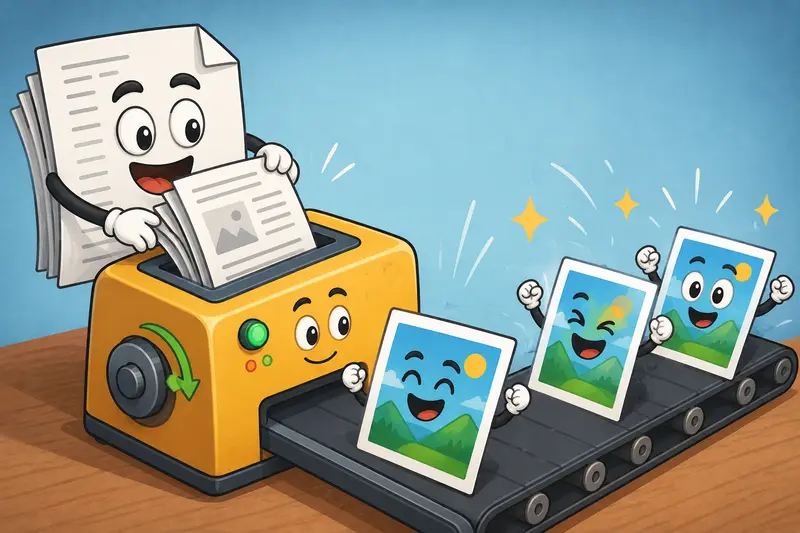
Where Developers Commonly Use PDF-to-Image Conversion
Technical Documentation Reviews
Convert specification documents into image previews for faster stakeholder feedback.
Client Deliverables
Share selected pages rather than distributing entire document packages.
Mobile-Friendly Reporting
Teams can save PDF as image on mobile devices and distribute pages through messaging platforms.
Knowledge Base Content
Convert PDF diagrams into image assets for internal documentation systems.
Issue Tracking Systems
Attach individual page images to tickets instead of large source PDFs.
Automated SaaS Workflows
Use API-driven conversion to generate previews, thumbnails, or archived image versions of uploaded documents.
Practical Advantages
The value of converting PDFs into JPG files often comes down to operational convenience.
Key benefits include:
- Easier email sharing
- Better compatibility across devices
- Faster preview generation
- Flexible integration into workflows
- Simplified mobile viewing
- Efficient page-level distribution
When documents need to move quickly between systems, image-based sharing can remove unnecessary steps.
Related File Workflows That Often Go Together
Document preparation rarely ends with a single conversion.
For example, teams frequently need to merge PDF files before converting pages to images, especially when working with reports generated from multiple sources.
After conversion, developers may also need to convert JPG, PNG, WEBP, HEIC, and AVIF files when preparing assets for different platforms and applications.
Combining these workflows can significantly reduce manual file handling.
Frequently Asked Questions
Can I convert PDF to JPG without losing quality?
Quality depends on rendering settings and source content. High-resolution exports generally preserve text, graphics, and layout details very well.
Is it safe to upload PDFs for conversion?
Filemazing treats uploaded files as temporary processing artifacts rather than long-term storage. Files are automatically cleaned according to short retention policies after processing.
Can I save PDF as image on mobile?
Yes. Since the tool runs in the browser, it can be used from smartphones and tablets without requiring desktop software.
What happens with large multi-page PDFs?
Large documents are processed through queued jobs with status tracking, allowing lengthy tasks to complete without blocking the interface.
Are formats other than JPG supported?
Yes. File-related workflows often involve additional conversions. If needed, you can use the platforms format conversion capabilities for other image formats.
Is the tool suitable for automation?
Yes. Developers can integrate processing into automated systems using Filemazing API endpoints for scalable document workflows.
Final Thoughts
When email sharing is the primary goal, converting PDFs into JPG images often creates a smoother experience for both senders and recipients. A reliable PDF to JPG converter should preserve document quality, support larger workloads, and avoid unnecessary software installation.
Filemazing combines high quality PDF to image conversion, browser-based convenience, temporary file handling, and automation-ready workflows in a single platform. Whether youre preparing client reports, technical documentation, or automated document pipelines, it provides a practical way to convert and share files with confidence.