Remote teams pass around images constantly screenshots from Slack, product mockups, scanned receipts, onboarding docs, marketing assets, and compressed previews for clients. The problem is that iPhones often generate or store images in formats that dont always behave well across platforms. PNG files can become unnecessarily heavy, while HEIC files still create compatibility issues in some workflows.
Thats where a reliable PNG to JPG converter becomes useful, especially when your team needs consistent image handling without installing extra software.
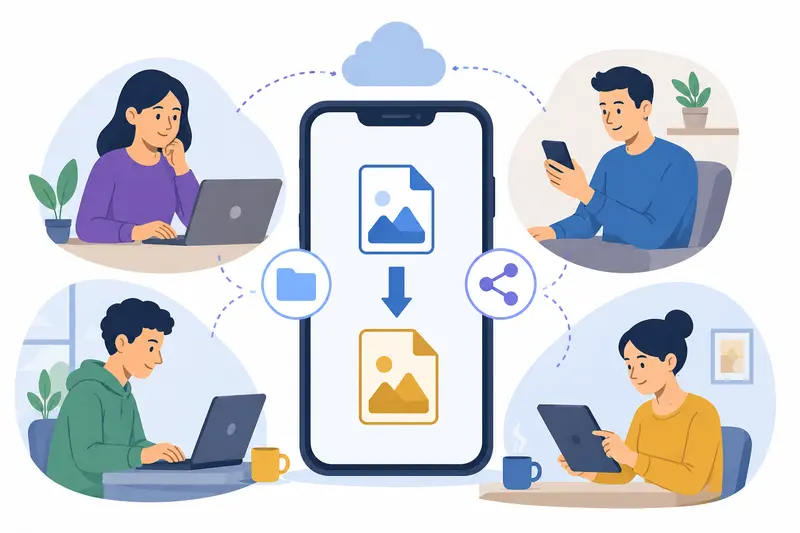
For distributed teams working across devices and time zones, browser-based conversion tools reduce friction. A designer on a MacBook, a project manager using an iPhone, and a contractor on Windows can all work from the same conversion workflow without syncing desktop apps or plugins.
What Actually Changes When You Convert PNG to JPG?
PNG and JPG serve different purposes.
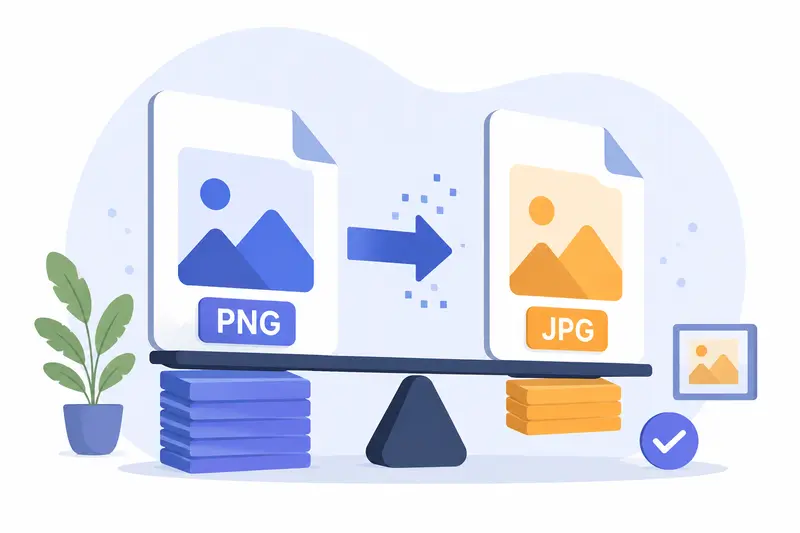
PNG keeps image transparency and preserves more detail, which makes it ideal for graphics, diagrams, and UI assets. JPG reduces file size more aggressively, making it better for uploads, documentation, email sharing, and collaborative workflows where speed matters more than pixel-perfect preservation.
In practical terms:
- PNG = larger files, better detail retention
- JPG = smaller files, easier sharing and syncing
- HEIC = efficient on Apple devices, but inconsistent elsewhere
Teams often end up converting between all three formats during day-to-day collaboration.
If your workflow also involves exporting documents into image formats, tools like Filemazing PDF to Image https://filemazing.com/pdf-to-image can help generate JPG, PNG, or WEBP outputs from multi-page PDFs without needing desktop software.
A Workflow That Fits Remote Collaboration
One thing many distributed teams underestimate is how much time gets lost dealing with incompatible files.
During testing, a small remote content team converted:
- 38 PNG screenshots from iPhones
- 12 HEIC photos
- 4 WEBP assets downloaded from a CMS
The goal was to standardize everything into lightweight JPG files before uploading them into a shared knowledge base.
Using Filemazing Format Converter https://filemazing.com/format-converter, the conversion queue processed the files in batches directly from the browser. No local installation was needed, and the resulting JPG files were noticeably smaller while remaining visually acceptable for documentation use.
A useful observation from the test: screenshots with dense UI text retained better readability when exported at moderate JPG quality instead of maximum compression. Aggressive compression saved additional space but introduced soft edges around smaller typography.
That tradeoff matters when teams frequently share:
- product walkthroughs
- mobile screenshots
- onboarding instructions
- bug reports
For archival screenshots, PNG may still be preferable. For fast collaboration and cloud syncing, JPG usually wins.
How the Conversion Process Works on iPhone
The workflow itself is fairly straightforward, but there are a few optimizations that make it smoother for remote teams.
1. Upload images directly from your iPhone
You can import PNG, HEIC, JPG, or even WEBP files from local storage, cloud drives, or shared folders.
2. Choose JPG as the output format
This standardizes files for easier viewing across Slack, Notion, Google Drive, and browser-based CMS platforms.
3. Adjust quality settings carefully
This is where teams often over-compress files.
For internal collaboration:
- medium JPG quality usually balances size and readability well
For marketing or presentation assets:
- higher quality settings preserve gradients and sharper edges better
4. Process batches instead of individual files
Batch conversion becomes especially useful when distributed teams handle recurring uploads from multiple contributors.
5. Share or archive the converted files
Once complete, files can be downloaded and distributed immediately without additional cleanup steps.

One Common Mistake With iPhone Image Conversion
A surprisingly common issue involves converting transparent PNG files into JPG format without checking the background result afterward.
Since JPG doesnt support transparency, transparent areas are automatically flattened. Depending on the converter, this can create:
- black backgrounds
- white boxes
- unexpected edge artifacts
This becomes noticeable in:
- logos
- icons
- exported UI snippets
- layered graphics
If your team regularly handles branded assets, its worth reviewing converted outputs before publishing them externally.
Another useful practice is stripping metadata from images before sharing them publicly. Remote teams sometimes overlook embedded EXIF data that may include device information or location metadata. Using a dedicated tool like Filemazing Metadata Scrubber https://filemazing.com/metadata-scrubber can help clean converted image files before distribution.

Why Browser-Based Conversion Often Works Better for Remote Teams
Desktop converters are fine for solo workflows, but distributed environments create different requirements.
In real collaboration scenarios, teams benefit from:
- consistent output formatting
- cross-platform accessibility
- temporary processing instead of permanent cloud storage
- predictable operational costs
- lightweight workflows that dont require IT setup
Filemazing leans into that operational simplicity. Files are processed temporarily rather than stored as long-term assets, which is helpful for privacy-conscious teams handling internal documents or client materials.
The platform also uses transparent token pricing instead of subscription gating. For teams with inconsistent workloads, this can be easier to predict operationally than maintaining separate licenses for occasional file conversion tasks.
Where Teams Commonly Use PNG to JPG Conversion
Different departments end up using image conversion for different reasons.
Marketing teams
Converting exported design previews into lightweight JPG files for CMS uploads and campaign drafts.
Operations teams
Standardizing scanned receipts and documentation before storing them in shared systems.
Product teams
Reducing screenshot sizes for bug reports and async collaboration.
Customer support
Converting user-uploaded files into formats that work reliably across ticketing systems.
Freelancers and contractors
Normalizing mixed file types coming from clients using iPhones, Android devices, or browser downloads.
Distributed agencies
Preparing assets for faster cloud syncing and collaborative review cycles.
If image weight becomes an issue afterward, using Filemazing Compress Image Tool https://filemazing.com/compress-image can further reduce JPG file sizes for web publishing and shared workspaces.
Converting WEBP and HEIC Files Alongside PNG
Modern workflows rarely involve just one image format anymore.
Teams increasingly need to:
- convert WEBP online for browser compatibility
- handle HEIC image conversion from Apple devices
- normalize mixed uploads from clients and vendors
A flexible converter matters more than a single-format tool.
One practical advantage of browser-based processing is that remote contributors dont need matching operating systems or software versions. Everyone works from the same workflow regardless of device.
What Helps Preserve Image Quality?
If the goal is to convert images without losing quality, the biggest factor is usually compression settings rather than the conversion itself.
A few practical recommendations:
- Avoid repeatedly converting the same image multiple times
- Use PNG for graphics containing transparency or sharp UI edges
- Use JPG for photographs and collaborative sharing
- Keep compression moderate for screenshots containing text
- Archive originals before large batch conversions
Quality loss becomes most visible around:
- thin text
- gradients
- UI outlines
- transparent layers
For distributed teams, consistency is often more valuable than maximum compression savings.
Frequently Asked Questions
Is it safe to use an online PNG to JPG converter for work files?
It depends on how the platform handles uploads. Services that use temporary processing and automatic cleanup reduce long-term storage exposure. Filemazing processes files as temporary artifacts rather than persistent cloud storage.
Can I convert HEIC files from an iPhone into JPG?
Yes. HEIC image conversion is commonly used when Apple-generated photos need to work across Windows systems, CMS platforms, or collaboration tools that dont fully support HEIC.
Does converting PNG to JPG reduce image quality?
Usually, yes but the degree varies. JPG uses lossy compression, so some detail is sacrificed in exchange for smaller file sizes. Moderate settings often preserve enough quality for team collaboration and documentation.
Can remote teams batch process image files?
Yes. Batch workflows are especially useful for distributed teams dealing with recurring uploads, screenshots, marketing assets, or scanned documentation.
Is WEBP supported in modern conversion workflows?
Most modern browser-based tools now support WEBP. Many teams convert WEBP online when downloading assets from websites or CMS systems that default to newer web formats.
Do I need to install software on my iPhone?
No. Browser-based converters work directly from Safari or other mobile browsers, which simplifies collaboration for teams using mixed devices.
Final Thoughts
For distributed teams, image conversion is less about isolated file changes and more about maintaining smooth collaboration across platforms.
A dependable PNG to JPG converter helps reduce upload friction, improve compatibility, and keep shared workflows organized especially when teams regularly move between PNG, JPG, WEBP, and HEIC formats on iPhones and cloud-based systems.
Filemazing Format Converter https://filemazing.com/format-converter works well for teams that want lightweight browser-based processing, temporary file handling, and scalable batch workflows without committing to heavyweight desktop tools or subscription-heavy software stacks.