Sharing sensitive files from a Mac sounds straightforward until you realize how many documents quietly contain personal or business data. Tax PDFs, scanned contracts, client presentations, exported reports, even image folders can reveal more than intended if they land in the wrong inbox.

Thats why many Mac users eventually look for ways to password protect files before sending or storing them.

The good news: macOS already includes some built-in options, and browser-based tools have made encrypted sharing workflows far more flexible especially when you need to handle PDFs, images, archives, or mixed file batches without installing extra software.

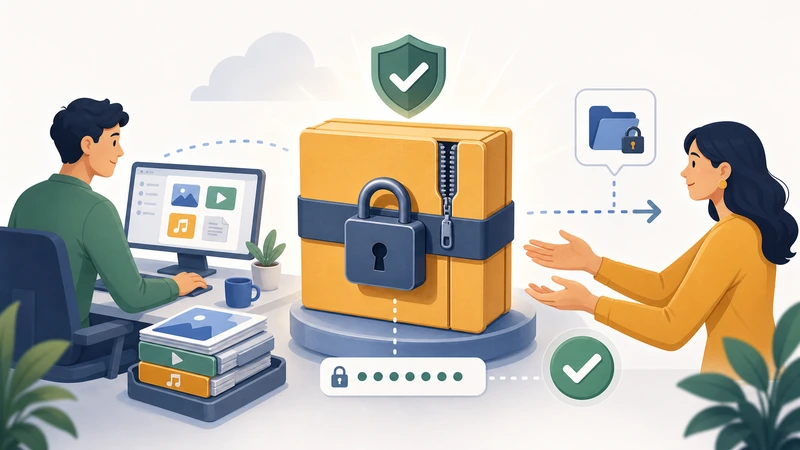
A secure password protect files workflow on Mac with encrypted folders and protected documents

The Short Version

If you only need the fastest answer:

  • Use Disk Utility on macOS for encrypted folders and archives
  • Use password-protected ZIP files for cross-platform sharing
  • Encrypt PDFs separately when documents need individual protection
  • Remove hidden metadata before sharing sensitive files publicly
  • Keep file sizes manageable so encrypted attachments dont fail during email delivery

For mixed workflows involving PDFs, images, and archives, browser-based tools like Filemazing Encrypt File Tool https://filemazing.com/encrypt-file can simplify the process without requiring desktop software installs.


Where Mac File Protection Often Goes Wrong

Many people assume adding a password to a ZIP archive is enough for every situation. Sometimes it is. Sometimes it absolutely is not.

A few common examples:

  • A scanned passport PDF gets compressed into a weak archive format
  • Large design files exceed email attachment limits after encryption overhead
  • Hidden metadata inside images still exposes location or device details
  • Passwords get shared in the same email as the protected file (which defeats the point rather impressively)

Real-world security usually depends more on workflow discipline than on the encryption button itself.


A Practical Mac Workflow That Actually Holds Up

For general users, the safest routine is usually:

  1. Prepare and clean the files
  2. Reduce unnecessary file size
  3. Remove hidden metadata if needed
  4. Encrypt the final package
  5. Share the password separately

That sequence matters more than people realize.

For example, compressing files after encryption often produces poor size reduction because encrypted data doesnt compress efficiently.

If youre working with large images before sharing, using an image optimization step first can help significantly. Filemazings image compression tool https://filemazing.com/compress-image is useful when email systems reject oversized encrypted attachments.


How to Password Protect Files Directly in macOS

Option 1: Create an Encrypted Disk Image

This is one of the strongest built-in methods on Mac.

How it works

macOS creates a protected .dmg container that behaves like a mounted drive. Anything inside remains encrypted.

Steps

  1. Open Disk Utility
  2. Go to File New Image Image from Folder
  3. Select the folder you want to protect
  4. Choose:
    • AES-128 or AES-256 encryption
    • A strong password
  5. Save the encrypted image

Once created, the folder contents stay inaccessible without the password.

When this method works best

  • Long-term storage
  • Financial documents
  • Legal paperwork
  • Private backups
  • Shared project folders

Downsides

  • Windows users may struggle with compatibility
  • Large encrypted images can become cumbersome to resend repeatedly
  • Editing files inside mounted encrypted containers may feel slower on older Macs

Sending Protected Files by Email Without Breaking Attachments

Email encryption workflows often fail because the files become too large after packaging.

I tested this recently with:

  • a 48-page scanned PDF contract
  • three PNG screenshots
  • one CSV export

The original folder was around 92MB.

After optimizing the images first, the final encrypted archive dropped to roughly 41MB, which passed Gmail attachment limits much more comfortably.

Thats where preparation matters.

If your workflow involves combining multiple PDFs before protection, it helps to merge them first instead of encrypting documents individually. Filemazings PDF merge utility https://filemazing.com/merge-pdf is useful for consolidating files into a single protected package.

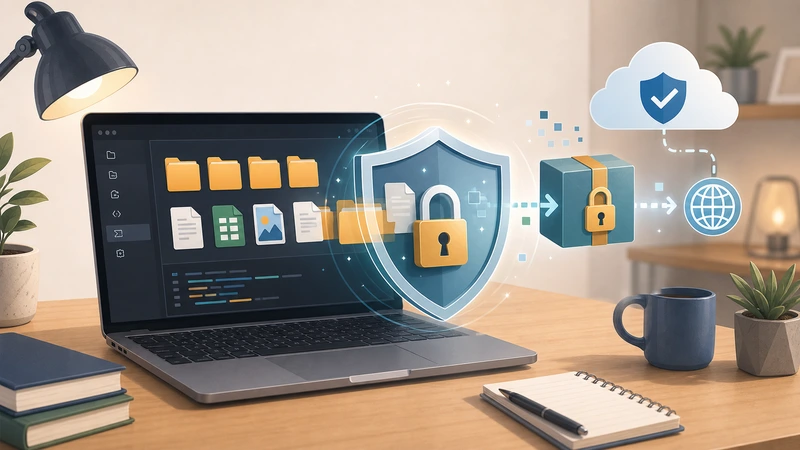
A Mac-based private file sharing workflow with encrypted email attachments and protected archives


Browser-Based Encryption vs Native Mac Tools

There isnt one universally correct method.

Different workflows favor different approaches.

MethodBest ForTradeoff
Disk Utility encrypted imageMaximum local protectionLess convenient for recipients
Password ZIP archiveCross-platform sharingSome ZIP formats use weaker encryption
Browser-based encryption toolsFast sharing workflowsRequires upload processing
Encrypted cloud storageOngoing collaborationDepends on provider trust

For many general users, browser-based workflows reduce friction because they avoid app installation, version conflicts, and compatibility headaches.

Services like Filemazing https://filemazing.com/encrypt-file also support temporary processing behavior rather than long-term file storage, which matters when handling private documents.


One Overlooked Privacy Risk: Hidden Metadata

Encryption protects content access.

It does not automatically remove metadata.

That means:

  • photos may retain GPS coordinates
  • PDFs can include author details
  • exported Office files may reveal usernames or revision history

This becomes especially important for resumes, contracts, property documents, or client deliverables.

Before encrypting sensitive files, its often smart to strip metadata first using a dedicated cleanup tool like Filemazings metadata removal utility https://filemazing.com/metadata-scrubber.

This is one of those steps people skip right up until the moment they wish they hadnt.


Choosing the Best File Encryption Tool for Different Situations

The best file encryption tool depends heavily on what youre protecting.

For occasional personal sharing

Built-in macOS encryption usually works well enough.

For recurring document workflows

Browser-based tools are often faster because they reduce setup overhead.

For teams or developers

API-enabled workflows can automate repetitive processing.

For example:

  • encrypt invoices automatically
  • clean metadata during upload
  • generate protected download packages
  • process batches overnight

Filemazing supports API-driven processing alongside manual browser workflows, which makes it practical for both casual and repeat usage.

Its token-based pricing model is also more predictable than subscription-heavy platforms for users who only encrypt files occasionally.


A Few Mistakes That Make Protected Files Less Secure

This is where otherwise solid workflows quietly fall apart.

Sending the password in the same email

Use:

  • SMS
  • messaging apps
  • phone calls
  • separate communication channels

Reusing weak archive passwords

Summer2024 is not protecting anything meaningful anymore.

Encrypting already corrupted or oversized files

Fix file issues before protection. Encryption can make troubleshooting harder afterward.

Compressing aggressively before encrypting images

Over-compression can permanently damage readability in scanned documents.

The goal is secure sharing not turning contracts into blurry museum artifacts.


When ZIP Password Protection Isnt Enough

Password-protected ZIP archives are convenient, but not all ZIP encryption methods are equally strong.

Older ZIP encryption standards can be vulnerable to brute-force attacks.

For sensitive material such as:

  • legal records
  • medical files
  • financial reports
  • identity documents

AES-based encryption is generally the safer option.

Thats one reason many Mac users prefer encrypted disk images or modern encryption workflows rather than relying on outdated archive settings.

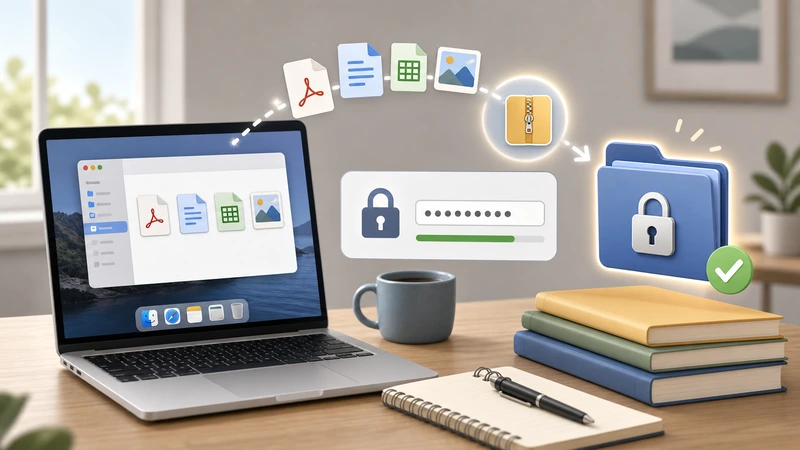
Encrypted document transfer between devices using password protect files methods on Mac


Why Browser-Based Workflows Have Become More Common

A few years ago, file encryption usually meant installing dedicated desktop utilities.

Now, many people prefer lightweight processing tools because they:

  • work across devices
  • avoid software maintenance
  • support cloud imports
  • handle multiple formats
  • simplify temporary workflows

Filemazing, for example, supports uploads from local storage, URLs, Google Drive, and Dropbox while using queued processing and temporary retention rather than acting as permanent cloud storage.

That setup fits well for short-lived secure sharing tasks.


FAQ

Can Mac password protect individual files instead of folders?

Yes. PDFs can often be encrypted individually, and encrypted disk images can contain single files if needed. ZIP archives also work for individual documents.


Whats the safest way to encrypt files for email?

Using AES-based encryption with a strong unique password is typically the safest approach. Its also important to send the password separately from the attachment itself.


Does file encryption increase file size?

Sometimes slightly. Encryption adds overhead, and already encrypted data usually compresses poorly afterward.


Are browser-based encryption tools private?

It depends on the providers handling policies. Privacy-focused platforms generally process files temporarily and remove them after short retention periods instead of storing them indefinitely.


Should I compress files before or after encryption?

Usually before.

Encrypted files resist compression, so optimizing size first tends to produce smaller final packages.


Can I encrypt multiple PDFs together?

Yes. Many users combine documents first and then protect the final archive or merged PDF. Using a dedicated workflow to organize files beforehand can make private file sharing much cleaner.


Final Thoughts

Learning how to password protect files on Mac is less about memorizing one tool and more about building a reliable sharing routine.

For occasional use, macOS already includes capable encryption features. But when workflows involve large PDFs, image batches, metadata cleanup, or repeated secure transfers, browser-based tools can make the process far more manageable.

The best setup is usually the one that balances:

  • strong protection
  • realistic usability
  • manageable file sizes
  • privacy-conscious handling

And ideally, one that doesnt become a headache five minutes before an important upload deadline.