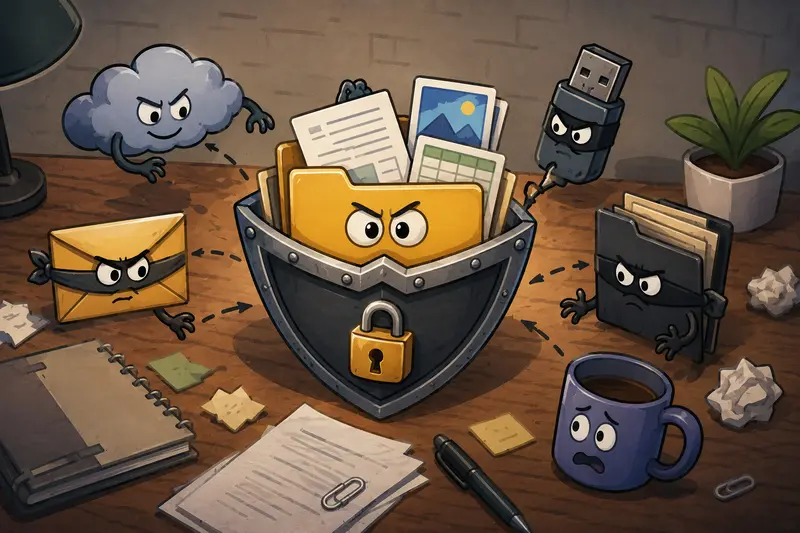
Backups are supposed to reduce stress. In practice, they often create a different problem: sensitive files scattered across cloud drives, external SSDs, shared folders, and temporary transfer links.
For developers especially, the need to password protect files usually shows up in messy real-world situations database exports, environment archives, deployment snapshots, API credentials, exported logs, or zipped project handoffs. And once backup files leave your local machine, encryption stops being optional.
A secure backup workflow is not only about storage redundancy. Its also about controlling who can open the data if those files end up somewhere unintended.

Heres the Fast Answer
The safest way to password protect files for backup workflows is to encrypt them before upload, transfer, or archival. That includes PDFs, images, exported databases, compressed folders, and mixed project assets.
Browser-based tools like Filemazing Encrypt File Tool https://filemazing.com/encrypt-file make this easier because they avoid heavyweight desktop utilities while still supporting fast encrypted processing, temporary file handling, and automation-friendly workflows.
Why Developers Run Into Backup Security Problems
Many backup systems focus heavily on availability but not enough on exposure risk.
A few common examples:
- staging database dumps copied into shared cloud folders
- screenshots or PDFs attached to issue trackers
- exported logs stored in unsecured archives
- client deliverables synced across multiple machines
- automated backups uploaded before encryption occurs
The problem compounds when backups become routine. Teams stop noticing how many duplicate copies exist.
And large files somehow appear exactly when deadlines get close.
One overlooked issue is partial workflow security. A developer might encrypt a final ZIP archive but forget that extracted temp files, previews, or intermediate PDFs remain exposed elsewhere in the pipeline.
Thats where integrated file-processing workflows help.
For example, if you need to unpack archived deliverables before applying encryption policies, tools like Filemazing Archive Extractor https://filemazing.com/archive-extractor simplify handling mixed compressed formats without adding another desktop dependency.
A Practical Encryption Workflow That Actually Scales
The most reliable workflows are usually the boring ones predictable, repeatable, and easy to automate.
A typical developer-oriented backup process looks something like this:
1. Prepare the files first
Before encryption, organize related assets together.
That may include:
- exported SQL dumps
- configuration files
- PDFs
- screenshots
- image assets
- deployment documentation
If multiple PDFs belong together, combining them before encryption often reduces management overhead later. Tools like Filemazing Merge PDF Tool https://filemazing.com/merge-pdf help consolidate scattered documentation before applying protection.
2. Reduce unnecessary file size
Encrypted backups become slower to sync and duplicate when bloated assets are included.
For image-heavy workflows, compressing screenshots or exported visuals beforehand can significantly reduce transfer time. If you routinely handle design assets or reports, Filemazing Image Compression Tool https://filemazing.com/compress-image is useful for shrinking files before secure sharing or backup storage.
This is where one important tradeoff appears:
- PNG preserves detail better for diagrams and UI captures
- JPG dramatically reduces storage size but may introduce artifacts
For long-term backups of technical documentation, retaining clarity usually matters more than squeezing every megabyte out of the archive.
3. Encrypt the prepared files
Once the files are cleaned and organized, encryption becomes the final protection layer before transfer or storage.
Strong password-based encryption is especially useful for:
- portable SSD backups
- cloud storage uploads
- contractor handoffs
- offsite archive replication
- temporary file sharing workflows
4. Store passwords separately
This sounds obvious until someone uploads the encrypted ZIP and password into the same ticket comment.
Use a password manager or separate secure channel.
5. Automate repetitive processing
If your team handles recurring backup exports, browser tools with API support reduce repetitive manual work considerably.
Instead of maintaining local encryption scripts across machines, API-ready workflows centralize the process more cleanly.
Where Filemazing Fits Into Real Backup Pipelines
Filemazing https://filemazing.com/encrypt-file takes a lightweight approach to file processing. Rather than functioning as a storage platform, it focuses on temporary operational workflows conversion, cleanup, preparation, compression, extraction, and encryption.
That distinction matters.
Files are treated as short-lived processing artifacts instead of permanent cloud storage objects. Uploaded content is cleaned on a short retention schedule, which reduces long-term exposure concerns.
The platform is browser-based, so developers do not need to maintain separate desktop utilities just to:
- encrypt backups
- compress images
- merge PDFs
- scrub metadata
- extract archives
- convert media formats
The API support is especially practical for recurring workflows.
For example:
- nightly export jobs
- generated client reports
- deployment snapshots
- automated compliance backups
- secure media delivery pipelines
The pricing model is also unusually transparent compared to subscription-heavy SaaS tooling.
Instead of flat monthly plans, Filemazing uses token-based processing where operations consume tokens according to workload complexity. Encryption jobs currently use lightweight pricing rules with base cost and file-size calculations, making large-batch estimation easier before processing starts.
For teams scaling backup automation gradually, this predictability helps avoid surprise costs.
Anonymous users can start with daily free tokens, while larger workloads can scale through token packs without long-term commitments.
What We Tested in a Real Backup Scenario
To evaluate practical usability, a mixed developer backup package was tested containing:
- 3 exported PostgreSQL dumps
- 14 PNG screenshots
- 6 PDFs
- 2 compressed log archives
- total size: roughly 680MB
The workflow involved:
- compressing oversized screenshots
- merging related deployment PDFs
- extracting one archived log package
- encrypting the final grouped backup
Processing completed in queued stages rather than blocking the browser tab continuously, which made handling larger files noticeably smoother.
One particularly useful detail: large uploads remained manageable because completed jobs became downloadable independently instead of requiring the entire batch to finish first.
That reduces friction during iterative backup preparation.
Practical takeaway:
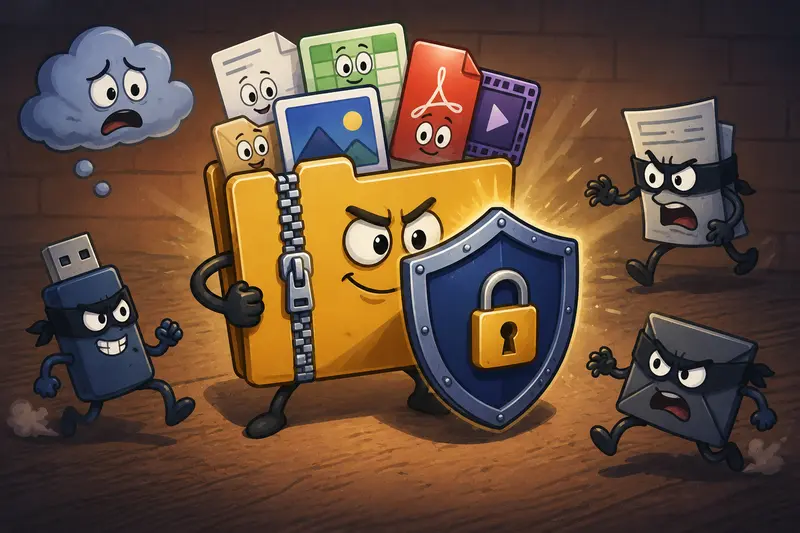
When handling large backup sets, organizing files into logical groups before encryption improves both token efficiency and recovery speed later. Restoring one encrypted archive is far easier than sorting through fifteen partially protected folders six months from now.
The Hidden Bottleneck Most Teams Ignore
Encryption itself is rarely the slowest part of backup workflows.
Preparation is.
Many developers lose more time dealing with inconsistent file structures than with actual encryption overhead.
Common friction points include:
- duplicate exports with unclear naming
- mixed archive formats
- giant uncompressed screenshots
- PDFs split across multiple folders
- temporary logs accidentally included
- oversized media assets bloating encrypted packages
A surprisingly effective optimization is creating a preprocessing stage before encryption begins.
That stage can automatically:
- compress images
- merge documentation
- scrub metadata
- normalize filenames
- extract nested archives
Then encryption becomes the final predictable step instead of a chaotic cleanup phase.
In larger workflows, this separation improves both recovery reliability and operational speed.
Some file formats cooperate nicely. Others behave like they were designed during a caffeine shortage.
Situations Where Password Protection Makes the Biggest Difference
Developers tend to benefit most from encrypted backup workflows in these scenarios:
| Scenario | Why Encryption Helps |
|---|---|
| Client project backups | Prevents unauthorized access during transfer |
| Cloud archive storage | Reduces exposure if credentials are compromised |
| Shared contractor workflows | Limits accidental file access |
| Portable SSD backups | Protects against device loss |
| Compliance-related exports | Adds another layer of access control |
| Temporary handoff archives | Keeps short-term delivery secure |
The same principle also applies when you need to password protect PDFs and images before external review or legal distribution.
What You Gain From a Browser-Based Encryption Workflow
Desktop encryption software still has its place, especially for full-disk encryption or enterprise policy enforcement.
But browser-based workflows offer several operational advantages:
- fewer local dependencies
- easier onboarding for teams
- lightweight processing from any machine
- simpler API integration
- no software maintenance overhead
- centralized workflow consistency
For indie SaaS teams and small developer groups, that simplicity often matters more than enterprise feature overload.
Especially when backup handling becomes repetitive.
FAQ
Is browser-based file encryption safe for backups?
It depends on the platforms handling policies. Filemazing treats uploads as temporary processing artifacts rather than long-term storage, with cleanup jobs removing files on a short retention schedule.
Can developers automate encryption workflows?
Yes. Filemazing supports API-based workflows, making it practical for scheduled backup jobs, automated exports, and CI/CD-related artifact protection.
What types of files can be encrypted?
Common workflows include PDFs, images, ZIP archives, logs, audio files, exported databases, and mixed project documents.
Does encryption noticeably slow large backups?
For very large files, encryption adds some processing overhead. In practice, file organization and upload preparation usually create bigger delays than encryption itself.
What is the best file encryption tool for lightweight workflows?
The best file encryption tool depends on your workflow complexity. Browser-based platforms are useful for fast operational tasks, while desktop utilities may fit full-device security requirements better.
Should files be compressed before encryption?
Usually yes especially for image-heavy backups. Compressing files first improves transfer efficiency because encrypted archives do not compress effectively afterward.
Final Thoughts
Secure backups are not only about redundancy anymore. They are part of operational hygiene.
When teams consistently password protect files before sharing, syncing, or archiving them, accidental exposure risks drop dramatically. The process becomes even more manageable when encryption is combined with preprocessing steps like compression, archive extraction, and document consolidation.
For developers handling recurring backup workflows, Filemazing Encrypt File Tool https://filemazing.com/encrypt-file offers a practical middle ground: browser-based processing, API-ready automation, transparent pricing, and short-lived file handling without the overhead of maintaining another desktop utility stack.
And importantly, it keeps backup preparation from turning into its own full-time project.