Large PDF collections tend to appear at the worst possible moment. A client sends eight separate contracts, a university portal accepts only one upload, or a scanned archive somehow turns into 600 pages spread across multiple files.
Thats usually when people start looking for a reliable way to join PDFs into one file without wrestling with desktop software, memory limits, or awkward exports.
Browser-based tools have improved a lot in the last few years, especially for handling heavier workloads. Instead of installing a dedicated PDF suite, you can now combine files directly online while keeping processing temporary and predictable.
For larger documents, though, the method matters.
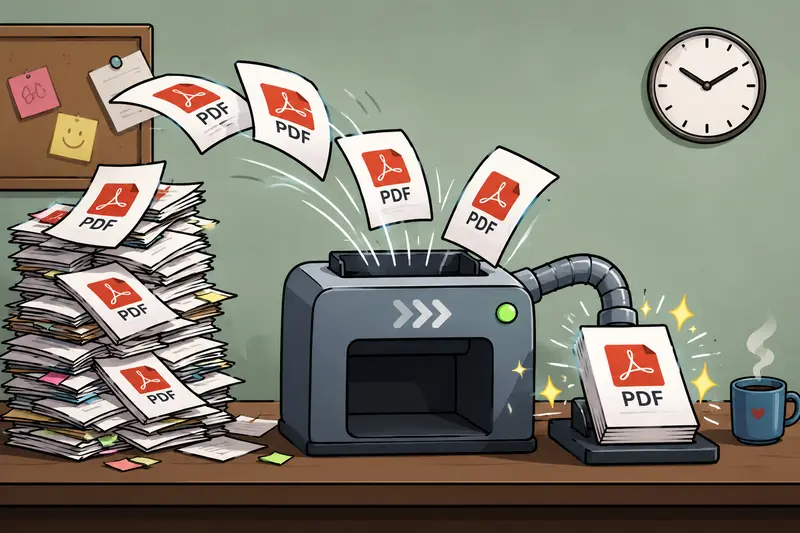
What Actually Matters With Large PDF Merges
Smaller PDFs are rarely a problem. The headaches start when you combine:
- scanned paperwork
- image-heavy reports
- exported slide decks
- legal archives
- high-page-count manuals
A 15-page text PDF merges instantly almost anywhere. A batch of 40 scanned PDFs totaling 1.2 GB is a very different story.
In real workflows, the biggest bottlenecks usually come from:
- browser memory usage
- upload speed
- image-heavy pages
- poor page ordering controls
- long processing queues
This is where a dedicated tool like Filemazing Merge PDF Tool https://filemazing.com/merge-pdf becomes useful because its designed around queued processing rather than forcing everything to happen locally inside the browser tab.
That distinction matters more than most people realize.
A Practical Example From a Scanned Archive Workflow
A common scenario involves scanned PDFs generated from office copiers. These files are often much larger than digitally created PDFs because every page is essentially an image.
Recently, a workflow involving:
- 27 scanned PDFs
- roughly 840 total pages
- mixed grayscale and color scans
- around 680 MB combined
was processed through a browser merge workflow to prepare one consolidated review document.
The merge itself completed successfully, but there was an important observation:
The largest delay wasnt the merge operation. It was uploading the scanned source files.
Thats useful to know because many users assume the actual PDF merging is the slow part.
Once processing began, the final combined file remained searchable and preserved page ordering correctly, which is critical for contracts, audit records, and academic scans.
Nobody wants page 312 appearing before page 47 because one upload finished late.
How To Combine Large PDFs Without Overloading Your Device
The easiest approach is usually a browser-based workflow with queued processing.
Heres the general process:
1. Upload the PDFs
Add files from:
- local storage
- Google Drive
- Dropbox
- direct URLs
Cloud import becomes surprisingly useful when large files are already stored remotely because it avoids unnecessary downloading and re-uploading cycles.
2. Arrange File Order
Before merging, confirm:
- chronological order
- naming consistency
- duplicate scans
- rotated pages
Large merge jobs become annoying to redo.
3. Start the Merge Process
With Filemazing, merging operates as a queued task instead of freezing the browser window.
This is especially helpful for bulk operations or lower-powered laptops that struggle with giant document previews.
4. Download the Final PDF
After processing completes, the merged file becomes available for download without permanent storage retention.
That temporary handling model is important for privacy-sensitive documents.
One Non-Obvious Tip That Saves Time
If you regularly combine scanned PDFs, reduce unnecessary scan resolution before merging.
Many office scanners default to extremely high DPI settings that inflate file size without adding meaningful readability.
For text-heavy scans:
- 200300 DPI is often enough
- grayscale usually reduces size substantially
- color scanning should be reserved for diagrams or photographs
This affects:
- upload time
- processing speed
- final PDF size
The quality difference is often invisible during normal viewing.
Large image files have impeccable timing when deadlines are involved.
Why Batch Merging Works Better Than Rebuilding Documents Manually
Some users still rebuild PDFs page-by-page through export tools or print workflows.
That becomes painful once file counts increase.
A proper batch PDF merge workflow helps preserve:
- page structure
- embedded fonts
- searchable layers
- scan consistency
- document sequencing
It also minimizes accidental recompression.
Repeated exporting can gradually reduce scan clarity, especially for engineering drawings, signatures, or small text.
For users handling image-heavy documents, it may also help to convert pages into separate visuals afterward using PDF to Image Conversion Tool https://filemazing.com/pdf-to-image when preparing previews, slide references, or publishing assets.
The Tradeoff Most PDF Merge Tools Dont Explain
Theres always a balance between:
- processing speed
- output size
- image preservation
Some platforms aggressively optimize PDFs during merging. That can shrink files, but it may also soften scanned text or compress embedded images too heavily.
Others preserve everything exactly as uploaded, which keeps quality intact but may produce very large outputs.
For archival workflows, preserving original scan quality is usually the safer choice.
For email distribution or client portals with upload limits, optimization matters more.
The best PDF merger for one situation may not be ideal for another.
Privacy Considerations Are Worth Paying Attention To
Document merging often involves sensitive information:
- IDs
- contracts
- financial paperwork
- internal reports
- signed forms
Thats why temporary file handling matters.
Filemazing treats uploads as short-lived processing artifacts rather than permanent cloud storage. Files are cleaned automatically after processing instead of remaining stored indefinitely.
For additional protection before sharing merged files externally, using a dedicated file encryption workflow https://filemazing.com/encrypt-file can add password protection to the final document.
And if the PDFs originated from office exports or creative tools, its often smart to remove hidden metadata beforehand with the metadata scrubbing tool https://filemazing.com/metadata-scrubber.
Metadata has a habit of containing more information than people expect.
Token Pricing Makes Large Jobs Easier To Estimate
One practical advantage of Filemazing is that pricing scales transparently instead of relying on unclear premium processing tiers.
The merge PDF workflow uses token calculations based on factors like:
- file size
- page count
- number of files
That helps estimate larger processing jobs before starting them.
For occasional users, free daily tokens may already cover smaller merges.
Teams handling ongoing document operations can scale through larger token packs without committing to recurring subscriptions they barely use.
That model tends to fit irregular workloads surprisingly well.
Situations Where Merging PDFs Is Especially Useful
Different users run into this need for different reasons.
Common examples include:
Students
Combining lecture scans, assignments, and research appendices into one submission.
HR Teams
Merging onboarding forms and signed contracts into single employee records.
Marketing Departments
Consolidating exported campaign reports, media plans, and presentation decks.
Legal Workflows
Joining chronological evidence scans without changing page integrity.
Operations Teams
Building unified archive packets from dozens of scanned invoices or shipping records.
Questions People Usually Ask
Will merging PDFs reduce document quality?
Usually not if the tool preserves original pages during processing. Quality loss mainly happens when PDFs are recompressed aggressively after merging.
Can scanned PDFs still be searchable afterward?
That depends on whether OCR text layers already exist in the original files. Merging alone doesnt automatically create searchable text.
Is there a practical limit for large merges?
Limits depend on browser memory, upload bandwidth, and processing infrastructure. Very large scanned batches naturally take longer than text-based PDFs.
Do I need to install software?
No. Browser-based workflows handle processing online, which is useful for temporary tasks or shared workstations.
Are uploaded files stored permanently?
With Filemazing, uploads are treated as temporary processing files and cleaned automatically after completion.
Can merged PDFs be secured afterward?
Yes. Encrypting the final output with password protection is a common next step for contracts, reports, and client-facing documents.
Final Thoughts
When you need to join PDFs into one file, the challenge usually isnt the merge itself. Its handling large, messy, image-heavy documents without slowing down your device or creating unnecessary workflow friction.
Thats where browser-based processing tools have become genuinely practical.
Filemazings PDF merge workflow https://filemazing.com/merge-pdf is particularly useful for larger document batches because it combines queued processing, temporary file handling, cloud import support, and predictable token pricing in a way that fits real-world workloads rather than tiny demo examples.
Whether youre organizing scanned archives, preparing upload-ready reports, or consolidating multi-part paperwork, having a reliable merge process saves more time than most people expect.