Teachers end up handling more audio files than most people expect. Lecture recordings, pronunciation exercises, student submissions, audiobook clips, language-learning material it adds up quickly. The problem is that Android apps, classroom platforms, and messaging tools dont always agree on formats. AAC files often play perfectly on one device and refuse to cooperate somewhere else.
Thats where an AAC to MP3 converter becomes genuinely useful rather than just another utility tool.
MP3 remains one of the safest formats for broad compatibility across Android devices, school LMS platforms, older classroom speakers, and shared student devices. Converting AAC to MP3 can make audio easier to distribute, archive, and reuse without asking students to install special apps.
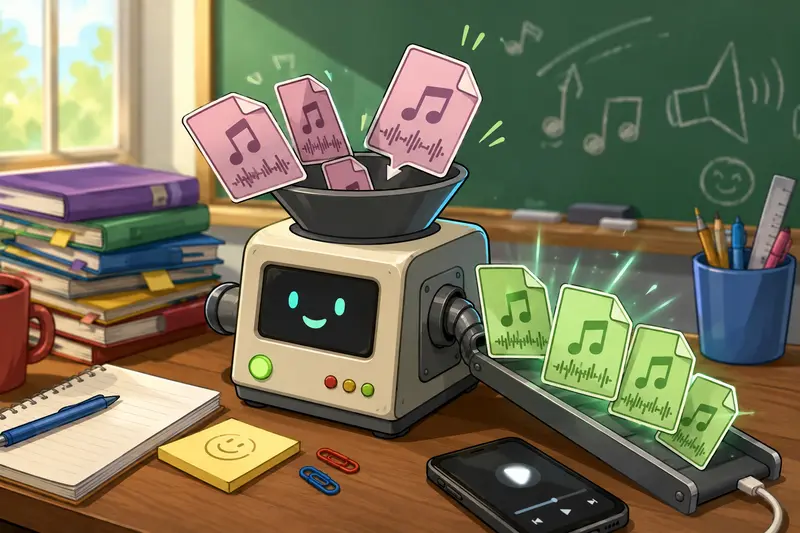
What Matters Most When Converting Classroom Audio
For teachers, the challenge usually isnt converting one file. Its managing a messy collection of recordings under time pressure.
A realistic example during testing involved:
- 18 AAC lecture snippets
- File sizes between 6 MB and 42 MB
- Mixed sources from Android voice recorders and WhatsApp exports
- Total runtime just under 90 minutes
The biggest advantage of using a browser-based workflow like Filemazing Audio Converter https://filemazing.com/audio-converter was batch handling. Instead of moving files into desktop software, installing codecs, or waiting through exports one-by-one, the conversion process stayed entirely inside the browser.
That matters more than it sounds. Teachers often work across school laptops, tablets, and personal Android devices. Some school-managed systems dont even allow software installation. Browser-based tools avoid that friction completely.
Theres also a practical compatibility benefit: MP3 files consistently worked across Google Classroom attachments, Android media players, older Bluetooth speakers, and Chromebook playback.
The Short Version
If your AAC recordings:
- fail to play on some Android devices,
- wont upload cleanly to a teaching platform,
- or need broader compatibility for students,
then converting them to MP3 is usually the most reliable fix.
An online workflow also helps when you need to:
- process multiple recordings,
- avoid desktop software,
- or quickly prepare files between classes.
The tradeoff? MP3 conversion can slightly reduce audio quality compared to AAC, especially at lower bitrates. For spoken lessons, however, the difference is usually negligible unless the original recording was already heavily compressed.
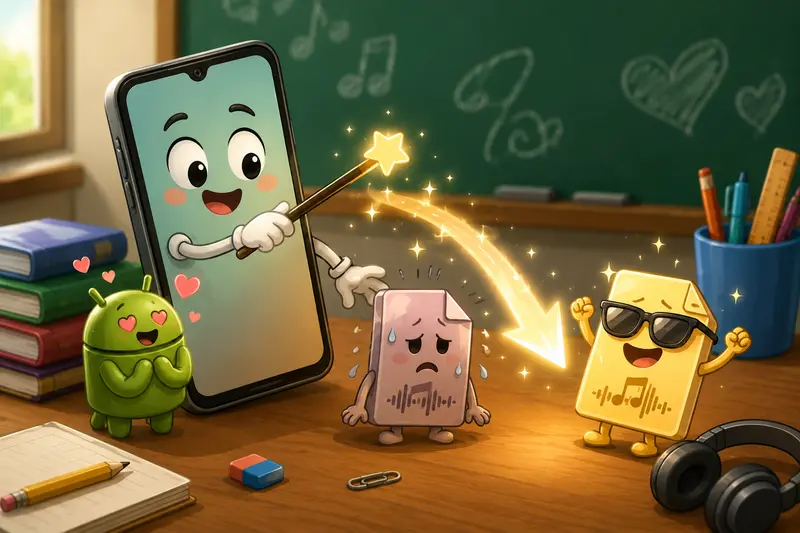
How the Conversion Workflow Fits Into Real Teaching Routines
Teachers rarely deal with isolated files. Audio usually arrives mixed into broader classroom material.
One practical workflow looked like this:
- Download AAC lecture recordings from Android
- Extract student-submitted ZIP archives using the archive extraction tool https://filemazing.com/archive-extractor
- Convert recordings into MP3 for universal playback
- Encrypt assessment-related audio with the file encryption utility https://filemazing.com/encrypt-file before sharing externally
- Organize supporting visuals separately using the format conversion tool https://filemazing.com/format-converter
This kind of connected workflow becomes useful surprisingly fast in remote learning environments.
And yes, somebody always uploads files in an unexpected format ten minutes before class starts.
A Less Obvious Issue: AAC Files From Messaging Apps
Heres something many teachers dont notice initially: AAC recordings exported through messaging apps can behave differently from files recorded directly on Android.
WhatsApp, Telegram, and some classroom communication apps may:
- reduce bitrate aggressively,
- alter metadata,
- or wrap AAC streams inside different containers.
The result is inconsistent playback behavior after sharing.
During testing, several short student pronunciation recordings played correctly on Android phones but failed on an older classroom media player after transfer. Converting them to MP3 standardized playback immediately.
This becomes especially important in:
- language instruction,
- music theory exercises,
- accessibility accommodations,
- and asynchronous learning modules.
In practice, format consistency often matters more than squeezing maximum compression efficiency out of AAC.
Why Browser-Based Conversion Makes Sense for Schools
Many educators work in restricted IT environments.
Installing desktop converters:
- may require administrator approval,
- creates update overhead,
- and sometimes introduces privacy concerns if software bundles telemetry or ads.
A browser-based system changes the workflow substantially.
With Filemazing https://filemazing.com/audio-converter, files are processed temporarily rather than stored as permanent cloud archives. That distinction matters for classroom recordings and student-related material.
The platform also uses queued processing and cleanup scheduling instead of long-term file retention. For teachers handling student voice submissions or assessment recordings, temporary processing is generally preferable to building another unmanaged storage location.
Theres also a practical budgeting advantage in the token-based pricing model. Smaller audio tasks consume fewer resources, while larger workloads scale predictably. Thats easier to estimate than unpredictable subscription tiers for occasional use.
Where MP3 Still Wins on Android
AAC technically offers excellent efficiency. In some scenarios, it can outperform MP3 at lower bitrates.
But classroom workflows prioritize compatibility over codec theory.
MP3 still works more consistently with:
- older Android devices,
- school projectors,
- USB playback systems,
- LMS previews,
- Bluetooth classroom speakers,
- and archived teaching resources.
For spoken-word content, MP3 remains the it just works format.
Not glamorous. Just dependable.
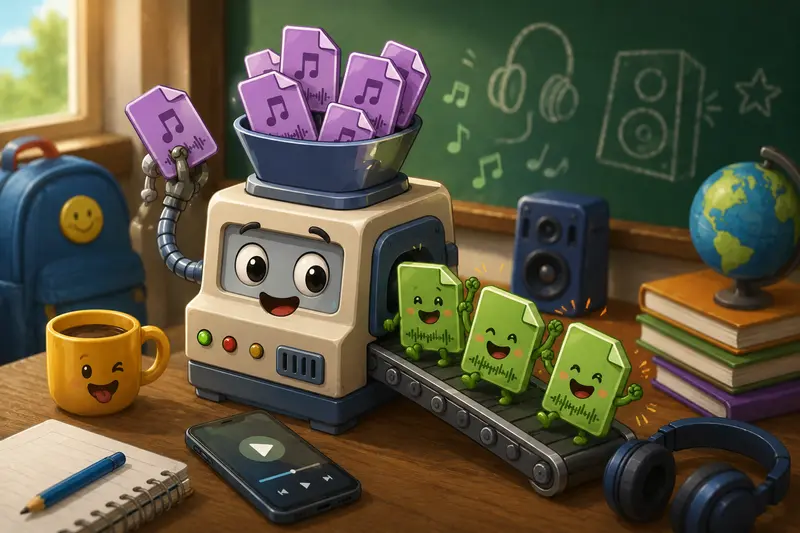
A Few Practical Recommendations Before You Convert
Keep bitrate reasonable
For lectures and voice recordings:
- 128 kbps MP3 is usually sufficient
- 192 kbps helps preserve clearer speech detail
- Higher rates rarely improve spoken content enough to justify larger files
Avoid repeated re-conversion
Converting AAC MP3 AAC repeatedly compounds quality loss. If possible, keep one master version of the original recording.
Batch files when possible
Large numbers of short recordings create more workflow overhead than one long lecture. Processing them together is usually faster and easier to organize afterward.
Check naming conventions first
Student-uploaded files often arrive with duplicate names like:
- audio1.aac
- final_audio.aac
- FINAL-final2.aac
Renaming before conversion prevents confusion later. Experienced teachers learn this lesson eventually usually after grading the wrong recording once.
Processing Speed vs Audio Quality
Theres a realistic tradeoff worth mentioning.
Faster conversion settings can reduce processing time during large workloads, but aggressive compression may introduce:
- metallic speech artifacts,
- flattened background audio,
- or muffled consonants.
For classroom lectures, moderate settings usually provide the best balance.
Music instruction and pronunciation-focused language lessons deserve higher quality exports than ordinary lecture narration. Spoken detail matters more in those cases than raw file size savings.
Common Questions Teachers Ask
Is MP3 better than AAC for Android?
Not necessarily in technical quality terms. AAC is efficient and modern, but MP3 offers broader compatibility across older Android hardware, school systems, and shared playback devices.
Can I convert audio online free?
Many tools offer limited free processing. Filemazing provides daily free tokens for anonymous and registered users, which works well for lighter classroom tasks or occasional conversion needs.
Does converting AAC to MP3 reduce quality?
Some quality loss is possible because MP3 uses lossy compression. For lectures and speech recordings, the difference is often difficult to notice if reasonable bitrate settings are used.
What happens to uploaded classroom audio files?
Temporary-processing systems are generally preferable for educational workflows. Filemazing processes uploads as short-lived working files rather than permanent storage archives.
Can I convert multiple recordings together?
Yes. Batch audio conversion is especially useful for teachers managing many student submissions or segmented lecture recordings.
What if students send compressed ZIP folders with recordings?
You can first unpack them using the archive extraction tool https://filemazing.com/archive-extractor before converting the audio files themselves.
Final Thoughts
For teachers using Android, an AAC to MP3 converter solves a surprisingly common compatibility problem without adding technical complexity.
The biggest practical advantages arent flashy features. Theyre workflow improvements:
- fewer playback failures,
- easier student access,
- broader compatibility,
- and smoother handling of multiple recordings.
Browser-based processing also fits modern classroom realities better than traditional desktop converters, especially when educators switch constantly between devices and restricted school systems.
And when deadlines pile up, dependable file compatibility becomes much more valuable than perfect codec efficiency.