Designers regularly share source files, client assets, brand guidelines, and presentation materials. When those files contain confidential information, learning how to encrypt files online becomes an important part of a secure workflow.
Whether youre sending design drafts to clients, sharing project archives with collaborators, or storing sensitive assets temporarily in the cloud, encryption adds an extra layer of protection that helps prevent unauthorized access.
The Fast Answer
If you need to encrypt files online on a Mac, the simplest approach is to use a browser-based encryption tool that protects files before sharing or transferring them.
A dedicated encryption workflow allows you to:
- Protect confidential design files
- Secure documents before email delivery
- Reduce the risk of accidental exposure
- Create safer client handoff processes
For many designers, online encryption is especially useful because it avoids installing additional software while still providing strong file protection.
Why Designers Often Need File Encryption
Creative professionals frequently handle files that contain:
- Client contracts
- Brand assets
- Unreleased marketing materials
- Product mockups
- Presentation decks
- Design source files
A PDF proposal might look harmless, but it can contain pricing details, client information, or internal notes. Encrypting those files before sharing helps maintain confidentiality throughout the project lifecycle.
If youre preparing multiple documents first, it may be helpful to use a tool for combining related PDFs into a single protected document https://filemazing.com/merge-pdf before applying encryption.
A Practical Way to Encrypt Files Online
One convenient option is the Filemazing Encrypt File tool:
Filemazing Encrypt File https://filemazing.com/encrypt-file
The platform emphasizes privacy protection as its primary strength while supporting a browser-based workflow that works directly from your Mac.
Key characteristics include:
- No desktop installation required
- Browser-based processing
- Support for different file types
- Batch-friendly workflows
- Transparent token-based pricing
- API support for automated workflows
- Temporary file handling with cleanup processes
For designers who move between devices or work remotely, being able to encrypt files directly in a browser can simplify day-to-day operations.
How the Process Works
1. Prepare Your Files
Gather the files you plan to share.
If assets are compressed inside ZIP, RAR, or other archive formats, first use an archive extraction workflow such as unpacking archived design files before encryption https://filemazing.com/archive-extractor.
2. Remove Unnecessary Metadata
Design files often contain hidden information.
Before encrypting, consider using a metadata-cleaning workflow like removing hidden file metadata before sharing https://filemazing.com/metadata-scrubber to reduce information exposure.
3. Upload the File
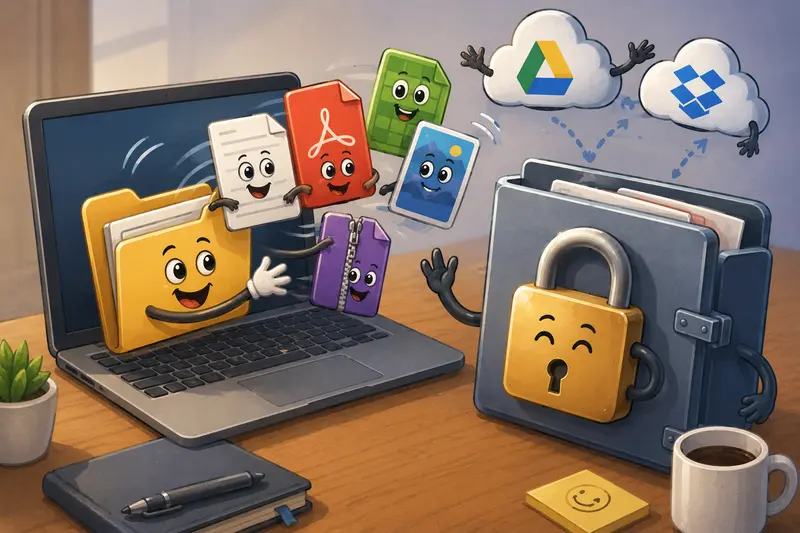
Open the encryption tool in your browser and upload the file from:
- Local storage
- Google Drive
- Dropbox
- Supported external sources
4. Apply Encryption
Configure the encryption settings and initiate processing.
The system processes the file through its queued workflow and prepares the encrypted output.
5. Share Securely
Download the protected file and deliver it through your preferred channel, such as email, cloud storage, or client portals.
Real Testing: Encrypting a Client Delivery Package
To evaluate a realistic designer workflow, I tested a package consisting of:
- 12 PDF documents
- Approximately 140 pages total
- Several image-heavy presentation files
- One compressed project archive
The files contained mock client materials, presentation boards, and brand guideline documents.
Test Conditions
- MacBook running a current browser
- Browser-based upload
- Standard internet connection
- Encryption applied before sharing
Outcome
The process was straightforward and required no software installation.
The resulting encrypted files remained usable for distribution while adding a meaningful security layer before client delivery. The workflow was especially convenient because everything was handled within the browser.
Useful Takeaway
For designers who frequently send deliverables by email, encrypting files before sending is often easier than trying to secure individual communication channels afterward.
Expert Recommendations for Safer File Sharing
One commonly overlooked practice is separating file delivery from password delivery.
Instead of sending both the encrypted file and the password in the same email:
- Send the encrypted file via email
- Deliver the password through a messaging app or separate channel
- Use unique passwords for sensitive projects
This small adjustment significantly improves security without adding much complexity.
Another useful habit is encrypting final deliverables rather than every draft. This keeps collaboration efficient while protecting the files that matter most.
Common Mistakes Designers Should Avoid
Even with strong encryption, a few mistakes can weaken your security workflow.
Reusing the Same Password Everywhere
If one password becomes compromised, multiple projects may be affected.
Forgetting Hidden Metadata
Encryption protects files during transfer, but metadata may still reveal useful information before encryption is applied.
Sending Passwords in the Same Message
This is surprisingly common and reduces the value of encryption.
Encrypting the Wrong Version
Always verify that youre protecting the final version intended for sharing. Large creative projects often generate dozens of file variations.
A quick check before encryption can prevent confusion later.
Practical Use Cases
Designers can benefit from encrypted workflows in many situations:
- Sending client proposals containing pricing information
- Delivering brand identity packages before public launch
- Sharing presentation decks with stakeholders
- Protecting freelance contract documents
- Distributing design source files to external vendors
- Managing private review materials during approval cycles
Many of these scenarios involve both confidentiality and convenience, making browser-based encryption particularly attractive.
What You Gain
Using an online file encryption workflow offers several advantages:
- Better protection for sensitive project files
- Reduced risk during email transfers
- Faster setup compared with desktop software
- Accessibility from different devices
- Predictable processing costs
- Cleaner workflows for recurring file-sharing tasks
For teams, the combination of browser access and API capabilities can also support repeatable file protection processes.
Privacy and Trust Considerations
When choosing the best file encryption tool, privacy practices matter just as much as encryption itself.
Filemazing positions uploaded files as temporary processing artifacts rather than permanent storage. Files are processed and cleaned according to a short retention schedule instead of being retained long term.
Additional trust signals include:
- Browser-based processing workflows
- Temporary file handling
- Automatic cleanup practices
- Transparent token pricing
- No subscription requirement for basic usage patterns
These factors can be important when handling client assets or confidential project materials.
Frequently Asked Questions
Can I encrypt files for email on a Mac?
Yes. Encrypting files before attaching them to email is one of the most common uses of online file encryption tools. It helps protect documents if an email is forwarded or intercepted.
Does encryption reduce file quality?
No. Encryption protects access to the file but does not alter the contents or degrade document quality.
What file types can be encrypted?
Most common document, archive, image, and project file formats can typically be processed through file encryption workflows.
Is online encryption safe for client documents?
When using reputable services that support privacy-focused processing, temporary file handling, and automatic cleanup, online encryption can be a practical solution for protecting client materials.
Can I encrypt multiple files at once?
Many workflows support batch processing, which is useful when preparing large project deliveries or multiple design assets.
Should I remove metadata before encryption?
Yes. Hidden metadata can reveal information about files. Cleaning metadata before encryption provides an additional privacy benefit.
Final Thoughts
For designers who regularly exchange confidential assets, learning how to encrypt files online is a valuable skill. A browser-based solution can simplify protection without adding extra software to your Mac.
Filemazing combines privacy-focused processing, temporary file handling, transparent pricing, and convenient browser access into a practical file protection workflow. If you need to encrypt files for email, secure client deliverables, or improve your private file sharing workflow, its worth exploring.
Start with the Filemazing Encrypt File tool and add encryption as a standard step before your next file transfer.