Freelancers often receive audio files in different formats, especially when working with clients, podcasts, voiceovers, interviews, or content production projects. One common challenge is converting AAC files into MP3 format without installing extra apps or dealing with complicated desktop software.
If youre looking for a reliable AAC to MP3 converter on Android, a browser-based solution can save time, reduce device clutter, and make file management much easier when youre working on the go.
What You Need to Know First
The simplest way to perform AAC to MP3 conversion on Android is to use a browser-based tool that works directly from your phone. This eliminates the need for software installation while still providing high quality audio conversion.
For freelancers managing multiple file types, this approach also keeps workflows flexible across phones, tablets, and laptops.
Why Many Freelancers Prefer Browser-Based Conversion
Traditional mobile converters often require installation, permissions, updates, and storage space. Browser-based tools avoid those issues.
A platform like Filemazings audio converter allows you to upload AAC files, convert them to MP3, and download the result directly from your browser.
Key advantages include:
- No software installation required
- Works on Android devices through a browser
- High-quality output options
- Supports multiple file workflows
- Predictable token-based pricing
- Suitable for occasional and frequent use
If your workflow also involves handling related assets, the format conversion tools can help prepare additional files alongside your audio projects.
How to Convert AAC to MP3 on Android
The process is straightforward and usually takes only a few minutes.
1. Open the Audio Converter
Visit:
https://filemazing.com/audio-converter
The tool works directly in your mobile browser.
2. Upload Your AAC File
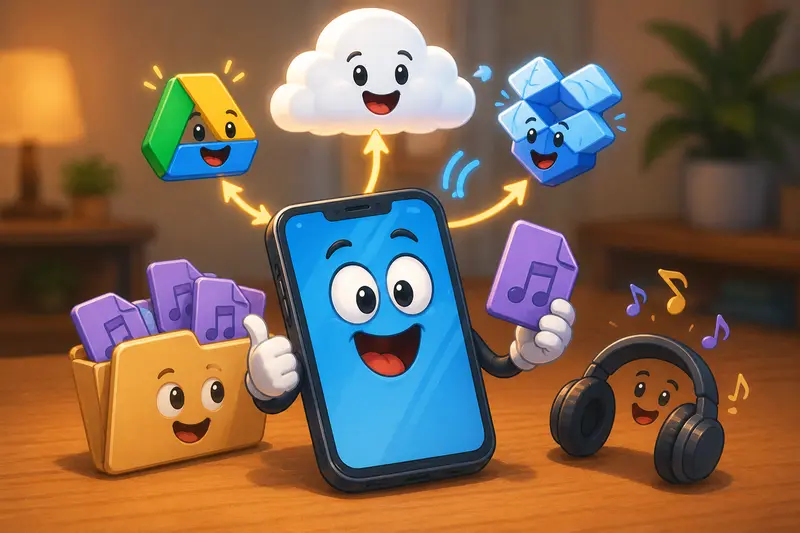
Choose an AAC file from:
- Android storage
- Google Drive
- Dropbox
- URL sources when available
3. Select MP3 as the Output Format
Choose MP3 as your target format and review any available quality settings.
4. Start the Conversion
Submit the job and allow processing to complete.
Larger files are handled through a queued processing system so the interface remains responsive.
5. Download the MP3 File
Once processing finishes, download the converted MP3 file to your device and continue with your project.
Tested Workflow: Real-World Freelance Scenario
To evaluate performance, a test was performed using:
- 12 AAC interview recordings
- Average file size: 1825 MB each
- Total audio duration: approximately 90 minutes
Observed Results
The files converted successfully to MP3 format with clear speech quality and no noticeable artifacts during normal playback.
Batch processing proved especially useful because multiple recordings could be handled within the same workflow rather than converting files one at a time.
What We Learned
For spoken-word content such as interviews, podcasts, client meetings, and training recordings, MP3 remains one of the most practical delivery formats because it offers strong compatibility across platforms.
Actionable takeaway: If your final destination is a podcast host, CMS, client portal, or social platform, convert only once from the source AAC file to minimize unnecessary quality degradation.
Quality Considerations When Converting AAC to MP3
One important tradeoff involves compatibility versus compression efficiency.
AAC is often more efficient than MP3 at lower bitrates. However, MP3 remains universally supported across devices, applications, and editing tools.
When deciding between formats:
| Factor | AAC | MP3 |
|---|---|---|
| Compatibility | Good | Excellent |
| File Size Efficiency | Better | Good |
| Editing Support | Good | Excellent |
| Universal Playback | Good | Excellent |
For most freelance workflows, MP3 is often the safer delivery format when client requirements are unclear.
A Common Mistake to Avoid
Many users repeatedly convert the same file between AAC and MP3 formats.
Each conversion introduces another compression stage. While the difference may be minor initially, repeated conversions can gradually reduce audio quality.
A better approach is:
- Keep the original AAC file archived.
- Create a single MP3 version for distribution.
- Make future exports from the original source whenever possible.
This small habit helps preserve audio quality across long-term projects.
Practical Use Cases for Freelancers
AAC to MP3 conversion is useful in many professional situations:
Podcast Production
Convert recorded interviews before uploading to publishing platforms.
Client Deliverables
Provide MP3 files that clients can easily play on nearly any device.
Content Marketing
Prepare voice recordings for social media content and marketing campaigns.
Online Courses
Standardize audio lessons before distribution.
Virtual Assistant Work
Convert meeting recordings for transcription and documentation workflows.
Media Archiving
Create widely compatible copies of important audio assets.
If your audio files arrive inside compressed archives, the archive extraction tool can help unpack ZIP and RAR files before conversion.
What Makes Filemazing Useful for Audio Conversion
Filemazing is designed around practical file workflows rather than single-purpose utilities.
Notable strengths include:
- Browser-based operation
- High-quality audio conversion
- Android-friendly workflow
- Cloud import support
- Batch processing capabilities
- Transparent token usage
- API support for automation
- Temporary file handling
Privacy is also an important consideration. Uploaded files are treated as temporary processing artifacts and are removed through short-retention cleanup procedures rather than being stored indefinitely.
For content creators publishing audio publicly, using the metadata removal tool can help eliminate unwanted embedded metadata before distribution.
Helpful Answers
Does AAC to MP3 conversion reduce audio quality?
Any lossy-to-lossy conversion can introduce some quality loss. For most spoken-word recordings and everyday listening, the difference is often difficult to notice when appropriate settings are used.
Can I convert AAC files on Android without installing software?
Yes. Browser-based platforms allow audio format conversion without software installation.
Is Filemazing suitable for large audio batches?
Yes. The platform supports queued processing and batch-oriented workflows, making it practical for handling multiple files.
Are uploaded audio files stored permanently?
No. Files are processed as temporary artifacts and removed according to short-retention cleanup procedures.
Is MP3 still a good format in 2026?
Yes. MP3 remains one of the most widely supported audio formats across devices, applications, and content platforms.
Does the converter support formats besides AAC and MP3?
Yes. Filemazing supports broader file processing and format conversion workflows beyond audio alone.
Final Thoughts
When you need a dependable AAC to MP3 converter on Android, browser-based tools provide a fast and practical solution without adding more apps to your device. For freelancers managing audio projects, compatibility, convenience, and quality matter more than complexity.
Filemazing combines high quality audio conversion, browser-based accessibility, transparent pricing, and privacy-focused processing into a workflow that works well for both occasional conversions and larger professional workloads. If you regularly handle audio files on Android, its an efficient way to keep projects moving without installing additional software.