Trying to organize PDFs on a phone usually starts out simple. A bus ticket here, a scanned receipt there, maybe lecture notes saved from different apps. Then suddenly you have six separate files when you only need one clean document.
Thats why many Android users search for ways to merge PDF files without moving everything to a desktop computer. A browser-based tool can handle the job directly from your phone, especially when youre combining scanned pages, downloaded forms, or image-heavy documents.
If your files also need protection afterward, it helps to pair merged documents with password security using Filemazings PDF encryption tool https://filemazing.com/encrypt-file for private sharing.
What You Should Know First
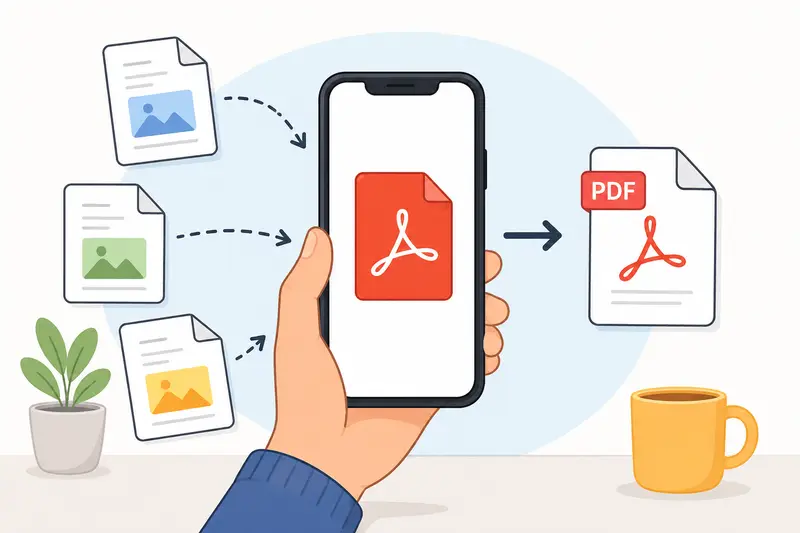
Modern mobile PDF merging no longer requires desktop software or bulky apps. Browser tools can combine files directly online while preserving page order, formatting, and scanned content.
For general users, the biggest advantage is convenience:
- upload files from your phone
- arrange them in the correct order
- export one combined PDF
- download it immediately
This becomes especially useful for scanned paperwork, school documents, receipts, contracts, or travel records.
Why Android Users Often Struggle With PDFs
Android handles viewing PDFs fairly well, but editing and combining them is another story.
Many free apps introduce limitations such as:
- aggressive ads
- watermarking
- file upload caps
- forced account creation
- unreliable output for scanned pages
Large image-based PDFs can also become unstable on lower-memory devices. Some apps crash when processing multiple scans at once.
A browser workflow avoids much of that friction because the heavy processing happens remotely instead of fully on the device itself.
How the Process Actually Works
Using a browser-based utility like Filemazing Merge PDF https://filemazing.com/merge-pdf keeps the workflow fairly straightforward even on mid-range Android phones.
1. Upload the PDFs
You can import files from:
- local Android storage
- Google Drive
- Dropbox
- direct URLs
This matters when your documents come from different places rather than a single folder.
2. Arrange the File Order
Page order matters more than people expect.
For example:
- cover page first
- scans grouped logically
- receipts sorted by date
- contracts merged in signing order
Most merge mistakes happen here rather than during export.
3. Start the Merge Task
Filemazing processes jobs through queued handling instead of freezing the browser tab. That becomes important with larger uploads or image-heavy scanned files.
The platform also uses transparent token pricing rather than hidden subscription limits. For merge tasks, token usage is calculated from factors like:
- base operation cost
- file count
- page count
- total size
That makes larger batch jobs easier to estimate beforehand.
4. Download the Combined PDF
Once processing finishes, the merged file becomes available for download.
If you later need individual pages as images, the merged document can also be converted using the PDF to image converter https://filemazing.com/pdf-to-image for thumbnails, previews, or visual archiving.
A Real-World Test With Scanned Documents
To see how practical mobile merging feels in everyday use, we tested a mixed batch on Android:
- 5 scanned PDFs
- total size: 42 MB
- one document contained handwritten notes
- two files were image-heavy receipt scans
- one PDF came from Google Drive
- another came from phone storage
The merge itself completed without browser freezing, which is often where weaker mobile apps fail.
More importantly, the scanned text remained readable afterward. Compression artifacts were minimal, and page alignment stayed consistent across the combined document.
One useful takeaway: image-heavy scans merged faster after reducing oversized photos beforehand. Many people scan documents at unnecessarily high resolutions, which inflates processing time without improving readability.
Things Most Users Miss When Combining PDFs
This is where Android workflows can quietly break down.
Scanned pages can rotate unexpectedly
Different scanner apps save orientation differently. Before exporting a final document, check whether portrait and landscape pages align correctly.
Large photo scans create bloated PDFs
A phone camera scan at full resolution can dramatically increase file size. Readability usually stays acceptable even after moderate optimization.
Duplicate pages happen often
When people repeatedly retry uploads on unstable mobile connections, duplicate scans sometimes get added unnoticed.
File names matter more than expected
If your scans are named randomly like:
- IMG_4471
- scan_final2
- document_new_latest
it becomes much easier to merge pages in the wrong order.
Renaming files before upload saves time later.
Where This Workflow Helps Most
For general Android users, PDF merging usually appears during everyday admin tasks rather than office-heavy workflows.
Common examples include:
- Combining apartment rental paperwork
- Sending multiple school forms in one file
- Merging receipts for reimbursement claims
- Creating one travel document package
- Organizing medical paperwork from separate scans
- Combining handwritten notes into one archive
In practical use, a batch PDF merge workflow becomes less about editing documents and more about reducing clutter.
Privacy Considerations Matter More on Mobile
Many people upload sensitive scans from their phones without thinking about retention policies.
Thats worth paying attention to.
Filemazing treats uploaded documents as temporary processing artifacts rather than permanent cloud storage. Files are cleaned on a short retention schedule after processing instead of sitting indefinitely in user folders.
For personal records, IDs, contracts, or financial paperwork, that approach is generally preferable to long-term upload storage systems.
This becomes even more relevant if you later encrypt the final PDF before sharing.
Why Browser-Based Merging Feels Easier on Android
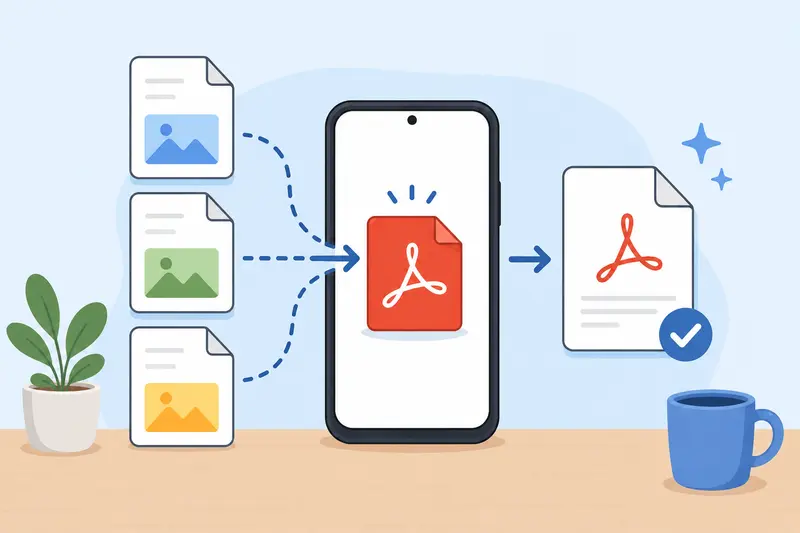
Desktop software still offers deeper editing features, but most users simply want to combine files and move on.
Browser-based tools reduce several common annoyances:
- no installation
- no app updates
- fewer device compatibility issues
- works across phones, tablets, and desktops
- easier handling of cloud-stored documents
The flexibility becomes noticeable when switching between devices during the same task.
A merged file started on Android can still be downloaded later from another system if needed.
Handling ZIPs and Mixed File Packages
Sometimes PDFs arrive inside compressed folders from email downloads or shared archives.
In those situations, extracting everything first saves time. Filemazing also includes an archive extraction tool for ZIP and RAR files https://filemazing.com/archive-extractor, which is helpful when supporting documents arrive bundled together.
Thats especially useful for coursework submissions, legal paperwork packages, or downloaded document sets.
Questions People Usually Ask
Can I merge PDF files directly from Android without installing an app?
Yes. Browser-based services allow Android users to upload and combine PDFs directly online without dedicated software installation.
Will scanned PDFs lose quality after merging?
Normally, merging itself does not significantly reduce quality. However, very large image scans may be optimized during processing depending on the workflow and export settings.
Is there a free way to merge PDF online?
Many platforms offer limited free processing. Filemazing includes daily free token access for anonymous and registered users before paid top-ups become necessary.
What happens to uploaded files afterward?
Temporary processing systems generally remove uploaded files after a short retention period rather than storing them permanently.
Can I combine scanned PDFs from different sources?
Yes. You can merge files uploaded from local Android storage, cloud drives, or downloaded documents together in one workflow.
Does merging many PDFs slow down mobile devices?
It depends on the tool. Browser-based queued processing reduces strain on the phone itself because the heavier workload happens remotely.
Final Thoughts
For everyday Android users, the hardest part of PDF management usually isnt editing documents. Its organizing scattered files into something shareable and readable.
A lightweight browser workflow solves that problem surprisingly well.
Whether you need to combine scanned PDFs, organize travel records, or handle a larger batch PDF merge, tools like Filemazing Merge PDF https://filemazing.com/merge-pdf make the process manageable without desktop software, subscriptions, or complicated setup.
And for users who regularly process documents from phones, that simplicity tends to matter more than advanced editing features.