Need a HEIC to JPG Converter? Try This Mac Workflow
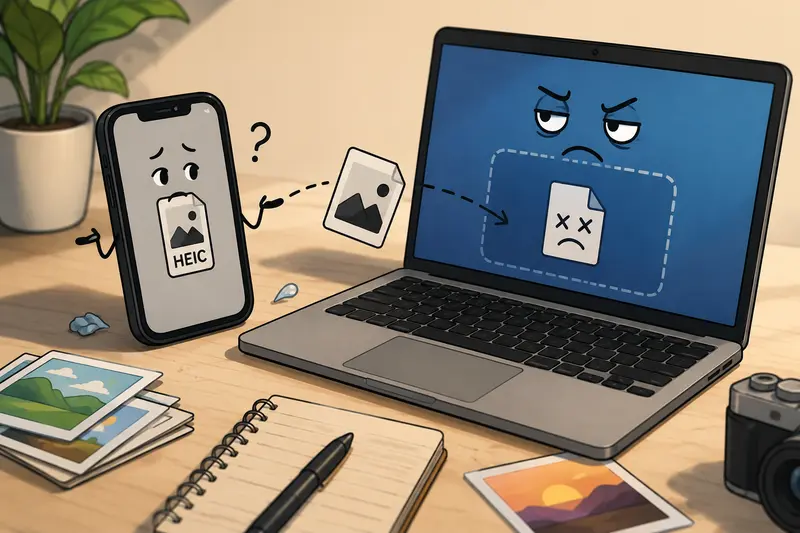
Apple devices are excellent at taking high-quality photos. Sharing them across remote teams, however, is where things can get awkward.
A designer uploads screenshots into Slack and someone on Windows cant open them. A marketing coordinator drags product images into a CMS only to discover the platform rejects HEIC files. Meanwhile, deadlines continue moving faster than file compatibility problems.
Thats usually when people start searching for a reliable HEIC to JPG converter.
The good news: you dont need heavyweight desktop software or complicated export settings to handle HEIC image conversion on a Mac anymore. A browser-based workflow is often faster, especially for distributed teams juggling shared assets across devices and operating systems.
The Short Version
If your team regularly exchanges Apple photos, converting HEIC files to JPG before uploading or sharing can prevent compatibility headaches.
A lightweight browser workflow using Filemazings format converter makes the process straightforward while still preserving image quality for web publishing, documentation, and collaboration.
It also helps when you need batch processing instead of converting files one at a time because nobody enjoys renaming thirty screenshots manually before a client meeting.
Why HEIC Files Cause Friction in Team Workflows
HEIC was designed for efficiency. Apple uses it because it stores images with strong quality while keeping file sizes relatively small.
The problem is ecosystem compatibility.
Even in 2026, some collaboration platforms, older CMS systems, and Windows-based tools still behave unpredictably with HEIC uploads. Remote teams often notice issues like:
- preview failures in project tools
- broken thumbnails in documentation systems
- unsupported uploads in web forms
- inconsistent rendering in browsers
- image editing tools refusing imports
JPG remains the safer universal format for cross-platform communication.
For marketers and content teams especially, format conversion for web images is less about aesthetics and more about operational reliability.
A Practical Mac Workflow That Doesnt Slow Everything Down
One of the cleaner approaches we tested was using Filemazings browser-based conversion system instead of exporting manually through Preview or Photos.
The workflow is simple enough for non-technical users, but still useful for teams handling larger batches.
How the Process Works
- Export or collect HEIC files from Photos, AirDrop, Slack, or Finder
- Upload them into the browser-based converter
- Select JPG as the output format
- Download the converted images after processing completes
- Compress or secure files afterward if needed
Because the platform runs in the browser, theres no desktop installation to maintain across multiple employee devices.
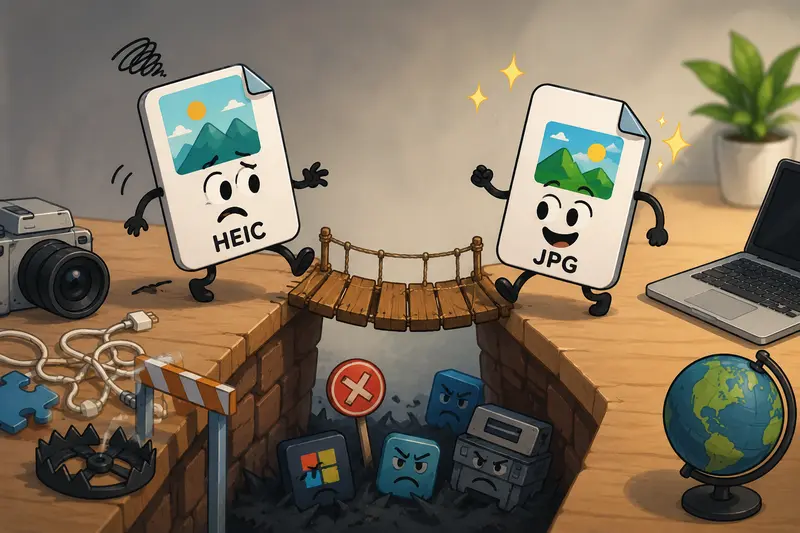
An overlooked advantage here is consistency. Teams avoid situations where every person exports images differently with varying quality settings.
What We Tested
To evaluate real-world performance, we ran a mixed batch of:
- iPhone screenshots
- high-resolution product photos
- compressed Slack downloads
- portrait-mode HEIC images
- image sets intended for CMS upload
The total batch included 47 files ranging from small screenshots to 18MB photos.
Results
The JPG outputs remained visually sharp with no obvious artifacting during standard viewing or web publishing. File conversion speed stayed steady even during larger uploads, and batch handling worked reliably without freezing the browser tab.
One thing we appreciated: processed files are treated as temporary artifacts rather than long-term storage. For remote teams sharing internal product shots or client materials, automatic cleanup policies are a meaningful trust signal.
That matters more than many teams realize.
Especially when contractors, freelancers, and distributed contributors are exchanging files through multiple systems every day.
A Small Quality Tip Most People Miss
Heres something that often gets overlooked during HEIC image conversion:
Not every JPG needs maximum quality settings.
If the images are heading to a website, knowledge base, or shared project portal, oversized JPGs can quietly slow page loads and clutter storage systems.
A better approach is:
- convert first
- review visual quality
- then optimize size separately
After conversion, you can use Filemazings image compression workflow to reduce upload weight without making photos look aggressively compressed.
This balance matters for remote teams publishing lots of visual content across web platforms.
Where This Workflow Helps Most
The workflow becomes especially useful in situations like:
- marketing teams preparing website assets
- remote support teams documenting bugs with iPhone screenshots
- agencies collecting client images from mixed devices
- ecommerce teams uploading product photos to CMS platforms
- HR departments sharing onboarding documents with embedded images
- project managers organizing visual documentation in cloud systems
JPG simply travels more smoothly across tools.
That alone saves time.
HEIC vs JPG: The Real Tradeoff
HEIC files are technically more storage-efficient in many cases. Apple adopted the format for a reason.
But theres still a practical tradeoff between efficiency and compatibility.
HEIC Advantages
- smaller storage footprint
- better modern compression
- high-quality retention
JPG Advantages
- broader platform support
- predictable browser compatibility
- easier publishing workflows
- smoother integrations with older systems
For internal archival storage, HEIC can still make sense.
For collaboration and publishing? JPG usually wins because it removes uncertainty.
And remote teams tend to value predictability over theoretical optimization.
Privacy Considerations for Shared Image Workflows
Remote organizations increasingly pay attention to how temporary files are handled during processing.
Browser-based tools can sometimes raise questions around storage and retention, particularly for confidential screenshots or internal documentation.
Filemazing positions uploads as short-retention processing jobs rather than permanent cloud storage. That distinction matters because teams often need quick transformations not another file repository to manage.
For additional protection before sharing converted files externally, some teams also run sensitive assets through the file encryption tool.
And if your images still contain camera metadata or location information after conversion, the platforms metadata scrubbing utility can help remove embedded details before distribution.
Why Browser-Based Conversion Works Well for Distributed Teams
Desktop software tends to create maintenance overhead over time.
Version mismatches appear. Permissions break. Someone inevitably says, I dont have the latest update installed.
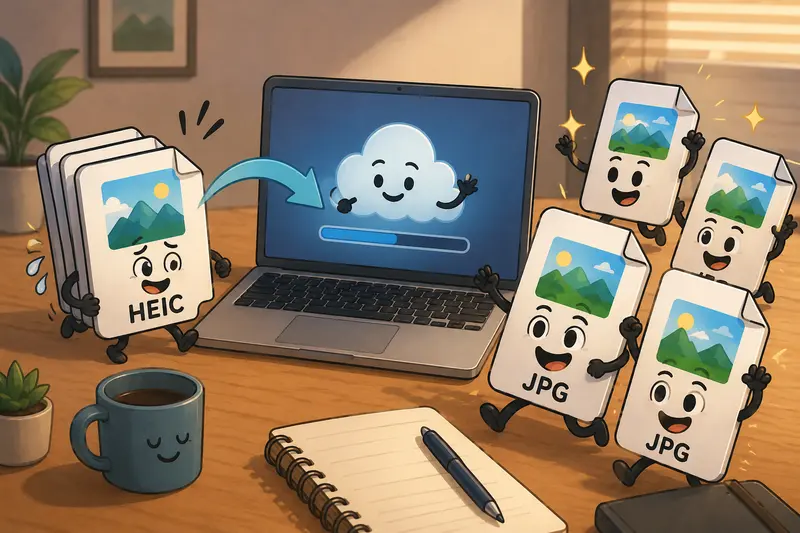
A browser workflow avoids most of that friction.
It also scales more naturally for hybrid teams because people can process files from:
- MacBooks
- Windows laptops
- shared office systems
- temporary contractor machines
- cloud imports from Google Drive or Dropbox
The consistency is often more valuable than advanced editing features.
Common Questions About HEIC to JPG Conversion
Does converting HEIC to JPG reduce image quality?
Some compression occurs because JPG uses lossy compression. In practical web and collaboration workflows, though, the visual difference is usually minimal when reasonable quality settings are used.
Can I convert multiple HEIC files at once?
Yes. Batch handling is one of the more useful features for remote teams dealing with recurring image uploads or shared project assets.
Is browser-based image conversion safe?
That depends on the providers retention policies and handling approach. Filemazing processes files as temporary jobs rather than permanent storage, which reduces long-term exposure.
Why do websites reject HEIC files?
Many web platforms, CMS systems, and older applications still prioritize JPG or PNG compatibility for image uploads.
Whats the best format for web publishing?
JPG remains one of the safest options for general publishing compatibility. PNG works better for transparency-heavy graphics, while HEIC is stronger for device storage efficiency.
Do I need to install software on Mac?
No. Browser-based tools eliminate the need for desktop installation, which is useful for distributed teams managing multiple devices.
Final Thoughts
A reliable HEIC to JPG converter is less about changing file extensions and more about removing workflow interruptions.
For remote teams moving quickly between Apple devices, browsers, cloud platforms, and CMS tools, compatibility issues create unnecessary friction. A lightweight browser workflow keeps image handling predictable without forcing everyone onto the same operating system or software stack.
If your team regularly shares Apple-generated images, trying a browser-based conversion process like Filemazing can simplify the handoff from capture to publishing while still helping you convert images without losing quality.