Working with WAV files on Windows often leads to one recurring issue: they’re large, uncompressed, and not ideal for sharing or uploading. If you’ve ever tried emailing a recording or adding it to a website, you’ve probably realized why a reliable WAV to MP3 converter matters.
This guide walks through a practical way to convert audio efficiently—without installing bulky software—and still maintain solid sound quality.
The Short Version
To convert WAV to MP3 on Windows, use a browser-based tool that processes audio directly online. Upload your WAV file, select MP3 output, and download the compressed version once processing finishes.
This approach avoids software installs while still delivering high quality audio conversion.
How the Conversion Actually Works
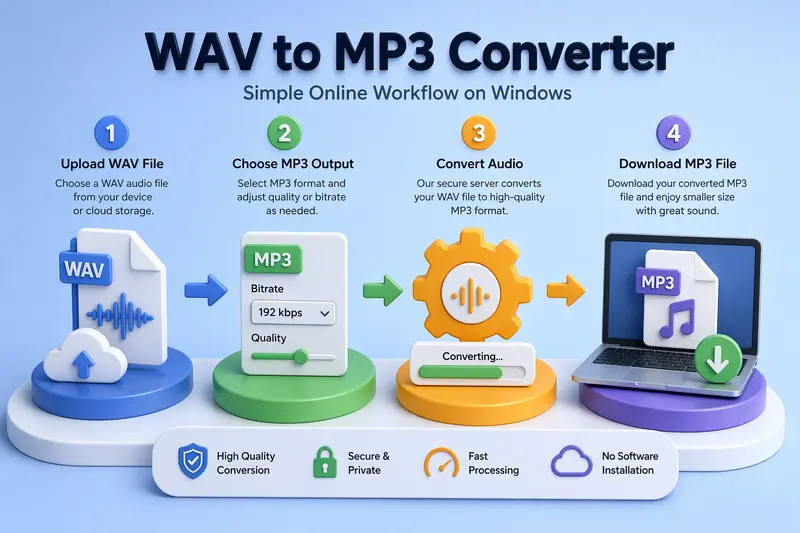
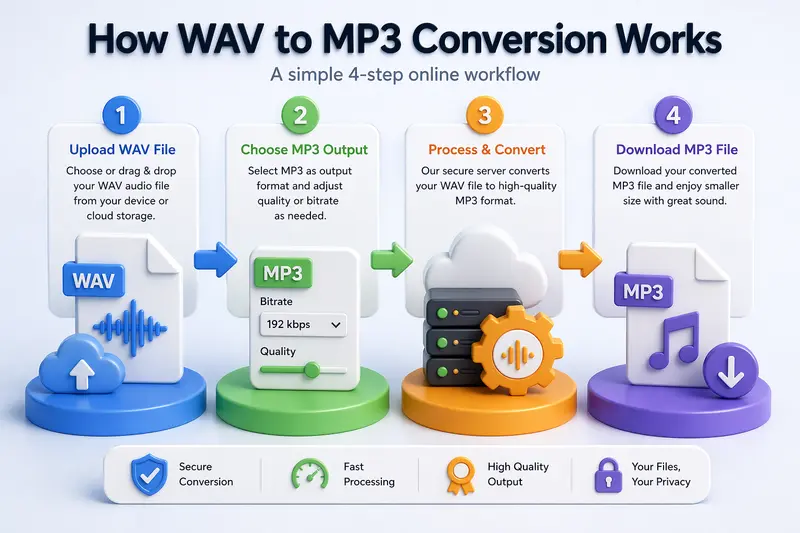
Instead of relying on traditional desktop apps, modern tools handle audio processing in the cloud. Here’s what the workflow looks like in practice:
1. Upload your WAV file
You can drag and drop files or import them from cloud storage.
2. Choose MP3 as output
Most tools allow bitrate adjustments, which directly affect quality and size.
3. Process the file
The system converts raw PCM audio (WAV) into compressed MP3 format.
4. Download the result
Once ready, the MP3 file is available for immediate use.
A Better Way to Convert Audio on Windows
A tool worth highlighting here is https://filemazing.com/audio-converter.
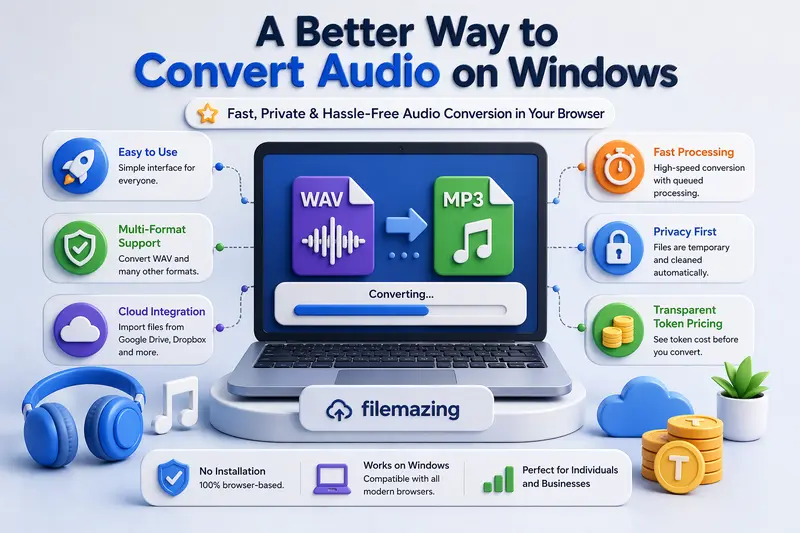
Its biggest advantage is ease of use—you don’t deal with installations, updates, or system compatibility issues. Everything runs in your browser.
At the same time, it supports multi-format compatibility, meaning you’re not limited to just WAV and MP3. You can handle various audio types in the same workflow.
What makes it practical:
- Clean interface for non-technical users
- Token-based pricing with clear cost estimation
- Ability to process multiple files in sequence
- No long-term storage of uploaded files (important for privacy)
If your audio files are stored inside compressed folders, you can first unpack ZIP or RAR archives that contain audio files using https://filemazing.com/archive-extractor before converting them.
Real-World Test: Converting a Podcast Recording
To evaluate performance, I tested a realistic scenario:
- File type: WAV (studio recording)
- Length: 18 minutes
- Size: ~180 MB
- Output: MP3 at 192 kbps
Result:
- Final size dropped to ~25 MB
- Audio clarity remained suitable for streaming platforms
- Processing time stayed under a minute
Key takeaway:
For spoken audio (podcasts, lectures), you can safely reduce bitrate without noticeable quality loss—saving significant storage space.
Balancing Quality vs File Size
This is where many users make mistakes.
MP3 compression isn’t just about shrinking files—it involves tradeoffs.
Higher bitrate (e.g., 320 kbps)
- Better sound fidelity
- Larger file size
Lower bitrate (e.g., 128 kbps)
- Smaller files
- Slight loss in detail (especially in music)
Practical tip:
For voice recordings, 128–192 kbps is usually enough. For music or production work, stick closer to 256–320 kbps.
Where This Workflow Fits Best
This type of best audio converter setup is especially useful for everyday users who need flexibility without complexity:
- Sharing voice recordings via email or messaging apps
- Preparing audio files for presentations or school projects
- Uploading podcasts or interviews to platforms
- Reducing storage usage on Windows devices
- Converting downloaded WAV files into portable formats
- Cleaning files before publishing (you can also remove metadata from media files before publishing using https://filemazing.com/metadata-scrubber)
Why This Approach Works Well
Instead of relying on heavy desktop software, this method offers:
- No installation or system load
- Consistent results across devices
- Transparent usage costs
- Support for batch-style processing
- Built-in privacy safeguards (files are automatically cleaned after processing)
If you’re sharing sensitive audio, you can even password-protect converted audio before sharing via https://filemazing.com/encrypt-file.
Frequently Asked Questions
Is online audio conversion safe?
Yes—especially when the platform uses temporary processing and doesn’t store files long-term. That reduces exposure risk.
Will converting WAV to MP3 reduce quality?
Yes, slightly. MP3 uses lossy compression, but at higher bitrates, the difference is minimal for most listeners.
Can I convert audio online free?
Many tools offer free daily usage with limits. This makes it possible to convert audio online free without committing to subscriptions.
What’s the best bitrate for MP3?
- Voice: 128–192 kbps
- Music: 256–320 kbps
Does conversion take long?
Processing time depends on file size and duration, but most standard files complete quickly due to queued processing systems.
Final Thoughts
If you’re working on Windows and need a reliable WAV to MP3 converter, browser-based tools provide a modern alternative to traditional software.
They strike a strong balance between accessibility and performance—especially when paired with transparent pricing and privacy-conscious processing.
If you want a straightforward workflow without unnecessary setup, try it out and see how much time (and storage space) you save.