Remote teams exchange screenshots, product mockups, scanned documents, campaign assets, and presentation graphics all day long. The problem is that not every platform handles WEBP files gracefully. A designer exports WEBP images from a browser-based tool, then someone in sales tries uploading them into an older CMS or slide deck and suddenly nothing opens correctly.
Thats usually where a reliable WEBP to JPG converter becomes part of the workflow instead of an occasional utility.
For distributed teams juggling Slack threads, shared drives, client deliverables, and upload restrictions, format compatibility matters more than people expect.

What Actually Matters When Converting WEBP Files
Most teams are not converting one image at a time.
They are handling:
- exported website assets
- compressed screenshots
- marketing visuals
- bulk customer uploads
- PDF-derived images
- mixed image libraries from different devices
The practical goal is usually one of these:
- Make files compatible everywhere
- Keep image quality usable
- Avoid wasting time installing desktop apps
A browser-based converter like Filemazing Format Converter https://filemazing.com/format-converter fits particularly well into remote workflows because files can be processed from different operating systems without requiring shared software installations.
That matters more than it sounds. One teammate is on Windows, another on macOS, someone else is working from a Chromebook in an airport lounge with questionable Wi-Fi.
Consistency wins.
Why Remote Teams Still Need JPG Files
WEBP is efficient. It usually produces smaller image sizes than JPG while preserving solid visual quality.
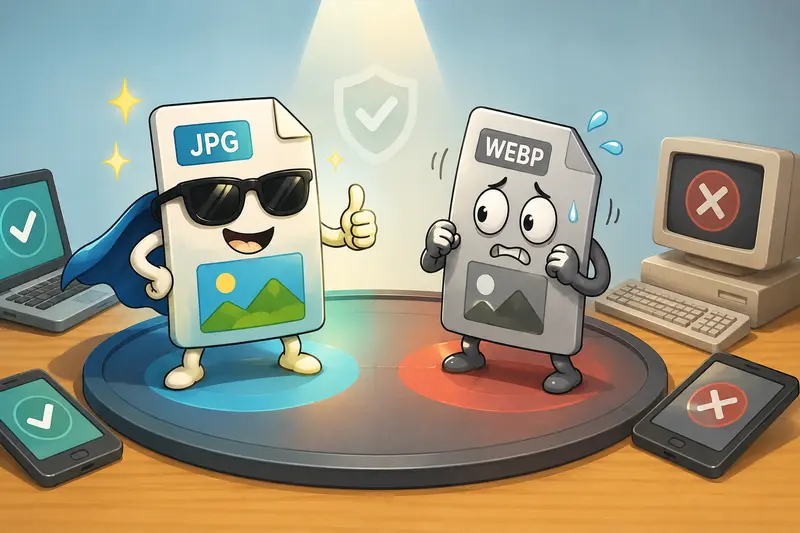
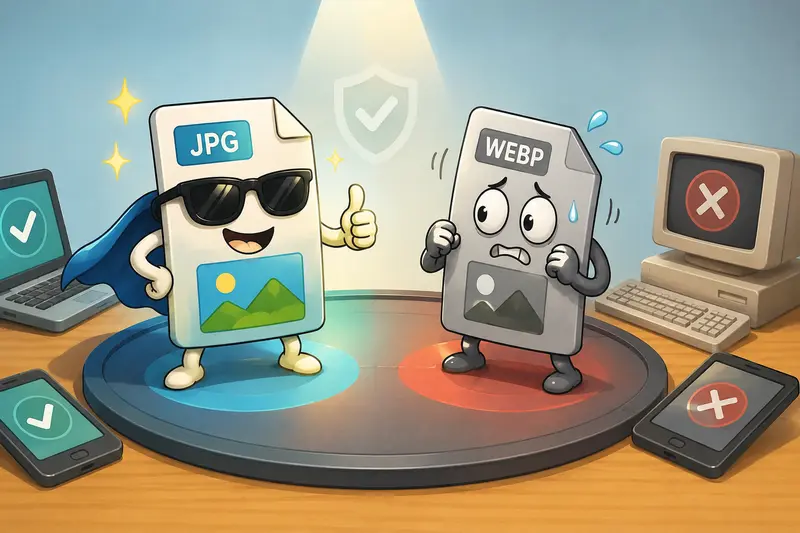
But compatibility still favors JPG in many business environments.
Common situations where teams convert WEBP to JPG include:
- uploading assets into older CRMs
- embedding images into PowerPoint exports
- preparing files for client portals
- attaching images to email campaigns
- sharing screenshots with vendors using legacy systems
- preparing media for print workflows
Some enterprise platforms simply treat WEBP like an unexpected guest at a meeting technically present, but nobody knows what to do with it.
JPG remains the safer works almost everywhere option.
A Practical Workflow That Saves Time
In real remote-team environments, conversion rarely happens in isolation.
A common workflow looks more like this:
- Export visuals from design or documentation tools
- Run batch image format conversion
- Compress oversized files
- Remove hidden metadata
- Share securely with external stakeholders
That combination matters because image files often carry embedded metadata unintentionally. GPS information, device details, editing history, and author data can remain attached to images after conversion.
If privacy matters, it helps to run converted files through a dedicated metadata scrubbing tool https://filemazing.com/metadata-scrubber before distribution.
For teams handling contracts, presentations, or client deliverables, that extra step is surprisingly valuable.
Tested Experience: Converting a Large Shared Asset Batch
To see how a browser-based workflow performs under realistic conditions, we tested a mixed image batch used by a distributed marketing team.
Test setup
- 148 WEBP files
- Combined size: roughly 620MB
- Mix of screenshots, exported ads, presentation graphics, and social media visuals
- Team members uploading from different locations through shared cloud storage
What we observed
The conversion queue handled the files progressively rather than freezing the browser during processing. Thats important during larger uploads because blocking the UI becomes frustrating fast when teammates are simultaneously reviewing assets.
The resulting JPG files preserved acceptable visual quality for:
- slide decks
- CMS uploads
- documentation systems
- email attachments
A few heavily compressed WEBP originals showed minor softness after conversion, particularly around small text overlays. That is less a converter issue and more a reality of converting already-compressed assets into another lossy format.
The takeaway:
If the original WEBP is aggressively compressed, JPG conversion cannot magically restore missing detail.
For remote teams, the best approach is starting with the highest-quality source available before batch processing.
Where Bulk Conversion Becomes Important
Individual file conversion is easy.
The real bottleneck appears when teams process dozens or hundreds of files repeatedly.
This is where batch image format conversion changes the workflow entirely.
Instead of:
- opening desktop apps
- exporting manually
- renaming files individually
- syncing converted assets afterward
teams can process large groups in a single browser session.
Filemazing also supports cloud imports through providers like Google Drive and Dropbox, which helps distributed teams avoid constant local downloading and re-uploading.
And because the platform uses queued processing with downloadable job results, larger tasks dont interrupt active work sessions.
One Overlooked Issue: Color and Transparency Tradeoffs
This is where many conversion guides stay too shallow.
WEBP supports transparency efficiently. JPG does not.
If your original WEBP files contain transparent backgrounds common with logos, UI exports, or product overlays converting directly to JPG introduces background filling.
Usually that means:
- white backgrounds
- black backgrounds
- flattened layers
For remote design and marketing teams, this can create awkward presentation issues later.
A useful habit is separating:
- transparent design assets keep as PNG
- standard photo/content assets convert to JPG
That small distinction prevents unnecessary cleanup work downstream.
Similarly, if teams frequently work with iPhone-originated media, combining HEIC image conversion with WEBP conversion into a single preprocessing workflow can simplify shared asset preparation dramatically.
Privacy Considerations for Distributed Workflows
Remote teams often process:
- client documents
- screenshots with sensitive information
- internal presentations
- product visuals before launch
So privacy policies around file handling matter.
One practical advantage of browser-based processing platforms like Filemazing is temporary processing behavior. Files are treated as short-lived processing artifacts rather than long-term cloud storage.
That distinction is useful for organizations that do not want media assets sitting indefinitely on third-party systems.
There is still a realistic tradeoff, though:
- browser workflows improve convenience
- dedicated local tools may offer deeper customization controls for advanced editing
For most operational conversion tasks, teams tend to prioritize speed and consistency over granular export tuning.
Useful Pairings for Broader File Workflows
Remote teams rarely stop at image conversion.
Related workflows often include:
- converting PDFs into shareable images
- encrypting finalized client files
- cleaning metadata before external distribution
For example:
- teams exporting presentation slides can use PDF to image conversion workflows https://filemazing.com/pdf-to-image to generate JPG previews for review channels
- sensitive deliverables can be protected afterward with file encryption for shared assets https://filemazing.com/encrypt-file before sending externally
This type of lightweight tool chaining tends to work well for distributed operations because it avoids building fragile manual processes around multiple desktop applications.
Cost Predictability Matters More Than Teams Expect
Subscription-heavy tooling becomes surprisingly expensive when different departments occasionally need file processing.
Filemazing approaches this differently through token-based usage instead of mandatory recurring plans.
That model fits intermittent workloads fairly well:
- occasional conversion tasks use free daily tokens
- heavier workflows can scale through larger token packs
- processing costs remain visible before execution
For remote teams managing fluctuating workloads, predictable operational cost often matters more than unlimited usage marketing claims.
Especially when half the organization only needs file conversion twice a month.
Questions Teams Commonly Ask
Does converting WEBP to JPG reduce image quality?
Potentially, yes. JPG is a lossy format, so some detail can disappear during conversion. Starting with high-quality WEBP originals helps minimize visible degradation.
Can large batches be converted in one session?
Yes. Batch processing is particularly useful for remote teams handling shared marketing assets, screenshots, or exported visuals from collaborative projects.
Is browser-based conversion secure enough for work files?
For many standard workflows, yes especially when files are processed temporarily and cleaned afterward rather than permanently stored. Teams handling highly regulated material may still prefer additional internal controls.
What happens to transparency after JPG conversion?
JPG does not support transparency. Transparent WEBP files typically receive a solid background after conversion.
Can I process iPhone image formats too?
Many remote teams combine WEBP conversion with HEIC image conversion workflows when preparing shared media libraries from mixed devices.
Is there a good workflow for cleaning converted files before sharing?
Yes. Running converted images through a metadata removal workflow https://filemazing.com/metadata-scrubber can help remove embedded location data and editing metadata before distribution.
Final Thoughts
A dependable WEBP to JPG converter is less about file formats and more about reducing friction inside collaborative workflows.
Remote teams need compatibility, predictable processing, and fast handling of shared assets without forcing everyone onto the same operating system or desktop software stack.
Browser-based tools like Filemazing https://filemazing.com/format-converter work well in that environment because they emphasize:
- bulk processing
- temporary file handling
- multi-format compatibility
- operational simplicity
And honestly, when deadlines are close, the image uploads correctly everywhere becomes a surprisingly important feature.