Trying to combine invoices, contracts, scanned receipts, or client reports from a phone used to feel unnecessarily complicated. Especially on Android, where files often come from different apps, email attachments, cloud drives, and scanning tools all at once.
For small business owners, that usually means one thing: documents pile up fast.
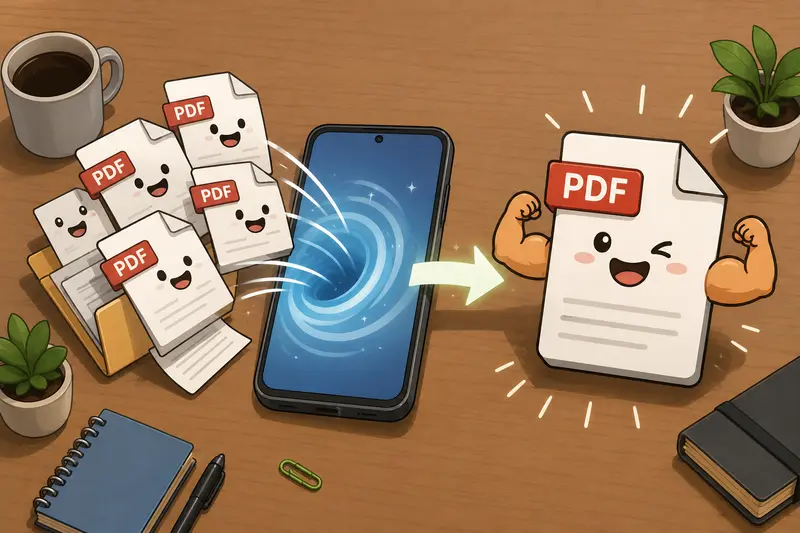
Instead of moving files to a desktop every time you need a single combined PDF, modern browser-based tools make the process manageable directly from your phone. Thats particularly useful when youre traveling, working remotely, or handling customer paperwork between meetings.
One option that works well for this workflow is Filemazing Merge PDF Tool https://filemazing.com/merge-pdf, a browser-based utility designed for combining PDF documents without installing desktop software.
When Merging PDFs Actually Becomes Necessary
In real business workflows, merging PDFs isnt just an occasional task.
A few common examples:
- combining signed contracts into one client packet
- merging scanned receipts before sending them to accounting
- assembling property documents for real estate transactions
- grouping onboarding forms into a single shareable file
- combining monthly reports exported from different systems
Android phones make document capture easy, but organizing everything afterward can become messy surprisingly quickly.
And yes, large files tend to appear right before deadlines with suspicious consistency.
The Short Version
If you want to merge PDF files on Android without installing another app:
- Open a browser-based PDF merger
- Upload your PDFs from local storage, Google Drive, or Dropbox
- Arrange the file order
- Start the merge process
- Download the combined PDF
Thats the basic workflow. The differences between tools usually come down to:
- speed
- handling larger files
- privacy practices
- support for scanned PDFs
- whether uploads remain stored afterward
A Real-World Test: Combining Scanned Business Documents
To see how practical mobile merging really is, we tested a fairly typical small-business scenario.
Test setup
Files included:
- 12 scanned PDF receipts
- 3 supplier invoices
- 1 signed agreement export
Total combined size:
- roughly 96 MB
- 134 pages total
The files came from:
- Android camera scans
- email downloads
- Google Drive imports
Using Filemazing Merge PDF Tool https://filemazing.com/merge-pdf in Chrome on Android, the upload and merge process completed without needing an app install or account creation.
The biggest improvement compared to many mobile PDF apps was workflow continuity. Files could be imported directly from cloud storage rather than manually downloading everything into local folders first.
For businesses dealing with recurring document bundles, that saves more time than people expect.
What You Should Know About Large PDF Merges
Merging a few lightweight PDFs is easy almost everywhere.
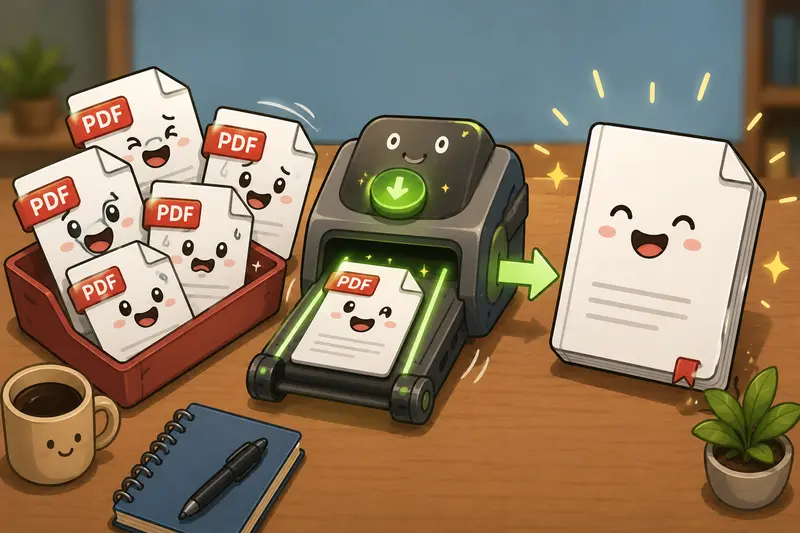
Merging large PDF files is where tools start behaving differently.
Common issues with oversized PDFs
Some mobile apps struggle with:
- memory usage on older Android devices
- timeouts during uploads
- crashes when combining image-heavy scans
- reduced output quality after compression
Scanned PDFs are especially demanding because each page may contain high-resolution embedded images rather than selectable text.
A practical workaround is to clean or optimize files before merging them. For example:
- reducing oversized image scans
- removing unnecessary metadata
- splitting extremely large batches into stages
If you share sensitive client files externally, using a tool like Filemazing Metadata Scrubber https://filemazing.com/metadata-scrubber beforehand can remove hidden document metadata that users often forget exists.
That includes:
- author information
- software identifiers
- embedded timestamps
- device-related details
For legal, finance, or consulting businesses, that extra cleanup step is genuinely useful.
How the Mobile Workflow Usually Goes
The process itself is straightforward, but small workflow decisions can make it smoother on Android.
Recommended approach
1. Gather files first
Before uploading:
- rename files clearly
- remove duplicates
- confirm scan orientation
This sounds obvious until Scan_482_FINAL_v2_REAL.pdf shows up three times.
2. Upload from cloud storage when possible
Cloud import is often faster than moving files around Android storage manually.
Filemazing supports:
- Google Drive
- Dropbox
- local uploads
- direct URL input
That flexibility helps when documents come from multiple sources.
3. Arrange PDFs carefully
Merged files follow the exact order you choose.
For client-facing documents:
- contracts usually go first
- supporting documents afterward
- signatures and appendices near the end
A surprising number of document problems are simply ordering mistakes.
4. Download and verify
After merging:
- open the combined file
- check page order
- confirm scan readability
- verify signatures remain visible
Large scanned documents occasionally contain rotated pages or inconsistent margins after merging, depending on the source scans.
One Optimization Tip Most People Miss
If your merged PDF will later be shared in presentations, marketing material, or customer instructions, consider converting selected pages into images afterward.
Using Filemazing PDF to Image Tool https://filemazing.com/pdf-to-image can help extract clean visual pages from the final merged document for:
- slide decks
- previews
- website uploads
- social posts
- documentation snippets
This is especially useful when a merged PDF contains diagrams or signed approval pages that need standalone sharing.

Browser-Based Tools vs Android PDF Apps
Dedicated Android apps still have advantages for heavy offline editing, but browser-based processing has improved significantly.
Browser-based merging tends to work better when you want:
- no installation
- cross-device access
- cloud imports
- lighter phone storage usage
- occasional document processing
- quick business workflows
Native apps may still help for:
- advanced annotations
- offline editing
- frequent handwritten markup
- permanent local storage workflows
For many small businesses, browser tools are simpler because they avoid maintaining another app ecosystem across employee devices.
Handling ZIP Archives Full of PDFs
A surprisingly common scenario: vendors or clients send document bundles as ZIP or RAR archives.
Instead of manually extracting everything on Android first, you can use Filemazing Archive Extractor https://filemazing.com/archive-extractor to unpack supporting files before combining the PDFs you actually need.
This becomes useful for:
- legal discovery files
- accounting exports
- project handoff documents
- contractor deliverables
Some archive formats cooperate nicely. Others behave like they were invented during an argument.
Privacy Considerations Matter More Than People Think
Business documents often contain:
- contracts
- addresses
- invoices
- financial information
- internal operational details
So privacy handling matters.
Filemazing positions uploads as temporary processing artifacts rather than long-term cloud storage. Files are cleaned on a short retention schedule instead of being permanently retained.
That approach is generally preferable for operational document tasks where you only need processing, not archival storage.
For sensitive workflows, its still smart to:
- avoid public Wi-Fi during uploads
- verify download completion
- remove local copies when unnecessary
Understanding the Token-Based Pricing Model
Unlike subscription-heavy PDF suites, Filemazing uses a token-based system.
For merging PDFs, token usage can depend on:
- file size
- page count
- number of uploaded files
That makes pricing more predictable for businesses with irregular workloads.
Smaller jobs can often fit within free daily token allowances, while larger recurring operations can scale using token packs without requiring a full software subscription.
For occasional document-heavy weeks, that flexibility is practical.
FAQ
Can I merge PDF files directly from Google Drive on Android?
Yes. Browser-based tools like Filemazing Merge PDF Tool https://filemazing.com/merge-pdf support importing files from cloud providers including Google Drive and Dropbox.
Will merging scanned PDFs reduce quality?
Usually not during standard merging. However, if compression is also applied, image-heavy scans may lose some clarity depending on settings and source quality.
Is there a limit for large PDF files?
Limits vary by tool and device capability. Extremely large scanned PDFs may take longer to upload and process, especially on slower mobile connections.
Is it safe to merge confidential business documents online?
It depends on the providers privacy handling. Look for services that use temporary processing and scheduled cleanup rather than permanent file storage.
Can I combine PDFs and images together?
Some tools support mixed-format workflows, but most dedicated merge tools focus on PDF-only inputs for consistency and output stability.
Do I need to install an Android app?
No. Browser-based PDF merging works directly through mobile browsers without requiring installation.
Final Thoughts
For small business owners, document organization is rarely the main job its just the thing standing between you and the actual work.
Being able to merge PDF files from Android without desktop software simplifies a surprisingly common task, especially when documents come from scans, cloud storage, and email attachments all at once.
Filemazing Merge PDF Tool https://filemazing.com/merge-pdf works well for this kind of practical workflow because it keeps the process lightweight:
- browser-based access
- cloud imports
- support for larger batches
- transparent token usage
- temporary file handling for privacy-conscious processing
If your business regularly handles contracts, invoices, reports, or scanned paperwork, having a reliable merge workflow on mobile can save more time than another bloated office app ever will.