Photographers spend plenty of time thinking about images, but audio files sneak into the workflow more often than people expect. Voice memos from shoot planning, behind-the-scenes recordings, interview clips for client reels, or ambient sound captured during travel sessions can quickly become difficult to share when they stay in WAV format.
Thats where a reliable WAV to MP3 converter becomes useful especially on iPhone, where storage and compatibility matter more than most people realize.
MP3 files are lighter, easier to upload, and friendlier for messaging apps, editing tools, cloud delivery, and social media workflows. The challenge is finding a method that preserves quality without forcing you into desktop software installations.
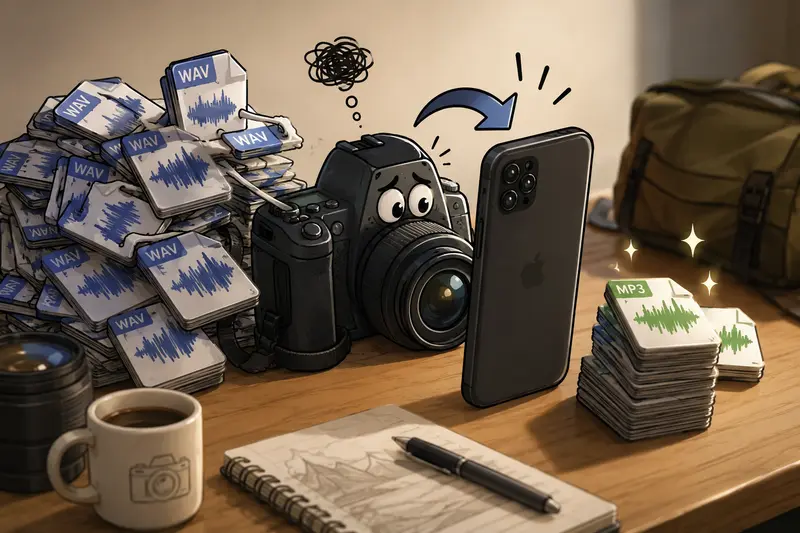
What Matters Most
For photographers using iPhones, the ideal workflow usually comes down to three things:
- keeping audio quality usable
- reducing file size
- avoiding extra software installations
A browser-based WAV to MP3 converter handles all three surprisingly well. Instead of moving files into desktop editing software, you upload the recordings, process them online, and download compressed MP3 versions that are easier to archive or send to clients.
Platforms like Filemazing Audio Converter https://filemazing.com/audio-converter are designed around this lightweight approach. Since everything runs in the browser, it works well when youre editing from an iPad, iPhone, hotel Wi-Fi, or a temporary travel setup.
Why Photographers End Up Converting WAV Files
Not every photography workflow includes audio, but many modern projects do.
Some common examples:
- recording client interview snippets for slideshow videos
- capturing ceremony audio during weddings
- saving assistant notes as voice memos
- documenting lighting setups verbally during commercial shoots
- exporting audio from camera accessories
- preparing clips for Instagram reels or TikTok edits
WAV files preserve more detail, but they also become enormous surprisingly fast. A few minutes of uncompressed audio can easily consume hundreds of megabytes. On iPhone storage, that adds up quickly.
MP3 reduces that burden while remaining compatible with nearly every platform photographers already use.
A Practical iPhone Workflow
One thing many photographers want to avoid is bouncing files between apps just to make a format change. The cleaner workflow is usually browser-first.
Heres how the process typically works:
1. Upload the WAV recordings
Open the converter in Safari or Chrome on iPhone and import files directly from:
- local storage
- iCloud Drive
- Google Drive
- Dropbox
If your recordings arrived inside compressed folders from collaborators, using an online archive extraction tool https://filemazing.com/archive-extractor first can save time before conversion.
2. Choose MP3 output settings
Most users dont need maximum bitrate for photography-related audio. A balanced export often works better:
- 192 kbps for interviews
- 128 kbps for casual voice memos
- 256 kbps if ambient sound quality matters
This is one of those quality tradeoffs worth understanding. Higher bitrate preserves more detail but produces larger files.
3. Run batch audio conversion
Instead of converting files one by one, batch audio conversion lets multiple recordings process together. That becomes especially useful after weddings, conferences, or travel shoots where dozens of clips accumulate quickly.
Some file formats cooperate nicely. Others behave like they were invented during an argument.
4. Download and organize
After conversion, MP3 files are smaller and easier to:
- upload to cloud galleries
- attach to emails
- sync into editing apps
- archive alongside project folders
If sensitive client recordings are involved, adding password protection afterward with an file encryption tool https://filemazing.com/encrypt-file is a sensible extra step before sharing externally.
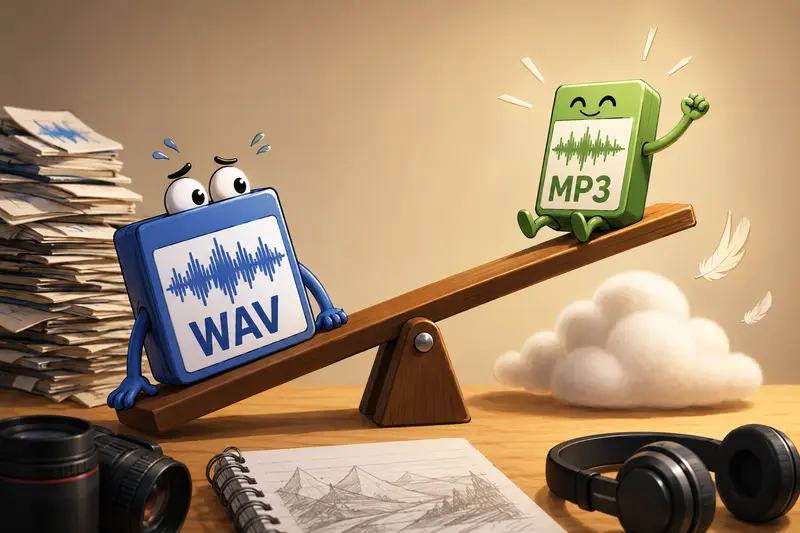
Real-World Testing on iPhone
To see how practical this workflow actually feels, I tested a batch of location recordings captured during a portrait session.
The test set included:
- 14 WAV files
- total size: roughly 620 MB
- recordings between 211 minutes each
- mix of voice memos and ambient street audio
The conversions were handled directly in Safari on an iPhone 15 Pro using mobile data.
Results:
- all files converted successfully in one queue
- MP3 outputs averaged about 78% smaller
- voice clarity stayed strong at 192 kbps
- upload time mattered more than processing time
The most useful takeaway was workflow simplicity. There was no app installation, no export syncing, and no desktop dependency. For photographers editing while traveling, that matters more than fancy interfaces.
Another practical observation: converting long ambient recordings at unnecessarily high bitrates didnt noticeably improve playback quality on phones or social platforms. Lowering bitrate moderately saved substantial storage.
Where Browser-Based Conversion Helps Most
Photographers rarely work from one fixed device anymore.
A browser-based WAV to MP3 converter fits naturally into workflows where:
- edits happen across Mac, iPad, and iPhone
- files move through cloud storage frequently
- quick client delivery matters
- travel setups need minimal software overhead
Because Filemazing processes files as temporary tasks rather than long-term cloud storage, it also feels more aligned with privacy-conscious workflows. Uploaded files are cleaned automatically on a short retention schedule instead of sitting indefinitely in an account archive.
That distinction matters when client interviews, event recordings, or unreleased campaign material are involved.
One Overlooked Problem: Metadata and Audio Clutter
Heres a less obvious issue photographers run into with audio files on iPhone: messy metadata.
Imported recordings sometimes inherit inconsistent naming structures, embedded device info, or odd timestamps after transfers between apps and cameras. Over time, that creates confusion inside archives and editing folders.
Converting files during ingestion gives you an opportunity to standardize everything:
- consistent filenames
- smaller archive sizes
- cleaner project organization
- easier syncing across cloud systems
And if youre also managing image assets in parallel, using a dedicated format conversion workflow for media files https://filemazing.com/format-converter helps keep the broader project pipeline consistent.
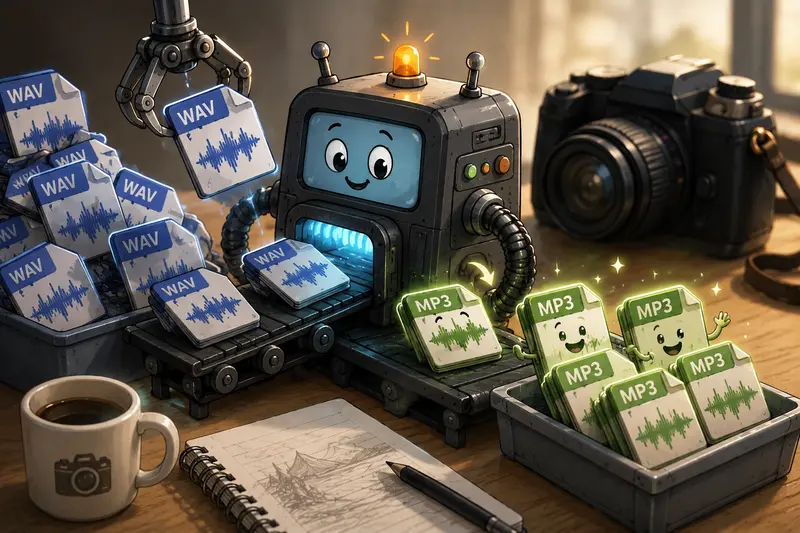
Situations Where MP3 Is the Better Choice
WAV still has value. It just depends on the goal.
MP3 tends to make more sense when:
- uploading to social platforms
- sharing previews with clients
- storing reference recordings
- managing mobile storage
- attaching audio to galleries or presentations
WAV remains preferable for:
- master archival recordings
- heavy audio editing
- advanced post-production work
- situations requiring lossless preservation
That balance is important. High quality audio conversion should preserve practical usability, not blindly maximize compression.
Token-Based Processing Without Subscription Lock-In
One aspect that stands out with Filemazing is the pricing model.
Instead of monthly subscriptions, processing uses tokens based on workload factors like:
- file size
- duration
- number of files
For occasional photography projects, that structure often feels more predictable than paying for a full editing suite just to handle audio format conversion without software installation.
Larger studios processing frequent media batches can scale usage with bigger token packs, while casual users can start with free daily credits.
The system also supports API endpoints for teams that automate repetitive media preparation tasks, though most photographers will probably stick to the browser workflow.
Common Questions
Does converting WAV to MP3 reduce quality?
Yes, technically. MP3 uses lossy compression.
However, at sensible bitrates like 192 kbps or 256 kbps, the difference is usually minimal for interviews, social media clips, behind-the-scenes audio, and reference recordings.
Can batch audio conversion work on iPhone?
Yes. Browser-based converters can queue multiple files together, which is far more practical than converting recordings individually after large shoots.
Is browser-based audio conversion safe?
It depends on the platform. Services that treat uploads as temporary processing files rather than permanent storage are generally preferable for privacy-conscious workflows.
Do I need to install an app?
No. Tools like Filemazing operate directly in the browser, which avoids extra app storage and simplifies cross-device access.
Whats the best bitrate for photographers?
For most photography-related use cases:
- 128 kbps works for quick voice notes
- 192 kbps balances quality and storage well
- 256 kbps is useful for ambient sound or higher-fidelity recordings
Can converted MP3 files be shared more easily?
Usually yes. MP3 compatibility is significantly broader across:
- messaging apps
- social platforms
- cloud services
- client delivery systems
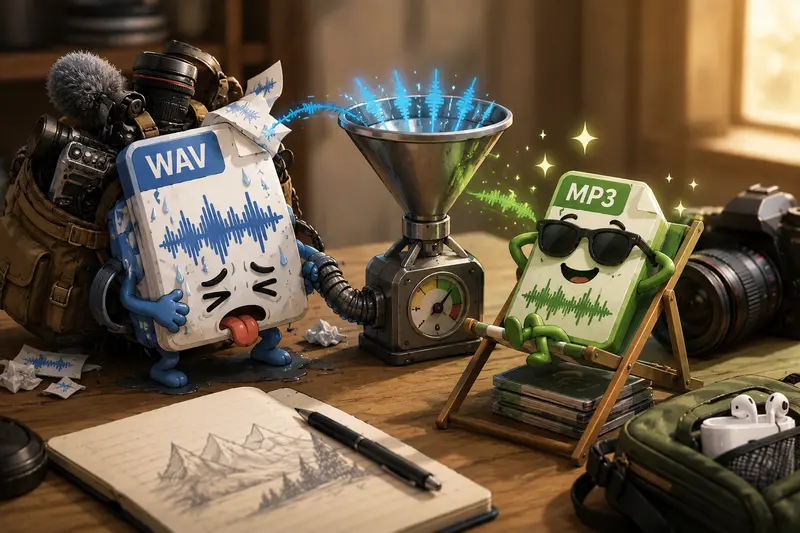
Final Thoughts
For photographers working from iPhone, converting WAV recordings into MP3 files is less about technical experimentation and more about workflow efficiency.
Smaller files move faster.Uploads become easier.Storage pressure drops.Client sharing gets simpler.
A browser-based WAV to MP3 converter also removes much of the friction that traditionally came with audio processing. No desktop software, no heavy installs, and no complicated export pipeline.
For occasional voice memos, travel recordings, BTS clips, or client-facing media, that lightweight approach often ends up being the most practical one.