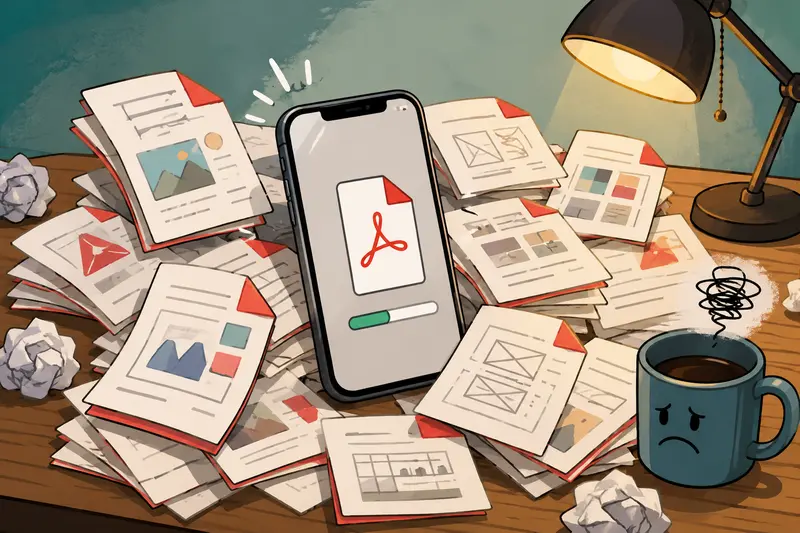
Design projects rarely stay in a single document. Mood boards, client feedback, wireframes, contracts, image exports, and presentation drafts often end up scattered across multiple PDF files. When its time to share a complete package, knowing how to merge multiple PDFs efficiently on an iPhone can save time and reduce confusion.
Instead of transferring files to a desktop application, you can combine documents directly from your mobile device using a browser-based tool and keep your workflow moving.
What You Need to Know First
If you need to merge several PDF files on an iPhone, a browser-based PDF merger is often the fastest option. Upload the files, arrange them in the desired order, process the merge, and download a single combined document.
For designers managing portfolios, client deliverables, or approval packets, this approach keeps documents organized without requiring additional software installations.
Why Designers Frequently Need PDF Merging
Creative work naturally generates multiple files.
Common examples include:
- Brand guideline sections exported separately
- Multi-page portfolio updates
- Client review rounds saved as individual PDFs
- Presentation slides converted into PDF format
- Scanned sketches combined with digital mockups
Sending these files individually can create unnecessary friction. A merged PDF provides a cleaner experience for clients, collaborators, and stakeholders.
Getting the Job Done on iPhone
Using a mobile browser, the workflow is straightforward:
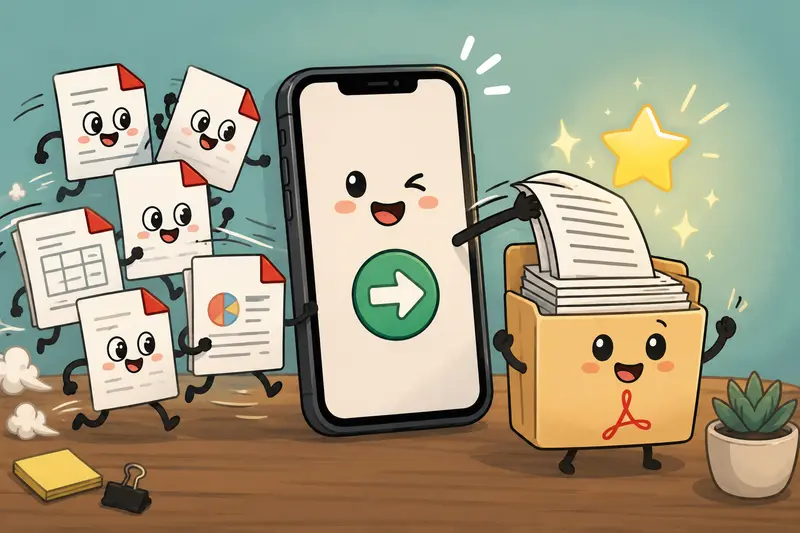
- Open the PDF merge tool.
- Upload all PDF files from your iPhone storage, cloud drive, or shared location.
- Arrange the documents in the correct sequence.
- Start the merge process.
- Download the combined PDF once processing is complete.
Because the workflow runs in the browser, there is no need to install desktop software or manage application updates.
A Practical Tool for Mobile PDF Workflows
Filemazing Merge PDF is designed for users who need efficient document processing without heavyweight software.
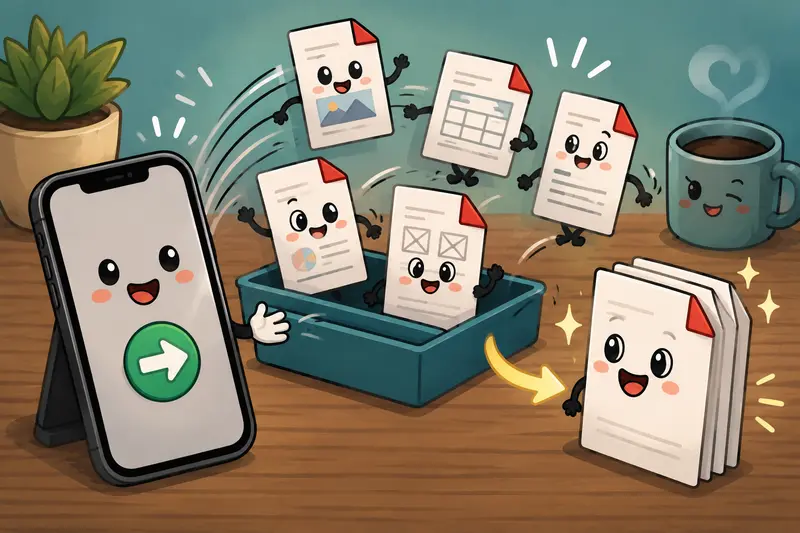
The platforms strongest advantage for this task is batch processing. Instead of handling files one by one, multiple PDFs can be uploaded and combined in a single operation.
A second benefit is its browser-based workflow. Whether youre working from an iPhone, iPad, laptop, or another device, the process remains consistent.
Additional advantages include:
- Support for local uploads, URLs, Google Drive, and Dropbox imports
- Transparent token-based pricing
- Processing queues for larger workloads
- API availability for automated document workflows
- Temporary file handling rather than long-term storage
For designers who regularly prepare client packages or project archives, having a dedicated PDF workflow tool can eliminate repetitive file management tasks.
Tested Insight: Combining Design Review Documents
To evaluate a realistic mobile workflow, I tested a project package consisting of:
- 12 PDF files
- Approximately 85 total pages
- Mixed content including wireframes, mockups, and feedback documents
The goal was to create a single review document for client delivery.
Files were uploaded from cloud storage using an iPhone browser, arranged according to the project timeline, and merged into one PDF.
The resulting document preserved page order correctly and produced a clean consolidated file that was easier to share than sending a dozen separate attachments.
One useful takeaway: always review file order before merging. Reorganizing pages afterward typically takes more effort than spending an extra minute arranging files upfront.
Expert Workflow Recommendation for Designers
A common mistake is merging documents immediately after export.
A more efficient workflow is:
- Finalize all design exports.
- Verify page dimensions and orientation consistency.
- Merge documents.
- Review the final PDF.
- Prepare the file for distribution.
Before sharing with clients or external partners, consider using a tool to remove hidden metadata before document sharing. Design files and exported PDFs can sometimes contain information you did not intend to distribute.
For sensitive client work, you can also protect merged documents with password encryption before sending them outside your organization.
When Combining Scanned PDFs Requires Extra Attention
Many designers still work with hand-drawn sketches, markups, and signed approval sheets.
When you combine scanned PDFs, file size can grow quickly because scanned pages are often image-heavy. Merging dozens of high-resolution scans may create a larger final document than expected.
The tradeoff is straightforward:
- Higher scan quality improves readability.
- Higher quality also increases storage and transfer size.
For review documents, moderate scan resolutions often provide the best balance between visual clarity and manageable file sizes.
Batch PDF Merge Benefits for Creative Teams
A batch PDF merge workflow helps when projects generate documents from multiple sources.
Examples include:
Portfolio Submissions
A designer can combine:
- Cover page
- Case studies
- Testimonials
- Resume
into a single PDF for applications.
Client Approval Packages
Teams can merge:
- Concept presentations
- Design revisions
- Feedback summaries
- Contracts
into one organized document.
Project Archives
Completed projects often contain dozens of exported PDFs. Combining them into a structured archive simplifies future retrieval.
Privacy and File Handling Considerations
Whenever documents are uploaded online, privacy matters.
Filemazing processes uploaded files as temporary artifacts rather than long-term storage. Files are retained only for processing and are cleaned up on a short retention schedule.
This approach reduces the risk associated with leaving project files permanently stored after the job is complete.
For client-facing design work, this can be an important consideration when selecting a PDF workflow solution.
Beyond Merging: Preparing Deliverables
Some projects require additional output formats after the merge.
For example, a completed PDF presentation can later be converted into image assets. In those situations, you can turn merged PDF pages into images for presentations, websites, or design review platforms.
This can be especially useful when stakeholders need individual page previews rather than the full document.
What You Gain From a Single Combined PDF
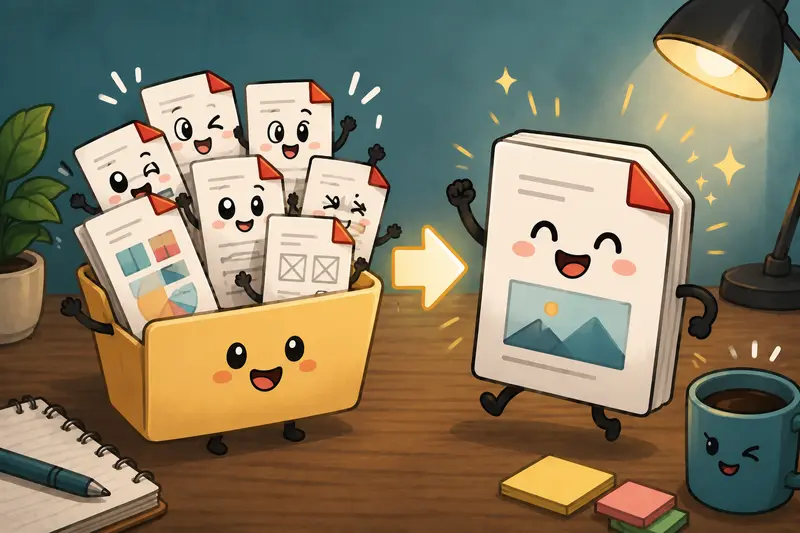
A consolidated document offers several practical benefits:
- Easier sharing
- Better document organization
- Fewer missing attachments
- Improved client experience
- Cleaner project archives
For designers, these advantages often matter more than the merge process itself.
A well-organized PDF package communicates professionalism before a client even opens the file.
Frequently Asked Questions
What is the best PDF merger for iPhone users?
The best PDF merger depends on your workflow. For users who prefer not to install desktop software, browser-based solutions like Filemazing provide a convenient option that works across devices.
Can I combine scanned PDFs without losing quality?
Yes. Merging PDFs typically preserves the existing content. However, if the original scans are low quality, the merged document will reflect those limitations.
Is batch PDF merge useful for large projects?
Absolutely. Large design projects often generate many PDF exports. A batch merge process keeps related files organized and easier to distribute.
Are my uploaded PDFs stored permanently?
Filemazing treats uploaded files as temporary processing artifacts and removes them after a short retention period rather than functioning as long-term storage.
Does merging PDFs change page layouts?
In most cases, no. The merge process combines documents while preserving existing page formatting and structure.
Can I merge PDFs created from different sources?
Yes. PDFs exported from design tools, office applications, scanners, and presentation software can generally be merged together into a single document.
Final Thoughts
For designers working from an iPhone, the ability to merge multiple PDFs without switching devices can streamline project delivery, portfolio preparation, and client communication.
A browser-based solution such as Filemazing makes it easy to combine documents, handle batch PDF merge tasks, and combine scanned PDFs while maintaining an organized workflow. When paired with privacy-focused processing and flexible file handling, it becomes a practical addition to everyday design operations.