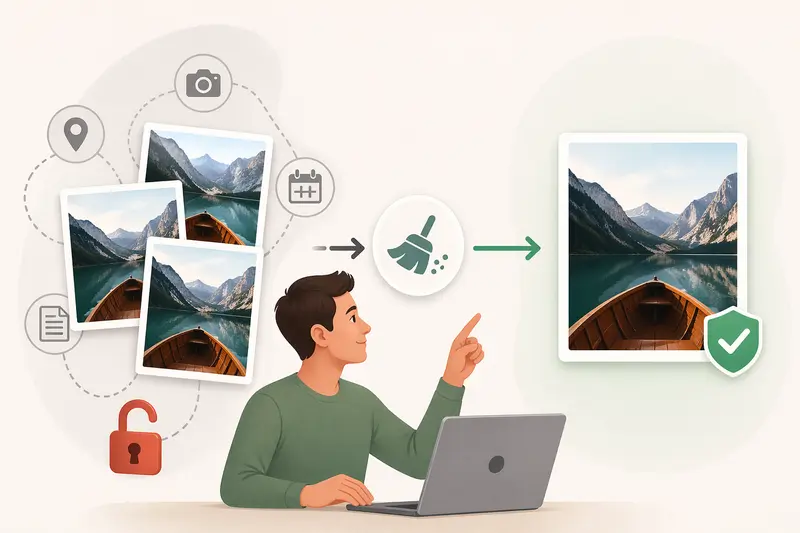
If you’ve ever shared product photos, team headshots, or client visuals from your Mac, there’s a good chance you’ve also shared more than you intended. Hidden EXIF data can include location coordinates, device details, timestamps—even editing history. For small business owners, that’s not just technical clutter—it’s a privacy risk.
The good news: you can clean image metadata online without installing anything, and without sacrificing image quality.
What you need to know upfront
The fastest and most reliable way to remove hidden data is to use a browser-based metadata scrubber. It strips EXIF information while preserving the visible image, making it safe for sharing or publishing.
How the cleanup process actually works
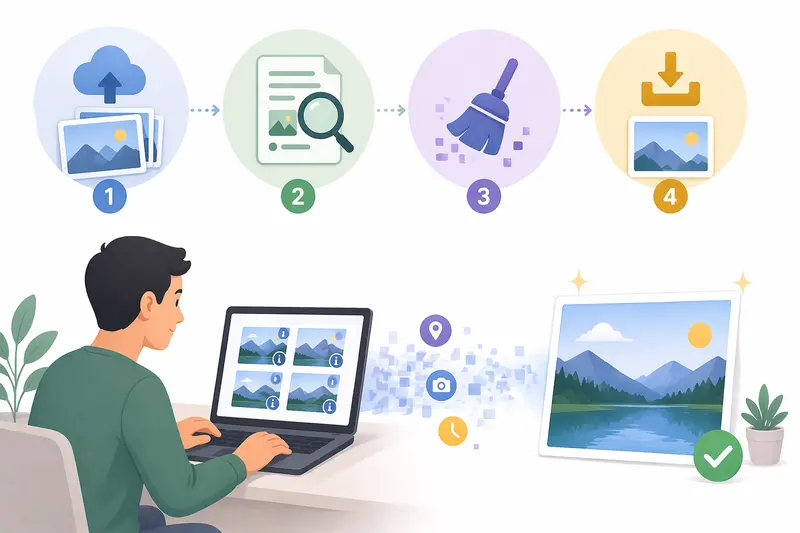
Instead of relying on built-in Mac previews (which can be inconsistent), an online tool follows a more controlled pipeline:
- Upload your image files (JPG, PNG, or others) directly in your browser
- The system analyzes embedded metadata layers like EXIF and IPTC
- It removes non-essential fields while keeping image integrity intact
- You download a clean version, ready for sharing
This approach is especially useful when dealing with multiple files or mixed formats.
A practical tool worth using
One tool that stands out here is Filemazing’s metadata scrubber:
https://filemazing.com/metadata-scrubber
It’s designed with privacy-first processing as the main priority. Files are treated as temporary artifacts and cleared after processing—so you’re not building a hidden archive somewhere.
On top of that, it runs entirely in the browser (no installation), and you can start without creating an account. That’s helpful if you’re handling sensitive client materials or just want to keep things frictionless.
What I tested (and what actually happened)
I ran a batch of 42 product images (mix of iPhone shots and edited PNGs exported from design tools). Each file contained GPS tags and camera metadata.
Result:
- All location data was removed
- File names stayed intact
- Image quality remained visually identical
One unexpected benefit: cleaned images uploaded faster to a client portal afterward, likely because unnecessary metadata wasn’t bloating the file.
Takeaway: metadata doesn’t just affect privacy—it can subtly impact performance in real workflows.
Common mistakes that cause incomplete cleanup
Many users assume exporting or “saving as” removes metadata. That’s not always true.
Here are a few pitfalls to avoid:
- Relying on screenshots: This strips metadata but lowers image quality
- Using preview-only tools: Some metadata fields remain untouched
- Forgetting batch consistency: Cleaning one file doesn’t guarantee the rest are safe
A dedicated photo privacy metadata remover ensures consistency across all files.
Where this fits in real business workflows
For small business owners, this isn’t just a one-off task. It becomes part of a repeatable process:
- Preparing product photos for eCommerce listings
- Sending client deliverables without revealing editing details
- Uploading marketing visuals to social media
- Sharing internal documents externally
- Managing image libraries for websites
If you also need to optimize files before publishing, combining metadata cleanup with tools like image compression (https://filemazing.com/compress-image) helps reduce load times without extra steps.
Why this approach works well
- No local software required – everything runs in your browser
- Predictable cost model – token-based usage avoids surprises
- Batch-friendly – process multiple images in one go
- Privacy-safe image cleanup – files aren’t stored long-term
And if your workflow includes secure delivery, you can also protect cleaned images with encryption before sharing: https://filemazing.com/encrypt-file
Tradeoffs to be aware of
Cleaning metadata is generally safe, but there’s one tradeoff:
- Loss of useful info: Some workflows (like photography archiving) rely on EXIF data
- No selective editing: Most tools remove all metadata rather than letting you pick fields
For business use—especially public sharing—this tradeoff is usually worth it.
FAQ
Does removing EXIF data affect image quality?
No. Metadata sits alongside the image, not inside the visual pixels. Your image looks the same after cleanup.
Is it safe to use an online metadata remover?
Yes, if the platform uses temporary processing and clears files after completion. Avoid tools that store uploads indefinitely.
Can I process multiple images at once?
Yes. Batch processing is supported, which is useful for product catalogs or large image sets.
What file types are supported?
Most tools handle JPG and PNG, and often additional formats. If needed, you can convert cleaned images into another format using a format converter: https://filemazing.com/format-converter
Will this remove hidden location data?
Yes, GPS coordinates embedded in EXIF data are stripped during the process.
Final thoughts
If you regularly share images from your Mac, cleaning metadata shouldn’t be optional—it should be part of your routine. A browser-based solution like Filemazing keeps the process lightweight, predictable, and aligned with privacy best practices.
Try it with a few files first. Once you see how much hidden data gets removed, it becomes an easy habit to maintain.