Linux users are usually comfortable moving files through terminals, shared folders, SSH sessions, cloud storage, and team infrastructure. That flexibility is useful, but it can also make sensitive files travel farther and faster than intended.
Protecting a file before sharing it is one of the simplest ways to reduce risk when the file is about to leave a controlled environment. You may trust your workstation. You may trust your server. The question is whether you trust every handoff point after that.
If the answer is "not completely," password-based protection is often a practical step.
Why Linux workflows still need file protection
People sometimes assume that because a workflow is technical, it is automatically disciplined. In reality, files still get sent through tickets, temporary storage links, email chains, and team chat.
That is where protection helps most: not during careful infrastructure design, but during ordinary day-to-day movement of files between people and systems.
When protection is worth adding
- you are sharing credentials-adjacent configuration exports
- you are handing client or user data to another team
- you are sending financial, HR, legal, or contract files
- you are moving sensitive backups or reports off-system
These are exactly the moments where a second access requirement can help.
What password protection does well
It creates separation between "someone received the file" and "someone can open the file." That distinction matters when:
- a link is forwarded too broadly
- a ticket includes an unintended viewer
- a shared folder has looser access than expected
- a file sits in a place that outlives the original task
Protection does not make mistakes impossible. It makes mistakes less expensive.
What it does not do
It does not fix bad password habits
If the password is weak or reused constantly, the benefit shrinks fast.
It does not replace access control thinking
If everyone can see the link, chat thread, or storage bucket, you still have a sharing problem even if the file is protected.
It does not remove the need for cleanup
Sensitive files should not stay on temporary hosts or shared devices longer than they need to.
A practical Linux-oriented handoff flow
- Prepare the final file or bundle.
- Protect it before sending it onward.
- Send the file or link in one channel.
- Share the password through another channel where possible.
- Clean up temporary locations after the task is complete.
That is usually enough to improve real-world handoffs without overcomplicating them.
Where Filemazing fits
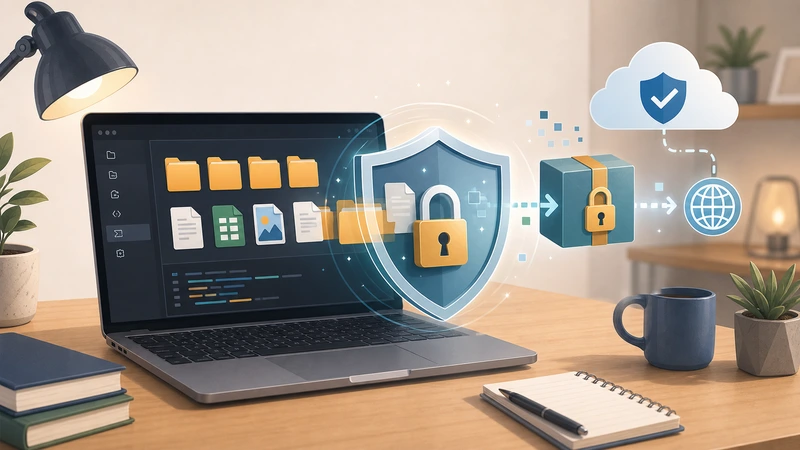
If you want a lightweight browser-based protection step instead of building a custom one every time, Filemazing Encrypt File is a practical option. It works especially well when the rest of the workflow is already centered around temporary processing and controlled delivery.
Why this matters for teams, not just individuals
In many Linux-heavy environments, the bigger risk is not a single user mistake. It is inconsistency across many people. One person protects the file. Another sends raw exports directly. Another leaves them in a shared bucket too long.
A simple, repeatable workflow is often more valuable than a theoretically perfect one nobody follows.
Frequently asked questions
Do Linux users still need password-protected file handoff?
Yes. The need comes from the sharing context, not from whether the operating system is technical.
When is protection most useful?
When files are sensitive, mobile between teams, or likely to live in temporary locations during delivery.
What is the easiest mistake to avoid?
Do not send the file and the password together in the same place if you can avoid it.
Is a browser workflow acceptable for this?
Yes, especially when you want a practical protection step without building custom overhead around every single handoff.
Final takeaway
Protecting sensitive files on Linux is less about the operating system and more about respecting the moment a file leaves your direct control.
If the contents matter, add a protection step before sending them onward. When you want that step to stay lightweight and repeatable, Filemazing Encrypt File is a sensible place to start.