Large presentation decks usually become a problem right before a deadline. A slide deck with dozens of screenshots, diagrams, and exported charts can quietly grow into a 200 MB file that nobody wants to email, upload, or sync through version control.
That is where bulk image compression becomes less of a convenience and more of a survival tactic for developers handling technical presentations, conference decks, documentation exports, or client deliverables.
Instead of compressing images one at a time, modern browser-based workflows make it possible to process entire batches while keeping output quality usable for large screens and shared presentations.

What Actually Matters When Compressing Presentation Images
For presentations, the goal is not maximum compression.
The real target is balance:
- smaller files
- acceptable visual quality
- fast exports
- manageable upload sizes
- fewer sync and sharing issues
A presentation shown on a projector behaves differently than images intended for print. You can often reduce image weight far more aggressively than expected without noticeable degradation during live viewing.
This is especially true for:
- screenshots
- UI mockups
- browser captures
- exported diagrams
- embedded JPG photography
PNG-heavy decks are usually the biggest offenders.
If you also need to convert assets before optimization, Filemazing includes a format conversion workflow for JPG, PNG, WEBP, HEIC, and AVIF files, which helps when presentation exports contain inconsistent image formats.
A Practical Bulk Compression Workflow
Using a browser-based processor like Filemazing Compress Image Tool https://filemazing.com/compress-image changes the workflow significantly because you do not need desktop software installed across multiple machines.
A typical process looks like this:
- Export or collect all presentation assets into a single folder.
- Upload batches of PNG and JPG files together.
- Apply compression settings based on image type.
- Download optimized assets and replace originals inside the presentation.
For developers maintaining docs or slide automation pipelines, this becomes especially useful during repeated exports from:
- Figma
- Playwright screenshots
- Swagger docs
- CI-generated reports
- PDF slide conversions
The browser-based approach also avoids local dependency maintenance, which is one less thing competing for attention during release week.
Real Testing: Compressing a Technical Conference Deck
To see how realistic the gains were, I tested a presentation package containing:
- 84 PNG screenshots
- 26 JPG product photos
- total input size: 312 MB
- source material from 4K displays
- exported diagrams from Excalidraw and Mermaid
The first pass focused on moderate compression instead of aggressive reduction.
Results:
- final output size: 97 MB
- PNG-heavy slides produced the biggest reductions
- JPG files compressed faster than large transparent PNGs
- visual differences were barely noticeable during fullscreen playback
One detail worth noting: charts with very small typography suffered slightly under stronger PNG compression settings. For technical decks, especially architecture diagrams, moderate settings preserved readability much better.
Actionable takeaway:
Compress screenshots and photos separately when possible. Screenshots tolerate different optimization settings than photographic images.
That small adjustment consistently produced cleaner-looking presentations.

Why Developers Tend to Prefer Batch-Oriented Tools
Presentation work often overlaps with automation work.
A developer might:
- generate screenshots programmatically
- export monitoring dashboards
- convert PDFs into slide assets
- prepare demo media for stakeholder meetings
In those cases, handling files individually becomes tedious fast.
Filemazing is built around queued processing and workload-based operations, which makes larger batches easier to manage without freezing the browser session. The platform also supports API-driven workflows for teams integrating compression into CI/CD documentation pipelines or internal tooling.
Another useful aspect is transparent token pricing.
Instead of unclear unlimited restrictions, workloads are calculated based on measurable factors like:
- file size
- file count
- operation complexity
For image compression specifically, token usage follows predictable formulas, making cost estimation easier before large processing runs.
The PNG Problem Nobody Mentions
PNG files are often responsible for presentation bloat because many exported screenshots contain:
- transparency layers
- oversized dimensions
- hidden metadata
- lossless encoding
Developers frequently export a browser screenshot at full 4K resolution even when the slide only displays it at 25% scale.
That mismatch wastes enormous amounts of storage.
A better approach:
- resize first if needed
- compress second
- only preserve transparency when necessary
If website performance also matters, the same workflow can help compress PNG for website speed before deploying documentation portals or marketing landing pages.
For teams converting decks into image-based documentation, the PDF to image conversion workflow can also simplify extracting slide visuals into compressed web-ready assets afterward.
Compression Tradeoffs You Should Expect
Bulk image compression always involves compromises.
The important part is controlling them intentionally.
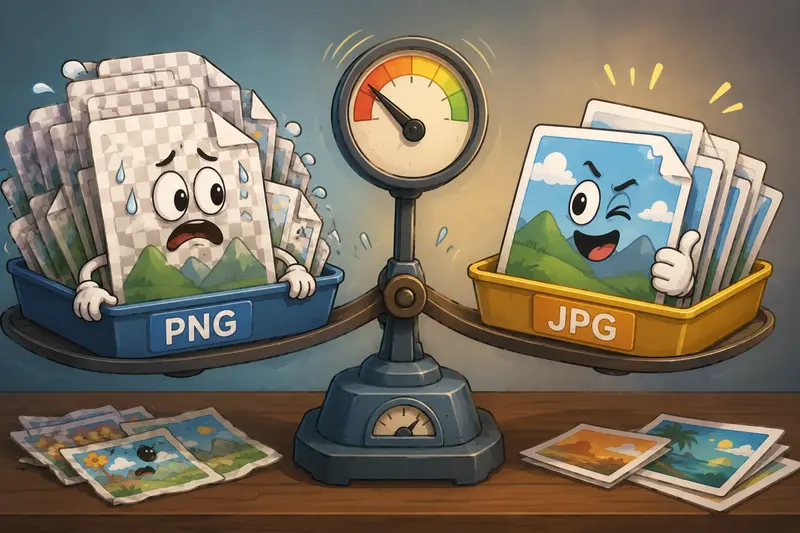
JPG vs PNG
JPG:
- smaller outputs
- faster processing
- better for photos
- less ideal for sharp UI screenshots
PNG:
- preserves detail
- handles transparency
- often much larger
- slower during heavy batch operations
Aggressive Compression vs Readability
Reducing a deck from 300 MB to 40 MB may sound impressive, but tiny fonts inside terminal screenshots can become blurry on projectors.
For developer presentations:
- preserve clarity first
- optimize second
That balance usually lands somewhere in the moderate compression range.
A Useful Workflow Trick for Shared Presentations
When multiple people collaborate on decks, compressed assets should ideally be stored separately from originals.
A surprisingly effective workflow is:
- keep originals archived
- compress copies for presentation builds
- automate replacement during export
This prevents cumulative quality loss from repeatedly recompressing already optimized images.
And if presentations contain sensitive diagrams, internal dashboards, or client screenshots, Filemazing also includes a file encryption workflow for protected sharing after compression.
That matters more than many teams realize once decks start moving through email threads and external contractors.
Where Bulk Compression Helps Most
Developers typically benefit from bulk image compression in situations like:
Documentation Teams
Large architecture screenshots and exported diagrams can slow wiki uploads and repository sync operations.
Internal Training Decks
Recorded onboarding presentations often include dozens of screenshots that inflate storage unnecessarily.
Conference Presentations
Upload limits for speaker portals are surprisingly strict sometimes. Nobody enjoys discovering that five minutes before submission closes.
Automated Reporting Pipelines
Generated dashboards and PDF exports can be compressed before storage or delivery.
Email Attachments
The same workflows also help compress photos for email when presentations must be distributed externally without cloud-sharing links.
Privacy and Temporary Processing Matter
For presentation materials containing proprietary information, privacy handling is not optional.
Filemazing processes uploaded files as temporary artifacts rather than long-term storage assets. Cleanup routines remove processing data after short retention windows, which is preferable to permanently storing sensitive slide exports on shared systems.
For developer teams handling internal screenshots, customer dashboards, or pre-release product visuals, that distinction matters.
Browser-based workflows also reduce the need to install extra compression utilities locally across multiple environments.
What You Gain From Bulk Compression
The advantages are usually operational rather than dramatic.
You end up with:
- faster uploads
- smaller repositories
- easier email delivery
- cleaner collaboration workflows
- smoother cloud syncing
- reduced storage overhead
And importantly, presentation exports stop becoming gigantic accidental archives.
For teams already handling media processing regularly, the API-ready structure makes the workflow scalable beyond occasional manual use.
FAQ
Does bulk image compression reduce presentation quality noticeably?
Usually not if moderate settings are used. Technical diagrams and small text require more caution than photos, but most presentation assets compress well without visible issues during fullscreen viewing.
Can I reduce JPG size online without installing software?
Yes. Browser-based processors like Filemazing https://filemazing.com/compress-image allow you to reduce JPG size online directly through the web interface.
Is PNG always better for presentation screenshots?
Not necessarily. PNG preserves sharpness well, but JPG may be sufficient for screenshots shown briefly during live presentations.
Are compressed files stored permanently?
No. Filemazing treats uploads as temporary processing data and removes them through cleanup workflows rather than keeping them as persistent storage.
Can compression workflows be automated?
Yes. Filemazing supports API-based automation, which is useful for developers integrating image optimization into export pipelines or reporting systems.
Should presentation images be resized before compression?
Often yes. Oversized 4K screenshots displayed at small dimensions waste storage and processing resources. Resizing before compression typically produces better overall efficiency.
Final Thoughts
Bulk image compression is one of those workflow improvements that quietly saves time every week once adopted consistently.
For developers building presentation-heavy documentation, demos, onboarding materials, or conference decks, reducing image weight early prevents a long list of downstream annoyances later.
The useful part is not just smaller files. It is having a predictable, browser-based process that scales from a handful of screenshots to hundreds of presentation assets without adding operational overhead.