WAV files sound great, but they are not always friendly on Android phones. They can be large, awkward to share, and unnecessary when you only need audio for messaging, mobile playback, storage, or casual publishing.
That is where a WAV to MP3 converter helps. By converting WAV to MP3, you can keep audio usable while making the file much smaller and easier to send from your phone.
What you need to know first
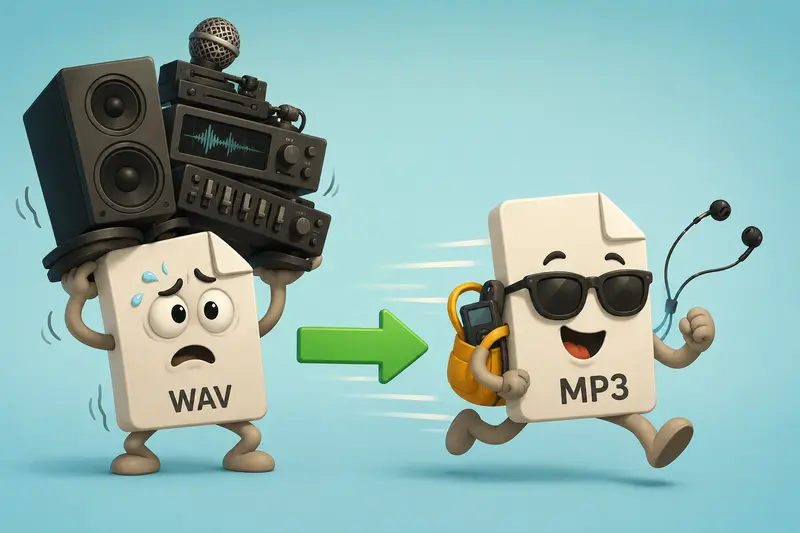
For most Android users, MP3 is the more practical format for everyday audio. WAV is usually uncompressed, which means better raw quality but much larger file sizes. MP3 compresses the audio, making it easier to store, upload, attach, and play across apps.
A browser-based option such as Filemazings audio converter lets you convert audio online free without installing desktop software. That is useful when you are on Android and do not want another app taking up space.
Filemazing is a browser-based file processing SaaS that helps users convert, clean, compress, and prepare files through a clean web interface. It also supports API endpoints for automation, which makes it useful for both everyday users and more technical workflows.
Why convert WAV to MP3 on Android?
WAV files are common when audio comes from recorders, editing apps, exported voice notes, podcast tools, or downloaded sound assets. The problem is that Android storage fills up fast, and many apps handle MP3 more comfortably.
Converting WAV to MP3 helps when you want to:
- send a voice recording through chat or email
- reduce the size of lecture recordings
- prepare audio for mobile playback
- upload sound clips to a website or content platform
- store more audio files without crowding your phone
- make files easier to share with people using different devices
For general everyday users, the main benefit is convenience. You do not need to understand codecs deeply. You just need the file to work, upload, and not consume half your storage.
How to convert WAV to MP3 on Android
Open the WAV to MP3 converter in your Android browser. Upload your WAV file from local storage, or import it from cloud sources such as Google Drive or Dropbox if your file is stored there.
Then choose MP3 as the output format and start the conversion. Filemazing uses queued processing, job status tracking, and download delivery after completion, so larger files do not freeze the page while they process.
Once the job finishes, download the MP3 to your phone and test it in your preferred audio player before deleting the original WAV.
A useful habit: keep the WAV file until you have listened to the MP3 from beginning to end. Compression problems are rare when settings are reasonable, but checking the final file saves frustration later.
Real Android workflow example
A realistic test scenario would be three WAV recordings from a phone recorder:
- one 4-minute voice memo
- one 18-minute class recording
- one 32-minute interview clip
The WAV versions are large enough to feel annoying on mobile, especially when uploading over cellular data. After conversion to MP3, the files become much easier to share and store. The voice remains clear enough for listening, note-taking, and casual reuse.
The most noticeable result is not dramatic audio magic. It is practical relief: smaller files, faster transfers, and fewer file too large moments.
Quality versus file size: the tradeoff that matters
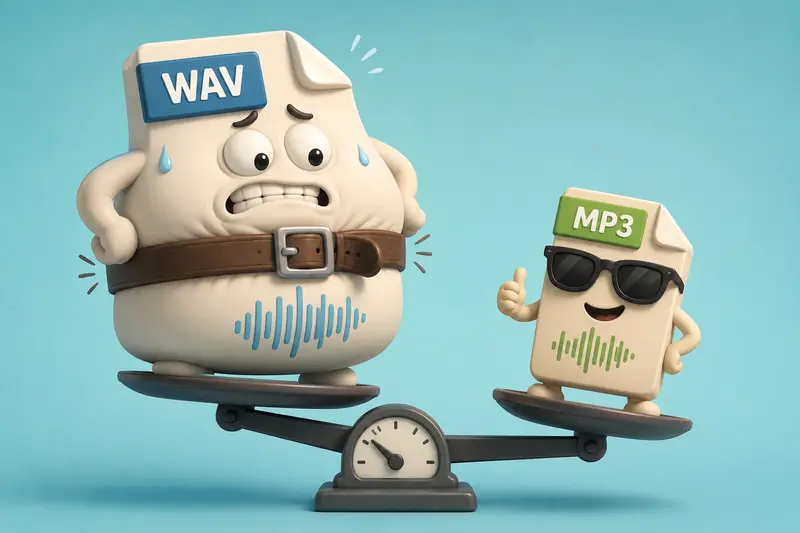
WAV usually keeps more original audio data. MP3 reduces file size by compressing the sound. That means there is always a tradeoff between quality and storage.
For spoken audio, MP3 usually works very well. Lectures, interviews, voice notes, meetings, and narration can often be compressed without a major listening difference.
For music production, sound design, or archival work, keep the WAV master. Convert a copy to MP3 for mobile sharing, but do not treat MP3 as your only original.
Think of WAV as the source file and MP3 as the travel version.
Common WAV to MP3 mistakes on Android
One common mistake is converting the only copy of a WAV file and deleting the original immediately. Keep the original until you know the MP3 works.
Another mistake is converting already-compressed audio multiple times. If a file has already been compressed before, repeated conversion can gradually reduce quality.
Also watch out for messy batches. If your audio files are inside ZIP or RAR archives, unpack them first with an archive extraction tool for audio file bundles, then convert the WAV files after they are accessible.
If you are sharing private recordings, consider whether the final MP3 needs protection. For sensitive interviews, client notes, or personal audio, you can password-protect converted audio before sharing.
Where Filemazing fits
Filemazing is useful because it keeps the process browser-based. You can handle audio format conversion without software, and the same platform also supports tools such as PDF to image, merge PDF, image compression, archive extraction, metadata scrubbing, format conversion, and file encryption workflows.
Its token model is also predictable. Instead of a subscription-only approach, operations consume tokens based on workload factors such as base cost, file size, file count, page count where relevant, and media duration. For audio conversion, token usage can include base cost, file size, file count, and minutes of audio.
Anonymous and registered users can start with daily free tokens, then top up when they need more throughput. Token packs such as Pack 500, Pack 5000, and Pack 50000 support different usage levels.
Privacy-wise, uploaded files are treated as temporary processing artifacts and cleaned on a short retention schedule rather than stored as long-term user storage.
Practical tips for better mobile conversion
Rename your WAV files before uploading if you have many of them. Names like interview-maria-part-1.wav are much easier to manage than audio_0037.wav.
Convert shorter test files first when working with important audio. This helps confirm the output format before processing a full batch.
For workflows that include cover images, thumbnails, or related visual assets, you can use a general format converter for related media files in the same broader file-preparation process.
FAQs
Can I use a WAV to MP3 converter on Android without installing an app?
Yes. A browser-based converter lets you upload a WAV file from your Android phone and download the MP3 after processing.
Is MP3 good enough for voice recordings?
Usually, yes. MP3 is well suited for lectures, interviews, voice notes, and meeting recordings where small file size matters more than studio-grade preservation.
Will converting WAV to MP3 reduce quality?
Some quality reduction is expected because MP3 is compressed. For everyday listening, the difference is often minor. For professional audio editing, keep the WAV original.
Is browser-based audio conversion private?
Filemazing treats uploads as temporary processing files and uses cleanup behavior rather than long-term storage. Still, avoid uploading files you are not comfortable processing through an online tool.
Can I convert audio for mobile sharing?
Yes. MP3 is widely compatible with Android apps, messaging platforms, cloud storage, and media players, making it a practical format for mobile use.
Final thought
A WAV to MP3 converter is most useful when you need audio that behaves well on Android: smaller, easier to send, and broadly compatible. Use WAV as your quality source, convert MP3 copies for mobile, and keep the workflow tidy.
For everyday Android audio tasks, Filemazings audio converter gives you a practical browser-based way to convert audio without installing extra software.