Teachers deal with more image sharing than most people realize. Classroom photos, scanned worksheets, project screenshots, student portfolios, event documentation it adds up quickly. And when those files move between personal devices, school systems, parent emails, and cloud backups, hidden metadata often travels with them.
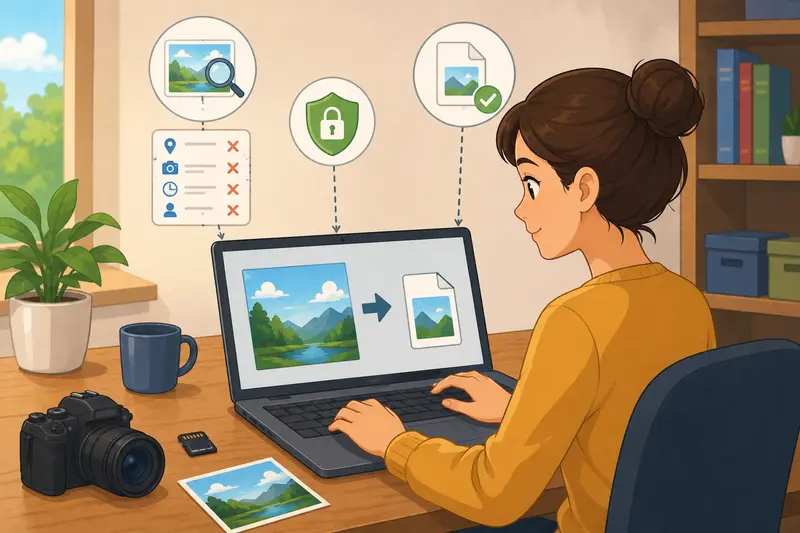
That hidden information can include GPS location details, device identifiers, timestamps, editing history, and camera data. Most of it is invisible until someone intentionally checks the file properties.
If your goal is to clean image metadata online before archiving or sharing files, theres a practical way to handle it without installing desktop software or manually editing every image.

Why Metadata Becomes a Real Privacy Issue
A surprising number of school-related photos contain more information than intended.
For example:
- Photos taken during field trips may include exact GPS coordinates
- Smartphone images often store device details automatically
- Screenshots can preserve editing timestamps and software traces
- Shared backup folders may unintentionally expose organizational patterns
Most teachers are not trying to hide anything suspicious. They simply want cleaner, safer files before sending materials to colleagues, parents, or cloud archives.
This becomes especially important when:
- backing up student work externally
- sharing classroom event photos
- uploading materials to public learning portals
- emailing media outside school-managed systems
And yes, metadata has a habit of surviving multiple uploads. Some platforms strip it automatically. Others absolutely do not.
A More Practical Way to Remove Hidden Photo Data
Browser-based tools have become much more useful for lightweight privacy workflows because they eliminate the need for local software maintenance.
Using Filemazing Metadata Scrubber https://filemazing.com/metadata-scrubber, teachers can upload images temporarily, process them online, and download cleaned versions without building a complicated workflow around it.
The approach works well for:
- JPEG classroom photos
- PNG screenshots
- batches of exported images
- archived media collections prepared for long-term storage
Since processing jobs are temporary rather than permanent cloud storage, files are handled more like short-lived tasks than uploaded media libraries. That distinction matters for schools and educators who are cautious about retaining sensitive files online.
What Actually Gets Removed?
When people hear metadata, they often assume it only means camera settings.
In reality, image metadata can include:
| Metadata Type | Example |
|---|---|
| GPS coordinates | Exact location of photo capture |
| Device information | Phone or camera model |
| Timestamps | Creation and edit times |
| Software tags | Editing applications used |
| Embedded author info | Usernames or creator fields |
A proper photo privacy metadata remover should clear unnecessary embedded details while preserving the image itself.
The visible photo remains the same. The hidden baggage disappears.

How Teachers Can Build Safer Backup Habits
Many backup workflows focus entirely on redundancy:
- external drives
- Google Drive
- Dropbox
- school storage systems
But privacy preparation is often skipped.
A better workflow looks something like this:
- Gather classroom images into a temporary folder
- Remove metadata before sharing or archiving
- Convert formats if needed
- Encrypt sensitive material
- Upload to backup storage
That middle cleanup step prevents unnecessary exposure later.
If your backups involve scanned classroom documents or image exports from PDFs, it can help to first use PDF to image conversion tools https://filemazing.com/pdf-to-image before running metadata cleanup on the resulting files.
A Realistic Classroom Workflow Test
To see how this works in practice, imagine a teacher preparing media from a school science fair.
The folder contains:
- 84 JPG images
- total size around 620 MB
- photos taken from two smartphones
- several screenshots from student presentations
Before uploading the archive to shared cloud storage, the files are processed through an online metadata scrubber.
Results:
- GPS location data removed
- device identifiers removed
- image dimensions preserved
- no visible quality degradation
- batch completed without renaming issues
The total processing time depends mostly on upload speed rather than the metadata cleanup itself. Larger image sets usually spend more time transferring than processing.
That distinction matters for schools with slower network infrastructure.
One Important Tradeoff Most People Ignore
Not every metadata field is useless.
Some photographers intentionally preserve copyright or authorship information. Certain school archiving systems also rely on timestamps for organization.
So blindly stripping all metadata is not always ideal.
For educational backup workflows, the best balance is usually:
- remove location and device data
- preserve filenames
- maintain image resolution
- avoid aggressive recompression
This is especially relevant with JPG files.
PNG files tend to preserve higher visual fidelity for screenshots and diagrams, but they also produce larger backups. JPG images are smaller and faster to process, though repeated compression cycles can gradually reduce quality.
Some file formats cooperate nicely. Others behave like they were designed during an argument.
Where Online Metadata Cleaning Saves the Most Time
The biggest advantage is usually batch handling.
Teachers often work under deadline pressure:
- sending event photos before parent meetings
- preparing materials for LMS uploads
- organizing semester archives
- transferring files between personal and school devices
Doing metadata cleanup manually on individual images becomes tedious quickly.
Browser-based processing works well because it removes dependency on:
- operating system tools
- device-specific photo apps
- desktop installs
- inconsistent export settings
For teachers managing mixed environments Windows at school, Mac at home, Chromebook during travel consistency matters more than fancy features.
An Overlooked Workflow Shortcut
Heres a useful trick many people miss:
If you already need to change image formats for compatibility, combine metadata cleanup with format conversion in the same workflow instead of processing files twice.
For example:
- clean metadata first
- then convert images for LMS compatibility or file size targets
Using image format conversion workflows https://filemazing.com/format-converter afterward can help standardize classroom media archives into JPG, PNG, or WebP depending on storage goals.
This reduces duplicate copies and keeps backup folders cleaner over time.
Privacy Considerations for Shared School Environments
Many educators use personal devices for school-related work at least occasionally.
That creates crossover between:
- family photos
- classroom images
- personal cloud accounts
- school communication systems
Removing metadata before sharing acts as a reasonable privacy safeguard rather than a security guarantee.
It does not encrypt files or anonymize visible content.
For especially sensitive media, schools should still use encrypted transfer methods or password-protected archives. If files need additional protection before external delivery, tools like secure file encryption for private media https://filemazing.com/encrypt-file add another layer beyond metadata cleanup alone.
Things People Often Ask
Does metadata removal reduce image quality?
Normally, no. Metadata cleanup targets hidden file information rather than visible pixels. However, if a workflow also compresses or converts images afterward, quality changes can occur depending on settings.
Can I remove metadata from multiple images at once?
Yes. Batch processing is one of the biggest advantages of online metadata scrubbing tools, especially for classroom archives or event photos.
Is it safer to remove metadata before cloud backup?
Generally, yes. Cleaning hidden data before uploading files reduces unnecessary exposure if backups are later shared, exported, or synced across platforms.
Will filenames change after metadata cleaning?
Not necessarily. Most workflows preserve filenames unless you intentionally rename or convert files during processing.
What image formats work best?
JPG files are smaller and practical for large photo collections. PNG works better for screenshots, scanned worksheets, and graphics where clarity matters more than storage efficiency.
Are uploaded files stored permanently?
Privacy-focused processing platforms typically treat uploads as temporary processing jobs rather than long-term storage. File cleanup schedules are important because educational material may contain sensitive student-related information.
The Main Takeaway
For teachers managing backups across shared systems, personal devices, and cloud storage, cleaning image metadata is less about technical perfection and more about reducing unnecessary exposure.
A browser-based workflow makes the process easier to maintain consistently, especially when handling large batches of classroom media.
Filemazings metadata scrubber tool https://filemazing.com/metadata-scrubber fits well into that kind of routine because it combines temporary processing, batch handling, predictable token-based usage, and lightweight access without requiring desktop software installations.
And when backup folders start multiplying near the end of a semester which they always seem to having one reliable cleanup workflow helps keep the chaos manageable.