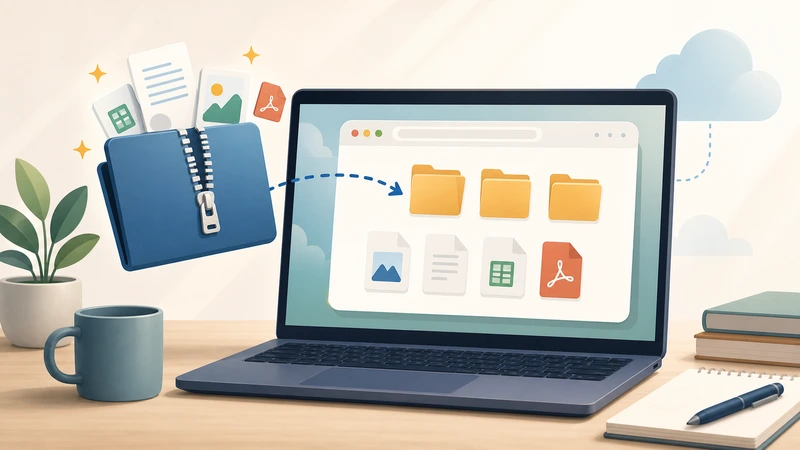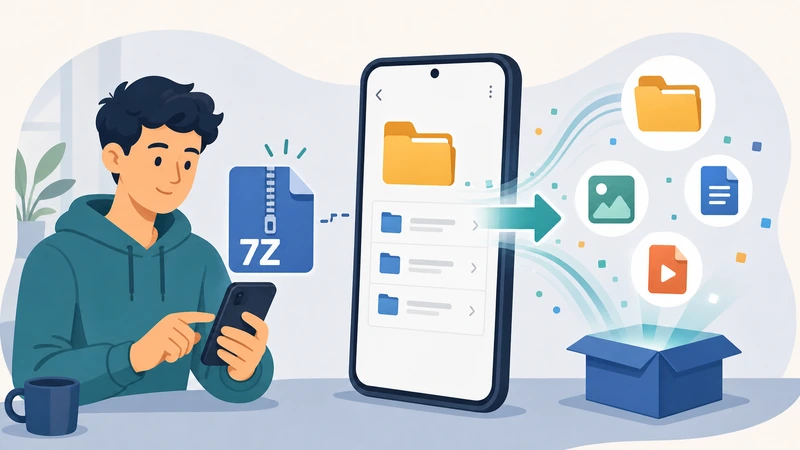
Opening a .7z archive on an iPhone used to be one of those oddly frustrating tasks. You tap the file, iOS previews almost nothing useful, and suddenly youre hunting for another app just to see whats inside.

If your goal is to extract 7Z files without filling your phone with extra utilities, browser-based tools now make the process much more practical especially for occasional downloads, shared work folders, or large media archives.

Person organizing compressed archive files on a smartphone while extracting 7Z files

What You Should Know First

A 7Z file is a compressed archive format designed to reduce file size while keeping multiple files bundled together. Its commonly used for:

  • photo collections
  • software downloads
  • document archives
  • audio packs
  • backup folders

The problem is that iPhones dont natively support every archive variation, particularly encrypted or multi-part 7Z packages.

Thats where browser tools like Filemazing Archive Extractor https://filemazing.com/archive-extractor become useful. Instead of installing separate archive software, you upload the archive in Safari or Chrome, unpack it online, and download only the files you need.

This also helps when you need to open compressed files online from cloud storage services like Google Drive or Dropbox.


How the Process Usually Works

You do not need a desktop computer for this workflow. A modern iPhone browser is enough for most archives.

1. Upload the 7Z archive

Open the archive extraction tool in Safari and select your file from:

  • Files app
  • Google Drive
  • Dropbox
  • direct download folder

Larger archives may take a little longer depending on connection speed and how heavily compressed the contents are.

2. Let the archive unpack

Once uploaded, the system processes the archive server-side and displays the extracted contents.

Some archives unpack almost instantly. Others especially mixed media folders with thousands of small files behave like they were compressed during an argument with humanity.

3. Preview or download individual files

Instead of downloading the entire archive again, you can usually retrieve only the documents, images, or audio files you actually need.

That matters on mobile data connections.

4. Continue processing if needed

If the extracted archive contains PDFs, you can also use the PDF to image conversion workflow https://filemazing.com/pdf-to-image to turn pages into shareable image files directly from the browser.

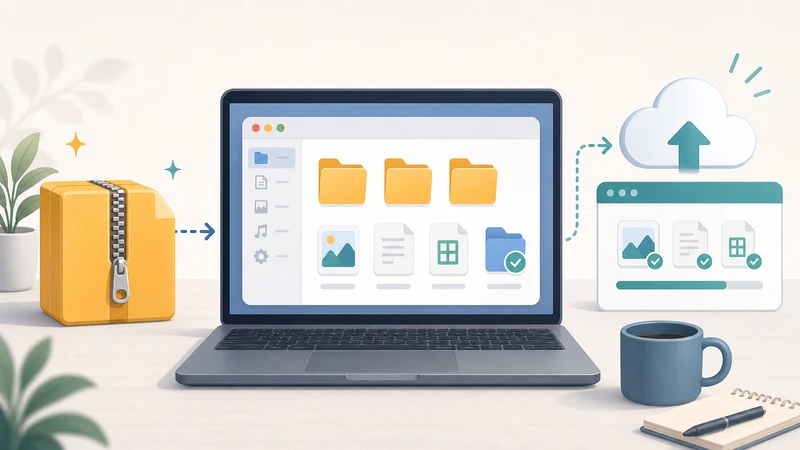
Compressed archive unpacking into photos, documents, and audio files


Why Browser-Based Extraction Makes Sense on iPhone

Many users only encounter 7Z archives occasionally. Installing a dedicated extraction app for a once-a-month task often creates more clutter than convenience.

A browser-based workflow changes that dynamic.

Where it helps most

  • downloaded course materials
  • shared family photo backups
  • work document bundles
  • client deliverables
  • compressed podcast or audio folders

Because Filemazing operates through temporary processing jobs instead of long-term storage, uploaded files are cleaned after processing rather than permanently retained. That privacy model matters when archives contain invoices, contracts, or personal scans.

The platform also uses transparent token pricing instead of subscriptions, so occasional users are not locked into monthly plans for sporadic archive tasks.


Real-World Test: Extracting a 480 MB Mixed Archive on iPhone

To see how practical mobile extraction actually feels, we tested a 480 MB .7z archive containing:

  • 220 JPG images
  • 14 scanned PDFs
  • 6 MP3 recordings
  • several CSV and DOCX files

The archive was uploaded from an iPhone 15 over Wi-Fi using Safari.

What happened

  • Upload completed in under two minutes
  • Archive contents appeared progressively
  • PDFs and images downloaded individually without issue
  • Audio files extracted cleanly with preserved filenames

One useful observation: archives containing many tiny files often take slightly longer to process than archives with fewer large files. Compression structure matters more than raw file size alone.

After extraction, the MP3 files were converted into smaller AAC versions using the audio conversion tool for extracted recordings https://filemazing.com/audio-converter to reduce storage usage before sharing.

Practical takeaway

If your archive contains large media files, staying on Wi-Fi is usually worth it. Upload time becomes the main bottleneck long before extraction speed does.


A Common Mistake When Opening 7Z Archives on Mobile

One overlooked issue involves nested archives.

You may extract a 7Z package only to discover:

  • ZIP files inside
  • password-protected secondary archives
  • split multipart archives (.001, .002, etc.)

This is especially common with downloaded project bundles and older backup sets.

The smarter approach

Before downloading everything:

  1. preview the extracted structure first
  2. identify which files you actually need
  3. avoid re-downloading duplicate compressed folders

This saves both storage space and processing time on iPhones with limited free capacity.

Some users also assume every archive format behaves identically. In reality:

FormatTypical StrengthCommon Tradeoff
ZIPBroad compatibilityLarger file sizes
7ZBetter compression ratiosSlower unpacking on weak devices
RARGood for multipart archivesLimited native support

So while 7Z archives are excellent for reducing storage size, extraction can require more processing compared to standard ZIP files.


Situations Where Online Extraction Is Especially Helpful

Students managing course downloads

Lecture recordings, PDF packs, and image-heavy assignments are frequently shared as archives.

Everyday family storage

Vacation photos compressed into one archive are easier to transfer and organize.

Remote work documents

Teams often distribute compressed folders containing spreadsheets, presentations, and contracts.

Audio and media collections

Extracted sound files can later be optimized or converted for mobile playback.

If you need additional protection before sharing sensitive extracted files, you can also use the file encryption workflow for secure storage https://filemazing.com/encrypt-file afterward.

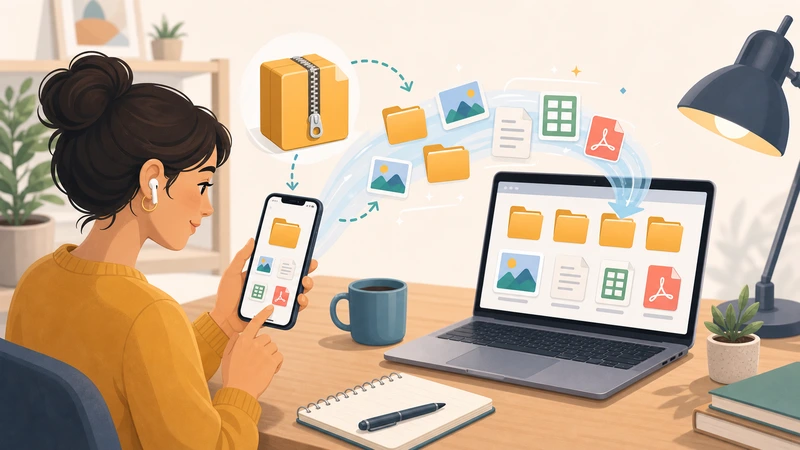
Mobile workflow showing extracted documents and media files organized into folders


What Actually Makes the Workflow Faster

People often focus only on extraction speed, but mobile archive handling depends on several factors:

  • upload bandwidth
  • archive complexity
  • number of contained files
  • encryption overhead
  • download behavior after extraction

A highly compressed 150 MB archive with 9,000 tiny files may process slower than a 700 MB archive containing only a few videos.

That surprises many first-time users.

Another useful optimization:

  • download only required files instead of the full extracted set
  • avoid recompressing already compressed formats like MP4 or JPG
  • keep filenames short when handling older archives

Practical Clarifications

Can iPhone open 7Z files natively?

Not reliably for all archive types. Some archives preview partially, but many require external extraction support.

Is it possible to extract ZIP without software too?

Yes. Browser-based extraction tools can handle ZIP archives online without requiring app installation.

Are uploaded archives stored permanently?

Temporary processing systems typically clean uploaded files after processing rather than keeping them as long-term storage.

Does extracting 7Z files reduce quality?

No. Extraction restores the original files. Compression may reduce size, but unpacking itself does not degrade documents, images, or audio.

Can encrypted 7Z archives be opened online?

Usually yes, provided you know the password. Processing may take slightly longer because encrypted archives require additional validation.

What if the archive contains unsupported formats?

The archive itself may extract successfully even if some contained file types cannot preview directly on iPhone.


Final Thoughts

For everyday iPhone users, the biggest improvement isnt just being able to extract 7Z files its avoiding the old cycle of downloading multiple apps for occasional archive tasks.

A browser-first workflow works well because it stays lightweight:

  • upload
  • unpack
  • retrieve what you need
  • move on

Tools like Filemazing Archive Extractor https://filemazing.com/archive-extractor fit particularly well when you need temporary processing, cloud import support, predictable pricing, and flexible handling for different archive types without turning your phone into a utility drawer full of one-purpose apps.