Deadlines tend to expose every oversized image in your workflow.
A client needs portfolio shots uploaded fast. A marketplace rejects your file because it exceeds the upload limit. Your landing page slows down because exported screenshots are still 8MB each. And somehow the final-final-v3.jpg is always the biggest file in the folder.
For freelancers, image optimization is less about perfection and more about keeping work moving without wrecking quality.
Thats where learning how to compress JPG without losing quality becomes genuinely useful especially when youre handling client assets daily and dont want another desktop app sitting permanently on your machine.

The Real Goal Isnt Tiny Files Its Usable Files
A lot of compression tools chase aggressive size reduction at the expense of image clarity. The result usually looks fine until:
- text becomes fuzzy
- gradients break apart
- product photos lose sharp edges
- exported social graphics develop artifacts
Freelancers often need a better balance.
In practice, the ideal workflow is usually:
- reduce upload friction
- keep visual quality intact
- speed up website delivery
- avoid manual editing cycles
- process multiple assets quickly
That balance matters more than squeezing every possible kilobyte out of a file.
What Actually Happens During JPG Compression
JPG compression removes visual data considered less noticeable to the human eye. The tricky part is deciding how much data gets removed.
Light compression:
- keeps textures cleaner
- preserves gradients
- maintains readability
Heavy compression:
- creates visible artifacts
- softens edges
- damages typography and UI screenshots
This becomes especially noticeable for freelancers working with:
- portfolio previews
- client mockups
- ecommerce product shots
- ad creatives
- presentation graphics
Nobody wants a polished design to suddenly resemble blurry archaeology evidence.
A Browser-Based Workflow That Fits Freelance Routines
Filemazing https://filemazing.com approaches compression differently from traditional desktop utilities.
Instead of forcing installations or subscriptions, it runs directly in the browser and processes files through a token-based system. That makes it practical for freelancers who compress images regularly but inconsistently some weeks you process hundreds of assets, other weeks barely any.
The platforms image compression tool https://filemazing.com/compress-image is designed for fast file preparation workflows without requiring permanent software setup.
A few details stand out for freelance work:
- browser-based processing
- predictable token costs
- batch-friendly uploads
- cloud imports from Google Drive or Dropbox
- temporary file handling instead of long-term storage
- optional API workflows for automation
The privacy angle is also worth mentioning. Uploaded files are treated as temporary processing artifacts and cleaned on a short retention schedule rather than stored indefinitely.
That matters when client deliverables include unreleased campaigns, product images, or branded materials.

How the Process Works in Real Projects
Heres a realistic example from a freelance website optimization workflow.
A designer exported:
- 24 JPG portfolio images
- average size: 611 MB each
- mixed photography and UI mockups
- total upload size: roughly 180 MB
The goal wasnt maximum compression. It was:
- preserving sharp typography
- improving website speed
- reducing CDN bandwidth
- making uploads faster for clients reviewing drafts
After compression:
- average file reduction landed around 5570%
- portfolio pages loaded noticeably faster
- visual quality remained intact on retina displays
- gradients held up better than expected
The biggest difference appeared on mobile previews where oversized originals had previously slowed loading considerably.
One practical observation: moderate compression tends to outperform aggressive compression for mixed design assets. UI screenshots and typography-heavy graphics are usually the first things to degrade.
Why Freelancers Benefit More Than They Expect
Image compression sounds like a minor optimization until it starts affecting daily workflow friction.
Smaller files help with:
Faster Client Deliveries
Compressed JPGs upload faster to:
- client portals
- CMS dashboards
- marketplaces
- cloud drives
- email attachments
Better Website Performance
If you also need to compress PNG for website speed, reducing oversized visuals can noticeably improve page responsiveness and Core Web Vitals.
And when clients hand over inconsistent file formats, using a dedicated format conversion tool for JPG, PNG, WEBP, HEIC, and AVIF files https://filemazing.com/format-converter helps standardize assets before compression starts.
Easier Collaboration
Freelancers constantly move files between:
- designers
- clients
- developers
- marketers
Smaller assets reduce friction everywhere.
Especially when someone decides to upload 42 screenshots into a Slack thread five minutes before a meeting.
JPG vs PNG: Which One Should You Compress?
This is where many freelancers accidentally create larger files than necessary.
JPG Works Best For:
- photography
- realistic textures
- social media visuals
- portfolio imagery
- client presentation exports
PNG Works Better For:
- transparent backgrounds
- logos
- interface elements
- sharp UI graphics
- diagrams with flat colors
The tradeoff:PNG preserves more detail but often creates much larger files.
If your objective is website speed, JPG usually offers the better balance for photography-heavy pages.
For graphics-heavy layouts, selective PNG optimization may still be worth it.
A Useful Trick Most People Skip
Before compressing branded visuals or client assets, its smart to remove unnecessary metadata.
Modern image files can contain:
- GPS coordinates
- camera information
- editing history
- author metadata
- embedded software details
If you regularly send images externally, using a metadata scrubbing tool to remove hidden image information https://filemazing.com/metadata-scrubber adds an extra layer of professionalism and privacy protection.
This is particularly useful for freelance photographers, agencies, and contractors sharing internal drafts.
The Speed vs Quality Tradeoff Is Real
Every compression workflow involves compromise somewhere.
The trick is controlling where the compromise happens.
For example:
| Priority | Better Approach |
|---|---|
| Maximum quality | lighter compression |
| Fast-loading websites | moderate compression |
| Tiny email attachments | stronger compression |
| Print-ready visuals | minimal compression |
Many freelancers over-compress because smaller numbers feel satisfying.
But visual trust matters more than saving an extra 200 KB.
If a client zooms into a hero image and notices artifacting immediately, the compression was probably too aggressive.
Working With Large Image Batches
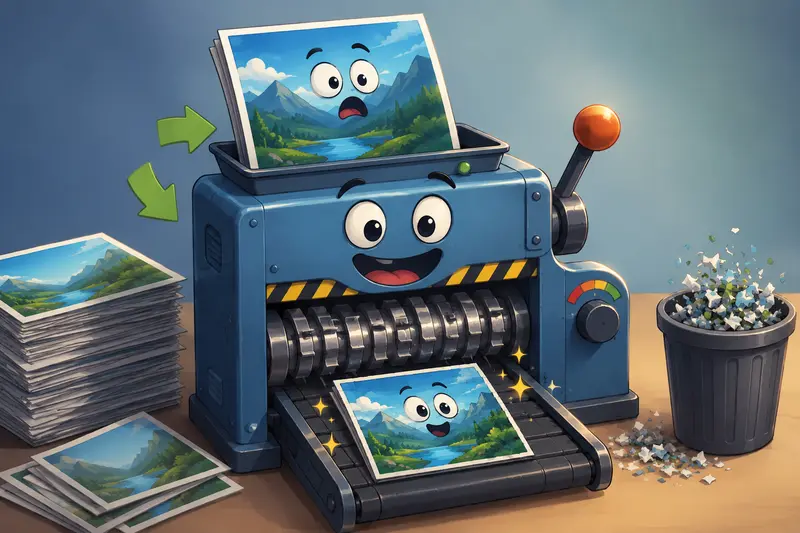
One underrated advantage of browser-based compression tools is handling repetitive production tasks.
Freelancers managing:
- ecommerce catalogs
- real estate listings
- event galleries
- blog media libraries
- marketplace uploads
often need consistency more than advanced editing controls.
Filemazings queued processing model helps here because larger jobs process independently instead of freezing the interface.
That becomes surprisingly valuable when handling dozens or hundreds of assets at once.
Protecting Client Deliverables After Compression
Compression is only one part of the workflow.
Sometimes the next step is secure sharing especially for:
- confidential client work
- unreleased product images
- proposal assets
- licensed photography
In those cases, using a file encryption tool for secure sharing https://filemazing.com/encrypt-file before transferring compressed assets adds another layer of protection without complicating the workflow.
Questions Freelancers Commonly Ask
Does JPG compression always reduce quality?
Technically yes, because JPG uses lossy compression.
However, moderate compression can reduce file size dramatically while remaining visually indistinguishable for most web use cases.
Is browser-based compression safe?
That depends on the platform.
Tools that use temporary processing and short retention cleanup policies are generally preferable to services storing uploads indefinitely.
Can I reduce JPG size online for large batches?
Yes. Batch workflows are especially useful for freelancers handling recurring client content libraries or ecommerce assets.
Should I convert PNG files before compression?
Sometimes.
Photography and large visual assets often compress more efficiently as JPG or WEBP. Transparent graphics and logos usually stay better as PNG.
Final Thoughts
Freelancers rarely need perfect compression.
They need reliable workflows:
- faster uploads
- cleaner delivery
- responsive websites
- preserved image quality
- fewer manual headaches
Learning how to compress JPG without losing quality is ultimately about improving the pace of client work without sacrificing presentation standards.
And when the workflow stays browser-based, privacy-conscious, and flexible enough for both quick tasks and bulk processing, it becomes much easier to fit into real freelance production routines instead of becoming yet another tool you only use twice a year.