Design workflows have a habit of expanding quietly. A few homepage mockups turn into dozens of exported JPGs, campaign folders balloon overnight, and suddenly Windows starts warning you about storage space right before a client upload deadline.
Thats usually when bulk image compression stops being nice to have and becomes part of the actual production workflow.
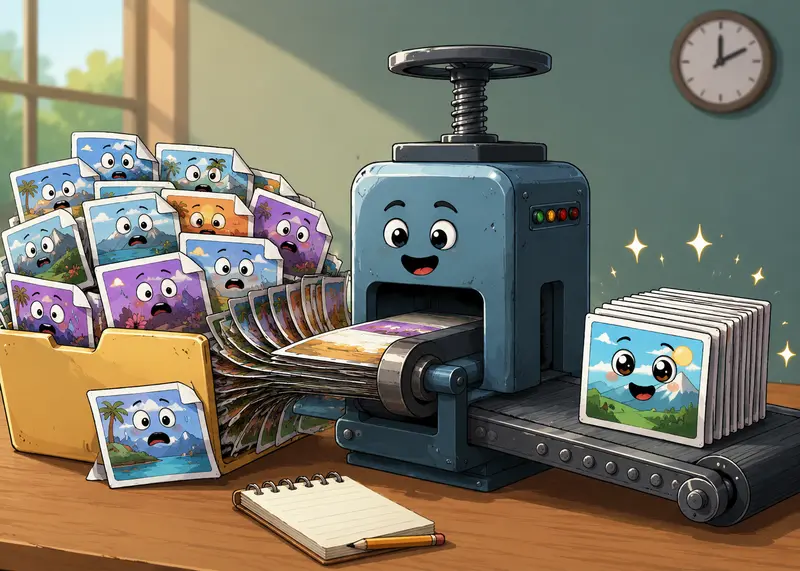
For designers handling presentation decks, portfolio exports, product galleries, ad creatives, or client asset packages, compressing images individually is painfully inefficient. The better approach is batch processing especially when file counts climb into the hundreds.
File size reduction also affects more than storage:
- upload speed
- email delivery limits
- CMS performance
- cloud sync times
- web page load speed
- archive portability
And if quality drops too aggressively, compressed assets can become unusable for real design work. That balance matters.

What Actually Works for Large Image Batches
The most reliable setup for Windows users today is browser-based bulk image compression with controlled quality reduction and format compatibility.
A tool like Filemazing Compress Image Tool https://filemazing.com/compress-image works particularly well for designers because it focuses on high-throughput processing rather than one-file-at-a-time uploads. Since processing runs through the browser, theres no desktop installation cycle, update management, or plugin maintenance.
The platform also supports queued processing for heavier workloads, which becomes useful when compressing hundreds of exported design assets at once.
One detail that stands out in real production use: token pricing is transparent rather than usage being hidden behind vague fair use plans. For agencies or freelance teams managing recurring exports, predictability matters more than flashy unlimited claims.
The browser-first workflow also means you can move between Windows workstations without rebuilding your tool stack every time.
A Realistic Designer Workflow
Heres a scenario that mirrors what many designers run into:
A marketing team exports:
- 180 JPG product images
- mixed resolutions from 2400px to 6000px
- total folder size around 2.8GB
The original assets look excellent, but:
- Dropbox sync slows down
- client uploads fail
- staging servers choke on oversized media
- internal previews become sluggish
Running those through bulk image compression reduced the final folder size to under 900MB while preserving enough detail for web delivery and presentation use.
The important part wasnt merely compression ratio. It was consistency across the batch.
Uneven optimization is one of the most overlooked problems in image handling. Some compressors aggressively crush already-small images while barely touching oversized exports. That creates visual inconsistency across galleries and campaigns.
Batch-oriented processing tends to produce more stable output when settings are applied systematically.
Getting It Done on Windows
The process itself is fairly straightforward, but the quality decisions deserve more attention than most tutorials give them.
Recommended Workflow
- Gather exported assets into dedicated folders
- Separate web images from print-ready originals
- Upload the batch into the compression workflow
- Choose balanced compression settings
- Download compressed outputs into a new directory
- Verify typography sharpness and gradients before publishing
A common mistake is overwriting source files immediately. Designers should always preserve untouched originals somewhere else first.
Another useful step: compress duplicated variants separately.
For example:
- homepage hero images
- email graphics
- marketplace thumbnails
- social exports
Each destination benefits from different compression behavior.
If your exports contain mixed formats, using a dedicated image format conversion workflow beforehand can improve results substantially. Converting inconsistent PNG/JPG/WEBP mixes into standardized formats often leads to cleaner optimization behavior during batch compression.

Why Compression Results Sometimes Look Bad
Not every compression problem comes from the compressor itself.
In many Windows-based workflows, the issue starts earlier during export.
Common Causes of Poor Results
- exporting JPGs at maximum quality unnecessarily
- compressing already-compressed assets repeatedly
- mixing screenshots with photographic content
- flattening transparent graphics into JPG format
- resizing after compression instead of before
Repeated compression is particularly destructive.
A JPG exported from Photoshop at 60% quality and then compressed again may develop:
- edge ringing
- color banding
- smeared gradients
- text artifacts
Thats especially noticeable in UI mockups and typography-heavy presentations.
Oddly enough, PNG files can sometimes outperform JPGs for interface graphics despite larger dimensions, simply because sharp edges survive better.
Some formats cooperate nicely. Others behave like they were designed during a grudge match.
A Tradeoff Designers Should Actually Care About
Bulk image compression is always a negotiation between:
- visual fidelity
- throughput
- storage efficiency
Theres no universal best setting.
For instance:
- portfolio previews can tolerate stronger compression
- ecommerce zoom images cannot
- email banners prioritize lightweight delivery
- print-ready mockups require higher retention
In testing, moderate compression often delivers the best practical outcome:
- major file reduction
- visually minimal degradation
- faster CDN delivery
- improved CMS responsiveness
Extremely aggressive compression tends to save surprisingly little additional space compared to the quality loss introduced.
That last 1015% reduction is usually where artifacts become obvious.
Where Designers Save the Most Time
The biggest productivity gain isnt actually storage reduction.
Its avoiding repetitive manual optimization.
Bulk processing becomes valuable when teams regularly handle:
- campaign exports
- Figma asset batches
- marketplace catalogs
- onboarding image sets
- slide deck visuals
- compressed delivery archives
Professional workflows also benefit from keeping image preparation centralized instead of relying on each contributor to optimize files independently.
That consistency matters for agencies especially.
And because Filemazing supports API-based processing as well, teams can eventually automate repetitive media preparation if the workload grows beyond manual uploads.
One Overlooked Optimization: Resize Before Compressing
This is the part many designers skip.
Compression alone wont solve oversized exports if dimensions are excessive.
A 7000px-wide JPG compressed aggressively may still remain unnecessarily large for web delivery.
Reducing dimensions first often produces better-looking results than extreme compression.
For example:
- resize to realistic display dimensions
- then apply moderate compression
- preserve sharper perceived detail
- achieve smaller final output
This is particularly effective for:
- Behance previews
- ecommerce galleries
- CMS uploads
- newsletter assets
Large files tend to appear right before deadlines with suspicious consistency.
File Privacy and Temporary Processing
Design files frequently contain:
- unreleased branding
- client materials
- product photography
- internal presentations
So privacy considerations matter.
Filemazing processes uploads as temporary working files rather than long-term cloud storage. Completed jobs are cleaned on a short retention schedule, which is generally preferable for production assets that dont need persistent hosting.
That distinction is important for agencies handling confidential campaign material.
Browser-based processing also reduces the need to install miscellaneous compression software from unknown sources onto Windows machines.
Useful Related Workflows
Compression is often only one step in a larger asset pipeline.
Designers commonly pair it with:
- PDF to image conversion for presentation assets
- archive extraction workflows
- metadata cleanup
- format normalization
- encrypted file delivery
If compressed image sets need secure transfer afterward, using encrypted file protection for client delivery adds another useful layer before sharing archives externally.
Situations Where Bulk Compression Is Not Ideal
There are cases where compression should be avoided entirely.
Examples include:
- master PSD exports
- print production originals
- RAW photography archives
- layered TIFF assets
- future editing source files
Compression is best treated as a delivery optimization layer not a replacement for preserving originals.
That distinction prevents painful recovery problems later.
Practical Use Cases for Designers
1. Ecommerce Product Uploads
Large catalogs often contain thousands of product images that need smaller web-friendly versions.
2. Portfolio Optimization
Compressed project galleries improve loading speed without visibly harming presentation quality.
3. Client Approval Packages
Smaller JPG sets are easier to review, share, and annotate.
4. Presentation Deck Graphics
Slide-heavy exports become much easier to distribute internally.
5. Social Campaign Assets
Marketing teams frequently generate multiple resized variants simultaneously.
6. CMS Migration Projects
Batch optimization reduces server strain during large media imports.

Questions Designers Commonly Ask
Does bulk image compression noticeably reduce quality?
It depends on the compression level and image type. Moderate settings usually preserve enough detail for web, portfolio, and presentation usage. Extremely aggressive compression introduces visible artifacts faster than many people expect.
What formats work best for compression?
JPG generally achieves the largest reductions for photographs. PNG works better for graphics with transparency or sharp interface elements. WEBP often provides strong efficiency for web publishing.
Is browser-based compression safe for client work?
Temporary-processing systems are typically safer than permanently hosted storage models for sensitive assets. Filemazing uses short-lived processing behavior rather than acting as long-term file hosting.
Can compressed files still be edited later?
Yes, but compressed images should not replace original working files. Keep untouched source exports archived separately.
Is there a limit to batch size?
Large batches are usually supported through queued processing systems. Processing speed will vary depending on total file size and compression depth.
What if I need another image format afterward?
You can use the format conversion workflow to switch between JPG, PNG, WEBP, HEIC, and AVIF after compression if needed.
Final Thoughts
For designers on Windows, bulk image compression is less about saving disk space and more about keeping production workflows manageable.
Once projects start involving repeated exports, shared asset libraries, and client delivery cycles, manual optimization quickly becomes unsustainable.
The best image compressor workflows are the ones that:
- preserve usable quality
- handle large batches reliably
- avoid unnecessary software overhead
- fit naturally into existing design pipelines
That balance is where browser-based tools like Filemazing become genuinely practical rather than merely convenient.