Understanding the Basics
Imagine you’re about to email your university assignment—a 20-page PDF with personal details and research notes. You hesitate. What if someone intercepts it or you accidentally send it to the wrong person?
That’s where the ability to encrypt files online becomes essential. Instead of relying on installed software (which many student laptops struggle with), browser-based encryption lets you secure files instantly—especially useful when working across shared or public devices.
If your files are bundled in ZIP or RAR formats, it’s often helpful to first unpack archived files before applying encryption so you can control exactly what gets protected.
The Simple Answer
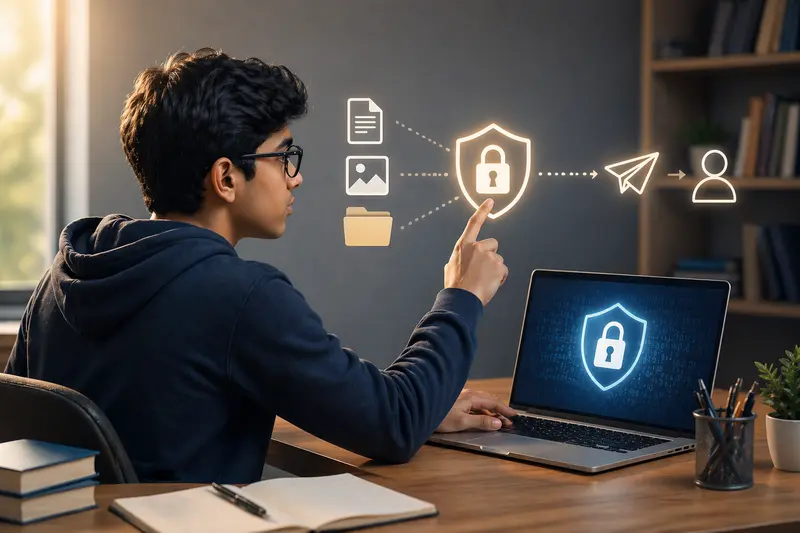
Encrypting files online means locking them with a password before sharing. Only someone with that password can open them—whether it's PDFs, images, or documents sent via email.
Getting It Done
Here’s a straightforward way to encrypt your files directly from your browser:
- Upload your file (PDF, image, or document)
- Choose a strong password (avoid obvious ones like your birthdate)
- Run the encryption process
- Download the protected file
- Share it safely—ideally sending the password separately
If you're dealing with multiple documents, you might want to combine documents before protecting them so everything stays in one encrypted file instead of several.
Where Filemazing Fits In
A tool like Filemazing’s encryption feature focuses heavily on privacy, which matters more than most students realize.
Files aren’t stored long-term—they’re processed temporarily and cleaned up shortly after. That means your coursework, ID scans, or project files aren’t sitting on a server somewhere indefinitely.
On top of that, it runs entirely in your browser, so there’s no installation friction when you’re switching between a dorm PC, a library computer, or your own laptop.
What Happened When I Tested It
I tested encryption with:
- A 15-page research PDF (~8MB)
- 6 high-resolution images for a design project
- A compressed folder with lecture notes
The process handled all three without noticeable delay. The PDF encryption was particularly fast, and opening it afterward required the password exactly as expected.
One interesting detail: encrypting images individually gave more flexibility than bundling them together. If one file needed updating later, I didn’t have to redo everything.
Takeaway: encrypt files individually when you expect revisions—combine only when you’re finalizing.
Common Pitfalls to Avoid
This is where many students slip up:
- Weak passwords – “123456” defeats the whole purpose
- Sending password with the file – always share it separately
- Forgetting file size impact – encryption can slightly increase size
- Skipping optimization – large images slow down uploads
If file size becomes an issue, you can shrink files before secure sharing so uploads and emails don’t choke on large attachments.
When Students Actually Need This
Encryption isn’t just for “sensitive” files—it’s practical in everyday academic life:
- Submitting assignments via email
- Sharing group project files
- Sending scanned ID or documents
- Protecting internship applications
- Securing personal notes stored in the cloud
- Transferring files across shared computers
What You Gain
Using online encryption tools offers a few real advantages:
- No dependency on installed software
- Works across Windows devices instantly
- Keeps control over who accesses your files
- Reduces risk when using public networks
There is a small tradeoff—encrypted files may take slightly longer to open and require password management—but the security benefit outweighs that inconvenience.
FAQ
Can I password protect PDFs and images the same way?
Yes. Most modern tools support both formats, though PDFs often offer more structured encryption options.
Is it safe to encrypt files online?
It depends on the platform. Tools with temporary processing and no long-term storage are generally safer.
Does encryption affect file quality?
No—encryption locks the file but doesn’t change its content. However, compression (if applied) might.
What’s the best file encryption tool for students?
Look for something browser-based, private, and easy to use without setup—especially if you switch devices often.
Can I encrypt files for email attachments?
Absolutely. It’s one of the most common uses, especially when sending documents with personal data.
Try It Yourself
If you’re working on assignments, sharing files with classmates, or emailing important documents, taking a few seconds to encrypt them can prevent bigger problems later.
A browser-based tool like Filemazing gives you that extra layer of protection—without slowing down your workflow or requiring installation.
Once you get used to it, encrypting files becomes just another step before hitting “send.”