Audio files move constantly inside remote teams. A meeting recording becomes a podcast draft, a voice memo turns into training material, and someone inevitably uploads a massive WAV file to Slack five minutes before a client review.
That is usually where conversion problems start.
WAV files preserve excellent audio quality, but they are also large, bandwidth-heavy, and inconvenient for mobile playback or quick sharing. MP3 remains the practical format for day-to-day collaboration because it balances quality and portability far better for distributed workflows.
For teams that do not want another desktop utility installed across multiple machines, a browser-based WAV to MP3 converter offers a much faster path.

Why Remote Teams Still Convert WAV Files Constantly
A surprising amount of business audio still starts in WAV format:
- Zoom or Riverside exports
- Podcast recordings
- Customer interviews
- Internal training sessions
- Voiceovers from editing software
- Archive recordings from older systems
WAV files are excellent during production because they preserve detail. The problem appears later when those files need to travel between teammates, mobile devices, cloud storage, and collaboration tools.
A 48-minute WAV recording can easily exceed several hundred megabytes. That affects upload speed, storage usage, and playback convenience.
MP3 files reduce that friction dramatically while remaining more than sufficient for most collaboration scenarios.
For remote teams juggling shared drives and asynchronous communication, lighter files simply move faster.
A Browser-Based Workflow Changes the Experience
Traditional audio conversion tools often create small operational annoyances:
- local installs
- codec compatibility issues
- OS-specific limitations
- outdated converters
- security restrictions on managed devices
With Filemazing, conversion happens directly in the browser instead.
That matters more than it sounds.
A remote contractor on macOS, a developer using Linux, and a project manager on Windows can all use the same workflow without maintaining separate software environments.
The platform also supports imports from cloud providers like Google Drive and Dropbox, which is useful when recordings already live in shared team storage.
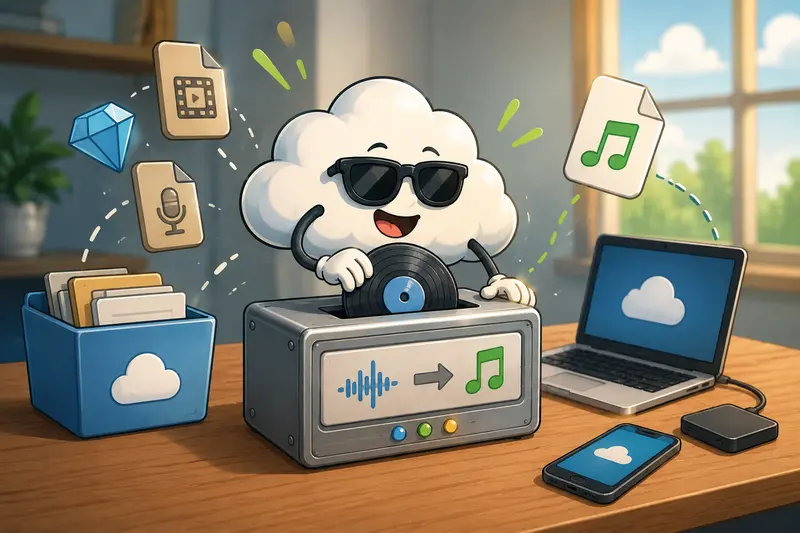
How the Conversion Process Works
The actual workflow is fairly lean:
- Upload the WAV file from desktop, cloud storage, or URL
- Choose MP3 as the target format
- Start processing
- Download the converted audio once the job finishes
Behind the scenes, Filemazing queues processing jobs rather than forcing large tasks to run directly in the browser tab. That prevents the interface from freezing during heavier workloads.
This becomes especially useful with long-form recordings or batch conversions.
For example, converting multiple recorded interviews at once is considerably easier than manually opening desktop tools repeatedly for each file.
The platform also exposes API endpoints, so teams automating media pipelines can integrate audio conversion directly into internal workflows.
What We Tested
To evaluate real-world desktop usage, we tested several WAV recordings commonly seen in distributed work environments:
| File Type | Duration | Original Size | Converted MP3 Size |
|---|---|---|---|
| Team meeting recording | 42 min | 432 MB | 39 MB |
| Podcast interview | 58 min | 601 MB | 54 MB |
| Product walkthrough narration | 12 min | 118 MB | 11 MB |
The most noticeable improvement was not only the reduction in storage size, but the sharing speed afterward.
The converted files uploaded substantially faster into Slack and mobile collaboration apps. Playback on lower-bandwidth mobile connections also became smoother.
One practical takeaway stood out during testing: extremely large WAV files benefit from conversion before cloud synchronization. Otherwise, sync clients can spend unnecessary time re-uploading oversized raw audio repeatedly.
Large media files always seem to appear right when someones home internet decides to renegotiate its relationship with physics.
Quality Tradeoffs You Should Actually Care About
Not every MP3 conversion setting produces the same outcome.
This is where many teams accidentally over-compress audio.
For spoken-word content such as meetings, webinars, or training sessions, moderate MP3 bitrates usually sound perfectly acceptable while reducing file size dramatically.
For music-heavy recordings or production work, preserving higher bitrate settings matters more.
A useful balance for professional voice recordings is typically:
- 128 kbps for lightweight collaboration
- 192 kbps for clearer voice quality
- 256 kbps+ for music or polished production assets
Higher compression reduces storage costs and sharing friction, but aggressive compression can introduce artifacts in background music and layered audio.
In real workflows, convenience and quality often need balancing rather than maximizing one side exclusively.
Useful Workflow Extensions Most Teams Overlook
Audio conversion rarely happens in isolation.
For example, many remote teams publish recordings externally without realizing metadata may still contain embedded information from editing software or devices. Before distributing audio publicly, using a metadata scrubbing tool for media files can help remove unnecessary metadata artifacts.
Similarly, client recordings or internal discussions may require restricted sharing. In those situations, teams can password-protect converted audio files before sending them externally.
And if recordings arrive inside compressed delivery bundles, a browser-based archive extraction workflow for ZIP and RAR audio packages can simplify unpacking before conversion begins.
These small additions often reduce more workflow friction than the conversion itself.

Token Pricing Feels More Predictable Than Subscription Lock-In
One aspect that feels practical for occasional-heavy workflows is the token system.
Instead of forcing monthly subscriptions for lightweight users, Filemazing calculates usage transparently based on workload characteristics.
For audio conversion, token usage factors can include:
- base processing cost
- file size
- audio duration
- file count
That makes estimating batch processing easier before running large jobs.
A small remote team converting occasional meeting recordings will have very different needs compared to a media-heavy production pipeline. The pricing model accommodates both without forcing oversized plans onto lighter users.
Daily free tokens also help teams test workflows before scaling usage.
When Browser-Based Conversion Makes the Most Sense
Desktop software still has a place for advanced production editing.
But browser-based conversion becomes especially attractive when:
- teams work across multiple operating systems
- managed devices restrict installations
- contractors need temporary access
- mobile compatibility matters
- quick file turnaround is more important than advanced editing controls
- automation pipelines require API access
For remote collaboration environments, reducing operational complexity often matters as much as raw feature count.
The fewer installation dependencies involved, the easier onboarding becomes.
Privacy Considerations for Shared Audio
Audio files frequently contain sensitive internal discussions, customer interviews, or unreleased material.
That is why temporary processing behavior matters.
Filemazing treats uploaded files as short-lived processing artifacts rather than permanent cloud storage. Files are cleaned on a limited retention schedule after processing completes.
For remote teams handling recurring media tasks, this approach reduces long-term exposure risks compared to using general-purpose storage tools as ad hoc converters.
It also avoids leaving large temporary media files scattered across employee laptops indefinitely.
Common WAV Conversion Mistakes That Slow Teams Down
One recurring issue appears in collaborative audio workflows: converting files multiple times unnecessarily.
Every repeated lossy conversion can gradually reduce audio quality.
A better approach is:
- keep the original WAV archived
- create MP3 copies only for distribution
- avoid repeatedly re-exporting already compressed MP3 files
Another overlooked problem involves naming conventions.
Teams processing dozens of recordings weekly should standardize filenames before conversion. Otherwise, identical download names quickly become chaotic in shared folders.
A simple structure like:
client-project-date-version.mp3
saves surprising amounts of organizational time later.
FAQ
Is browser-based WAV to MP3 conversion reliable for large files?
Yes, especially when queued processing is used instead of attempting everything directly in-browser. Large recordings generally process more consistently that way.
Can converted MP3 files work well on mobile devices?
That is one of the primary advantages. MP3 files are substantially easier to stream, share, and store on phones and tablets.
Does converting WAV to MP3 reduce quality?
Some quality loss occurs because MP3 uses lossy compression. However, for meetings, interviews, and training audio, properly chosen bitrates usually maintain strong listening quality.
Do I need desktop software installed?
No. Filemazing runs entirely through the browser, which simplifies cross-device collaboration.
What happens to uploaded audio files afterward?
Uploaded files are treated as temporary processing artifacts and cleaned automatically after a short retention period.
Can teams automate recurring conversions?
Yes. Filemazing includes API support, which allows developers to integrate audio conversion into larger automated workflows.
Final Thoughts
For remote teams, the fastest WAV to MP3 converter is rarely the one with the most buttons. It is the one that removes friction from daily collaboration.
Browser-based processing, predictable token pricing, temporary file handling, and API-ready workflows make Filemazing particularly practical for distributed environments where files constantly move between devices, cloud storage, and communication tools.
If your team regularly shares recordings, interviews, training sessions, or exported media, using a lightweight WAV to MP3 converter can simplify the entire workflow without adding another desktop dependency to maintain.