Teachers deal with image files more often than most people realize. Classroom photos, scanned worksheets, assignment screenshots, visual presentations, student project submissions they all move between phones, laptops, learning platforms, and email attachments constantly.
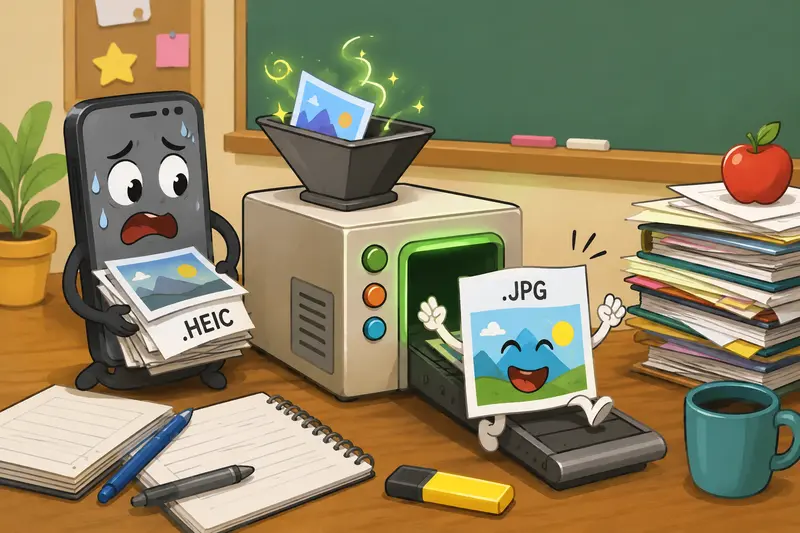
That becomes frustrating when iPhones save photos as HEIC files and school systems only accept JPG uploads.
A reliable HEIC to JPG converter solves the compatibility problem, but many tools introduce another issue: visible quality loss. Text becomes fuzzy, diagrams lose sharpness, and printed materials suddenly look unprofessional.
Thats where careful image conversion matters.
The Short Version
If you need to convert HEIC images into JPG files while keeping text, screenshots, charts, or classroom visuals clear, browser-based conversion tools like Filemazing make the process straightforward without requiring desktop software installs.
You upload the HEIC files, choose JPG as the output format, process the conversion, and download the results. The important part is preserving image quality during the conversion stage rather than aggressively compressing the output.
Filemazing also supports broader workflows beyond HEIC conversion, including tools to compress converted images for web uploads when LMS platforms or email systems reject large files.
Why HEIC Files Create Problems in Education Workflows
HEIC is efficient. Apple designed it to reduce storage size while maintaining high-quality images.
Unfortunately, compatibility is still inconsistent.
Some common teacher-side problems include:
- School portals refusing HEIC uploads
- Presentation software displaying blank previews
- Shared classroom PCs lacking HEIC support
- Parents unable to open attached files
- LMS systems compressing HEIC images unpredictably
JPG remains the safer universal format for educational environments because nearly every browser, printer, projector, and platform supports it.
The challenge is preserving readability during the conversion.
Nobody wants worksheet screenshots that suddenly resemble blurry photocopies from 1998.
A Practical Way to Convert HEIC Images
Filemazing approaches the process with a lightweight browser-based workflow rather than requiring downloadable software.
The process generally looks like this:
1. Upload the HEIC files
You can upload directly from:
- local storage
- Google Drive
- Dropbox
- file URLs
This is especially useful when teachers work across shared devices or school-issued laptops with restricted install permissions.
2. Select JPG output
The converter handles the HEIC image conversion process automatically while preparing compatible JPG files.
3. Process the files
Larger batches run through queued processing, which helps avoid browser slowdowns during multi-file workloads.
4. Download the converted images
Once processing finishes, the JPG files are ready for:
- lesson slides
- LMS uploads
- printable handouts
- parent communication
- digital grading systems

What We Observed During Testing
To see how well conversion quality held up, we tested a realistic classroom scenario.
The test batch included:
- 24 HEIC images from an iPhone
- mixed classroom photos and worksheet scans
- file sizes ranging from 2 MB to 11 MB
- several images containing small printed text
The primary concern was readability after conversion.
Results:
- text remained sharp enough for projection
- color consistency stayed stable
- no obvious compression artifacts appeared
- diagrams and charts retained edge clarity
One useful observation: scanned documents converted more cleanly when the original image lighting was even. Poorly lit phone captures still converted correctly, but JPG cannot magically recover missing detail from blurry originals.
That sounds obvious, but it matters in real classroom workflows.
Where Filemazing Fits Well
The platform is designed for practical file processing rather than heavy desktop editing.
That makes it useful for teachers who need:
- quick compatibility fixes
- batch image preparation
- lightweight browser workflows
- temporary processing without permanent storage
The browser-based approach also helps on managed school devices where installing image conversion software is difficult or blocked entirely.
Another advantage is predictable token pricing.
Instead of monthly subscriptions, Filemazing uses a transparent token system where processing cost depends on factors like file size and workload complexity. Small classroom batches typically consume relatively few tokens, and free daily tokens help occasional users get started.
For users managing sensitive classroom materials, privacy handling matters too. Uploaded files are treated as temporary processing artifacts and cleaned on a short retention schedule rather than stored as long-term cloud storage.
One Important Quality Mistake Most People Miss
Heres a non-obvious issue during HEIC conversion:
Many users immediately compress the JPG again after converting it.
That double-processing step often causes the biggest quality drop.
A better workflow is:
- Convert HEIC to JPG first
- Review readability at full zoom
- Compress only if upload limits require it
If storage size becomes a problem afterward, you can reduce JPG file sizes carefully with image compression tools while preserving readability for text-heavy classroom documents.
This matters especially for:
- scanned worksheets
- whiteboard photos
- grading annotations
- textbook excerpts
- student submission screenshots
Real Classroom Situations Where JPG Still Wins
Teachers often need consistent image compatibility more than cutting-edge file efficiency.
Some practical examples include:
- Uploading science lab photos into Google Classroom
- Sharing annotated worksheet images with parents
- Converting iPhone screenshots for PowerPoint slides
- Preparing visual materials for substitute teachers
- Exporting classroom photos for school newsletters
- Creating printable student resource packs
In these cases, JPG remains easier to distribute across mixed devices and school systems.
Quality vs File Size: The Tradeoff Nobody Mentions Enough
HEIC files are usually smaller than JPG files.
That means converting to JPG can increase storage usage, especially in large batches.
The upside:
- broader compatibility
- easier sharing
- simpler printing
- predictable rendering across devices
The downside:
- potentially larger files
- occasional quality loss if aggressive compression is applied
For image-heavy teaching workflows, the best balance is usually:
- moderate JPG quality settings
- careful compression afterward
- preserving originals until final review
Large files somehow tend to appear about five minutes before a submission deadline.
Beyond HEIC Conversion
Teachers handling shared files often need related cleanup steps too.
For example:
- exported phone images may contain embedded metadata
- student project images sometimes include unnecessary location data
- shared documents may require additional privacy handling
In those cases, it can help to strip metadata from converted image files before distributing them externally.
If files contain sensitive student materials, another useful step is using file encryption before sharing archived folders with staff or administrators. Filemazing also provides tools to secure converted files through encrypted sharing workflows.
Why Browser-Based Conversion Feels Easier for Busy Teachers
Desktop conversion software often introduces friction:
- installation permissions
- update prompts
- storage cleanup
- device compatibility issues
Browser-based processing removes much of that overhead.
You open the tool, upload files, convert them, and move on.
For educators juggling grading, lesson planning, parent communication, and administrative uploads, reducing workflow friction matters more than feature overload.
Questions Teachers Commonly Ask
Does converting HEIC to JPG always reduce quality?
Not necessarily. Most noticeable quality loss comes from aggressive compression after conversion rather than the conversion itself. Using careful JPG output settings helps preserve image clarity.
Can I convert multiple HEIC files at once?
Yes. Batch conversion is especially useful when processing classroom photos, scanned assignments, or event images in larger groups.
Is JPG better for school systems?
Usually, yes. JPG has broader compatibility across learning platforms, printers, browsers, and older devices.
Are uploaded images stored permanently?
Filemazing treats uploaded files as temporary processing items rather than long-term storage. Cleanup jobs remove files on a short retention schedule.
What if the converted JPG files are too large?
After conversion, you can reduce file size separately using image compression tools while balancing readability and storage efficiency.
Can Filemazing handle formats beyond HEIC?
Yes. The platform supports broader file workflows, including PDF processing, archive extraction, audio conversion, metadata cleanup, and additional format conversion tasks.
Final Thoughts
A good HEIC to JPG converter should do more than simply change file extensions. It should preserve readability, maintain image detail, and fit naturally into real workflows.
For teachers especially, image clarity matters. Classroom materials often contain small text, diagrams, annotations, and screenshots that become frustrating when poorly converted.
Filemazing keeps the process lightweight, browser-based, and practical without forcing users into complicated desktop software or rigid subscriptions. For educators handling recurring image compatibility issues, that simplicity can save a surprising amount of time over the course of a semester.