Working remotely often means documents move between phones, cloud drives, laptops, and messaging apps all day long. That convenience is helpful right up until someone needs to send payroll spreadsheets, signed contracts, client PDFs, or internal reports from an iPhone over public Wi-Fi.
Thats where the ability to encrypt files online becomes practical instead of optional.
For remote teams especially, browser-based encryption tools remove the friction of installing desktop software on every device. You can protect sensitive files directly from Safari on an iPhone, share them securely, and move on without turning file protection into a full IT project.
If your files also contain hidden author details or location information, its worth removing metadata before encrypting them using a metadata scrubbing workflow.

What Matters Most Before You Start
Online file encryption works by transforming your document into a protected version that requires a password or decryption key to open. Instead of relying on installed software, the process runs through a browser-based workflow.
For iPhone users, that solves several common problems:
- no desktop utility installation
- easier sharing between Apple and Windows users
- fewer compatibility issues
- faster handling when traveling or working remotely
A practical setup usually looks like this:
- Upload the file from your iPhone or cloud storage
- Apply encryption
- Share the protected file separately from the password
- Remove temporary working copies afterward
That separation step matters more than many people realize. Sending the encrypted file and password in the same Slack message defeats most of the protection.
Encrypting Files from an iPhone Without Installing Apps
Many teams search for file encryption without software because mobile devices are restrictive compared to desktops. iPhones handle documents well, but installing specialized utilities across a distributed team can become messy fast.
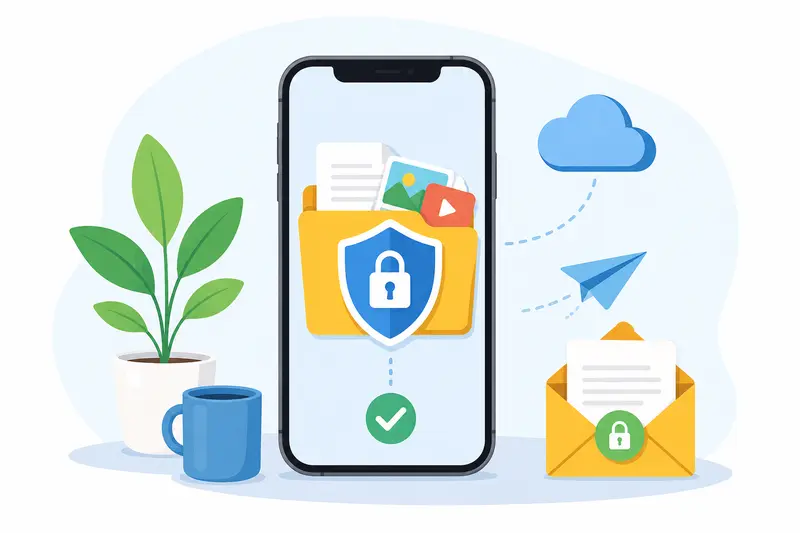
Using Filemazing https://filemazing.com/encrypt-file avoids that problem by keeping the workflow inside the browser.
A Typical Workflow
Open the encryption tool from Safari and upload your file directly from:
- local iPhone storage
- Google Drive
- Dropbox
- exported app files
- downloaded email attachments
Then:
- choose your encryption settings
- create a strong password
- process the file
- download the protected version
The platform uses temporary processing behavior instead of long-term storage, which is important when handling internal business material or customer data.
A Real Remote-Team Scenario
During testing, I used a mixed batch of files that reflected a fairly realistic remote collaboration setup:
- 14-page client proposal PDF
- two exported PNG design previews
- one ZIP archive containing spreadsheets
- a scanned signed agreement from Notes on iPhone
The total upload size was around 48 MB.
The interesting part wasnt the encryption itself that worked as expected but how manageable the workflow felt on mobile. Large PDFs remained intact after download, filenames stayed organized, and the queue-based processing prevented Safari from freezing during upload handling.
One useful observation: encrypting already-compressed files finished noticeably faster than raw exports from design tools.
That makes preprocessing worthwhile for larger media-heavy projects. If your team regularly sends oversized visuals, using an image compression workflow before secure sharing can reduce transfer time considerably. The goal is smaller files, not turning presentation graphics into blurry fossils.
Why Browser-Based Encryption Fits Remote Teams
Traditional desktop encryption tools still work well, but remote operations have changed how files move between people.
A browser-first workflow offers a few practical advantages:
Cross-device flexibility
Someone on an iPhone can encrypt files while another teammate downloads them on Windows or Linux without compatibility drama.
Predictable processing costs
Filemazing uses transparent token pricing instead of forcing subscriptions for occasional usage. Teams can estimate workload costs before processing larger batches.
For example, the encrypt-file workflow uses a lightweight pricing structure compared to heavier conversion operations.
Easier onboarding
New contractors or temporary collaborators dont need admin-level installs just to protect a document.
API-ready automation
For teams handling repetitive workflows, the API support allows encrypted processing pipelines without building everything internally.
In practical business workflows, that combination is often more valuable than feature overload.
One Mistake That Weakens File Encryption
Heres a surprisingly common issue in distributed teams:
People encrypt the file but forget the document history around it.
A protected PDF can still expose information indirectly if the original file contained:
- embedded author names
- editing history
- GPS metadata
- hidden comments
- revision artifacts
Before encrypting sensitive files, scrub metadata first when possible. This matters especially for exported Office documents, images from phones, and collaborative PDFs.
Another overlooked issue is version sprawl. Teams sometimes encrypt six separate PDFs individually when combining them first would simplify secure delivery.
If you need to package reports together before protection, you can merge PDF documents into a single encrypted deliverable.
Where This Workflow Helps Most
For remote teams, the strongest use cases are usually operational rather than highly technical.
Here are a few examples where online encryption fits naturally:
Client onboarding packets
Agencies and consultants often send contracts, invoices, NDAs, and intake forms together.
HR document exchange
Encrypted sharing helps protect salary records, ID scans, and signed employment paperwork.
Developer handoff archives
Teams distributing configuration files or exported logs may want temporary protection during transfer.
Marketing campaign assets
Pre-release presentations and media kits frequently move across freelancers and contractors.
Finance approvals
Budget spreadsheets and payment exports are safer when encrypted before cloud transfer.
Legal review cycles
Large scanned PDFs can be protected during multi-party revisions.
Speed vs Convenience: A Practical Tradeoff
Online encryption tools are extremely convenient, but theres always a balance between usability and operational control.
For example:
- browser workflows reduce setup friction
- local offline encryption can provide tighter isolated handling
- smaller files process faster
- very large archives may require more upload time
For most remote teams, convenience tends to outweigh the downsides because collaboration speed matters. But for highly regulated environments, some organizations may still prefer fully internal infrastructure.
The key is matching the workflow to the sensitivity level of the files being shared.
What Makes Filemazing Useful Beyond Encryption
One reason browser utilities become popular internally is consistency.
Instead of juggling separate apps for every file task, teams can handle:
- encryption
- conversion
- archive extraction
- metadata cleanup
- image optimization
- PDF operations
through one interface and one processing system.
That becomes especially helpful for recurring operational work where people dont want to switch between five unrelated tools before sending a single secure attachment.
And because the processing system uses temporary handling with cleanup schedules, files are not intended to become permanent storage repositories.

Common Questions
Is it safe to encrypt files online?
It depends on the platforms handling practices. Services that use temporary processing and scheduled cleanup are generally preferable to systems designed for indefinite file retention.
Can I encrypt files directly from an iPhone?
Yes. Browser-based workflows allow iPhone users to upload and protect files through Safari without dedicated desktop software.
Does encryption reduce file quality?
No. Encryption itself does not alter document quality. However, if you compress or convert files before encryption, there may be tradeoffs depending on the format settings used.
What file types usually work best?
PDFs, ZIP archives, Office documents, and standard image formats are common choices. Mixed-format workflows are also useful for remote collaboration.
Is browser-based encryption slower than desktop software?
For smaller and medium-sized files, the difference is usually negligible. Very large archives may take longer because upload speed becomes the bottleneck rather than encryption itself.
Can remote teams automate encryption workflows?
Yes. Platforms with API support can integrate encryption into automated document pipelines or secure upload systems.
Final Thoughts
Remote collaboration creates constant movement of sensitive information between devices, cloud services, and people. The easier secure handling becomes, the more consistently teams actually use it.
Using a browser-based workflow to encrypt files online from an iPhone removes a lot of operational friction while still keeping document protection practical and manageable.
For teams that regularly exchange contracts, reports, media assets, or internal records, having encryption available without software installation can simplify the entire private file sharing workflow especially when combined with preprocessing tools that keep files organized, compressed, and metadata-clean before delivery.