Marketing teams often deal with PDFs that weren’t designed for fast sharing—think campaign decks, product one-pagers, or reports that need to become social-ready visuals. If you’ve ever tried to turn PDF into JPG on an iPhone, you’ve probably noticed the friction: quality drops, pages get misaligned, or tools struggle with multiple files.
This guide focuses on doing it efficiently—especially when you’re handling multiple assets at once.
What You Should Know First
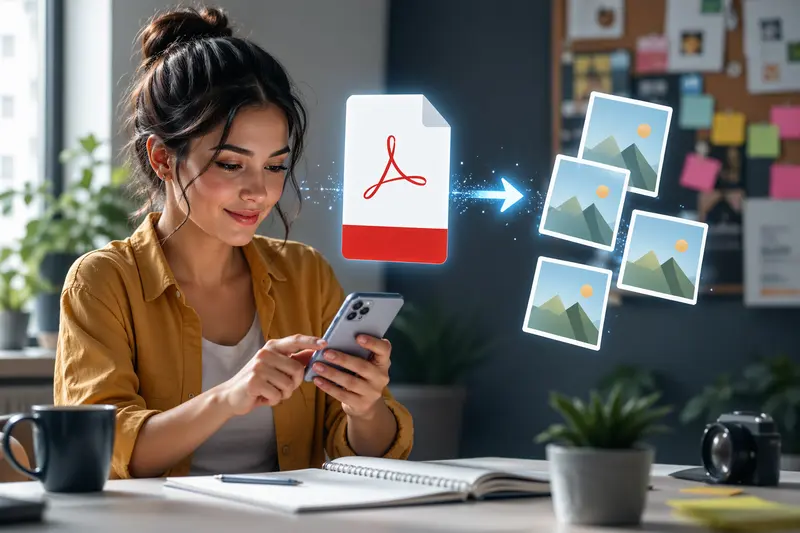
You can convert PDFs into JPG images directly from your iPhone without installing apps. The key is using a browser-based tool that preserves quality and handles multiple pages in one go.
For marketers, the real win is turning static documents into flexible, shareable image assets.
How the Conversion Actually Works (Without Guesswork)
Instead of thinking in rigid steps, here’s how the process flows when done right:
- Upload your PDF file(s)
This could be a single report or a batch of campaign documents. - Choose image output settings
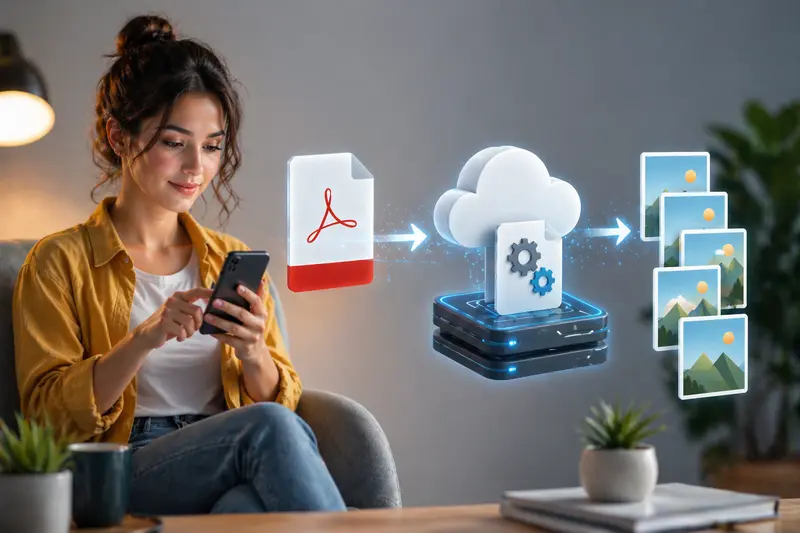
Most tools let you control resolution or page selection. - Process conversion in the cloud
The heavy lifting happens remotely, so your iPhone isn’t slowed down. - Download each page as JPG
You get individual images, ready for reuse across channels. - Optional optimization
After exporting, you might want to compress converted images for faster sharing before uploading to email or ad platforms.
Where Filemazing Fits In
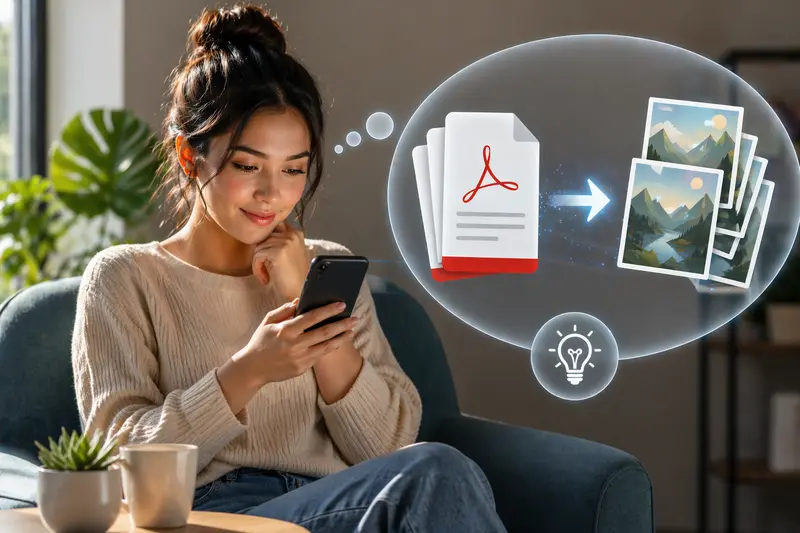
The tool at the center of this workflow is https://filemazing.com/pdf-to-image, and it’s built for scenarios exactly like this.
What stands out—especially if you're managing campaigns:
- Batch processing capability (primary strength)
You can upload multiple PDFs or large documents and convert everything in one queue. No need to repeat actions for each file. - Runs entirely in your browser (secondary advantage)
No app installs, no storage clutter. Works smoothly on iPhone Safari or Chrome. - Predictable token-based usage
You know the cost upfront based on file size and pages—useful when scaling content production. - Cloud imports
Pull PDFs directly from Google Drive or Dropbox when working across teams.
Real Scenario: Turning Campaign PDFs Into Social Assets
Let’s say you’re preparing a product launch.
- 3 PDFs
- Each ~12 pages
- Mix of text-heavy slides and high-res visuals
What happened during testing:
- Total pages processed: 36
- Conversion completed in under a minute
- Each page exported as a separate JPG
- Visual clarity remained strong, even for image-heavy slides
Practical takeaway:
If your PDF contains designed slides or visuals, export at higher resolution first—then compress afterward. This gives you more control than starting with low-quality outputs.
Tradeoffs You Should Actually Care About
Converting PDFs isn’t just about getting images—it’s about balancing priorities.
1. Quality vs File Size
Higher resolution JPGs look better but can slow down loading times in ads or emails.
👉 Strategy: Export high quality → then reduce size using compression tools.
2. JPG vs PNG
- JPG: Smaller, better for photos and marketing visuals
- PNG: Larger, better for sharp text or transparent elements
If you need flexibility later, you can always convert JPG, PNG, WEBP, HEIC, and AVIF files depending on your platform requirements.
3. Speed vs Precision
Batch conversions are fast, but if you need perfect cropping or selective pages, you may need to tweak settings.
Where This Helps Marketers Most
- Creating social media posts from PDF decks
- Extracting landing page visuals from reports
- Repurposing email content into images
- Preparing ad creatives from brochures
- Sharing quick previews with clients
- Building visual libraries from PDFs
What You Gain From This Approach
- Faster turnaround for content repurposing
- Better consistency across image assets
- Less dependency on desktop tools
- Scalable workflow for campaigns with many files
And importantly: less time spent reformatting documents manually.
FAQ
Does converting PDF to JPG reduce quality?
It can—but only if you choose low resolution. High-quality PDF to image conversion preserves most visual detail, especially for design-heavy files.
Is it safe to upload marketing files?
Yes, tools like Filemazing process files as temporary jobs. Files are not stored long-term and are cleaned up automatically after processing.
Can I convert multiple PDFs at once?
Yes, batch PDF to image conversion is supported, which is especially useful for campaigns involving multiple documents.
What formats can I convert after JPG?
If you need different outputs later, you can easily switch formats using tools that support JPG, PNG, WEBP, and more.
Should I remove metadata from images?
If you're sharing externally, it's a smart move. You can remove metadata from exported image files to avoid exposing hidden information.
Ready to Turn PDFs Into Usable Visuals?
If your workflow involves turning documents into shareable content, relying on manual screenshots or desktop tools slows everything down.
Using a browser-based solution like Filemazing gives you:
- batch efficiency
- flexible outputs
- privacy-focused processing
Try it with your next campaign and see how quickly a static PDF can become a set of ready-to-use visuals.