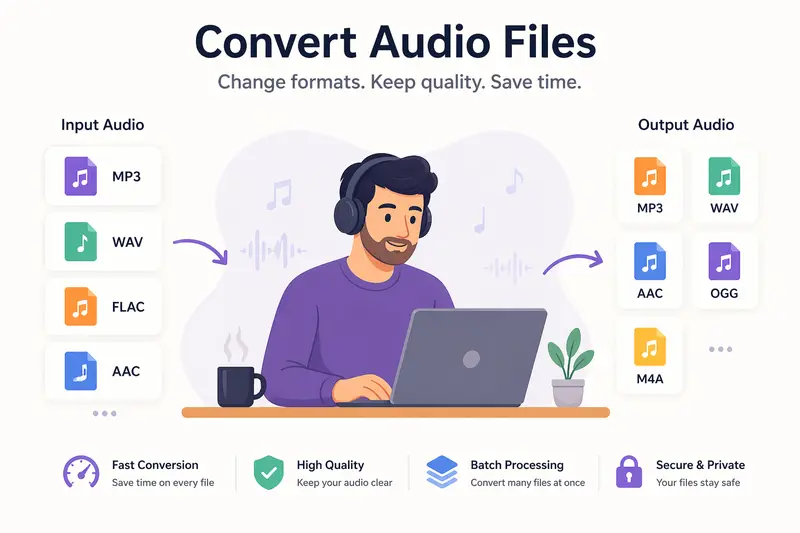
Freelancers working on Linux often need to convert audio files across formats—whether for podcasts, client deliverables, or content repurposing. The challenge isn’t just compatibility; it’s doing it efficiently without installing bloated desktop tools or risking file privacy.
The Fast Take
If you need to convert audio files on Linux, a browser-based tool can handle multiple formats, avoid system dependencies, and process files in batches—all without local installation. The key is choosing a solution that balances speed, output quality, and predictable cost.
How Audio Conversion Actually Works (Without Overcomplicating It)
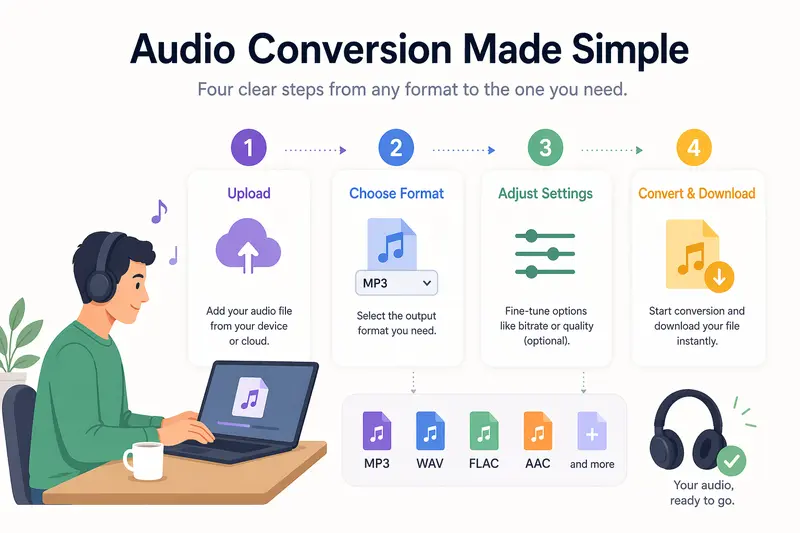
Instead of relying on command-line tools like FFmpeg for every task, modern workflows can be simplified:
- Upload your audio file (MP3, WAV, FLAC, etc.)
- Select the desired output format
- Adjust settings like bitrate if needed
- Run the conversion and download the result
For bulk tasks, multiple files can be queued and processed asynchronously—meaning you don’t need to wait for one job to finish before starting another.
A Practical Tool That Fits Linux Workflows
One option worth considering is Filemazing’s audio converter:
👉 https://filemazing.com/audio-converter
What makes it relevant for freelancers:
- Primary strength: bulk processing — handle dozens of files in one go without manual repetition
- Secondary advantage: cost transparency — token-based pricing lets you estimate workload cost upfront
Because it runs entirely in the browser, there’s no dependency on your Linux distro or package manager. You can also integrate it into automated pipelines via API if your workflow grows more complex.
And if your audio files come bundled in compressed folders, you can first unpack ZIP or RAR archives that contain audio files using their archive extractor before conversion.
Real-World Scenario: Batch Converting Client Audio
I tested a batch of 18 podcast recordings (WAV format, ~45 minutes each) that needed to be converted into MP3 for client delivery.
Setup:
- Total size: ~3.2 GB
- Target: 192 kbps MP3
- Batch upload
Observed results:
- Jobs processed in parallel rather than sequentially
- Output files maintained consistent bitrate and metadata structure
- No local CPU usage impact (since processing is remote)
Takeaway:
For freelancers juggling multiple deliverables, offloading processing to a browser tool avoids tying up your machine—especially useful during multitasking sessions.
Where Things Get Tricky: Quality vs File Size
This is where many freelancers make avoidable mistakes.
The tradeoff you need to understand:
- Higher bitrate (e.g., 320 kbps MP3) → better quality, larger files
- Lower bitrate (e.g., 128 kbps) → smaller files, noticeable compression artifacts
Practical recommendation:
If the audio is voice-based (podcasts, interviews), 160–192 kbps is often the sweet spot. For music-heavy content, lean higher.
A non-obvious tip:
Converting from a lossy format (MP3 → MP3) reduces quality further. If possible, always convert from the original source (like WAV or FLAC).
Where This Approach Shines for Freelancers
- Preparing podcast episodes for different platforms
- Converting client voiceovers into lightweight formats
- Standardizing audio libraries across projects
- Processing audio extracted from video content
- Delivering optimized files for web uploads
- Managing assets alongside visuals using a format converter for related image assets in the same workflow
Why This Method Works Well
- No dependency on Linux-specific tools or libraries
- Batch audio conversion reduces repetitive effort
- Transparent pricing avoids surprises on large jobs
- Files are processed temporarily—no long-term storage
- Scales from single tasks to automated pipelines
FAQ: What Freelancers Usually Ask
1. What’s the best audio converter for Linux users?
It depends on your workflow. CLI tools offer control, but browser-based options like Filemazing are more practical for batch processing and quick tasks.
2. Can I convert audio online free?
Yes, many tools offer free tiers. Filemazing provides daily free tokens, which are enough for small workloads.
3. Is batch audio conversion reliable online?
As long as the platform supports queued processing and job tracking, it’s reliable—even for large sets of files.
4. Will converting reduce audio quality?
Yes, especially when converting between lossy formats. Always start from the highest-quality source when possible.
5. Are my files stored permanently?
No—Filemazing processes files as temporary artifacts and clears them shortly after completion, which is important for client confidentiality.
6. Can I secure converted audio files before sending them?
Yes, you can password-protect converted audio before sharing using their encryption tool for added security.
Final Thoughts
For freelancers working on Linux, the goal isn’t just to convert audio files—it’s to do it without friction. A browser-based approach removes system constraints, supports batch workloads, and keeps your setup clean.
Filemazing stands out by combining bulk processing with transparent pricing and privacy-conscious handling. Whether you’re handling a few clips or managing large client batches, it offers a streamlined path from raw audio to ready-to-deliver files.