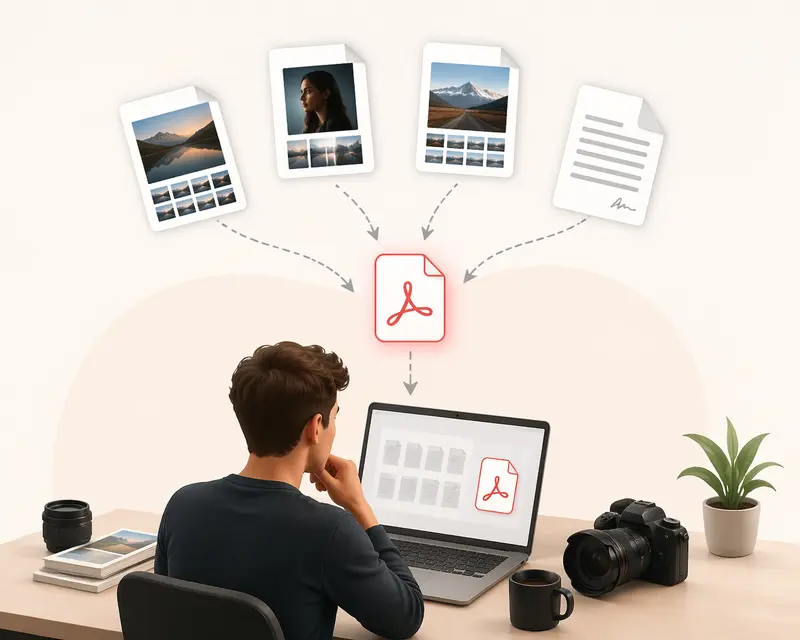
Photographers rarely think of PDFs as part of their creative workflow—until they need to deliver client proofs, contracts, or curated portfolios. At that point, the need to merge PDF files becomes unavoidable, especially when juggling exports from Lightroom, Photoshop, and scanned documents.
Instead of wrestling with bulky desktop tools, many photographers now look for ways to merge PDF online free, ideally without creating accounts or interrupting their workflow.
The Fast Take
If you need to combine multiple PDFs into one polished document, the most efficient route today is using a browser-based tool that supports batch PDF merge and doesn’t require signup. This keeps your workflow lightweight while still delivering professional results.
How Photographers Typically Combine PDFs
The process isn’t complicated, but efficiency depends on how well your tools handle multiple files and large page counts.
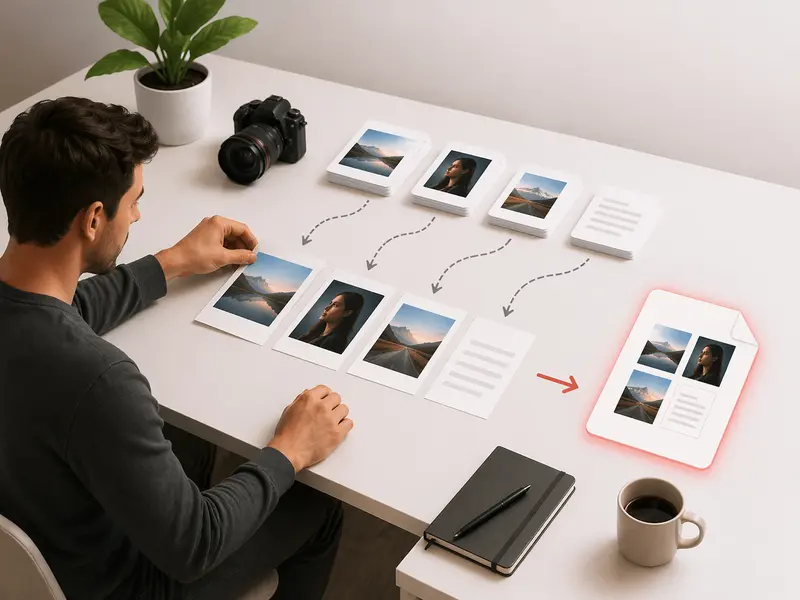
Here’s a streamlined approach:
- Export your images or contact sheets as PDFs from editing software
- Gather supporting files (contracts, shot lists, invoices)
- Arrange files in your preferred sequence
- Merge them into a single document
- Review layout consistency before sending
A Tool Built for Speed and Flexibility
One option worth exploring is https://filemazing.com/merge-pdf, a browser-based solution designed for fast file workflows.
What makes it especially relevant for photographers:
- Primary strength: bulk processing → handle multiple PDFs at once without lag
- Secondary benefit: no signup required → jump in and process files instantly
Unlike traditional software, Filemazing operates entirely in your browser. You can merge large batches of PDFs without installing anything, and even pull files directly from cloud storage.
For photographers dealing with sensitive client material, it’s also useful to know that files are processed temporarily and automatically cleaned up—nothing sits on servers longer than necessary.
What Happened When I Tested It
I ran a practical test combining:
- 18 exported contact sheets (each ~12 pages)
- 3 scanned contract PDFs
- 1 pricing guide
Total: 22 files, 250+ pages
The result:
- Processing completed smoothly without freezing
- Page order remained intact after manual arrangement
- Output file size stayed reasonable without noticeable quality loss
Takeaway: When merging large batches, organizing files before upload saves time later. Renaming files with sequence numbers (e.g., 01_portfolio, 02_contract) prevents confusion during sorting.
Where Things Can Go Wrong (And How to Avoid It)
Common Mistakes Photographers Make
1. Mixing resolutions blindly
High-res portfolio pages combined with low-res scans can create inconsistent output.
2. Ignoring file order before upload
Rearranging dozens of files inside a tool is slower than organizing them beforehand.
3. Overlooking metadata exposure
Camera details, location data, and editing history can remain embedded in files. If you’re sharing externally, consider using a tool to remove hidden metadata before document sharing.
4. Merging without compression awareness
Huge PDFs can frustrate clients when downloading. Balance quality with file size.
Real-World Uses for Photography Workflows
For professionals, merging PDFs isn’t just about convenience—it’s about presentation and efficiency.
- Delivering full wedding galleries as structured PDF albums
- Sending combined contracts, invoices, and briefs in one file
- Creating pitch decks for commercial shoots
- Packaging licensing documents with preview images
- Submitting portfolios to agencies or competitions
- Archiving project documentation for long-term storage
Why This Approach Works
Photographers benefit from tools that don’t interrupt creative flow. Filemazing stands out because:
- It handles multi-file workloads reliably
- No forced account creation slows you down
- Token-based pricing keeps costs predictable
- Cloud imports reduce file juggling
- Processing happens asynchronously, so large jobs don’t block your session
If you need to secure your final document before sending, you can also protect merged documents with password encryption, which is especially useful for client contracts or private galleries.
FAQs
Can I merge PDF files without losing image quality?
Yes, but it depends on the source files. If your original PDFs are high resolution, merging won’t degrade them. Problems usually come from prior compression.
Is it possible to combine PDFs without signup?
Yes. Some browser tools allow you to combine PDFs without signup, letting you process files instantly without creating an account.
How many files can I merge at once?
That depends on the tool, but batch-friendly platforms can handle dozens of files efficiently, especially if they use queued processing.
Are my files stored after merging?
Reliable tools process files temporarily and delete them shortly after. This is crucial when working with client-sensitive material.
Can I merge PDFs from ZIP archives?
Yes—if your files are packaged, you can first unpack supporting files from ZIP or RAR archives and then merge them.
Does merging affect file size?
Yes. Combining multiple PDFs increases total size, but optimization steps (like compression beforehand) can help manage it.
Final Thoughts
For photographers, merging PDFs is less about the action itself and more about maintaining a smooth, professional delivery process. Whether you’re sending portfolios, contracts, or curated galleries, having a reliable way to merge PDF files—without friction—makes a noticeable difference.
Browser-based tools like Filemazing align well with modern workflows: fast, flexible, and built for real-world file handling without unnecessary overhead.