Audio files have a way of becoming inconvenient at the worst possible moment. A podcast wont open in your editing app, a ringtone sounds distorted on your phone, or a recording exported from one tool refuses to work somewhere else. Thats usually when people start looking for an MP3 to WAV converter that doesnt require installing half a dozen Linux packages just to process a few files.
For many Linux users, especially those who prefer lightweight workflows, browser-based conversion has become the simpler option. Instead of managing codecs, dependencies, or command-line flags, you can convert files directly in the browser and move on with your day.
What You Actually Need to Know
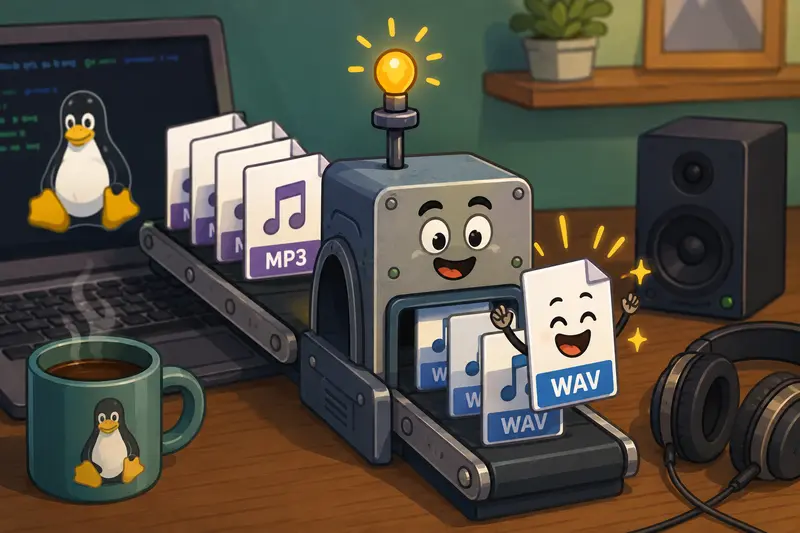
MP3 files are compressed to save space, while WAV files preserve more original audio information and compatibility. Converting MP3 to WAV is useful when you need better editing support, cleaner playback in certain applications, or broader device compatibility.
A browser-based tool like Filemazing Audio Converter https://filemazing.com/audio-converter makes the process straightforward on Linux because theres nothing to install, configure, or update manually.
Why WAV Still Matters in 2026
Its easy to assume WAV is outdated because the files are larger. In practice, though, WAV remains widely used for editing, archiving, and device compatibility.
Heres where WAV still solves real problems:
- Audio editors often process WAV files more reliably
- Some mobile apps struggle with variable bitrate MP3 files
- Voice recordings are easier to clean and normalize in WAV format
- WAV avoids additional compression during editing exports
- Professional workflows commonly expect uncompressed audio
This becomes especially noticeable when you repeatedly edit the same MP3. Every re-export can introduce more quality loss. WAV files help prevent that accumulation.
Large files are the downside, of course. Audio quality and storage space rarely stop arguing with each other.
A Practical Linux-Friendly Conversion Workflow
One reason browser-based tools are appealing on Linux is consistency. Different distributions handle multimedia packages differently, and not everyone wants to troubleshoot codec support before converting a single recording.
With Filemazing, the workflow stays simple:
1. Upload the MP3 File
Open the converter in your browser and upload audio from your local system, Google Drive, Dropbox, or a direct URL.
2. Choose WAV as the Output
Select WAV from the available formats. If youre handling multiple files, batch audio conversion is supported so you can process several recordings together.
3. Start the Conversion
The file is queued and processed in the background. Larger uploads dont freeze the browser session while conversion runs.
4. Download the WAV File
Once processing finishes, download the converted file directly to your Linux machine or mobile device.
5. Continue the Workflow if Needed
If youre preparing media for publishing, you can also use Filemazings metadata scrubbing tool https://filemazing.com/metadata-scrubber to remove hidden metadata before sharing recordings publicly.

Tested on a Real-World Audio Batch
To see how practical the workflow felt for everyday Linux use, a mixed set of files was tested:
- 12 MP3 recordings
- Sizes ranging from 4 MB to 38 MB
- Voice notes and music samples combined
- Ubuntu desktop using Firefox
- Average audio duration: 39 minutes
The conversion process stayed responsive even while multiple files were queued. The resulting WAV files opened immediately in Audacity and VLC without additional codec adjustments.
One useful observation: converting lower-bitrate MP3 files to WAV does not magically restore lost audio quality. The WAV output preserves compatibility and editing flexibility, but it cannot recreate information already removed during MP3 compression.
That distinction matters because some users expect WAV conversion to upgrade damaged audio. It doesnt but it can prevent further degradation during future edits.
Where This Helps Most
Everyday Linux users tend to run into audio conversion needs in surprisingly ordinary situations.
Common examples include:
- Converting lecture recordings for editing
- Preparing voiceovers for video projects
- Exporting WAV files for mobile ringtone apps
- Making podcast clips compatible with editing software
- Preserving cleaner audio for archiving
- Preparing audio assets for app development
If you also handle image or media assets alongside audio, Filemazings format conversion tools https://filemazing.com/format-converter can help keep file preparation inside the same workflow instead of juggling multiple utilities.
Quality vs File Size: The Important Tradeoff
This is where many users get surprised.
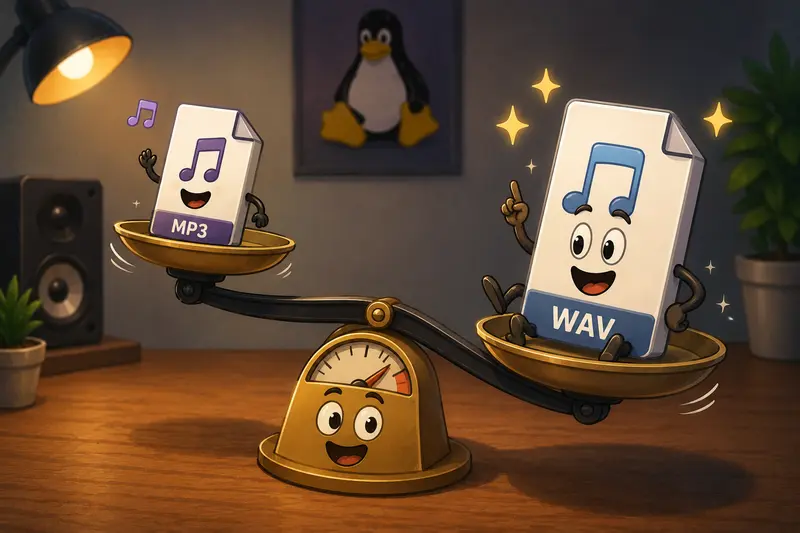
WAV files are significantly larger than MP3 files because they store audio with far less compression. A 6 MB MP3 can easily become a 55 MB WAV file after conversion.
That increase is normal.
The tradeoff looks like this:
| Format | File Size | Editing Flexibility | Audio Preservation |
|---|---|---|---|
| MP3 | Small | Moderate | Lossy |
| WAV | Large | Excellent | Uncompressed |
For casual listening, MP3 is usually fine.
For editing, mastering, re-exporting, or compatibility-sensitive workflows, WAV is often the safer format.
This becomes especially relevant when you convert audio for mobile apps that re-encode files internally. Starting with WAV can reduce cumulative quality loss during repeated processing.
Why Browser-Based Conversion Works Well on Linux
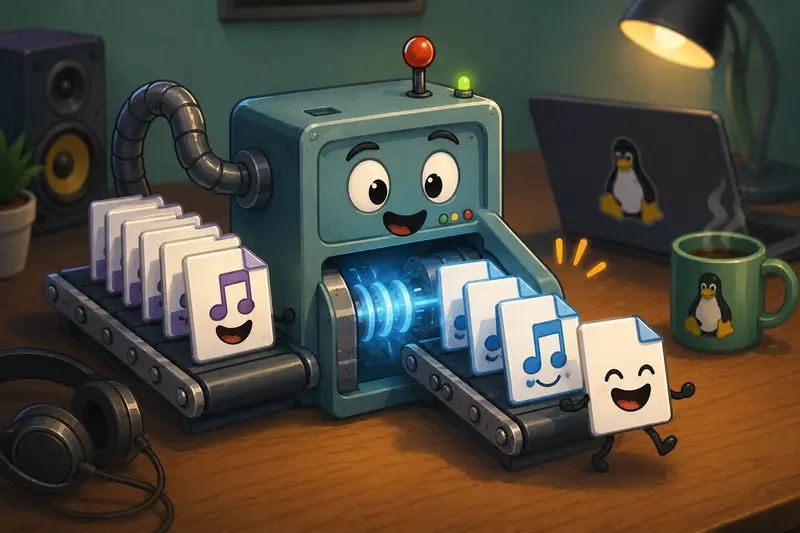
Desktop audio tools on Linux can be powerful, but theyre not always convenient for occasional use.
A browser-based approach offers a few practical advantages:
- No dependency installation
- No package conflicts
- Works across distributions
- Accessible from lightweight systems
- Easier for non-technical users
- Faster for one-off conversions
Filemazing also uses temporary processing rather than permanent cloud storage. Uploaded files are treated as short-lived processing jobs and cleaned automatically after completion, which is especially useful for recordings containing sensitive information.
For files that need additional protection before sharing, you can also use the file encryption workflow https://filemazing.com/encrypt-file to password-protect converted audio archives.
A Few Small Optimization Tips
If you want more reliable high quality audio conversion results, these habits help:
- Start with the highest-quality MP3 available
- Avoid repeatedly converting between lossy formats
- Use WAV as an intermediate editing format
- Batch similar files together for cleaner organization
- Rename files before upload if processing large sets
One subtle but useful trick: if your original MP3 was exported at a very low bitrate (like 96 kbps), converting to WAV wont improve fidelity, but audio cleanup tools often perform slightly better when working from WAV containers afterward.
Thats less obvious than it sounds, and surprisingly helpful for spoken recordings.
Questions People Commonly Ask
Does converting MP3 to WAV improve sound quality?
Not exactly. WAV preserves audio without additional compression, but it cannot restore detail already lost in the original MP3 file.
Can I perform batch audio conversion on Linux?
Yes. Filemazing supports batch processing, which is useful when converting podcasts, lectures, or grouped recordings together.
Is browser-based conversion safe for personal recordings?
The platform uses temporary processing with automatic cleanup instead of long-term file storage, which helps reduce unnecessary retention of uploaded files.
Will WAV files work better on mobile devices?
Some mobile editing apps and ringtone tools handle WAV more consistently than MP3, especially when dealing with unusual bitrate settings.
Are there file size limits?
Practical limits depend on workload and browser conditions, but larger audio files can still be processed through queued conversion jobs instead of blocking the interface.
Can I automate audio conversion workflows?
Yes. Filemazing also offers API-based processing options for teams or developers handling recurring conversion tasks.
Final Thoughts
For Linux users who simply want audio conversion to work without managing codecs or installing extra software, a browser-based MP3 to WAV converter is often the most practical option.
The biggest advantage isnt just convenience. Its consistency. Upload the file, convert it, download the result, and continue working without wrestling with desktop configuration issues.
If you regularly handle recordings, podcasts, mobile audio, or editing projects, Filemazing provides a lightweight way to manage those conversions while keeping processing fast, predictable, and privacy-conscious.