Remote teams deal with audio files constantly meeting recordings, podcast drafts, voice notes, training clips, interview sessions, and client approvals all move across different platforms and devices. The problem is that compressed formats like MP3 are convenient for sharing, but they often become frustrating once editing, archiving, or reprocessing starts.
Thats where using an MP3 to WAV converter becomes useful.
WAV files preserve far more audio detail during editing and production workflows, which matters when teams need cleaner sound for transcription, post-processing, or publishing. And unlike desktop-heavy tools that require installation and updates, browser-based utilities such as Filemazing Audio Converter https://filemazing.com/audio-converter let teams handle conversion tasks quickly from anywhere.
If your workflow also involves preparing files before publication, tools like metadata scrubbing for media privacy https://filemazing.com/metadata-scrubber can help remove hidden metadata from audio exports before sharing externally.
What You Need to Know First
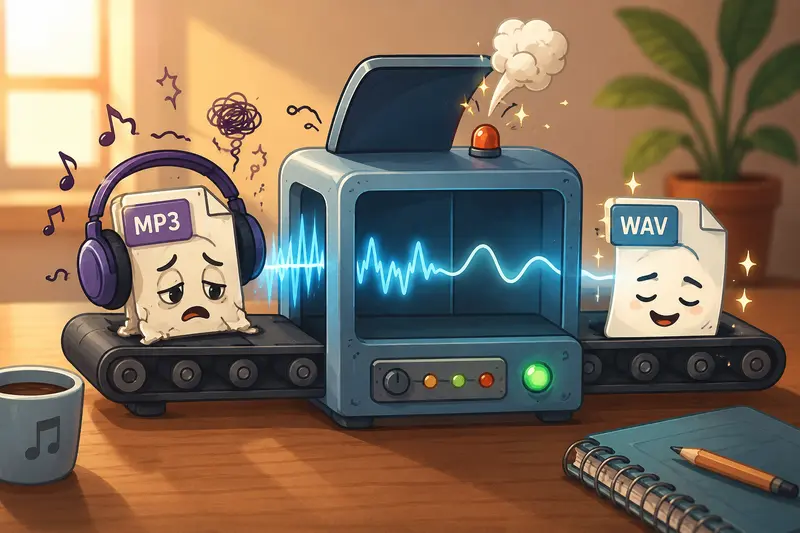
Converting MP3 to WAV does not magically restore audio information that was already compressed away. MP3 is a lossy format. WAV is typically lossless.
What the conversion does help with is avoiding additional quality degradation during future editing, exporting, or processing steps.
That distinction matters.
For remote production teams, marketing departments, or distributed podcast editors, working from WAV after the initial conversion reduces the risk of repeated compression artifacts stacking up over time.
In practical terms:
- MP3 is smaller and easier to share
- WAV is larger but better for editing and archival work
- Converting early in the workflow often preserves consistency across collaborative tasks
Many teams only realize this after hearing strange metallic artifacts during a final export. Audio compression has a talent for hiding problems until the worst possible deadline.
Why Teams Often Switch to WAV Mid-Workflow
A surprising number of collaboration tools still export recordings as MP3 by default because smaller files sync faster.
But once those recordings move into:
- podcast editing
- AI transcription cleanup
- sound normalization
- mastering
- training libraries
- video post-production
the limitations become easier to notice.
WAV files are especially useful when multiple people touch the same media asset over time. Repeated exports from compressed formats can introduce noticeable degradation.
This becomes even more important for remote teams working asynchronously where one editor may clean audio while another prepares publishing assets later.
How the Process Works
Browser-based conversion is usually straightforward, but there are a few workflow habits that improve results.
A practical conversion flow looks like this:
- Upload the MP3 recording into the converter
- Select WAV as the target format
- Process the file in-browser
- Download the converted WAV output
- Store the WAV master separately from compressed delivery copies
With Filemazing Audio Converter https://filemazing.com/audio-converter, larger jobs are queued automatically instead of locking the browser session, which is useful when teams process long meeting recordings or multi-hour interviews.
The platform also supports cloud imports from providers like Google Drive and Dropbox, which helps when files are already sitting inside shared team folders.
A Real Conversion Test From a Remote Workflow
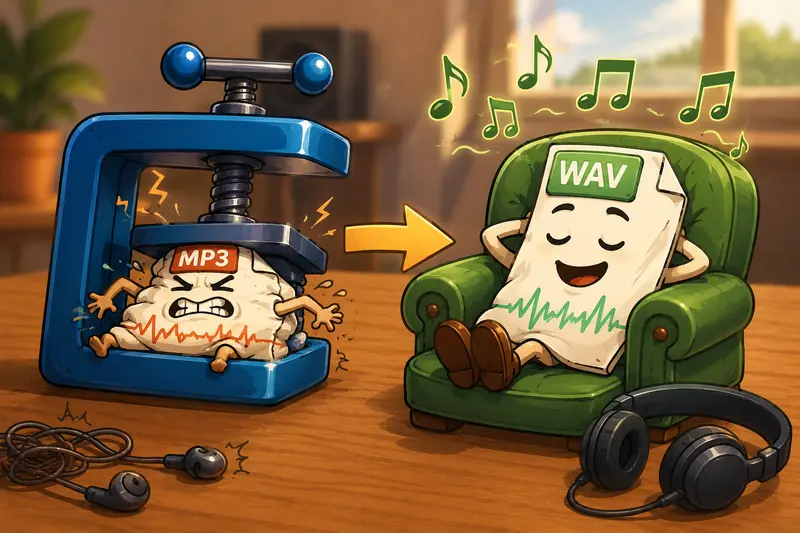
We tested a 47-minute recorded strategy meeting exported from Zoom as a 96 kbps MP3 file.
The original upload size was roughly 33 MB.
After converting to WAV:
- the output expanded to around 485 MB
- waveform editing became noticeably smoother
- speech isolation plugins behaved more consistently
- background hiss became easier to identify and remove
An important observation: the conversion did not improve the original recording quality itself. Voices already compressed heavily still sounded compressed.
However, editing the WAV version afterward produced fewer additional artifacts compared to repeatedly editing and exporting MP3 copies.
Thats a subtle but important distinction many users miss.
One useful workflow tip: convert the source recording to WAV immediately before any editing begins. Avoid editing directly from compressed MP3 whenever possible.
Where This Becomes Useful for Remote Teams
Different teams use high quality audio conversion for different reasons.
Here are some realistic scenarios where WAV conversion makes practical sense:
Podcast Collaboration
Editors, hosts, and producers often pass audio through multiple tools before publication.
Internal Training Libraries
HR and onboarding teams preserve cleaner long-term training recordings.
AI Transcription Cleanup
Speech-to-text systems generally perform better with cleaner, less repeatedly compressed audio.
Video Production Pipelines
Video editors frequently prefer WAV because synchronization and mastering workflows behave more predictably.
Customer Interview Archives
Research teams keeping long-term archives usually want stable, non-lossy source material.
Shared Creative Projects
Distributed creative teams avoid quality drift when multiple contributors edit audio independently.
And if those recordings arrive inside compressed ZIP packages, using an archive extraction workflow for bundled audio files https://filemazing.com/archive-extractor simplifies unpacking before conversion.
One Thing Many Users Get Wrong
Repeated Compression Loops
This is one of the biggest hidden quality killers in audio workflows.
A common mistake looks like this:
MP3 edit export MP3 edit again export MP3 again
Each cycle introduces more loss.
For remote teams working across time zones, these repeated handoffs happen more often than people realize.
A safer workflow is:
MP3 convert to WAV complete all edits in WAV export final delivery format once
That single adjustment can noticeably reduce cumulative degradation in collaborative production pipelines.
Why Browser-Based Conversion Is Becoming More Common
Desktop software still has advantages for advanced mastering work, but lightweight online tools are becoming increasingly practical for operational workflows.
A browser-based approach helps because:
- theres no installation overhead
- freelancers can work across devices
- contractors avoid local software setup
- temporary team members can process files quickly
- workflows stay accessible remotely
Filemazing also uses transparent token pricing rather than subscription locking. Teams can estimate workload cost ahead of time based on file size and media duration instead of guessing usage limits afterward.
For organizations handling sensitive recordings, the privacy model matters too. Uploaded files are treated as temporary processing artifacts rather than long-term storage items, with cleanup happening on short retention schedules.
Thats especially relevant when teams process interview recordings, internal meetings, or client media.
Helpful Clarifications
Does converting MP3 to WAV improve audio quality?
Not directly. Lost MP3 data cannot be restored. The advantage is preventing additional quality loss during future editing.
Is WAV always the best audio format?
Not necessarily. WAV is ideal for editing and archival workflows, but MP3 remains better for lightweight sharing and streaming.
Can I convert audio online free?
Many tools offer free usage tiers or daily free processing credits. Filemazing includes daily free tokens for anonymous and registered users.
Are browser-based audio converters secure?
It depends on the platform. Privacy-focused services that use temporary processing and cleanup schedules are generally preferable for sensitive files.
What if my audio files are large?
Queued processing systems handle long recordings more reliably than single-threaded browser tools. This is particularly useful for remote teams processing multi-hour recordings.
Can converted audio files be protected before sharing?
Yes. If teams need to securely distribute converted recordings externally, using password-protected encrypted file sharing for audio exports https://filemazing.com/encrypt-file adds an extra security layer.
What You Gain From Using the Right Workflow
The best audio converter is not always the one with the most features.
For many remote teams, reliability and workflow consistency matter more.
A practical browser-based setup can help teams:
- preserve cleaner editing masters
- avoid repeated compression damage
- simplify collaborative processing
- reduce local software dependency
- process files from shared cloud storage
- estimate conversion costs transparently
And importantly, it keeps operations lightweight.
Nobody really wants to troubleshoot desktop codec conflicts ten minutes before a client presentation.
Final Thoughts
If your team regularly edits recordings, archives interviews, prepares podcasts, or manages collaborative media workflows, switching early from MP3 to WAV can prevent unnecessary quality degradation later.
Using a browser-based MP3 to WAV converter like Filemazing Audio Converter https://filemazing.com/audio-converter keeps the process accessible without adding installation overhead or complicated licensing friction.
For remote teams especially, the combination of browser accessibility, predictable pricing, temporary processing cleanup, and API-ready automation creates a much more flexible workflow than traditional desktop-only conversion tools.
The goal is not turning compressed audio into studio magic.
Its preserving as much quality as possible before the next editing round begins.