:::writing{variant=document id=48271}
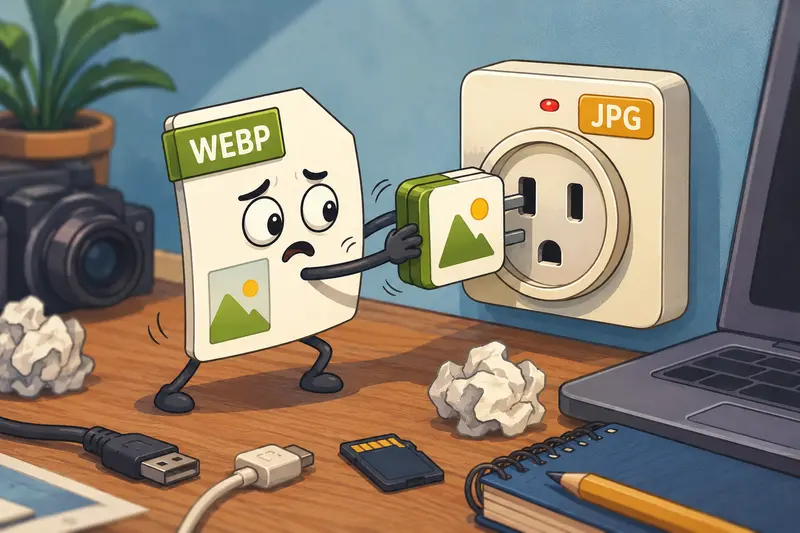
WEBP To JPG Converter for Developers: Without Installing SoftwareTheres a particular kind of frustration developers know too well: everything works perfectly until an image format breaks the workflow.
A client uploads WEBP files into a legacy CMS that only accepts JPG. A mobile pipeline outputs HEIC photos from iPhones. An automation script suddenly fails because one service expects JPEG previews. None of these problems are difficult individually but they become annoying when they interrupt deployment schedules or media processing pipelines.
Thats where a browser-based WEBP to JPG converter becomes surprisingly practical.
Instead of pulling desktop utilities into your environment or wiring together temporary command-line tools, you can convert assets directly in the browser and move on with the actual work.
The Short Version
If you need to convert WEBP images into JPG format without installing software, browser-based tools now handle it reliably for both one-off tasks and larger file batches.
Platforms like Filemazing https://filemazing.com/format-converter let developers upload WEBP, HEIC, PNG, and other image types directly through the browser or API, process them temporarily, and download converted files without maintaining local conversion utilities.
That matters more than it sounds. Especially when youre jumping between operating systems, CI environments, or client machines where just install this package is not actually convenient.
Why Developers Still Convert WEBP to JPG
WEBP has excellent compression efficiency. No debate there.
But JPG remains the compatibility fallback across:
- older CMS platforms
- email systems
- legacy APIs
- WordPress plugins
- document generators
- marketplace upload tools
- embedded software viewers
Many production systems still assume JPG support by default.
In real workflows, developers often use WEBP internally while exporting JPG externally for compatibility reasons. The same pattern shows up with HEIC image conversion, especially when handling uploads from iPhones or iPads.
One format for optimization. Another for interoperability.
Some file formats cooperate nicely. Others behave like they were invented during an argument.
How the Conversion Workflow Usually Goes
A lightweight browser-based approach tends to be faster than spinning up local tooling when the task is straightforward.
Heres a practical workflow developers commonly use:
Upload the source files
Drag WEBP images directly into the converter. Services like Filemazing also support cloud imports from providers like Google Drive and Dropbox when files arent stored locally.
Choose JPG output
Select JPG as the export format and configure quality preferences if needed.
For web delivery pipelines, moderate JPG compression often reduces bandwidth substantially while preserving acceptable visual quality.
Process files in batches
Batch handling matters more than people expect.
Converting one image manually is trivial. Converting 400 exported product assets before a deployment is where browser automation starts saving time.
Download processed files
Once conversion jobs complete, the resulting JPG files are available individually or as grouped downloads.
If the images still need optimization afterward, developers often run them through an additional image compression pass using the image compression tool https://filemazing.com/compress-image to reduce payload size for frontend delivery.
What We Tested in a Real Workflow
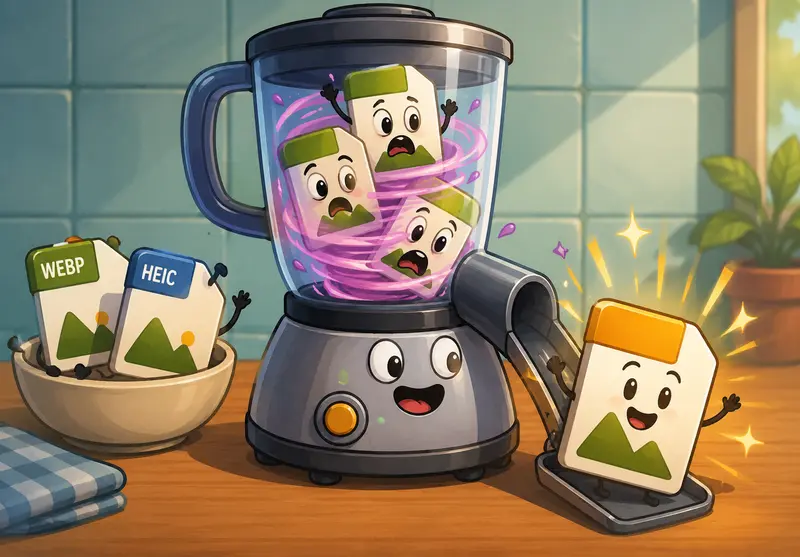
To see how well browser-based conversion actually holds up, we tested a mixed media batch containing:
- 120 WEBP product images
- 35 HEIC smartphone photos
- exported screenshots from design tools
- several oversized marketing assets
Total upload size was slightly above 1.2 GB.
The interesting part wasnt the conversion itself most tools can technically convert files. The real difference showed up in workflow handling.
The queue-based processing prevented the browser session from locking up during larger jobs, and completed downloads became available incrementally rather than forcing the entire batch to finish first.
A practical takeaway emerged pretty quickly:
For bulk image preparation, upload organization matters almost as much as conversion speed. Grouping files by output quality requirements reduced unnecessary recompression and kept visual consistency cleaner across the final JPG set.
One limitation worth mentioning: aggressive JPG compression settings noticeably softened small text elements in UI screenshots. For documentation images or developer tutorials, keeping compression moderate produced better results.
That tradeoff is important:
- smaller JPGs improve delivery speed
- higher compression can reduce sharpness
- screenshots and diagrams suffer first
The goal is smaller files not turning interface text into abstract art.
A Developer-Specific Detail That Often Gets Missed
Many developers focus entirely on format conversion while ignoring metadata.
That can become a problem when images contain:
- GPS coordinates
- camera details
- embedded author information
- editing history
- device identifiers
For public uploads or client-facing assets, stripping metadata before distribution is often worth doing.
Filemazing includes a dedicated metadata scrubbing tool https://filemazing.com/metadata-scrubber that removes unnecessary embedded metadata from processed image files.
This becomes especially useful when:
- handling user-generated uploads
- preparing screenshots for public docs
- processing internal media before publication
- moving files between contractors or teams
Its a small operational detail, but one that privacy-conscious teams increasingly care about.
Where Browser-Based Conversion Actually Helps
Desktop software still has its place. But browser workflows solve several annoying operational problems.
Temporary environments
Contractor machines, locked-down corporate laptops, cloud workstations, or remote sessions often limit software installation.
A web-based converter avoids dependency setup entirely.
Fast API-side preprocessing
Developers testing media pipelines can validate output formats before integrating permanent backend conversion logic.
Bulk marketing exports
Large campaigns frequently involve dozens or hundreds of converted web assets with mixed formats.
Documentation pipelines
JPG conversion remains useful when generating PDFs, presentations, or static documentation systems that behave inconsistently with WEBP support.
HEIC normalization
Apple-originated media still creates compatibility friction across some platforms, making HEIC image conversion a recurring workflow task.
Lightweight automation
Because Filemazing also exposes API endpoints, repetitive conversion tasks can eventually move from manual uploads into scripted pipelines.

What Makes Filemazing Different From Typical Converter Sites
A lot of online converters feel disposable. Upload the file, hope nothing breaks, close the tab.
Filemazing takes a more operational approach.
Instead of functioning like a single-purpose utility, it behaves more like a modular file-processing platform designed for recurring workflows.
That includes:
- queued processing
- token-based workload pricing
- API access
- cloud file imports
- batch operations
- temporary processing cleanup
The transparent token system is especially useful for teams estimating workload costs ahead of time.
For example, the format conversion workflow uses a predictable calculation model based on factors like:
- base processing cost
- file size
- file count
- media characteristics
That predictability matters for automation-heavy usage where hidden limits become expensive fast.
Developers also tend to appreciate that files are treated as temporary processing artifacts rather than permanent storage objects.
A Few Conversion Mistakes That Create Problems Later
Not every conversion issue shows up immediately.
Here are several common mistakes developers run into during image processing pipelines:
Repeated recompression
Converting JPG WEBP JPG repeatedly degrades image quality over time.
Whenever possible, keep an original source asset.
Over-compressing screenshots
UI captures and diagrams lose clarity faster than photography because sharp edges and text compress poorly.
Ignoring color profiles
Some export chains accidentally strip or alter color metadata, leading to inconsistent rendering across browsers.
Mixing inconsistent quality settings
Batch outputs can look visually uneven when different compression settings are applied across asset groups.
Converting unnecessarily
WEBP is already ideal for many frontend use cases. Conversion only makes sense when compatibility or workflow constraints require it.
Practical Advantages in Day-to-Day Work
The value isnt really the conversion itself. Its the reduced operational friction around it.
A browser-based WEBP to JPG converter helps developers:
- avoid temporary software installs
- process batches quickly
- normalize incompatible uploads
- simplify asset preparation
- reduce deployment interruptions
- move conversion tasks into lightweight automation later
And because the workflow stays browser-accessible, non-technical teammates can usually handle routine conversions without engineering involvement.
That alone saves surprising amounts of time.
Common Questions
Does converting WEBP to JPG reduce image quality?
Usually, yes at least slightly.
JPG uses lossy compression, so some detail loss is expected depending on quality settings. The difference is often minimal for photographs but more noticeable on screenshots or text-heavy graphics.
Is browser-based image conversion safe?
That depends on the providers handling policies.
Filemazing processes uploads as temporary artifacts with short retention cleanup schedules rather than permanent cloud storage, which is generally preferable for privacy-sensitive workflows.
Can I convert multiple WEBP files at once?
Yes. Batch processing is one of the more useful capabilities for developers handling large asset groups or migration tasks.
Does JPG work better than WEBP everywhere?
Not necessarily.
WEBP is usually better for modern web optimization. JPG remains useful primarily for compatibility with older systems, external platforms, and legacy tooling.
Can the conversion workflow handle HEIC images too?
Yes. Mixed-format processing is supported, including HEIC image conversion alongside standard image formats.
What if the converted JPG files are still too large?
After conversion, you can reduce final output sizes further using the image compression workflow https://filemazing.com/compress-image for web delivery optimization.
Final Thoughts
For developers, image conversion is rarely the main task. Its the thing blocking the main task.
A browser-based WEBP to JPG converter works best when it stays fast, predictable, and operationally lightweight. Thats the real advantage of tools like Filemazing: they remove unnecessary setup friction while still supporting larger workflows, automation paths, and privacy-conscious processing.
If your team regularly handles mixed image formats, legacy compatibility requirements, or recurring media prep tasks, using a browser-first conversion workflow can simplify more than just file formats.:::