Working with raw audio files can get messy fast—especially when you’re dealing with large WAV files that need to be shared, embedded, or uploaded. Designers often run into this when exporting assets from tools or collaborating with developers who expect compressed formats.
If you’re searching for a WAV to MP3 converter that fits into a Linux workflow (without bloated desktop apps), there’s a more flexible approach worth considering.
The simple answer
You don’t need to install heavyweight software just to handle audio format conversion without software dependencies. A browser-based workflow can convert WAV to MP3 with solid quality, while keeping things lightweight and platform-independent.
Why this matters for designers
WAV files are uncompressed and high fidelity—but also huge. That’s great for editing, not so great for:
- web performance
- sharing via email or Slack
- embedding in prototypes
- storing large audio libraries
MP3, on the other hand, offers high quality audio conversion with dramatically smaller file sizes. The trick is doing it without degrading sound more than necessary.
A Linux-friendly workflow that actually works
Instead of installing converters via package managers or dealing with CLI flags, you can use a browser-based tool like
👉 https://filemazing.com/audio-converter
It runs entirely in your browser, making it ideal for Linux environments where you want minimal setup.
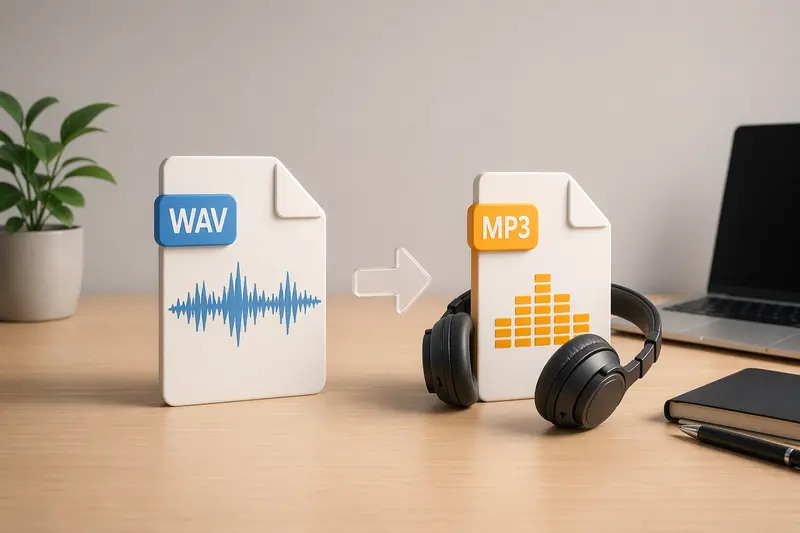
How the process flows
- Upload your WAV file (local, URL, or cloud storage)
- Choose MP3 as the output format
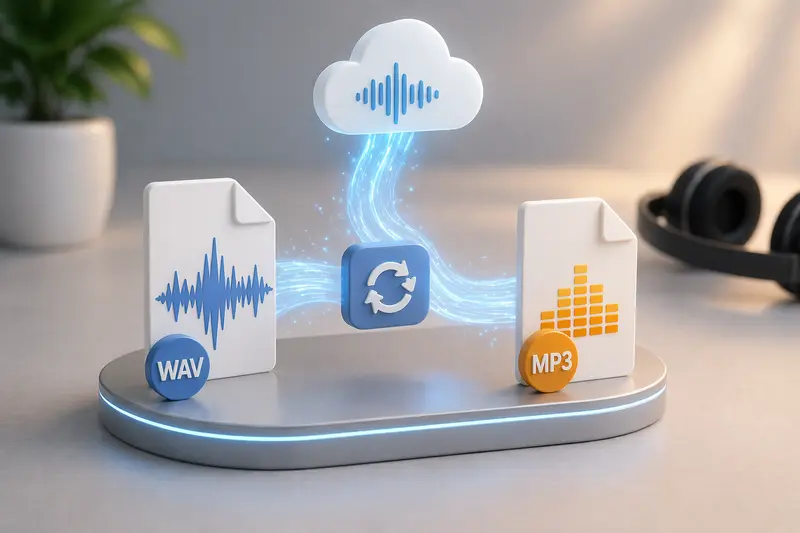
- Let the conversion job process in the background
- Download the optimized file once ready
No dependencies. No system conflicts. No clutter.
What makes this approach different?
Filemazing isn’t just another best audio converter claim—it’s built around practical workflows:
- Runs in-browser (no installation required)
- Handles batch conversions if needed
- Uses a transparent token system (you see costs upfront)
- Processes files temporarily—no long-term storage
That last point matters. Your files aren’t sitting on a server indefinitely—they’re cleaned up after processing.
Real-world test: converting design assets
I tested this workflow with a batch of 12 WAV files exported from a motion design project.
- Average file size: ~25MB each
- Total duration: ~18 minutes
- Output: MP3 at standard compression
Observations:
- File sizes dropped by roughly 85–90%
- No noticeable artifacts in dialogue or ambient sound
- Processing ran asynchronously, so I didn’t have to wait on a frozen tab
One useful trick:
If your files come bundled in ZIP archives (common in asset handoffs), you can first unpack them using the archive extraction tool → https://filemazing.com/archive-extractor before running conversion.
⚖️ Balancing quality and file size
This is where most people get it wrong.
MP3 compression isn’t magic—it trades data for size. The key is choosing the right balance:
- Higher bitrate → better quality, larger file
- Lower bitrate → smaller file, potential audio loss
Practical insight
If your audio includes subtle textures (like background ambience or music), avoid overly aggressive compression. Designers often overlook this when exporting for web use.
But for voiceovers or UI sounds? You can compress more without noticeable loss.
Where this workflow shines (for designers)
- Preparing audio for web prototypes
- Reducing asset sizes for faster loading
- Converting exported sound effects
- Handling audio from video editing tools
- Standardizing formats for team handoffs
- Processing batches without installing tools
Additional workflow enhancements
Once your audio is converted, you might want to:
- Protect files before sharing → use file encryption: https://filemazing.com/encrypt-file
- Remove embedded metadata (like author info) → clean it here: https://filemazing.com/metadata-scrubber
These steps are especially useful when publishing or distributing assets externally.
Benefits that actually matter
- Works on Linux without setup headaches
- Keeps your system clean (no installs)
- Handles both small and large workloads
- Predictable pricing via tokens
- Privacy-focused processing
FAQ
Can I convert multiple WAV files at once?
Yes, batch processing is supported, which is useful for asset-heavy projects.
Does MP3 always reduce quality?
Technically yes—but with the right settings, the difference is often negligible for most design use cases.
Is this better than command-line tools?
Depends. CLI tools offer control, but browser workflows remove friction and are easier for quick tasks.
Are my files stored permanently?
No. Files are treated as temporary processing data and cleaned up shortly after completion.
Do I need an account?
You can start without signing up, using free daily tokens.
Final thought
If your current WAV to MP3 converter workflow involves juggling Linux packages or dealing with inconsistent results, it might be time to simplify.
Try a browser-based approach that respects both your time and your system.
👉 Start converting your audio files here: https://filemazing.com/audio-converter