When your PDF doesn’t fit your campaign
You’re building a social campaign on your phone. The design team sent over a polished PDF, but Instagram, ad managers, and email tools don’t exactly love PDFs. They want images—fast, flexible, and ready to upload.
That’s where a PDF to JPG converter becomes part of your everyday toolkit. Especially on mobile, where installing heavy software isn’t practical, you need something that just works in the browser without slowing you down.
If your PDF contains multiple pages, it’s often smarter to first combine related files before converting so you control how assets are exported later.
The short version
You can convert PDF pages into JPG images directly from your phone browser—no apps required.
It’s ideal for turning reports, creatives, or decks into shareable visual assets.
How to convert PDF pages into images on mobile
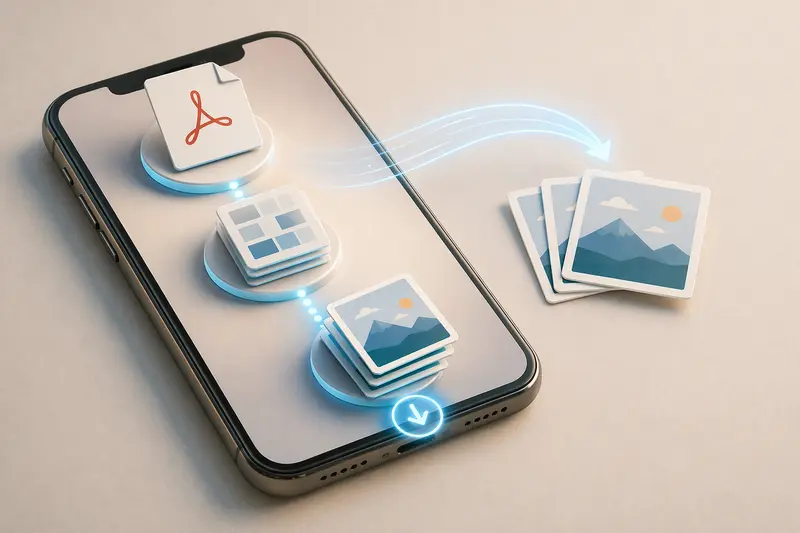
The process isn’t complicated, but a smoother workflow makes a difference:
- Open a browser-based PDF to JPG converter
- Upload your PDF (or import from cloud storage)
- Choose image format and resolution
- Convert and download each page as an image
- Use or edit images for your campaign
On mobile, the key is responsiveness—tools that handle uploads and downloads cleanly without breaking your flow.
A mobile-first tool that doesn’t slow you down
One option worth trying is https://filemazing.com/pdf-to-image.
What stands out isn’t just that it works in your browser—it’s how well it handles speed and simplicity. You don’t need to create an account to start, and the interface doesn’t overload you with unnecessary controls.
For marketers juggling multiple assets, this matters:
- You can process files quickly without switching devices
- It supports batch page conversion
- Token-based pricing is transparent—you see the cost before running anything
Because it’s browser-based, you can move from Google Drive → conversion → download without breaking your workflow.
Real-world test: campaign asset extraction
To see how it performs in practice, I tested a typical marketing scenario:
- File: 18-page campaign pitch deck (PDF, ~12 MB)
- Device: mid-range Android phone
- Goal: extract each page as a social-ready JPG
Result:
- All pages converted into separate JPGs in under a minute
- No visible compression artifacts at default settings
- File sizes were manageable for mobile upload
Takeaway:
For multi-page documents, the speed holds up well even on mobile networks—but image resolution settings directly affect output size.
Quality vs size considerations (what marketers should know)
This is where many conversions go wrong.
When you convert PDF pages into images, you’re making a tradeoff:
- Higher resolution → better clarity, larger files
- Lower resolution → faster loading, potential blur
For social media ads or email:
- Medium resolution often hits the sweet spot
- High resolution is better for print or zoom-heavy presentations
A less obvious tip:
If your images will be reused across platforms, convert at a higher resolution first, then resize later. Upscaling low-quality JPGs rarely ends well.
And if you need to adjust formats afterward (like switching JPG to WEBP for performance), you can run them through a multi-format image converter without reprocessing the original PDF.
Where this workflow fits best (marketer use cases)
- Turning PDF reports into LinkedIn carousel images
- Extracting slides for ad creatives
- Repurposing ebooks into social snippets
- Sharing visual previews in email campaigns
- Creating quick visual drafts from client PDFs
- Preparing assets for landing pages
Why this approach works
Instead of relying on desktop tools, this mobile workflow gives you:
- Speed where it counts – no installation delays
- Flexibility – convert, download, and reuse instantly
- Control over output – adjust formats and resolution as needed
- Predictable cost – token usage is visible upfront
- Privacy protection – files are processed temporarily and cleared, not stored long-term
For sensitive campaign materials, that last point matters more than most people realize.
FAQ
Can I convert multiple PDF pages at once?
Yes. Each page is exported as a separate image, which is useful for campaigns and presentations.
Will the image quality match the original PDF?
Mostly—but it depends on resolution settings. Higher resolution preserves detail better.
Is it safe to upload marketing documents?
Files are treated as temporary processing data and cleaned up shortly after conversion, rather than stored indefinitely.
What formats can I convert to besides JPG?
Many workflows support PNG and other formats, especially if you later use tools like a format conversion utility.
Can I remove hidden metadata from images?
Yes—after conversion, you can use a metadata cleaning tool to strip embedded data before sharing.
Does it work on slow connections?
Performance depends on file size, but queued processing helps prevent the interface from freezing during larger jobs.
Final thoughts
If you’re working on campaigns from your phone, converting PDFs into images isn’t just convenient—it’s often necessary.
A browser-based PDF to JPG converter like Filemazing fits neatly into that workflow: fast enough for daily use, flexible enough for different formats, and private enough for sensitive content.
Try it next time you need to turn a PDF into something you can actually publish.