Phone galleries fill up fast. Screenshots, edited images, memes from group chats, scanned receipts, downloaded graphics they all pile up quietly until you suddenly cannot upload something because the file is too large or the website refuses to accept PNG.
That is usually when people start looking for a reliable PNG to JPG converter.
On Android devices especially, converting image formats can solve several annoyances at once: smaller file sizes, easier sharing, faster uploads, and better compatibility with apps or websites that prefer JPG files.
What matters, though, is preserving image quality while keeping the workflow uncomplicated.
Why People Convert PNG Files on Android
PNG is excellent for certain situations. It keeps transparency intact and preserves sharp details without compression artifacts. That is why logos, screenshots, and design assets are often saved as PNG.
But PNG files can become surprisingly large.
A simple screenshot with text overlays may only be a few megabytes, but a batch of exported images from editing apps can quickly consume storage or slow uploads. JPG files are usually much smaller because they use lossy compression.
In practical terms:
- JPG is better for web uploads and social sharing
- PNG is better for transparency and precision graphics
- JPG reduces storage usage significantly
- Some Android apps handle JPG faster than PNG
The tradeoff is important, though.
Converting PNG to JPG always removes transparency. If an image depends on a transparent background, the converted version may gain a white or solid-color backdrop instead.
That catches people off guard more often than you would think.
A Cleaner Way to Handle Image Conversion
Instead of installing another Android app loaded with ads or background permissions, many users now prefer browser-based tools.
Filemazing Format Converter https://filemazing.com/format-converter works directly in the browser, which means you can convert files from Chrome or Samsung Internet without adding more software to your phone.
The platform focuses heavily on ease of use while still supporting larger workflows when needed.
A few things stand out immediately:
- Multiple image formats supported
- Batch conversion handling
- Temporary processing instead of long-term storage
- Transparent token pricing
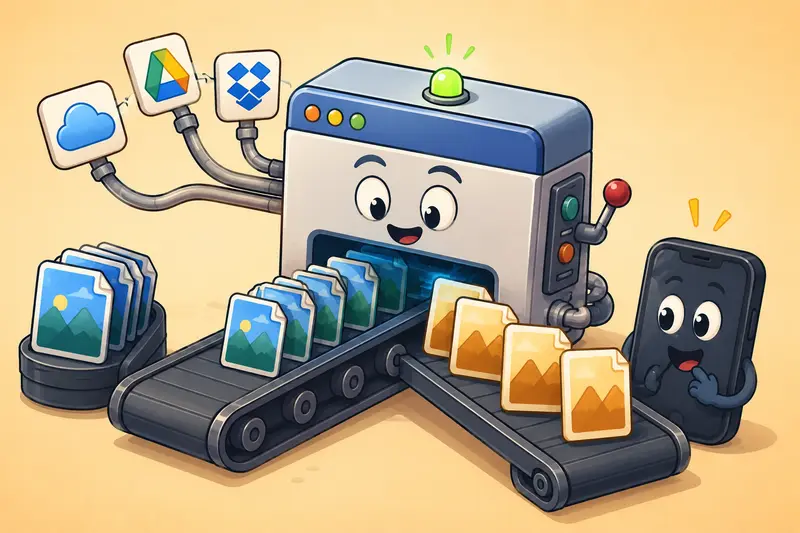
- Cloud imports from Google Drive or Dropbox
- Optional API access for automation workflows
For everyday Android users, the browser-based setup matters more than it sounds. Some conversion apps aggressively compress images or inject watermarks into exports. Using a web workflow avoids much of that clutter.
And yes, large files still tend to appear five minutes before an important upload deadline. Somehow that tradition continues.
How the Conversion Process Actually Works
The workflow is straightforward without feeling stripped down.
Typical Android Conversion Flow
- Open the format converter in your browser
- Upload PNG images from local storage, Drive, Dropbox, or URL
- Select JPG as the output format
- Start processing
- Download the converted files once complete
Because processing runs through queued jobs, larger batches do not freeze the interface while conversion happens.
That becomes useful when converting:
- vacation photo folders
- scanned paperwork
- exported design assets
- marketplace product images
- social media uploads
If you also want to reduce the final file size further, the https://filemazing.com/compress-image image compression tool pairs naturally with JPG conversion for web publishing and faster mobile uploads.
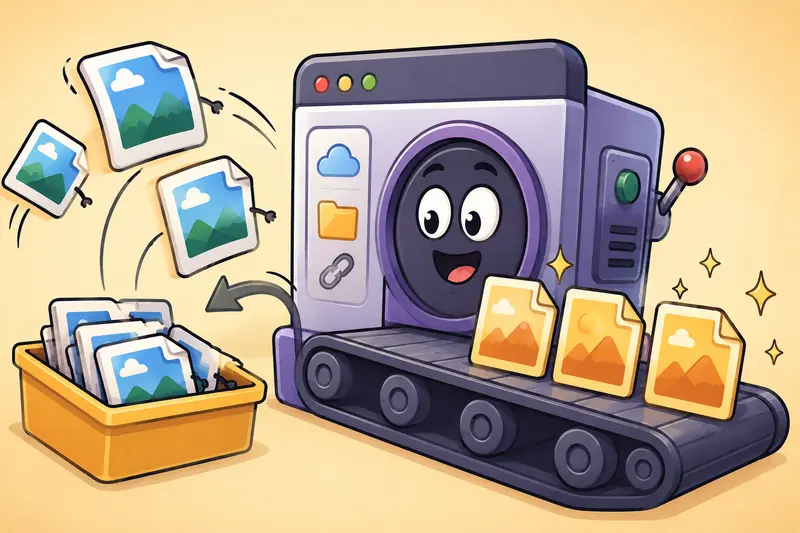
Real-World Test: 48 Android Screenshots Converted to JPG
To evaluate how well the workflow performs for general users, a realistic batch test was useful.
Test Setup
- Device: mid-range Android phone
- Files: 48 PNG screenshots
- Combined size: roughly 186 MB
- Source types:
- chat screenshots
- app captures
- saved receipts
- tutorial images
The goal was simple:reduce upload size without making text unreadable.
Outcome
After conversion:
- total folder size dropped to about 41 MB
- upload speed improved noticeably on mobile data
- screenshots remained readable
- slight softness appeared only after aggressive zooming
The quality reduction was minor during normal viewing.
That is the key distinction many people miss.
Compression artifacts become noticeable mostly when:
- zooming deeply into text-heavy screenshots
- editing the converted image again afterward
- repeatedly recompressing JPG files multiple times
For standard messaging, uploads, and web use, the difference was negligible.
One Important Quality Detail Most Users Ignore
Here is where image conversion gets more nuanced.
PNG files store information differently from JPG files. Text edges, UI elements, and sharp lines often look cleaner in PNG because there is no lossy compression involved.
That means not every PNG should become JPG.
Keep PNG When:
- transparency matters
- screenshots contain tiny text
- images require future editing
- logos need crisp edges
- graphics contain flat colors
Use JPG When:
- storage space matters
- web uploads need smaller files
- photos dominate the image
- social media compression is inevitable anyway
- fast sharing is more important than pixel-perfect detail
For Android users managing limited storage, converting old screenshots and exported images to JPG can free up a surprising amount of space without noticeably affecting daily use.
Web Images, WEBP Files, and Mixed Format Headaches
Modern Android workflows are messy because websites use different image formats constantly.
You might download:
- WEBP images from Chrome
- PNG graphics from messaging apps
- JPG camera photos
- PDF exports from work documents
This is where multi-format workflows become genuinely helpful.
Filemazing supports broader format conversion for web images, which helps avoid bouncing between several separate utilities. If you also need to https://filemazing.com/pdf-to-image export PDF pages as JPG, PNG, or WEBP, the workflow stays consistent instead of forcing multiple tools together.
And for people dealing with downloaded WEBP images that refuse to upload correctly to older platforms, the ability to convert WEBP online without installing desktop software saves a lot of friction.
Privacy Matters More Than Most People Realize
Image files often contain hidden metadata:
- location information
- device details
- timestamps
- editing software identifiers
That becomes relevant when sharing screenshots, scanned documents, or exported work assets.
Filemazing handles uploads as temporary processing artifacts rather than permanent cloud storage. Files are cleaned on a short retention schedule instead of sitting indefinitely on remote servers.
For additional cleanup, the https://filemazing.com/metadata-scrubber metadata removal tool can strip hidden image data before sharing converted files publicly.
That is especially useful for marketplace listings, resumes, scanned paperwork, or client-facing materials.
Where Browser-Based Conversion Has Limits
No conversion workflow is perfect, and it helps to understand realistic constraints.
Browser Memory Limits
Very large image batches can still stress mobile browsers.
For example:
- hundreds of high-resolution PNGs
- ultra-large exported artwork
- oversized scanned pages
In those situations, converting smaller batches tends to work more reliably.
Compression Tradeoffs
Higher JPG compression reduces file size dramatically, but eventually details suffer:
- thin fonts blur
- gradients show artifacts
- screenshots lose sharpness
Nobody wants a screenshot that looks like it survived three generations of photocopiers.
The best balance usually sits in moderate compression ranges where size drops significantly without obvious visual damage.
Transparency Loss
This remains the biggest limitation.
JPG simply does not support transparency.
If your PNG contains transparent backgrounds, expect visual changes after conversion.
Situations Where Android Users Benefit Most
A PNG to JPG converter becomes surprisingly practical in everyday scenarios.
Common Examples
Students
- reducing assignment upload sizes
- converting lecture screenshots
- preparing LMS-compatible image files
Marketplace sellers
- shrinking product photos for faster listings
- preparing web-friendly images
Casual users
- sharing family albums faster
- cleaning up phone storage
- uploading images over slower mobile networks
Remote workers
- compressing scanned documents
- converting screenshots before email attachments
The convenience factor grows quickly once image batches become part of regular phone use.
Questions People Usually Ask
Does converting PNG to JPG always reduce quality?
Technically yes, because JPG uses lossy compression. In practice, moderate compression settings usually preserve enough detail for normal viewing and uploads.
Is browser-based conversion safe?
It depends on the platform. Filemazing processes uploads temporarily and cleans files after processing rather than storing them long term.
Can Android users convert multiple images together?
Yes. Batch conversion support is useful when handling folders of screenshots, exported images, or scanned documents.
Why are some PNG files much larger than JPG?
PNG preserves image information without lossy compression, which increases file size. JPG sacrifices some detail to achieve smaller storage requirements.
Can WEBP files also be converted?
Yes. The platform supports broader image format conversion workflows, including users who need to convert WEBP online for compatibility reasons.
What happens to transparent backgrounds?
Transparency is removed during JPG conversion because the format does not support alpha transparency.
Final Thoughts
For Android users, image conversion is less about technical file theory and more about practicality.
You want uploads to work.You want storage back.You want images that still look good.
A browser-based PNG to JPG converter like Filemazing https://filemazing.com/format-converter keeps the process lightweight while handling larger workloads surprisingly well when needed.
The biggest advantage is flexibility:convert individual screenshots casually or process larger batches without switching ecosystems or installing heavyweight desktop software.
And when paired with compression, metadata cleanup, or PDF image export workflows, the tool becomes useful beyond simple format changes alone.