When you’re pushing assets through a pipeline—whether it’s build scripts, CMS ingestion, or quick prototyping—PNG files can quietly become a bottleneck. They’re lossless, sure, but they’re also heavier than necessary for many use cases. That’s where a reliable PNG to JPG converter becomes essential, especially when speed isn’t optional.
For developers juggling multiple file formats, shaving seconds off each conversion adds up quickly.
What You Need to Know
PNG is great for precision, but JPG wins when you need smaller file sizes and faster delivery.
A fast conversion tool helps streamline workflows without introducing unnecessary friction.
Where Filemazing Fits In
The Filemazing format converter leans heavily into speed-first processing, which is noticeable the moment you upload files. There’s no installation overhead, and jobs are queued efficiently so larger workloads don’t freeze your browser.
It also supports format flexibility, meaning you’re not limited to PNG → JPG. You can just as easily convert WEBP online or handle HEIC image conversion within the same environment.
Because it’s browser-based, you can move between local files, URLs, or even cloud imports without context switching.
How the Conversion Flow Actually Works
Instead of overcomplicating things, the process stays tight:
- Upload PNG files (single or batch)
- Select JPG as output format
- Adjust compression preferences if needed
- Run the job and download results
The system queues tasks behind the scenes, so even batch image format conversion doesn’t stall your session.
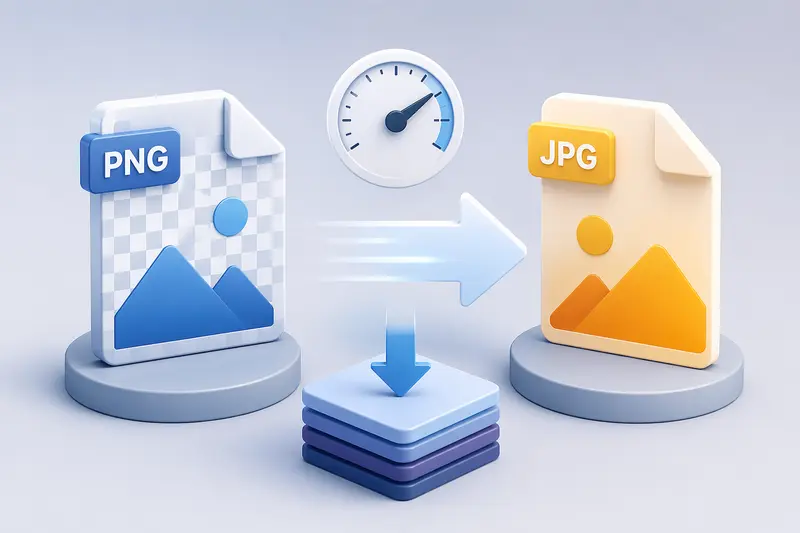
Real Test: Converting a Batch of UI Assets
To see how it performs under realistic conditions, I ran a test with:
- 42 PNG files
- Average size: ~2.3 MB each
- Mixed content: UI screenshots + illustrations
Outcome:
- Total processing time: ~18 seconds
- Output JPG size reduction: ~68% on average
- No noticeable visual degradation for web use
The biggest takeaway? For frontend delivery, the compression tradeoff is more than acceptable—especially when paired with further optimization like using the image compression tool afterward.
Advanced Tip: When NOT to Convert PNG to JPG
This is where many developers slip up.
PNG isn’t just “bigger JPG.” It supports transparency and lossless detail. Converting blindly can break things:
- UI assets with alpha channels lose transparency
- Logos with sharp edges may show compression artifacts
- Screenshots with text can become slightly blurred
Strategy:
If you’re dealing with overlays or design assets, keep PNG. Use JPG only for photographic or non-critical visuals.
This small distinction prevents subtle UI regressions that are easy to miss in testing.
Why This Matters in Development Workflows
A fast converter isn’t just convenience—it’s operational efficiency:
- Reduces asset payload for web apps
- Speeds up CI/CD pipelines involving media processing
- Keeps build artifacts lightweight
- Simplifies handling mixed formats (PNG, WEBP, HEIC)
And if you’re exporting assets from documents, combining this with tools like the PDF to image converter lets you standardize outputs across projects.
Practical Use Cases for Developers
- Preparing assets for static site generators
- Converting design exports before deployment
- Automating media pipelines via API
- Handling user-uploaded images in SaaS apps
- Normalizing formats across datasets
- Optimizing images for mobile delivery
Privacy and Processing Model
One detail worth highlighting: files aren’t stored long-term. They’re treated as temporary processing artifacts and removed shortly after completion.
For developers working with sensitive assets, this reduces risk compared to persistent storage platforms.
If you need to go further, you can also secure outputs before sharing using the file encryption workflow:
https://filemazing.com/encrypt-file
Tradeoffs to Keep in Mind
No tool eliminates compromise entirely:
- JPG reduces file size but introduces lossy compression
- Higher compression = faster delivery but lower fidelity
- Batch jobs improve throughput but may mask per-file tuning needs
Understanding these tradeoffs helps you decide when speed should take priority over precision.
FAQ
Is JPG always better than PNG for web use?
Not always. JPG works best for photos, while PNG is better for graphics with transparency.
Can I convert WEBP or HEIC as well?
Yes, the same tool supports convert WEBP online and HEIC image conversion alongside PNG and JPG.
Is there a limit on batch conversions?
Limits depend on token usage, but the system is designed to handle batch image format conversion efficiently.
Will my files be stored?
No. Files are processed temporarily and cleaned up shortly after completion.
Can I optimize JPG files further?
Yes, running them through an image compression step can reduce size even more without major quality loss.
Final Thoughts
When speed matters, your tools need to stay out of your way. A well-built PNG to JPG converter should feel like an extension of your workflow—not an interruption.
Filemazing hits that balance by combining fast processing, flexible formats, and predictable pricing. Whether you’re converting a handful of files or running large batches, it keeps things moving without unnecessary complexity.
If your current setup slows you down, it’s probably time to rethink how you handle image formats.