Sharing files today often means sending sensitive content—documents, personal photos, or financial records—through email or cloud services. Without protection, those files are surprisingly easy to access if intercepted. That’s why more people are looking for ways to protect files with password before sending or storing them online.
If you’ve ever hesitated before attaching a file to an email, you’re not alone.
What matters most, in brief
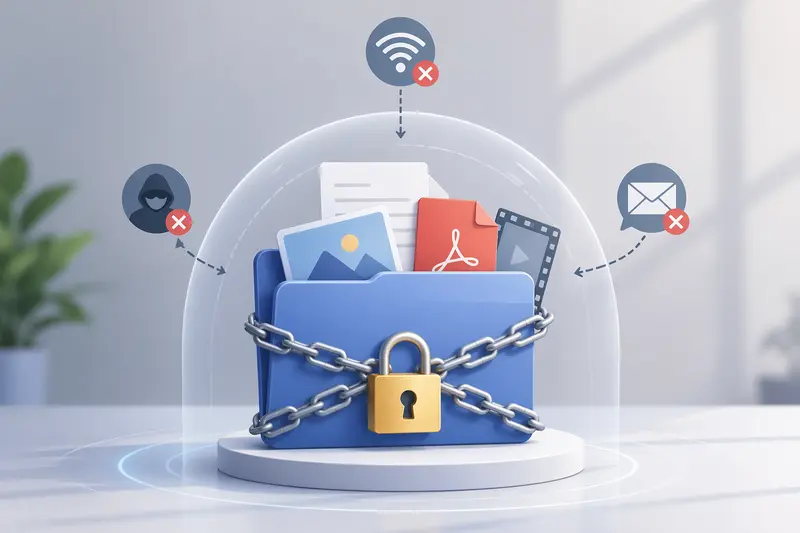
In short, protecting files with a password means encrypting them so only someone with the correct password can open them. It adds a layer of security that travels with the file—no matter where it ends up.
How password protection actually works
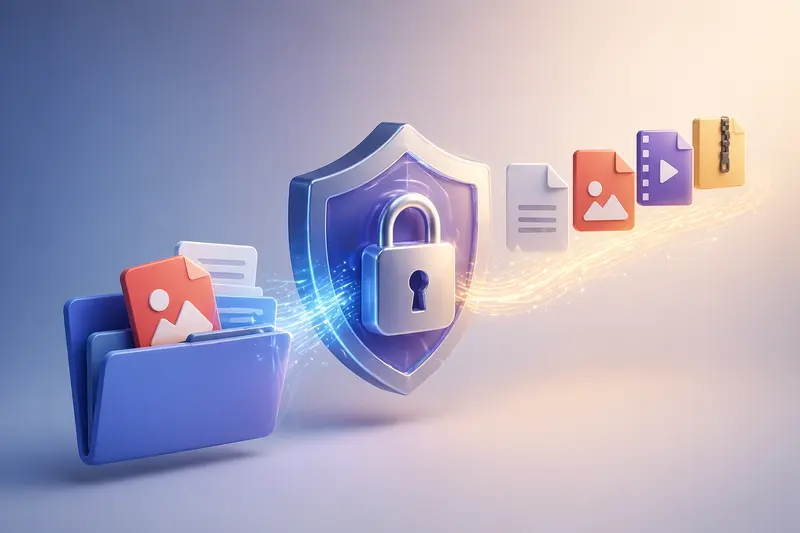
Instead of thinking of it as “locking” a file, imagine wrapping it in encrypted code. Here’s how the process typically unfolds:
- You upload or select a file (PDF, image, archive, etc.)
- A password is assigned
- The file is encrypted using that password
- A secured version is generated
- Only users with the password can unlock and view it
This approach works across formats, so you can password protect PDFs and images or even entire folders.
A practical way to secure files without installing anything
For everyday users, installing software just to encrypt a file can feel excessive. That’s where browser-based tools like Filemazing’s encryption tool come in.
The platform focuses heavily on privacy, which is critical when dealing with sensitive files. Uploaded files are treated as temporary processing data and removed after a short time—so you’re not leaving copies sitting on servers.
At the same time, everything runs directly in your browser, meaning you don’t need to download or configure anything. This makes it accessible whether you're on a work laptop, personal device, or even a shared computer.
What happened when I tested it (real scenario)
To see how this works in practice, I tested a common scenario:
- 1 scanned PDF (18 pages, ~12 MB)
- 3 high-resolution JPG images
- Goal: encrypt files for email sharing
After uploading, I set a password and processed all files in one go. The result:
- Encrypted files downloaded in under a minute
- No noticeable quality loss for images
- File sizes increased slightly (expected due to encryption overhead)
Takeaway: encryption adds a small size increase, but the tradeoff is worth it for secure sharing.
Pitfalls to watch for when encrypting files
Not all password protection setups are equally effective. Here are a few things that often get overlooked:
Weak passwords defeat the purpose
A simple password like “1234” or “file2024” can be cracked quickly. Use a mix of words, numbers, and symbols.
Hidden metadata can leak information
Even if the file is encrypted, metadata (like author name or location data) might still expose details. Before encrypting, it’s worth using a tool to remove hidden metadata before encryption.
Large files can slow sharing
Encryption slightly increases file size. If you’re sending images, compressing them beforehand using an image compression tool can make delivery smoother.
Archives need preparation
If you're encrypting zipped files, unpack them first using an archive extraction tool to ensure everything inside is properly secured.
Where this approach fits in daily life
For general users, password-protected files are useful in more situations than expected:
- Sending personal documents via email
- Sharing travel IDs or scanned passports
- Backing up sensitive files on cloud storage
- Protecting client files before sending
- Storing private photos securely
- Transferring documents between devices
Why this method stands out
There are many ways to encrypt files, but this approach offers a few practical advantages:
- No installation required—everything runs in the browser
- Files aren’t stored long-term, reducing privacy concerns
- Works across multiple formats (PDFs, images, archives)
- Handles multiple files in one session
- Transparent usage with token-based processing
Common questions people ask
Does encryption reduce file quality?
No. Encryption doesn’t alter the content itself—it only wraps it securely. However, file size may increase slightly.
Is it safe to encrypt files online?
It depends on the tool. Services that use temporary processing and delete files afterward provide a safer environment.
Can I password protect PDFs and images together?
Yes. Most modern tools support multiple formats, allowing you to encrypt different file types in one batch.
What happens if I forget the password?
There’s no recovery in most cases. Encryption is designed to be secure, so losing the password usually means losing access.
Is there a file size limit?
Limits vary depending on the tool and processing capacity, but browser-based tools typically handle moderate to large files efficiently.
Ready to secure your files?
If you regularly share documents or store personal data online, adding a password layer is one of the simplest ways to stay protected.
You can try it directly using Filemazing’s encryption tool—no setup, no long-term storage, and designed with privacy in mind. It’s a straightforward step that makes a noticeable difference in how safely your files travel.