Teachers often collect images from many places: screenshots, scanned worksheets, classroom posters, student submissions, and shared drive folders. The problem is that PNG files can be large, especially when they come from screenshots or design tools. A reliable PNG to JPG converter helps turn those files into easier-to-share classroom materials without installing extra Windows software.
Here’s the Simple Answer
On Windows, the easiest workflow is to upload your PNG files to a browser-based converter, choose JPG as the output format, process the files, and download the results. For teachers handling multiple handouts or lesson images, a batch-friendly tool saves time and keeps the workflow organized.
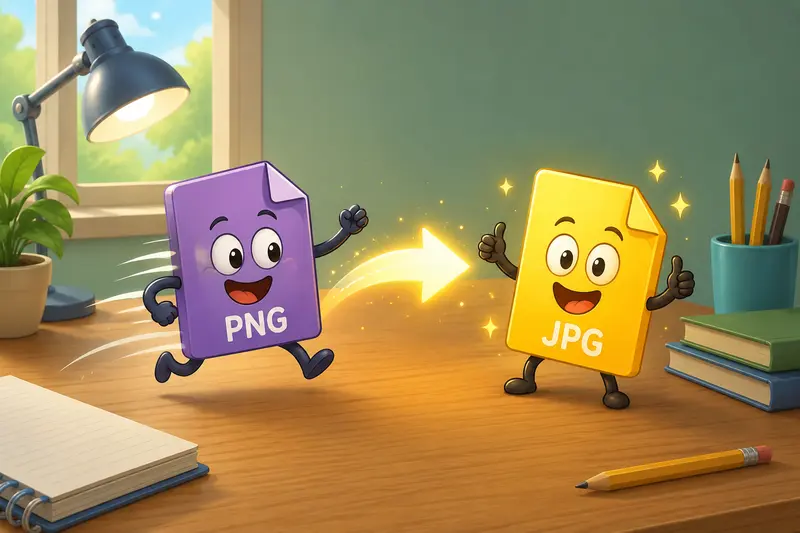
Why Teachers Convert PNG Files to JPG
PNG is great when you need sharp edges, transparent backgrounds, or detailed screenshots. JPG is usually better when you need smaller files for email, learning platforms, slides, or printable handouts.
In real classroom work, JPG often wins because it is lighter and widely supported. The tradeoff is that JPG uses compression, so extremely detailed graphics may lose a little sharpness. For photos, classroom images, and most worksheet visuals, that difference is usually minor.
A Practical Windows Workflow
Use this process when you have a folder of PNG images ready to prepare for class:
- Collect your PNG files first
Put screenshots, worksheet images, or scanned visuals into one folder so you are not uploading files one by one from different locations. - Open the converter in your browser
Go to Filemazing’s format converter and upload your PNG files from your Windows device, Google Drive, Dropbox, or a direct URL. - Choose JPG as the output format
This is useful when preparing files for PowerPoint, Google Classroom, Moodle, school portals, or email attachments. - Run the conversion and download the results
Filemazing uses queued processing and job tracking, so larger batches do not freeze the page while the files are being prepared. - Review one or two files before sharing
Check that text is still readable and colors look acceptable, especially if the original PNG contained small labels or diagrams.
If your converted files are still too large for a school platform, you can run them through the image compression tool afterward to reduce file size further.
Where Filemazing Fits
Filemazing is useful here because it keeps the workflow browser-based. You do not need to install a Windows image editor, explain software setup to another teacher, or switch between several apps.
Its format conversion tool uses a transparent token model, so the cost depends on workload factors such as file size and file count rather than a hidden subscription. That is practical for teachers who may only need conversions during lesson planning, exam prep, or end-of-term resource cleanup.
It also treats uploaded files as temporary processing artifacts rather than long-term storage, with cleanup handling after processing. That matters when files may include student work or internal classroom materials.
Tested Classroom Scenario
For a realistic test, imagine converting 18 PNG screenshots from a Windows laptop. The files include lesson diagrams, two scanned worksheet images, and several classroom activity visuals. The total batch is about 42 MB, with some files containing small text labels.
After conversion to JPG, the files became noticeably easier to attach to email and upload into a learning platform. The photos and worksheet previews looked fine, while one diagram with tiny colored labels needed a quick check before sharing.
The takeaway: for teaching materials, batch conversion works well, but always inspect graphics with small text before distributing them to students.
Common PNG-to-JPG Mistakes Teachers Should Avoid
The biggest mistake is converting everything without thinking about the file’s purpose.
Use JPG for:
- classroom photos
- worksheet previews
- slide images
- LMS uploads
- email-friendly resources
Keep PNG when:
- the image needs transparency
- the file contains very small text
- the graphic uses sharp icons or line art
- you need maximum visual precision
Another useful habit: remove unnecessary metadata before sharing files externally. If images came from a phone, camera, or shared device, the metadata scrubber can help strip hidden details from converted image files.
Teacher-Focused Use Cases
A PNG to JPG converter can help when you need to:
- turn screenshot-heavy lesson notes into lighter JPG files
- prepare image handouts for email distribution
- convert scanned classroom visuals before uploading them to an LMS
- standardize student-submitted images into one format
- make presentation images easier to insert into slides
- prepare PDF-exported classroom pages as shareable images using a tool like PDF to image conversion

What You Gain
The main benefit is less friction. Files become smaller, easier to upload, and simpler to organize. Batch image format conversion also reduces repetitive work, especially when preparing weekly resources.
There is still a quality tradeoff. JPG is not ideal for every image, but for most classroom sharing, it gives a good balance between readable output and manageable file size.
FAQ
Is it safe to convert classroom images online?
Use a tool that handles uploads temporarily and does not treat files as permanent storage. Filemazing is designed around temporary processing and cleanup rather than long-term file hosting.
Will JPG conversion reduce image quality?
Sometimes slightly. JPG compression can soften sharp edges or tiny text, but classroom photos and most worksheet visuals usually remain clear enough.
Can I convert many PNG files at once?
Yes. Filemazing supports batch image format conversion, which is helpful when preparing multiple lesson images or student resources.
What about HEIC image conversion?
If your images come from iPhones or iPads, HEIC image conversion can help make them easier to use on Windows devices and classroom platforms.
Do I need to install anything on Windows?
No. The workflow runs in the browser, which is useful on school computers where installing desktop software may not be allowed.
Final Thoughts
For teachers, the best PNG to JPG converter is the one that keeps the process predictable: upload, convert, review, and share. Filemazing works well for that kind of classroom workflow because it is browser-based, batch-friendly, privacy-conscious, and clear about token usage before processing.