
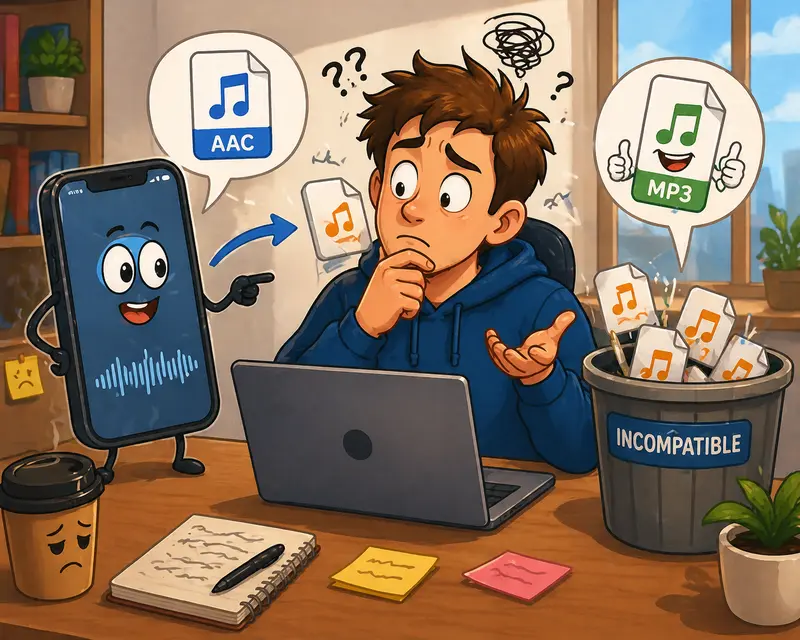
Remote teams move fast—but audio files don’t always cooperate. One teammate records voice notes in AAC, another needs MP3 for compatibility, and suddenly you’re stuck searching for an AAC to MP3 converter that works smoothly on iPhone without slowing everyone down.
When collaboration depends on consistent formats, even small friction adds up.
What You Need to Know First
An AAC to MP3 converter lets you standardize audio files across devices and tools. For distributed teams, the best option is one that handles batch audio conversion directly in the browser, without forcing installs or disrupting workflows.
Why This Problem Shows Up in Remote Workflows
In professional environments, AAC files often come from:
- iPhone voice memos
- Screen recordings
- Mobile interviews
Meanwhile, MP3 is still the universal fallback for:
- Uploading to CMS platforms
- Sharing across older tools
- Integrating with transcription services
The mismatch is subtle—but constant.
Getting It Done Without Interrupting Your Flow
Here’s a streamlined way to handle conversion on iPhone:
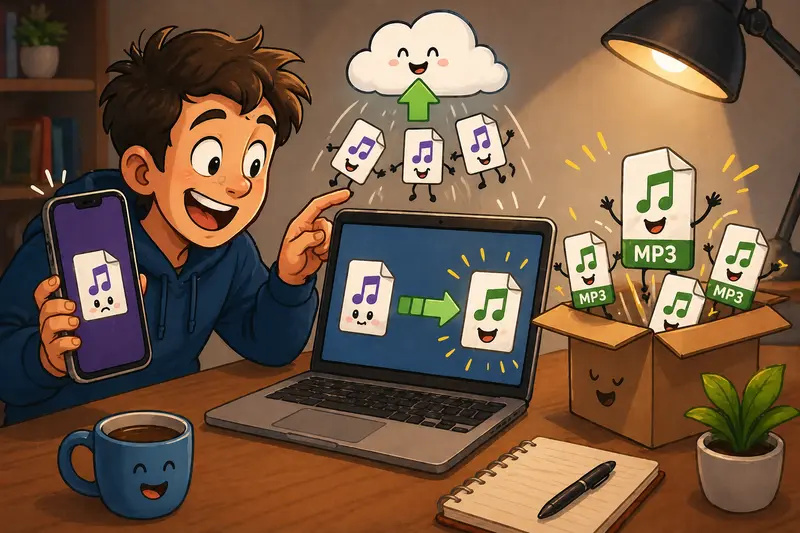
- Upload your AAC files directly from your device or cloud storage
- Select MP3 as the output format
- Add multiple files if you’re working with a batch
- Start the conversion and let processing run in the background
- Download all converted files once ready
This approach avoids app installs and keeps your workflow centralized.

A Tool That Fits Distributed Teams
The browser-based tool at
👉 https://filemazing.com/audio-converter
is built for exactly this type of workflow.
Its strength lies in bulk processing—you can convert multiple AAC files into MP3 in one go, which is essential when teams exchange dozens of recordings daily.
Because it runs entirely in the browser, it also aligns with mobile-first environments. You don’t need to configure anything on your iPhone—just open, upload, and process.
A subtle advantage: the platform uses queued processing, meaning large batches won’t freeze your session. You can move on while files are handled in the background.
What We Tested (Real Scenario)
To see how it performs in a real remote setup:
- Input: 18 AAC files (voice memos from a team sprint review)
- Total duration: ~42 minutes of audio
- Device: iPhone Safari
- Process: Batch upload and conversion to MP3
Outcome:
- All files processed in a single queue
- Output files maintained consistent bitrate and clarity
- No interruptions, even when switching tabs
Takeaway: For distributed teams handling recurring audio uploads, batch conversion significantly reduces manual effort.
Tradeoffs: AAC vs MP3 (What Actually Matters)
Switching formats isn’t just about compatibility—it comes with tradeoffs.
AAC advantages:
- Better compression efficiency
- Smaller file size at similar quality
MP3 advantages:
- Broader compatibility
- Easier integration with legacy systems
The compromise: Converting from AAC to MP3 may slightly increase file size or introduce minor quality shifts depending on bitrate settings.
👉 Practical tip: If your team shares audio frequently, standardize output bitrate (e.g., 192 kbps MP3) to avoid inconsistent results across projects.
Where This Fits in Professional Workflows
For distributed teams, this isn’t just about conversion—it’s about consistency.
Typical use cases include:
- Weekly meeting recordings distributed across departments
- Podcast editing workflows involving multiple contributors
- Client interview files shared between mobile and desktop users
- Training materials uploaded to internal platforms
- Voice notes converted for transcription pipelines
- Audio assets packaged alongside visuals (where tools like the format converter for images help standardize supporting media)
And if your audio files come bundled in archives, using an archive extraction tool for compressed files before conversion keeps everything organized.
What You Gain From This Approach
- Consistent audio format across your team
- Reduced manual repetition through batch processing
- No dependency on device-specific apps
- Predictable workflow even with large audio sets
It’s less about the conversion itself—and more about eliminating friction.
Common Questions
Does converting AAC to MP3 reduce quality?
There can be slight quality changes due to re-encoding, but using a higher bitrate minimizes noticeable differences.
Is it safe to upload audio files?
Yes—files are processed as temporary data and cleared after completion, not stored long-term.
Can I convert multiple files at once?
Yes, batch audio conversion is supported, which is crucial for team workflows.
Does this work without installing apps?
Yes, everything runs in your browser, including on iPhone.
What if my audio contains metadata I don’t want shared?
Before conversion, you can use a metadata removal tool for audio files to strip hidden information.
Is there a free option?
You can start with free daily tokens and scale usage as needed.
Final Thoughts
When your team is spread across devices and locations, format inconsistencies shouldn’t slow you down. A reliable AAC to MP3 converter that supports bulk processing and works directly in the browser solves a surprisingly persistent problem.
If your workflow involves frequent audio handling, try it here:
👉 https://filemazing.com/audio-converter
It’s not just about converting files—it’s about keeping your collaboration seamless.