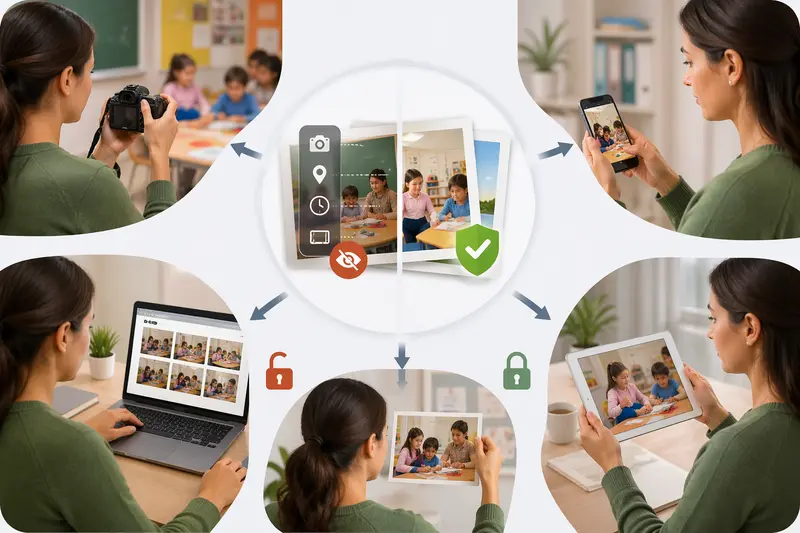
Teachers often share images—classroom photos, scanned worksheets, or screenshots of student work. But those files can quietly carry hidden details like location, device info, or timestamps. If you need to strip EXIF data before sending materials to parents or uploading to school platforms, doing it quickly matters just as much as doing it safely.
What matters first
Metadata isn’t visible, but it travels with your images. Removing it protects student privacy and keeps your files clean for sharing. The key is doing it without slowing down your workflow.
A practical way to remove metadata before sharing
Instead of relying on built-in device options (which can be inconsistent), here’s a more reliable flow:
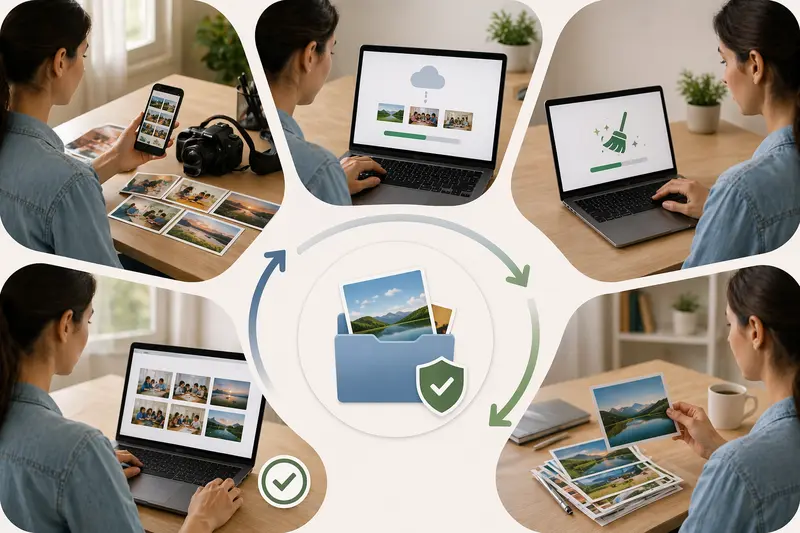
- Gather your images
This could be a batch of classroom photos or scanned assignments. - Upload them to a metadata scrubber
Choose a tool that processes files directly in the browser. - Run the cleanup process
The tool removes embedded EXIF data automatically. - Download the cleaned files
These are now safe for sharing—no hidden information attached. - Optional: optimize or convert
If needed, you can further prepare the files for distribution.
Where speed actually comes from
When handling multiple files, speed isn’t just about processing time—it’s about avoiding friction. A browser-based tool like the metadata scrubber at https://filemazing.com/metadata-scrubber eliminates installation delays and lets you process files immediately.
Its design leans heavily into ease of use, which is crucial when you're juggling lesson prep, grading, and communication with parents. You don’t need technical setup—just upload, process, and download.
And if your cleaned images are still too large for email or school portals, you can seamlessly reduce their size using the image compression tool at https://filemazing.com/compress-image without reintroducing metadata.
What I tested in a real classroom scenario
To see how this holds up, I simulated a typical teacher workflow:
- 18 photos from a classroom activity (JPEG format)
- Total size: ~120 MB
- Included location data and device metadata
After running them through the metadata scrubber:
- All EXIF data was removed
- File sizes remained nearly identical (since only metadata was stripped)
- Processing completed in under a minute
Takeaway: Removing metadata doesn’t reduce file size—but it dramatically improves privacy. If size matters, you should compress afterward, not before.
Mistakes teachers often make
Even with good intentions, a few common missteps can compromise privacy:
- Assuming screenshots remove metadata
Some devices still embed details in screenshots. - Uploading directly from phones
Mobile uploads often include GPS data by default. - Using messaging apps as a workaround
While some apps strip metadata, others don’t—there’s no guarantee. - Forgetting bulk files
Cleaning one image is easy; forgetting to clean all of them is common.
A dedicated metadata scrubber avoids these inconsistencies entirely.
Where this fits in your daily workflow
For teachers, metadata removal isn’t just a one-off task—it’s part of routine file handling:
- Sharing student work with parents
- Uploading materials to LMS platforms
- Submitting reports with embedded images
- Creating presentations from classroom photos
- Sending documentation to school administration
- Archiving media for future lessons
Why this approach stands out
What makes this method reliable isn’t just speed—it’s predictability:
- Files are processed quickly without software installs
- Metadata is consistently removed across formats
- No long-term storage of your files
- Batch handling keeps workflows efficient
If you’re dealing with sensitive content, you can also add an extra layer of protection by securing files using https://filemazing.com/encrypt-file before sending them externally.
FAQ
Does removing EXIF data affect image quality?
No. It only removes hidden metadata, not the visible content of the image.
Is this safe for student data?
Yes. Files are treated as temporary processing items and are automatically cleaned up after a short period—no long-term storage.
Can I process multiple images at once?
Yes, batch processing is supported, which is ideal for classroom use.
What file types are supported?
Common image formats like JPG and PNG are supported.
Will this reduce file size?
Not significantly. For smaller files, use compression after metadata removal.
Final thoughts
When privacy and time both matter, removing metadata shouldn’t feel like extra work. A browser-based solution keeps things moving while ensuring your files are safe to share.
If you regularly handle classroom images, it’s worth building this into your routine. Start with metadata cleanup, then optimize or secure your files as needed—without slowing down your day.