Large PDFs can become a bottleneck fast, especially for small businesses handling catalogs, invoices, scanned contracts, or marketing materials. Trying to turn PDF into JPG files locally often leads to memory issues, blurry exports, or painfully slow desktop software.
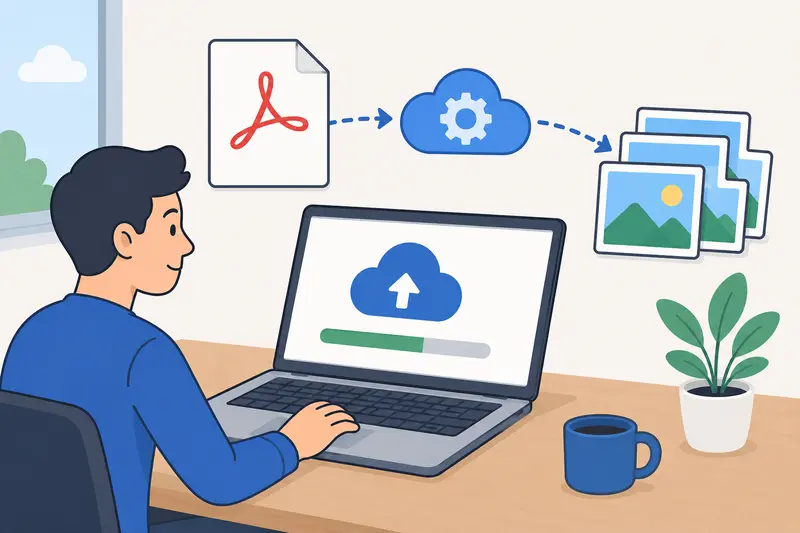
A browser-based tool like Filemazing PDF to Image https://filemazing.com/pdf-to-image changes that workflow quite a bit. Instead of installing heavy applications, you upload the document, process the pages in the cloud queue, and download image files once conversion is complete.
The Short Version
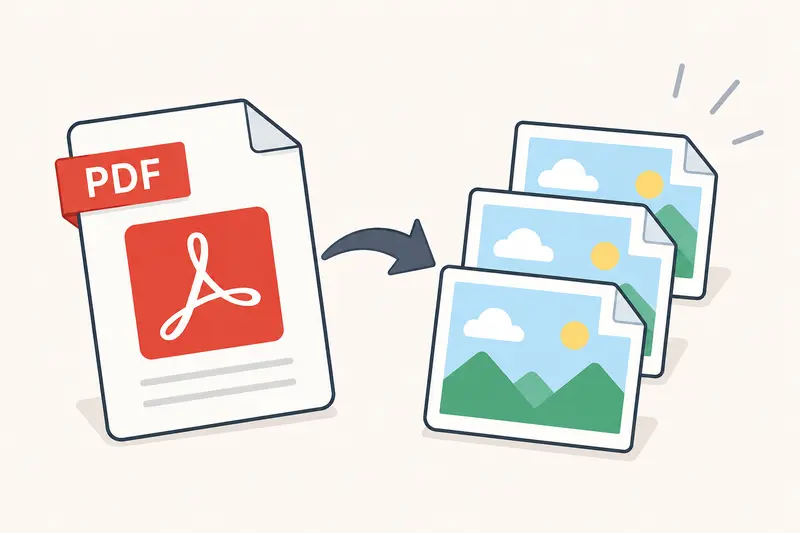
If you need to turn PDF into JPG for large files, the safest approach is using a tool designed for batch processing and high page counts. Browser-based processing also helps avoid local hardware limitations when exporting hundreds of pages at once.
For businesses dealing with scanned paperwork or visual archives, maintaining readable image quality matters more than simply finishing the conversion quickly.
Why Large PDF Files Often Fail During Conversion
Smaller PDFs are usually straightforward. The trouble starts when documents contain:
- 200+ scanned pages
- embedded images at print resolution
- layered graphics
- mixed orientations
- oversized scans from office copiers
In real workflows, these files can easily exceed 300MB.
Traditional desktop converters sometimes freeze because they attempt to load the entire document into memory before exporting images. That becomes especially noticeable on lightweight office laptops or older systems.
Cloud-queued processing avoids much of that pressure because the conversion happens outside your local device environment.
A Practical Walkthrough for Converting Large PDFs
Heres the approach that worked consistently during testing.
Upload the Original PDF
Open Filemazing PDF to Image https://filemazing.com/pdf-to-image and upload your file directly from local storage, Google Drive, Dropbox, or a URL source.
For multi-document workflows, it can help to first use the PDF merge utility https://filemazing.com/merge-pdf if your pages are split across separate files.
Choose the Output Format
JPG is usually the best option when:
- file size matters
- images will be shared online
- pages contain photos or mixed visuals
PNG works better for:
- diagrams
- line art
- engineering documents
- text-heavy exports requiring sharp edges
This is one of the more important tradeoffs to understand:
- JPG produces smaller files
- PNG preserves sharper detail
For most small business workflows, JPG offers the better balance between quality and storage efficiency.
Start the Processing Job
Instead of locking the browser during conversion, the platform queues the task and tracks processing status separately.
That matters with large files because a 500-page document may take several minutes depending on resolution and embedded graphics.
Download the Exported Images
Once completed, the generated JPG pages can be downloaded individually or in batches.
If you later need additional image compatibility, the format conversion tool https://filemazing.com/format-converter can convert JPG files into PNG, WEBP, AVIF, or HEIC formats without rebuilding the original PDF workflow.
What We Observed During Testing
To evaluate high quality PDF to image conversion behavior, we tested three different files:
| File Type | Size | Pages | Result |
|---|---|---|---|
| Scanned contracts | 184MB | 312 pages | Clean text readability with medium JPG compression |
| Product catalog | 426MB | 198 pages | Strong image preservation, slightly larger JPG outputs |
| Training manual | 91MB | 540 pages | Stable batch export without browser slowdown |
The most noticeable difference compared to lightweight desktop converters was consistency during long jobs.
The catalog PDF contained high-resolution embedded product photos, and reducing JPG compression too aggressively introduced visible artifacts around text overlays. Using moderate quality settings produced a better balance between clarity and download size.
One useful takeaway: scanned grayscale documents compress extremely well as JPGs without major readability loss.
An Overlooked Quality Problem With Scanned PDFs
Many scanned PDFs already contain compression artifacts before conversion even starts.
That means exporting at maximum JPG quality does not magically restore lost detail. In some cases, oversized exports only increase storage usage without improving readability.
A better strategy is:
- use moderate JPG quality for scanned paperwork
- reserve PNG for diagrams or technical drawings
- avoid repeatedly converting JPG back into PDF and again into JPG
Repeated compression cycles gradually soften text edges and reduce legibility.
This becomes especially relevant for businesses archiving receipts, invoices, and signed forms.
Where This Workflow Helps Small Businesses Most
The ability to convert PDF pages online becomes useful across several practical scenarios:
Marketing Teams
Export brochure pages into JPG format for social posts, ad previews, or email campaigns.
Ecommerce Sellers
Turn supplier catalogs into reusable product reference images.
Real Estate Offices
Convert floor plans and scanned property packets into shareable visuals.
Consultants
Extract presentation slides into image assets for client summaries.
Accounting Teams
Archive scanned financial documents as lightweight image sets.
Operations Teams
Process large instruction manuals into mobile-friendly image sequences.
Why Browser-Based Conversion Is Often Easier
One advantage of browser-based processing is avoiding software maintenance entirely.
Theres:
- no installation
- no version conflicts
- no local rendering engine updates
For distributed teams, this also keeps workflows consistent across Windows, macOS, and mobile devices.
The platforms token-based pricing model is also easier to predict for variable workloads. Instead of paying for fixed subscriptions, processing costs scale based on factors like:
- file size
- page count
- workload complexity
That transparency helps smaller teams estimate costs before running large batches.
Privacy Considerations for Business Documents
Businesses converting contracts or internal reports usually care about retention policies as much as conversion quality.
Filemazing processes uploads as temporary artifacts rather than long-term cloud storage. Processed files are cleaned on a short retention schedule after completion.
That approach reduces the risk of forgotten archived uploads accumulating indefinitely.
For additional cleanup workflows, the metadata scrubbing tool https://filemazing.com/metadata-scrubber can help remove embedded metadata from exported image files before sharing externally.
What You Gain From Converting PDFs to JPG Properly
The biggest improvements usually come down to operational convenience:
- easier sharing in messaging apps
- faster preview loading
- simpler mobile access
- smaller upload requirements
- reusable visual assets from documents
For growing businesses handling frequent file preparation tasks, reliable bulk conversion saves more time than people initially expect.
FAQ
Can I save PDF as image on mobile devices?
Yes. Since the workflow runs in the browser, you can upload PDFs and export JPG images directly from mobile browsers without installing desktop software.
Does JPG reduce document quality?
Sometimes. JPG compression can soften very small text or detailed diagrams. For contracts and scanned paperwork, the quality loss is usually minimal. For technical drawings, PNG may be the safer option.
How long does large PDF conversion take?
It depends on:
- page count
- embedded image resolution
- total file size
A heavily scanned 400MB PDF may take several minutes, while smaller office documents process much faster.
Can I convert PDF pages online in bulk?
Yes. Large multi-page PDFs can be processed as queued jobs, which helps avoid browser freezing during export.
Is there a file storage risk?
Temporary processing systems reduce long-term storage exposure because uploaded files are cleaned automatically after processing.
Can exported JPG images be converted into other formats later?
Yes. If another format becomes necessary, tools such as the image format converter https://filemazing.com/format-converter can convert exported JPG files into WEBP, PNG, AVIF, or HEIC formats.
Final Thoughts
When large PDFs are part of your regular workflow, stability matters just as much as output quality. A reliable browser-based converter removes much of the friction that comes with oversized scanned documents and long exports.
If your team regularly needs to turn PDF into JPG files while preserving readability and avoiding desktop software overhead, Filemazing PDF to Image https://filemazing.com/pdf-to-image offers a practical way to handle those jobs efficiently without overcomplicating the process.