Android phones are great for moving work around quickly right up until you need to send a sensitive PDF, ZIP archive, or batch of images to someone outside your team. At that point, share stops being convenient and starts becoming a security decision.
For developers especially, the need to encrypt files online often comes up during mobile-first workflows: pushing logs to a client, sharing test builds, sending database exports, or protecting internal documentation while traveling. Installing desktop encryption software on every device is rarely practical, and some Android apps are overloaded with ads, permissions, or questionable storage behavior.
Thats where browser-based encryption tools become useful.
What You Should Know First
If you want the fastest and most practical way to encrypt files online on Android, use a browser-based encryption tool that:
- works without local installation
- supports PDFs, images, ZIPs, and mixed file types
- removes temporary uploads automatically
- allows password protection before sharing
A lightweight option for this workflow is Filemazing Encrypt File Tool https://filemazing.com/encrypt-file, which runs directly in the browser and supports both manual uploads and API-driven automation.
For developer workflows, the biggest advantage is avoiding device lock-in. You can encrypt files from Android, Chromebook, Linux, or desktop environments using the same process.
Why Android File Encryption Gets Messy
Android itself already encrypts device storage, but that only protects files while they stay on your phone. Once a file leaves the device email attachment, cloud upload, Slack share, temporary transfer link that protection disappears.
Many people assume adding a password to a ZIP file solves everything. Sometimes it does. Sometimes it creates compatibility problems across apps and operating systems. And occasionally you discover the recipient cant open the archive five minutes before a release deadline.
The cleaner approach is usually:
- prepare the file
- remove unnecessary metadata
- compress oversized assets if needed
- encrypt before transfer
That sequence matters more than people expect.
For example, encrypting a 180MB image-heavy PDF before optimization means slower uploads and longer processing times. Running it through an image compression workflow first can significantly reduce transfer overhead without destroying readability. If you need that step, Filemazing Image Compression Tool https://filemazing.com/compress-image is useful for shrinking large assets before encryption.
How the Process Works on Android
The workflow is fairly straightforward, but a few details make it smoother.
1. Open the encryption tool in your mobile browser
Using Chrome or Firefox on Android is usually enough. No APK installation required, which is honestly refreshing in a world where some utilities ask for seventeen permissions and your firstborn child.
Navigate to the encryption tool and upload the file you want protected.
Supported workflows commonly include:
- PDFs
- JPG and PNG images
- ZIP archives
- Office files
- exported logs or JSON datasets
2. Set a strong password
Use a password that isnt reused elsewhere.
For developer teams, a good pattern is:
- temporary passphrase delivery through Signal or 1Password
- encrypted file delivered separately through email or cloud storage
Separating the password from the file transfer reduces exposure risk significantly.
3. Process and download the encrypted version
The encrypted output is generated server-side and delivered as a downloadable file.
With Filemazing, processing jobs are queued rather than blocking the browser tab directly, which helps when handling larger uploads on mobile networks.
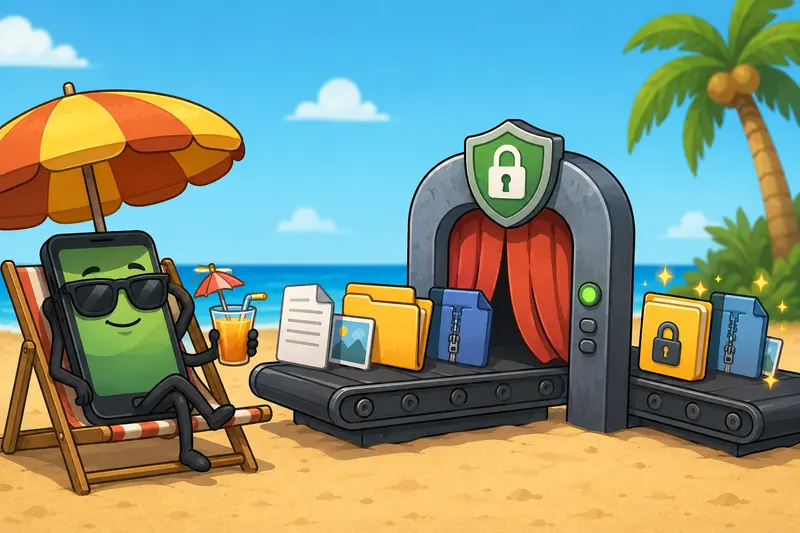
4. Share the protected file
Once encrypted, the file can safely move through:
- cloud drives
- messaging platforms
- internal ticket systems
- temporary upload links
The important distinction is that the shared file is now unreadable without the password.
A Practical Look at Filemazing
Filemazing https://filemazing.com is positioned more like a utility platform than a single-purpose encryption app. The system includes tools for conversion, cleanup, archive handling, metadata removal, and secure processing workflows.
The encryption component fits nicely into that ecosystem because the surrounding utilities solve adjacent problems developers constantly run into.
A few things stand out:
- browser-based operation across devices
- API support for automation pipelines
- transparent token pricing instead of subscriptions
- temporary processing rather than permanent file storage
- support for cloud imports like Google Drive and Dropbox
The token model is unusually transparent compared to many SaaS tools. Encrypt-file operations use lightweight pricing logic based on workload characteristics rather than vague premium tiers.
That predictability matters when automating large workloads.
For example:
- encrypt-file starts with a low base token cost
- larger files scale incrementally
- daily free tokens help test workflows before scaling
Instead of discovering hidden upload caps halfway through a batch job, you can estimate processing cost beforehand.
What We Tested in a Real Mobile Workflow
To see how practical browser encryption actually feels on Android, we tested several file types over a standard mobile connection.
Test setup
Files included:
- a 92-page scanned PDF (~38MB)
- 24 PNG screenshots from an Android emulator (~71MB total)
- a compressed project archive containing logs and config exports (~112MB ZIP)
Processing was done through Android Chrome on a Pixel device using mobile data rather than Wi-Fi.
Observed results
- the smaller PDFs processed almost immediately
- large image batches took longer primarily because of upload time
- encrypted downloads remained stable even after tab switching
- archive encryption worked reliably with no filename corruption
One useful takeaway: compressing screenshots before encryption dramatically reduced upload overhead.
In fact, reducing PNG assets first saved more time than the encryption stage itself. The goal is smaller files not turning screenshots into blurry archaeology artifacts so moderate compression settings worked best.
Another practical optimization:before encrypting archived datasets, unpacking and cleaning unnecessary files can reduce both token usage and transfer time. Tools like Archive Extractor https://filemazing.com/archive-extractor help when inherited ZIP bundles contain duplicate exports, cached thumbnails, or temporary assets.
Hidden Metadata Is the Part People Forget
Why metadata matters before encryption
A surprising number of users encrypt files without removing metadata first.
The file contents become protected, yes but hidden information may still expose:
- device details
- author names
- GPS coordinates
- editing history
- software versions
- internal project paths
For developers working with screenshots, QA exports, or documentation captures, this can accidentally leak environment details.
A better workflow is:
- scrub metadata
- compress if necessary
- encrypt
- share securely
Using a metadata cleanup step beforehand reduces information leakage substantially. If that matters for your workflow, Metadata Scrubber Tool https://filemazing.com/metadata-scrubber can remove hidden metadata before encryption.
This is especially relevant for:
- bug report screenshots
- exported PDFs
- camera images
- client documentation
- compliance-sensitive documents
Where This Workflow Helps Developers Most
The browser-first approach works particularly well in situations where installing local tooling is inconvenient.
Common developer scenarios
- Sharing encrypted staging logs with contractors
- Sending password protected PDFs and images during QA reviews
- Protecting mobile database exports before cloud upload
- Delivering configuration backups to clients
- Encrypting compressed release notes before external distribution
- Handling temporary secure transfers while traveling
Because the workflow is web-based, it also avoids platform fragmentation. Android tablets, Linux laptops, and desktop browsers can all use the same encryption process.
For teams building automation pipelines, the API support is useful for repetitive tasks or scheduled processing.
A Few Tradeoffs Worth Knowing
Online encryption tools are convenient, but there are still tradeoffs.
Upload speed matters
On Android, large files are often limited more by upload bandwidth than encryption speed itself.
A 250MB archive on weak mobile data will feel slow regardless of the tool.
Browser workflows prioritize convenience
Dedicated desktop encryption utilities may offer:
- advanced key management
- offline encryption
- enterprise certificate handling
- deeper algorithm customization
But they also add operational complexity.
For many everyday secure-sharing tasks, browser-based encryption hits the practical middle ground between usability and protection.
Compression can affect image fidelity
If you compress before encrypting, be careful with aggressive image settings.
The ideal workflow preserves readability while reducing unnecessary payload size.
What Makes Browser-Based Encryption Easier to Maintain
One underrated advantage is consistency.
Instead of maintaining:
- Android apps
- desktop utilities
- browser extensions
- inconsistent archive tools
you get one unified processing layer.
That becomes valuable for indie SaaS teams and small engineering groups where operational simplicity matters more than building a complicated security stack for occasional transfers.
Filemazing also treats uploads as temporary processing artifacts rather than long-term cloud storage, which reduces lingering file exposure. Cleanup scheduling and transient processing are important trust signals when handling sensitive files online.
Things People Often Ask
Is it safe to encrypt files online from Android?
It can be, provided the service uses temporary processing workflows, HTTPS transport, and short retention handling. You should still use strong passwords and avoid sharing passwords alongside the encrypted files.
Can I password protect PDFs and images directly?
Yes. Most browser-based encryption workflows support PDFs, images, archives, and common document formats without additional software installation.
Does encryption reduce file quality?
No. Encryption itself does not alter quality. Compression performed before encryption may affect image fidelity depending on settings.
What file types work best?
PDFs, ZIP archives, PNG screenshots, JPG images, and Office documents generally work well in browser-based workflows.
Is signup required?
Filemazing supports anonymous usage with daily free tokens, which is convenient for occasional secure-sharing tasks.
Can developers automate the workflow?
Yes. Filemazing includes API-ready processing options suitable for scripted pipelines and backend automation workflows.
Final Thoughts
The best way to encrypt files online on Android is usually the method that balances security, speed, and operational simplicity without turning the process into a maintenance project.
For developers, browser-based workflows are especially practical because they remove dependency on specific devices while still supporting secure file handling. Filemazing works well in that role because it combines encryption with adjacent utilities like compression, archive extraction, metadata cleanup, and automation support.
If your workflow regularly involves sharing sensitive PDFs, screenshots, logs, or archives from Android devices, using a temporary-processing encryption tool is a far cleaner approach than juggling multiple apps and inconsistent transfer methods.